
Complete Document Activity
This page only contains the details with regards to this creating or editing this specific type of activity. You should already have a basic understanding of how to create and edit workflow activities in the Workflow Designer.
Click here for the guide on how to do that.
Purpose
The Complete Document activity allows a user to complete a Word, Excel or Pdf document as part of the workflow. The document is edited in the browser itself and cannot be downloaded or re-uploaded, ensuring that it is securely edited and not tampered with.
Configuring the Activity
To create a new activity from the Workflow Designer, right-click on the current activity that you want to flow into the new activity, move over the New Activity menu for the appropriate path (On Approval or Rejection) and click the Complete Document activity item. Alternatively, simply click the Complete Document Activity item from the New dropdown button on the toolbar or drag it from the toolbox. This will open the following Activity Editor.
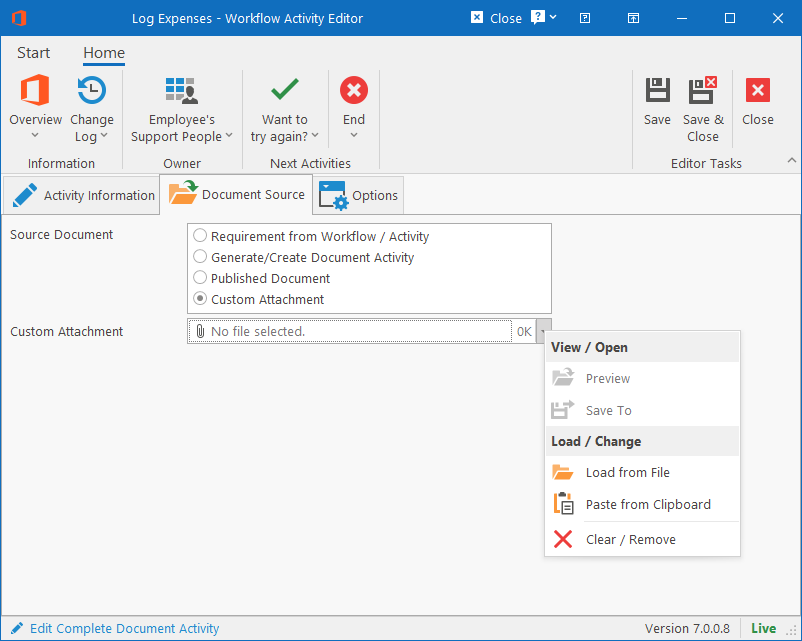
Fields specific to this type of activity
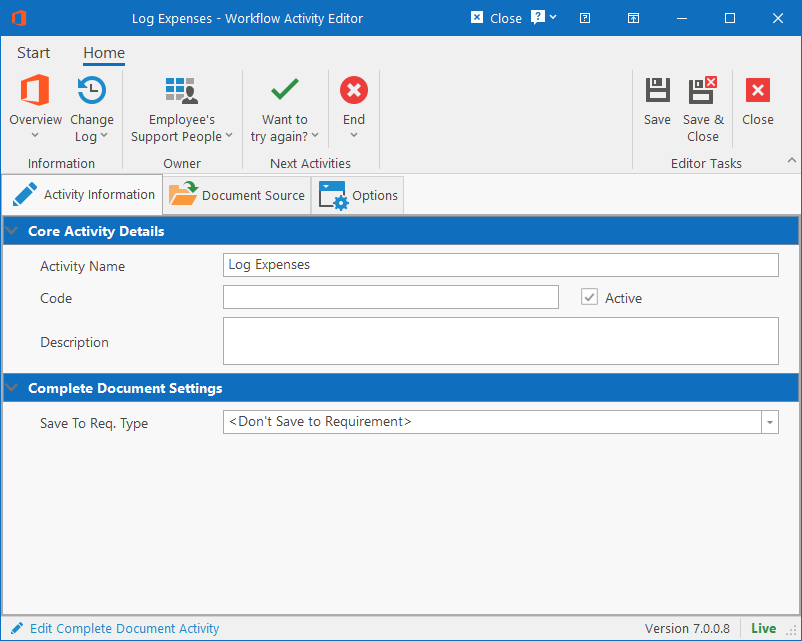
On the Activity Information tab, there is just one field:
- Save to Requirement Type: Specify if the completed document should be saved to a Requirement Type on the Workflow’s Compliance Data record. If it doesn’t need to write back to the employee file or if the document won’t be used by later activities in the workflow, you can for most cases, leave this option as “<Don’t Save to Requirement>”.
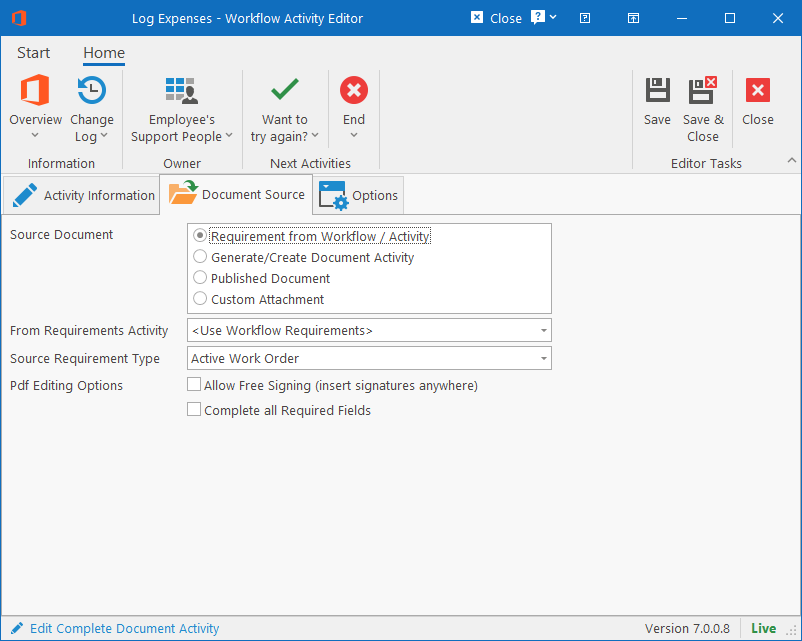
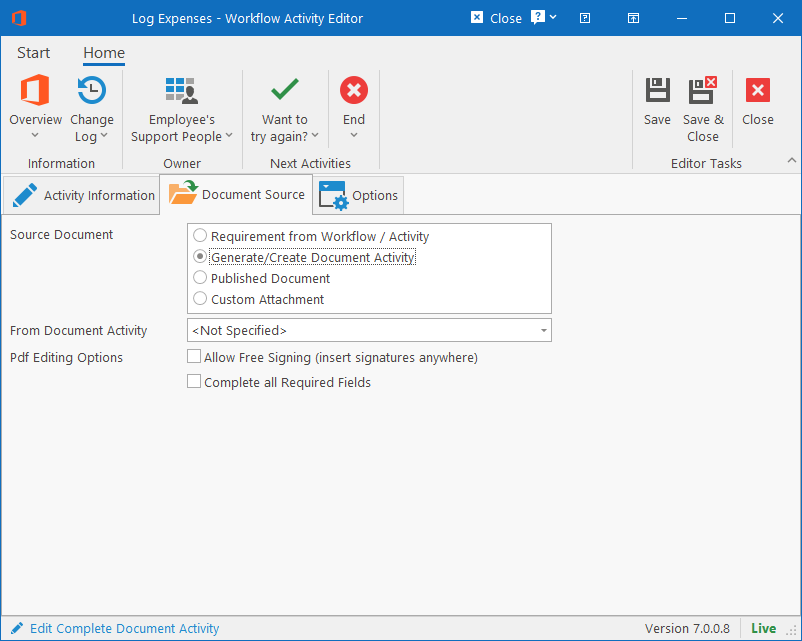
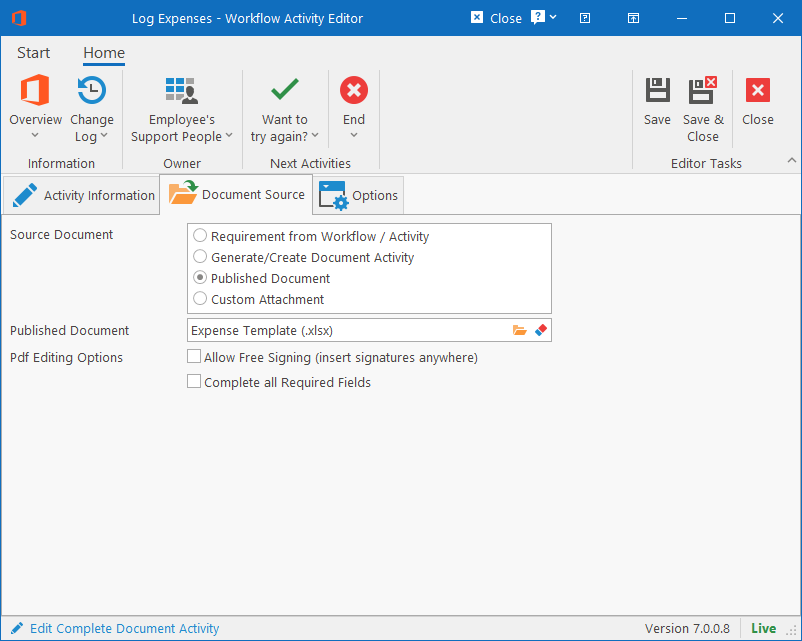
On the Document Source tab, you must specify where the document that must be edited / completed, should come from. There are 4 different possible sources, each with its own options to specify:
- Requirement from Workflow / Activity: If the source document was already uploaded or generated earlier in the workflow, you can select this option as well as the following two settings:
- From Requirements Activity: Specify which activity loaded the document. This must be a Load Requirements activity if requirement wasn’t saved to the Workflow’s Compliance Record. If the previous activity saved directly to the workflow’s compliance data, you can leave this option on “<Use Workflow Requirements>”.
- Source Requirement Type: Specify the requirement type under which the document was loaded or generated.
- Generate/Create Document Activity: If the source document was generated by an earlier Generate Document or Complete Document activity that didn’t save the final completed document to a Requirement on the Workflow’s Compliance Data, choose this option and set the following option:
- From Document Activity: Select a Generate Document or Complete Document activity whose resulting document should be used as the source for this activity.
- Published Document: Use a generic document from the Published Documents Library as the source document and select the:
- Published Document: Click the browse button to select the document from the library to use.
- Custom Attachment: Upload a file from your computer that must be used a document source. You’ll have to browse for the attachment on your computer or network. Once selected, the attachment will be stored on the activity self so if any changes is made to the source attachment, it would need to be uploaded again onto the activity for future workflows to use it.
Supported Document Types
The following documents are supported for editing in this activity:
- Word Documents – doc, docx, rtf
- Includes spell checking, auto correct and protected ranges that only allows editing certain sections of the document.
- Excel Workbooks – xls, xlsx
- Includes formulas, validation and workbook protection for locking certain cells / ranges while making others editable.
- Pdf Documents – pdf
- Complete pdf forms and sign pdf documents.
- There are two options that can be set for Pdf documents:
- Allow Free Signing: Allows the user to draw or insert their signature anywhere on the document, regardless of whether or not there is a signature field.
- Complete all Required Fields: If selected, then the activity will require that all the fields in the Pdf Form that was marked as “required”, to be completed before the activity can be signed off.
Completing the Activity Online
To see the effects of how the activity will look and work during a workflow, see the HR Manage Online guide for the Complete Document Activity.