
How Can We Help?
-
HR Manage Application
-
-
- Articles coming soon
-
- Articles coming soon
-
- Articles coming soon
-
-
HR Manage Online
-
Config & Admin
-
IT Documentation
-
Version History
< All Topics
Print
Selling Leave
Posted
Updated
Getting Started
In HR Manage Online, click on the site menu button, expand the Leave / Time-off item and click on the Sell Leave item. This will take you to the application to sell leave page.
Note that this functionality may not be available for your company. The button will only be available if your company’s configuration allows for selling leave and if your user account allows access to the page.
For Administrators: The configuration to enable selling of leave is done on the Leave Types.
Application to Sell Leave
The process is very straight forward and you simply need to complete the fields on the page.
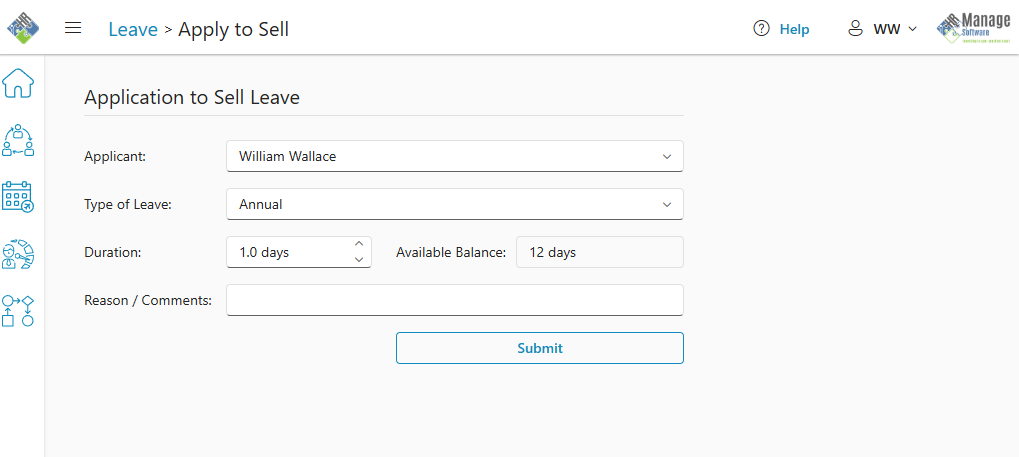
- Applicant: By default, you will be selected. If you have access to apply for leave on behalf of other people, those people will be displayed in the dropdown list.
- Type of Leave: Select the type of leave to apply to sell. Only Leave Types that are configured for Selling will be available from the list and if you’re applying for on behalf of someone else, only leave types that are also configured as such will be available for selection. Selecting a leave type will automatically show the available balance for the selected type.
- Duration: This is the number of days that will be sold and deducted from your leave credits. The maximum number of days that can be sold cannot exceed the available balance.
- Reason / Comments: Optional, but you’re welcome to provide additional context or information about the request.
Once all the fields are completed, simply click the Submit button to create the leave application.
Table of Contents