Tasklist Templates
Introduction
Tasklist Templates allow you to preconfigure the tasks that must be created and assigned in a tasklist (used during a workflow). It allows you to specify the task name, description, assign it to a related person / placeholder and set the due date.
Embedded in other editors
The Tasklist Template designer is embedded in other editors for easy integration. In addition to being accessible from the Module Configuration, it is also available from here:
Getting Started
To manage tasklist templates, open the Workflow Module Configuration or Training Module Configuration and click on the Tasklist Templates item in the menu on the left. This will list all the tasklist templates already in the system. From here you can open an existing tasklist template or create a new one.
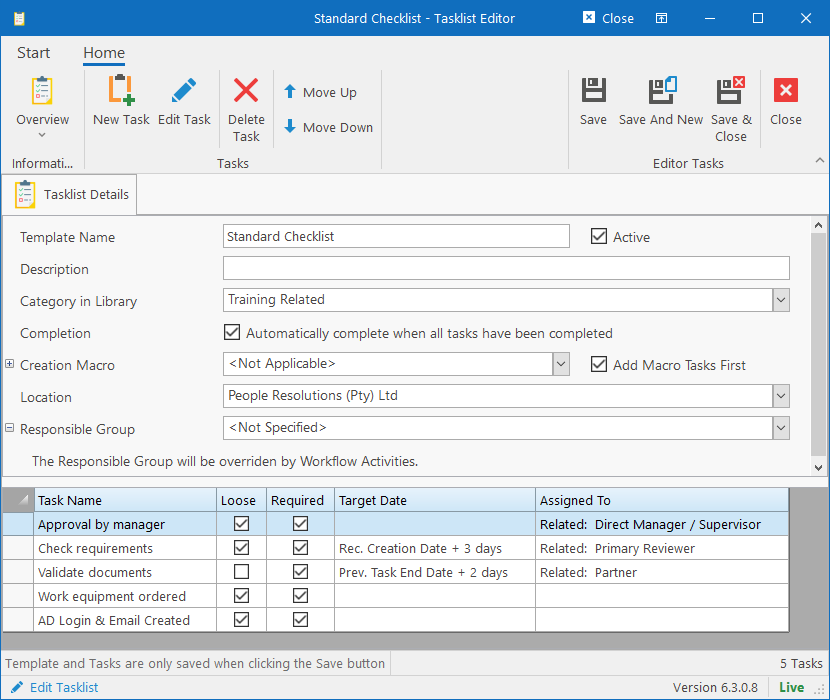
The Tasklist Template Editor consist of the following fields:
- Template Name: Name to identify the tasklist template by (for reusing it in different activities or scenarios).
- Description: Detailed description of what exactly this template is used for.
- Category in Library: Tasklist Templates can be assigned to a category for easy finding. If embedded in another editor, this field is optional. If the field is not specified, the template will be private and only be usable by the specific Workflow Activity.
- Completion: Indicate if the tasklist should automatically complete when all tasks have been completed.
- Creation Macro: This allows us to embed custom macros into the tasklists. If a macro is selected, the macro will automatically create tasks for the tasklist based on other data in the system. For example, the “Active Equipment” macro will create a task for each active equipment that was issued to the target person.
- Responsible Group: Specify which recipient group is responsible for managing the tasklist. If used in a Workflow Activity, the Responsible Group for the Workflow Activity will override this option.
Managing Tasks
From here, you can add, edit or remove tasks that must be created when the tasklist is created. You can also specify the order in which the tasks must be created. The order is important since tasks can be configured to be dependent on each other.
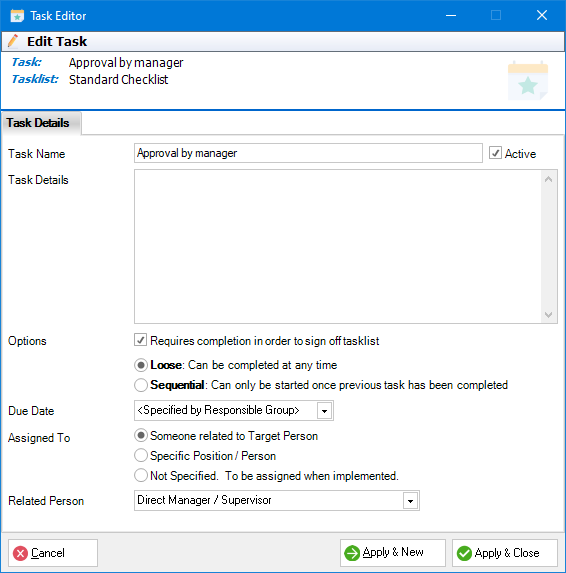
When creating or editing a task, the Task Editor will open.
Note that this screen is still on the old platform and is scheduled to be replaced.