
How Can We Help?
Editing Requirement Types
Introduction
A Compliance Requirement Type represents an item that a person or entity needs to comply with. In this editor, you specify the name, additional fields, how it is used and who can access it. Note that this is a single library of requirement types that are shared among all Requirement Groups. Making changes to the settings of a Requirement Type will affect all groups it belongs to.
To get started, open a Requirement Group and either select a requirement from the list and click on the Edit Type button on the ribbon bar or simply click New Type on the ribbon bar to create a new requirement type.
Fields & Settings
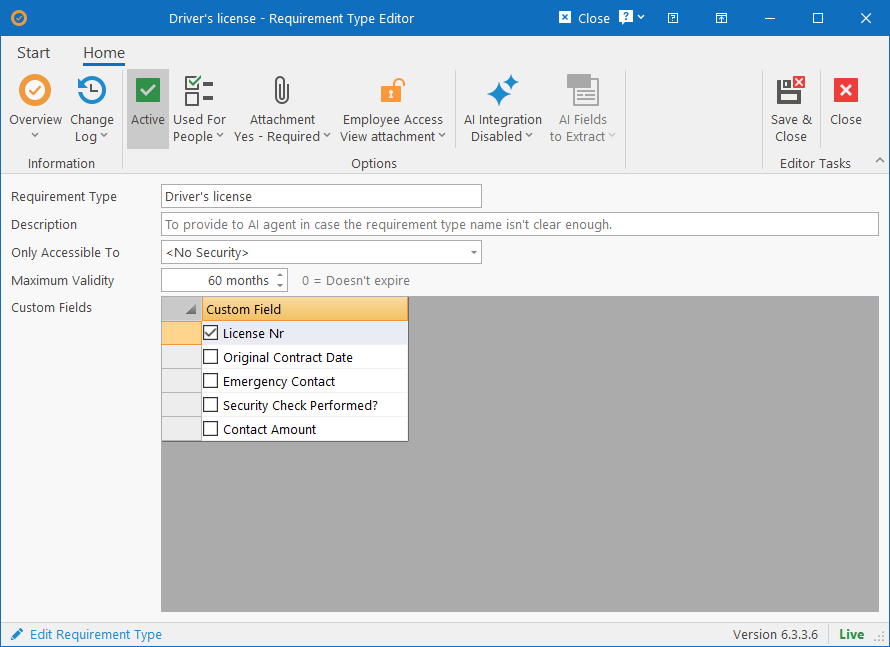
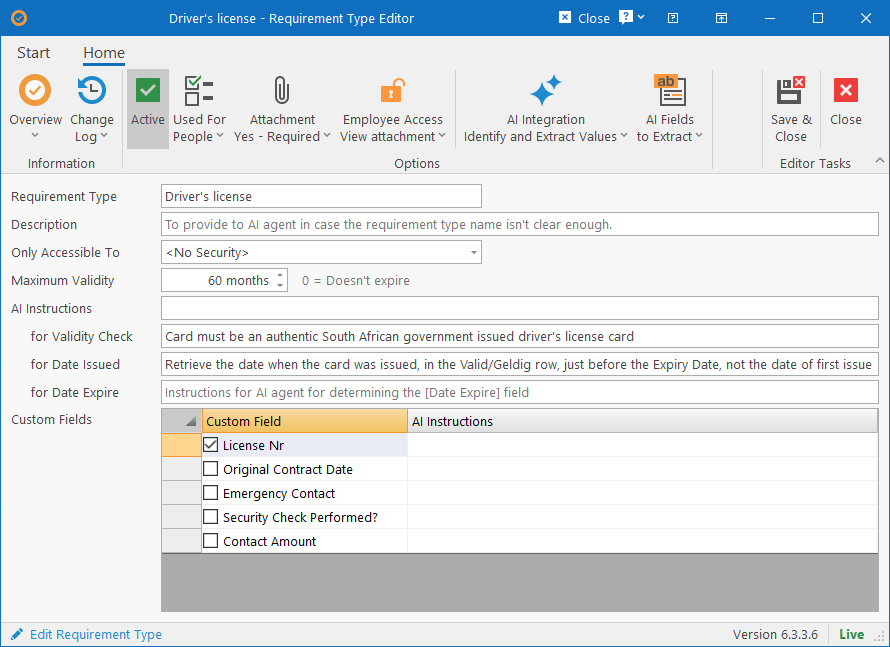
Ribbon bar Settings
The following options can be set on the ribbon bar:
- Active: Specify whether the requirement type can currently be used or if it has been disabled (unchecked).
- Used For: Specify which types of entities the requirement type applies to. You can select People and/or Companies. Certain types of requirements won’t make sense for some types of entities (i.e. Passport for a company or Registration certificate for a person) and this option filters out only applicable types for specific types of groups.
- Attachment: Specify whether an attachment can or should be loaded on requirements of this type. The available options are:
- Disabled: Requirements of this type doesn’t support attachments.
- Optional: An attachment can be loaded for requirements of this type, but is not required.
- Required: An attachment must be loaded for requirements of this type before it can be marked off as complied / valid.
- Employee Access: Specify whether employees can access requirements linked to their profile. The options are:
- Disabled: Requirement won’t be visible / accessible for the employee.
- View Record: Requirement’s meta data can be viewed by the employee.
- View Attachment: Requirement’s meta data and attachment can be viewed by the employee.
- AI Integration: Specify whether AI can be used to evaluate attachments for this type of requirement. The options are:
- Disabled: AI not supported for this type of requirement.
- For Identification Only: When uploading documents in a batch, AI can be used to identify the type of document and assign it to the correct requirement type. If the name for the requirement type isn’t already obvious enough for the AI to understand, be sure to give a short description of what the type of document is or what to look for in the Description textbox.
- Identify & Extract values: When uploading documents in a batch, AI can be used as with “For Identification Only”, but can then also extract values from the document that will be stored in the Requirement’s fields. You can specify exactly which fields should be extracted on this editor and a textbox will appear for that you can provide additional instructions in that can be sent to the AI.
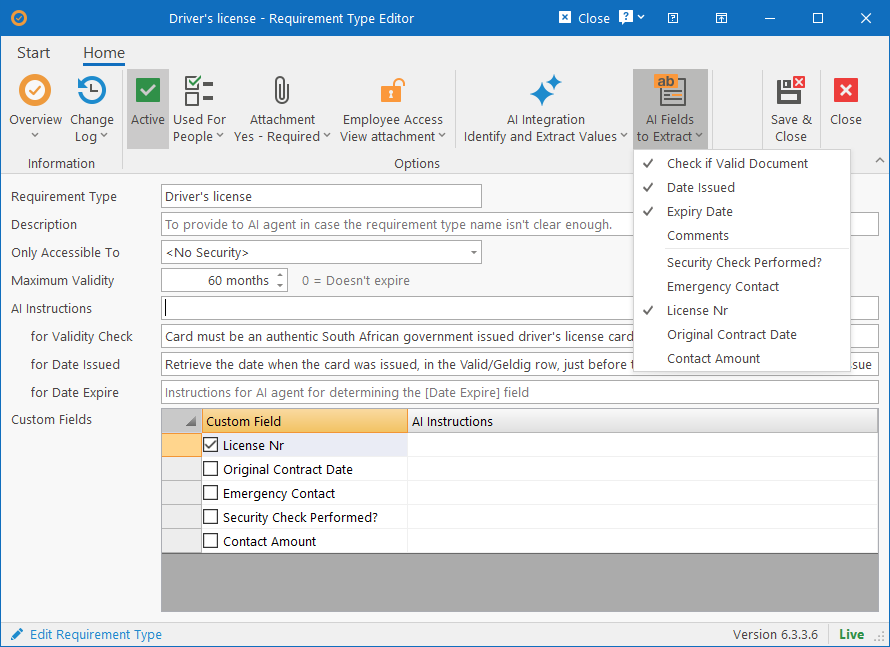
- Fields to Extract with AI: This dropdown will list all the fields that need to be extracted from the attachment using AI, including custom fields. This dropdown will only become available if “Identify & Extract” is selected under “AI Integration”. The standard available fields that can be extracted are:
- Check if Valid Document: This will check if the document is valid for the requirement type and only if valid, will the requirement be marked as “Loaded”. If this is unchecked, then the document will be marked as loaded when a document is identified as the requirement type (when uploading in a batch).
- Date Issued: Date when the document was issued.
- Expiry Date: Date when the document expires.
- Comments: This can either be extracted from the document or the AI agent can provide / generate comments on the document. When selecting this field, additional AI instructions need to be provided.
- When selecting any of the above fields, a textbox will appear in the editor for additional AI instructions for the selected field.
- Custom fields won’t get an extra textbox for AI instructions. You’ll have to open the Custom Field and capture the instructions in the textbox provided on the Custom Field Editor.
Editor Fields
The following fields can be captured on the form for the requirement type:
- Requirement Type: A short and simple name used to identify the type of requirement.
- Description: A longer description about the requirement type. Purely used for the benefit of the AI agent so it is optional, but can be used for better providing information to the AI agent if the Name field is too vague for identifying a document as belonging to a requirement type.
- Only Accessible To: Specify which Security Groups can access this type of requirement. If not set, then everyone with access to requirements can access the requirement and its attachment.
- Maximum Validity: Specify how many months a requirement is valid for since date of issue. Used to auto calculate expiry dates. Set to 0 months if document doesn’t expire.
- AI Instructions: Additional AI instructions that will be provided during AI document processing. If the name and description or the document is simple enough, then there shouldn’t be much more needed.
- For instance, if the Requirement Type is “ID Card” and the Description is “South African government issued ID Card or Book”, this field can be left blank.
- Each “Field to Extract” selected in the ribbon will get its own textbox for additional instructions and instructions is only needed if the field is vague or if previous results were inaccurate. Below are some examples of AI instructions:
- For “ID Card” type, for the Validity Check field: “Card must be an authentic South African government issued ID card or green ID book. If not, then document is invalid.”
- For “Driver’s license” type, for the Date Issued field: “Retrieve the date when the card was issued, in the Valid/Geldig row, just before the Expiry Date, not the date of first issue”
- For “Health Clearance”, for the Comments field: “Indicate if there are any medical conditions, restrictions or risk factors mentioned”
- For “Background Check”, for the Comments field: “Determine whether it indicates any criminal convictions or pending cases. If nothing mentioned, leave blank, otherwise provide a brief summary in 3 sentences.”
- For more AI guidelines, see the AI section below.
- Custom Fields: Specify which custom fields applies to the type of requirement. Whether the field is optional or required is set on the Custom Field self.
AI Instruction Guidance
….