
Manage Compliance
Introduction
HR Manage 7 boasts an all-new powerful management tool for viewing and tracking compliance for sub-ordinates and other employees. Simply log into HR Manage Online, click on the Site Menu button -> People -> Manage Compliance.
On this page, you’ll be presented with 3 tabs: Filter Data, Document Compliance and Training Compliance. The compliance percentage will be displayed in each tab.
Filtering Employees
By default, the system filters out your sub-ordinates and the default selected tab will be the Document Compliance tab. Advanced users with the appropriate security permissions can however click the Filter Data tab and specify a custom filter to generate a dashboard for a set of employees.
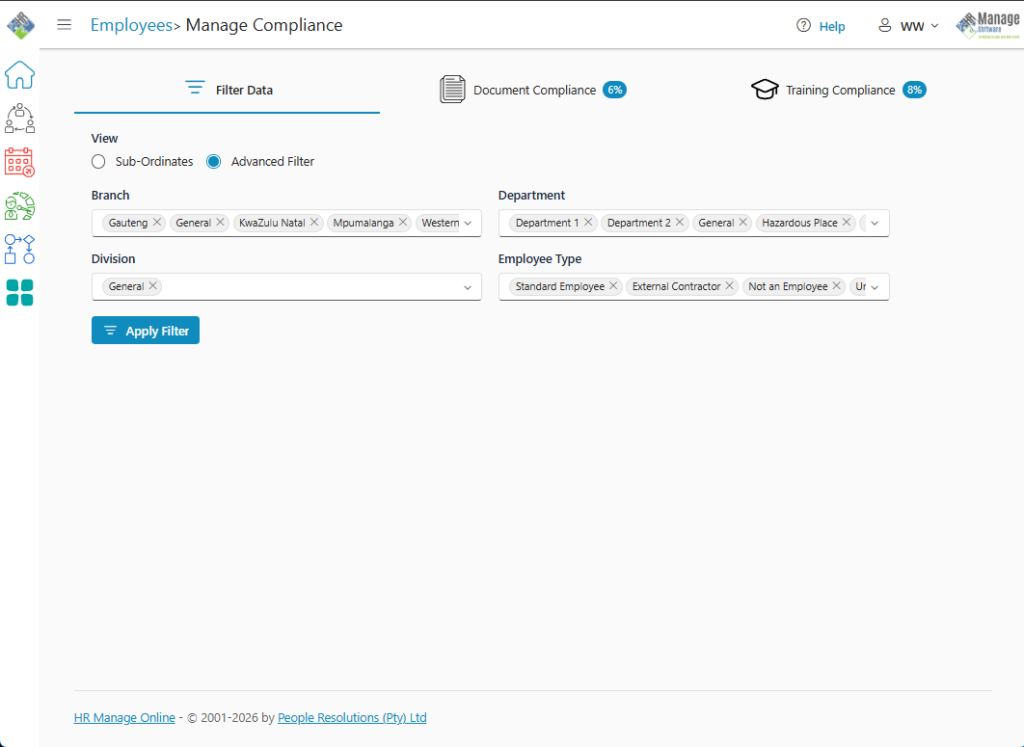
Simply choose the Advanced Filter option under the Filter Data tab and specify the lookup values to filter on.
Compliance tabs
The Document and Training Compliance tabs are identical in structure and only differs in content. The system will automatically check which requirement groups apply to each person and calculate the compliance based on mandatory requirements.
Each compliance tab consists of the following sections:
Information Cards
The following cards will be displayed in the top row:
- Total number of employees (based on filter)
- Overall Compliance for the tab as a percentage
- Number of requirements / training expiring within the next month
- Number of requirements / training that have either expired or are not compliant (i.e. never loaded).
Charts
This section will display a Pie Chart showing the ratio between Compliant, Expiring Soon and Not Compliant.
Next to it is a stacked bar chart with a bar for each requirement type / intervention, showing the percentage for each status: Compliant, Expiring Soon and Not Compliant. This is again based on actual requirements according to employee links to requirement groups.
For instance, if there are 13 employees in the set and only 8 people require a forklift license and 2 of those employees have an expired license, then the chart will show 75% compliant and 25% non-compliant for that requirement.
Compliance Matrix
This grid displays a row for each employee based on the filter and a column for each type of requirement. Each cell can be in one of the following states:
- Valid: Green checkmark will show for both Required and Optional requirements.
- Expiring Soon: Yellow / Orange exclamation mark
- Optional: Gray minus.
- Not Compliant: Red X. Hovering the cursor over the icon will show the exact status like “Never Compliant” or “Expired”.
The matrix also contains a column for % Compliant. It will calculate the percentage of compliance based on the requirements for the person.
Additional columns like Job Title, Branch, Department and Division can be added to the matrix by clicking the Column Choose button on the toolbar and dragging the columns onto the matrix.
Finally, the matrix can be exported to Excel or Pdf by clicking the Export dropdown button on the toolbar.
Detailed Compliance Records / Training
This list shows the detailed breakdown of requirements / training for the employees for each requirement type / intervention. It consists of the following columns:
- Status: Expired, Never Compliant, Expiring Soon & Valid. Grouped on by default.
- Requirement / Training: Grouped on by default.
- Employee: Name and surname of the employee.
- Req: Specify whether the requirement is mandatory or optional for the employee.
- Hidden columns: Click on the Column Chooser button on the toolbar to include additional columns like Job Title, Branch, Department & Division.
- Date Loaded / Issued: For document compliance, specify when the document was issued or loaded onto the system.
- Start & End Dates: For training compliance, specify when the training started and completed.
- Training Status: For training compliance, specify the status of the training record.
- Expires On: Date on which the document or training expires.
- Days Left: Number of days left before the document or training expires. If already expired, a red exclamation mark will be displayed instead.
This list can be custom grouped by dragging columns to the Group Area. As with the Compliance Matrix, this list can also be exported to Excel or Pdf by clicking on the Export dropdown button on the toolbar.