Column Mapping
Introduction
Column Mapping is used to map fields in HR Manage to staging fields which in turn are mapped to fields from the payroll. All date retrieved from payroll is first written into the staging table and if there are multiple sources, they will be merged in there before being imported into HR Manage.
Notes on HR Manage fields
Termination
To terminate an employee, the “Date Terminated” field must be imported with a non-null value. The “Termination Reason” should be specified or the default value should be something other than “0”. If the “Date Terminated” is null, then the “Termination Reason” will automatically be set to “0” / “Active” regardless of the default value specified.
Occupation fields
Check the Employee Module Configuration to determine which field changes will trigger a new occupation, rather than simply updating the existing occupation details for an employee.
Column Mapping Editor
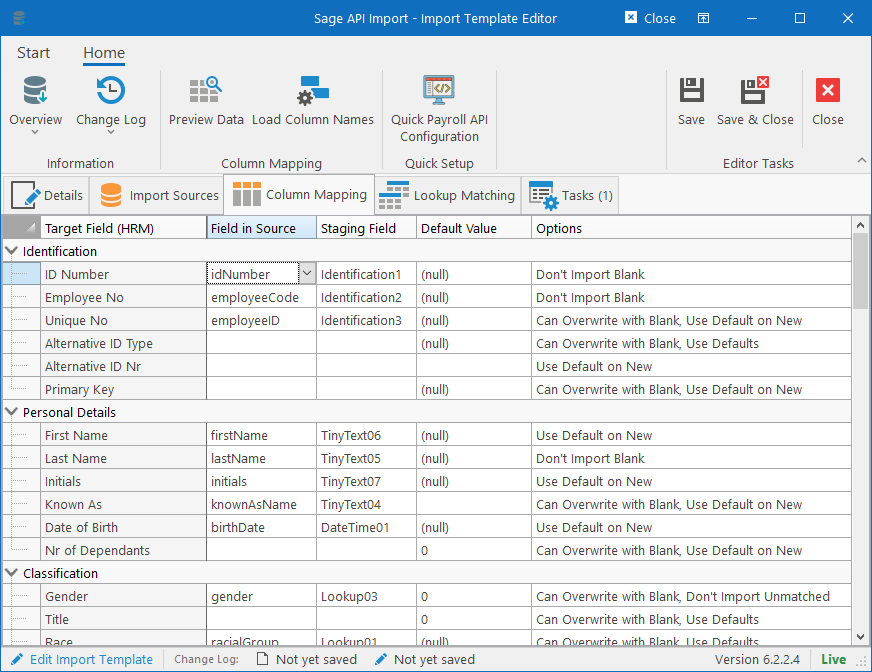
The most important fields here are the Identification fields. We recommend importing a primary key or unique field into the Identification1-4 fields in the staging table. This will allow subsequent import sources to pick up existing data and will also be used by HR Manage to determine if people already exist in the system.
Below are details about the columns in this grid:
Target Field in HR Manage
This column is read-only and is used to determine to which field in HR Manage the data will be imported into.
Field in Source
Type the name of the field in the data source / payroll that must be mapped. If this column and the Staging field column is blank, then the field will be ignored when importing employees that already exist in HR Manage and for new employees, the value from the Default Value column will be used.
Staging Field
This is the field in the staging table where data must be imported to from the payroll. When selecting a field in the payroll, the system will automatically select an appropriate and available staging fieldname, but this can be changed if needed. It is also possible to specify a staging field to import from without specifying a “Field in Source” in which case the field can be updated using a script in one of the import tasks.
The available fields are:
- Identification: Short string (max 50 chars)
- TinyText: String of max 50 chars
- ShortText: String of max 150 chars
- MediumText: String of max 300 chars
- LongText: String of max 600 chars
- Bool: Boolean consisting of only a Yes/No, True/False or 1/0
- Int: Integer number
- Decimal: Decimal number with a maximum length of 12 of which 4 are decimals.
- Amount: Currency number
- Lookup: Lookup field that will require matching with a lookup value in HR Manage.
- Lookup..ID: Lookup field where the external system already knows the primary keys of our internal lookup tables. Will skip the matching process and directly import the value. Mostly used by “Import from Workflow” activities.
- DateTime: Date/Time field.
Default Value
This column’s value is used when creating new records in the following instances:
- Where the field is not imported.
- Where the field is imported, but contains a null value.
- Where a lookup field is imported, but the value for the record is not matched.
If the default value is (null) and the field either don’t accept nulls or the field is set to “Required” in the “Options” column, then if used, will result in the record failing to import.
For date fields, we recommend setting the column to (null) by selecting the cell and pressing the Delete key on your keyboard.
For text fields, you can press the Delete key to make the field blank instead of (null) unless the field is required to have a value.
For lookup fields, you can select the cell and click the ellipsis button (…) to browse for a lookup value or press the Delete key to make it (null).
Options
There are various options here and the options available will differ based on the type of field that is selected. Select the cell and click the dropdown button on the cell to set the following options.
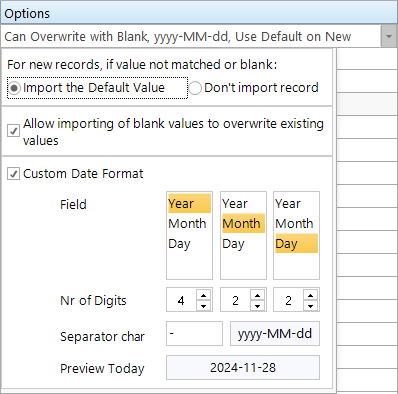
For new records, if not matched or blank
When importing records not yet in HR Manage, how should unmatched, blank or null values be handled:
- Import the Default Value: Value specified in the “Default” column will be imported.
- Don’t import record: This will cause the entire record to fail.
Allow Importing of blank values to overwrite existing values
In some instances, data will not be captured on the payroll for all people in which case a blank value will be imported initially. If those fields are then maintained on HR Manage, deselecting this option will prevent the blank values from the payroll overwriting the manually captured values.
Custom Date Format
This will allow for specifying a custom date format for a date column if it differs from the overall date format for the import template. This only really apply when importing from text fields and don’t set this again if the field is in the same format as the overall import template’s date format.