Load Requirements
Introduction
The Load Requirements activity allows you to upload specific documents for a person as part of the workflow process. The exact documents required will depend on how the activity was configured and it is possible for multiple people, with different levels of access, to upload documents together on the same activity.
Getting Started
Simply start the activity from the workflow page. You’ll be redirected to the Requirements activity page where all the requirement types that are applicable, will be waiting.
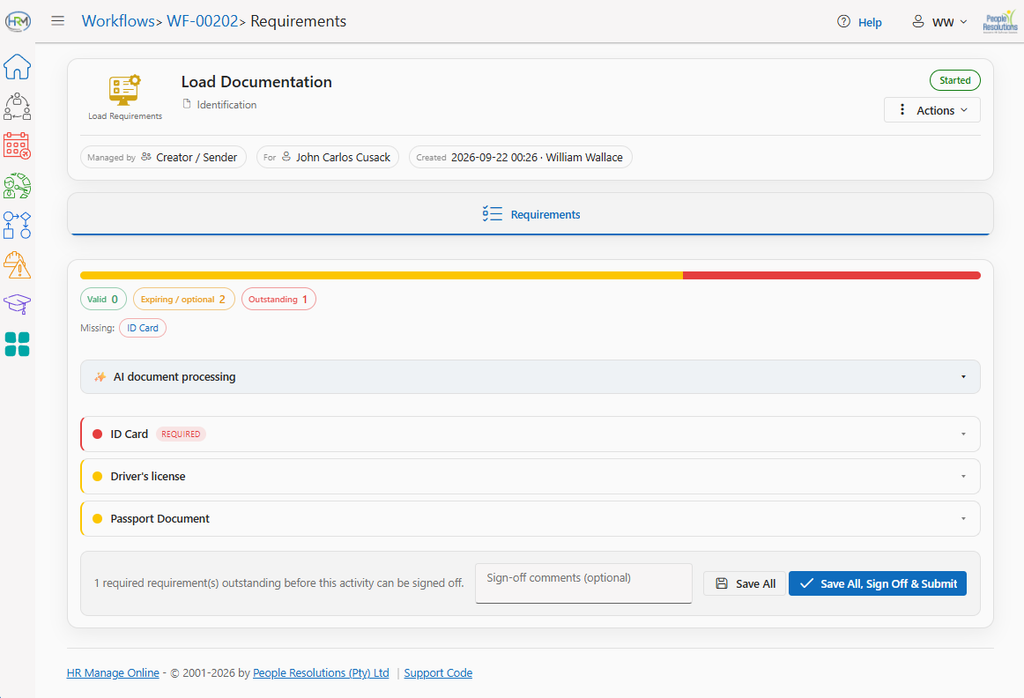
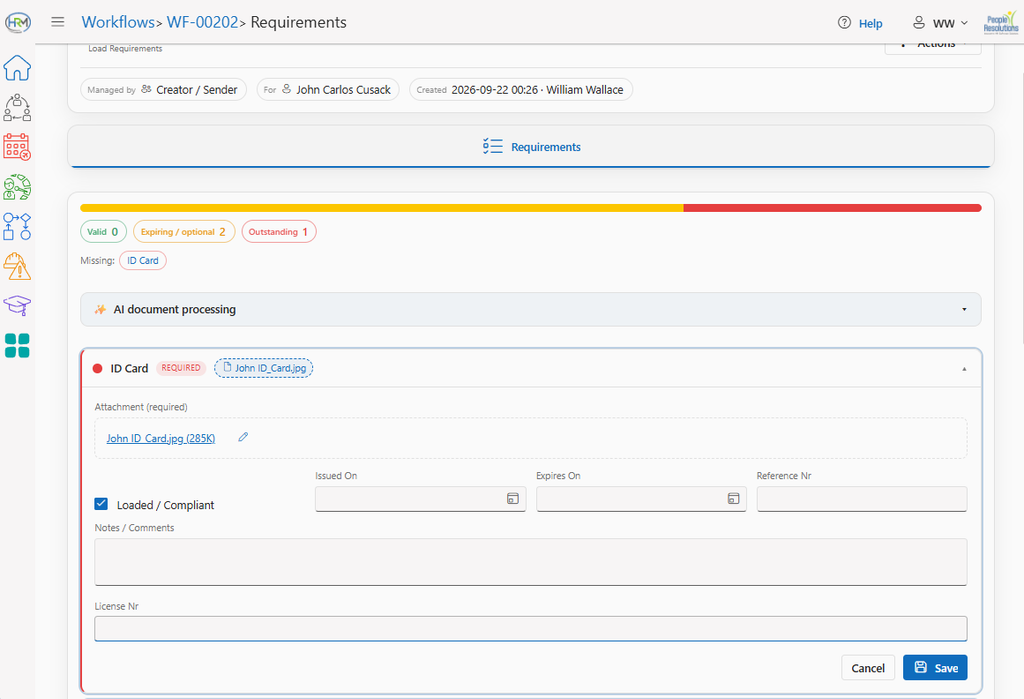
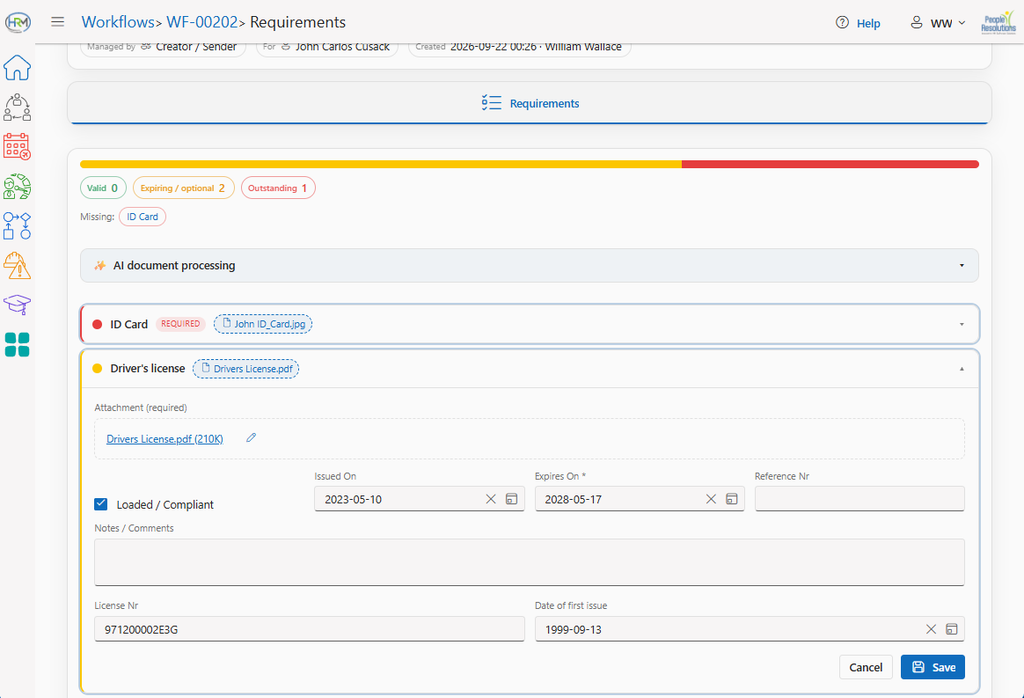
Requirements marked in red are required to be loaded before the activity can be signed off. Each requirement card contains an upload box, date & note fields as well as any custom defined fields as per the requirement type.
Some requirement types might have security on them. That way, multiple participants can upload different documents on the same activity for different requirement types without the other participants being able to view the secure uploaded documents. It is even possible that the capturer self might be able to upload a document for someone, but not be able to view it afterwards.
Once a document has been loaded, that requirement card can be saved. Alternatively, all the requirements can be loaded and one of the buttons at the bottom of the page can be used to save everything at once. Use the Save All button to save everything, but keep the activity open. Otherwise use the Save all, Sign Off & Submit button to save everything and complete the activity.
Automatic Loading using AI
If you have access to the AI security role and your company has AI credits available, then a block called “AI document processing” will be visible on the page. Expand the block and either click on the link to select files from your computer or drag and drop files from your computer / network directly into the AI block. You can then change the AI model that will be used for examining the documents and click the Process with AI button.
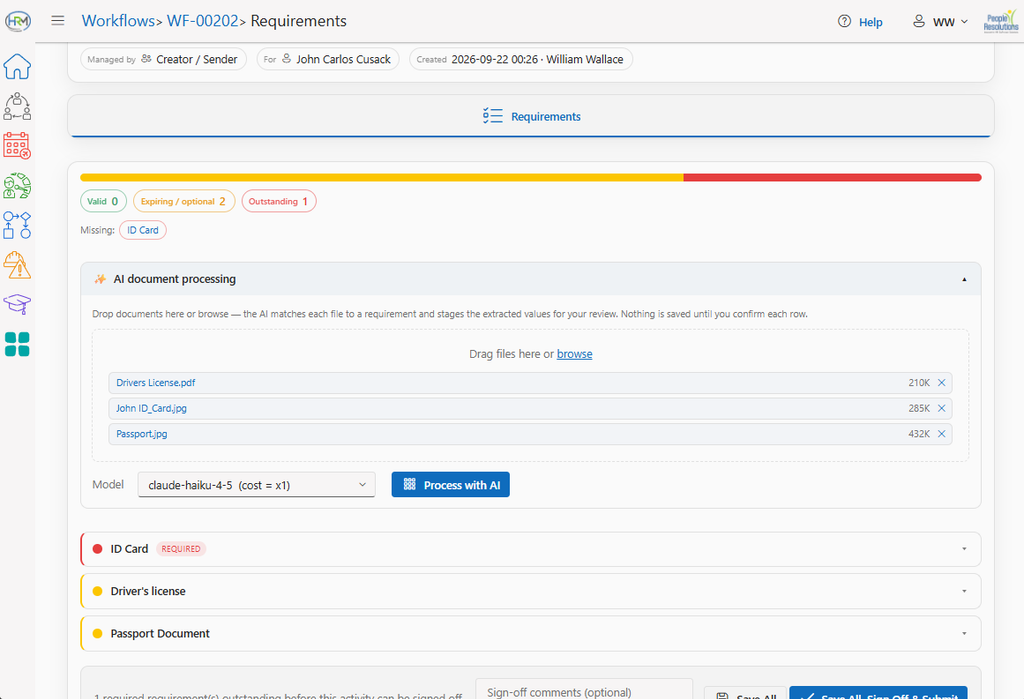
The AI will will examine each document, assign it to the correct requirement type and if there are fields that must be filled in, it will extract those fields from the documents and fill it in for each requirement. All the cards that were updated will then be expanded for you to check everything before clicking the Save All, Sign Off & Submit button. You can view the document assigned to a requirement by clicking the link to show the document in a popup.
AI Models & Cost
For document processing like this, we usually recommend the most basic AI model like Claude Haiku or Chat GPT Luna. Choosing a higher model will waste AI credits without gaining any benefit.
The exact number of AI credits used for an operation like this varies based on complexity, number of fields extracted and quality of the provided documents. For this example, we provided 3 good quality scanned documents to Claude Haiku which it correctly assigned to the correct requirement types and extracted fields like Date Issued, Expiry Date and License Number for all the documents. The total cost was 1.71 AI credits for the batch which at the time, translated to ZAR 0.51.
Viewing the Progress Report
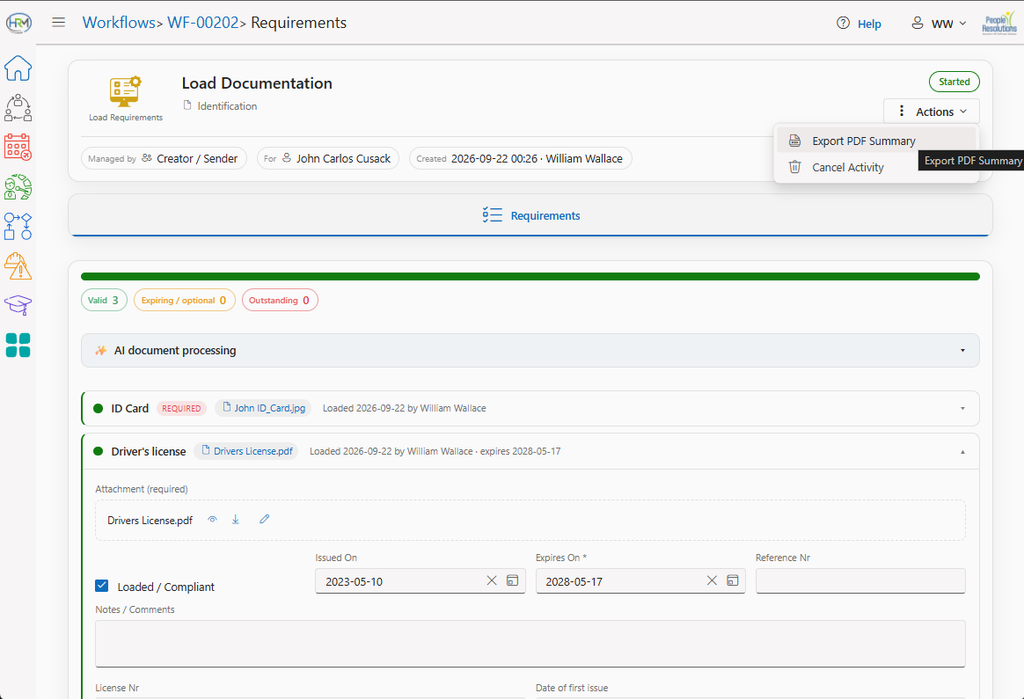
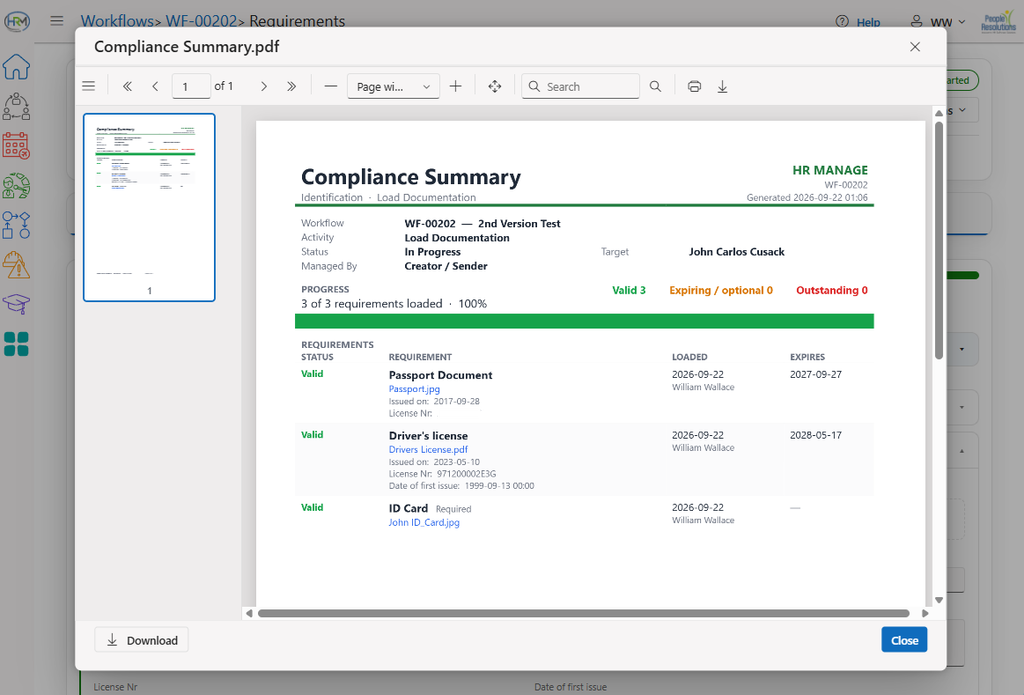
The activity can be exported to a Pdf report by clicking on the Actions menu button and clicking the Export PDF Summary item. This will provide a report showing the status of each requirement with the captured fields.