
Registering an External Form
Introduction
HR Manage supports integration with Forms Platforms like Cognito Forms. The form can be embedded on a website or be accessed via a link and completing the form can then trigger a new workflow to be created in HR Manage.
The following needs to be set up in order for an external form to trigger a new workflow:
- Set up a form on the Cognito Forms platform (note the rules below).
- Register Cognito Forms as an External System in HR Manage (with its API Key). See here.
- Create a Workflow Template that must be created. The Template should have an Initial Form to which questions from the external form must be mapped.
- Configure the External Form and the mappings (this article).
HR Manage will import pointers for each submission / entry and only upon approval, will the actual workflow be created which will import actual data.
Rules for Building an External Form
Due to the strict nature of how data are managed in the workflows, some of the features available in Cognito Forms cannot be used and should thus be avoided since it cannot be imported into HR Manage.
Text and Headings
While you are free to include custom text and headings on your designed forms, we cannot import it as our forms need to be predefined and the APIs exposed doesn’t provide us with the meta data.
Choice Fields
At the moment, HR Manage only supports importing text fields and numbers. You can define choice fields in Cognito Forms, but setting up the form in HR Manage should be plaint text fields / questions (since it is only used for display purposes anyway).
Repeating Sections & Tables
This feature is not supported and should be avoided.
File Uploads
The “Maximum Number of Files” property should always be set to 1. HR Manage needs to link each file to a specific requirement type so any additional files uploaded for a single field will be ignored. Should multiple attachments be required (i.e. 3 months bank statements), then it should be split into multiple fields or the user needs to upload it as a single document.
We also recommend specifying the “Allowed File Types” property to something like “pdf, doc, docx, xlsx, xls” or whichever specific document types are allowed.
Getting Started
In HR Manage, open the Workflow Module and click on Configure Module. Then on the menu on the left, click on External Forms and then open an existing form or click on Create New.
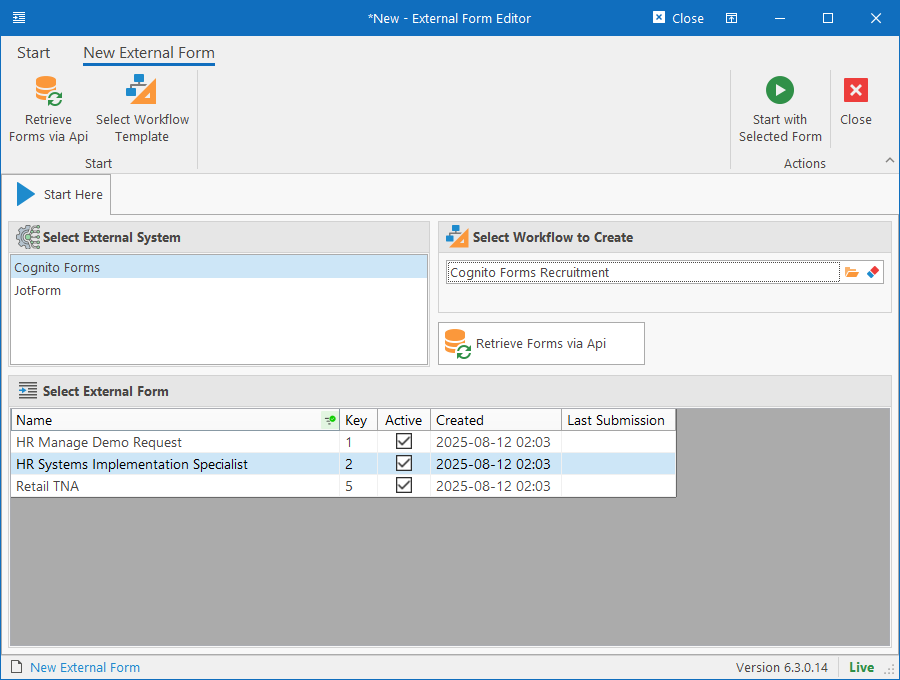
Creating a new External Form
When creating a new External Form, you’ll first be required to select the Forms Platform that is hosting the form, specify which Workflow should be created upon completion and then finally click on the Retrieve Forms via Api button to load the list of available forms that can be monitored. Then simply select the External Form to register and click the Start with Selected Form button on the ribbon bar.
Editing an External Form / Mapping Fields
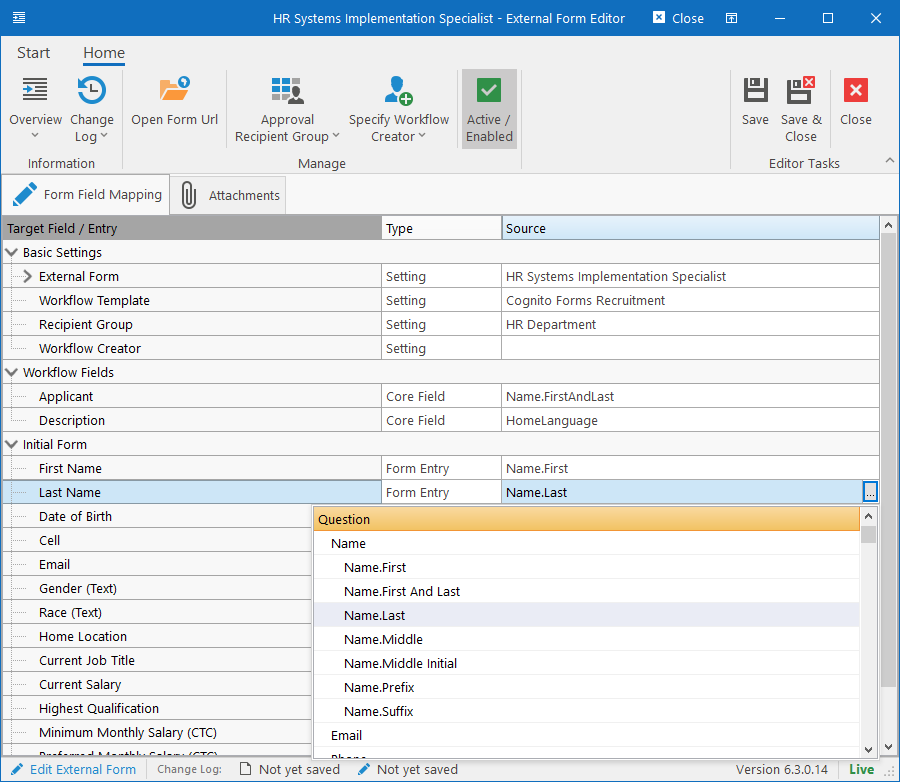
On the “Form Field Mapping” tab (when editing an External Form or after clicking Start when creating one), the grid will be populated with the core Workflow Fields as well as the Initial Form. From here, each field / question can be mapped to a field on the external form. To map a field, select a field / question and then click the ellipsis button in the “Source” column in that row to display the list of questions in the external form.
* Note that each field can be mapped only once.
Approval Recipient Group
Power users can open the External Submission Manager and list all forms that were submitted on the external portal. From there they can open the submission, look at the entries and either Approve or Reject it. Approved entries will result in a new workflow being created and Rejecting it will change its status on HR Manage to become invisible (unless explicitly filtered out).
Selecting an Approval Recipient Group on the ribbon bar will specify which users can approve / reject submissions.
Specify Workflow Creator
To automatically approve submissions and create a workflows based on submissions on the External Forms Platform without any user interaction, you can specify a Position or an Employee that will be used as the Workflow Creator. If specified, this will automatically create workflows and if not specified, a submission would need to be approved first.
We recommend not using this feature as it can cause a lot of junk data to enter HR Manage.
Attachments
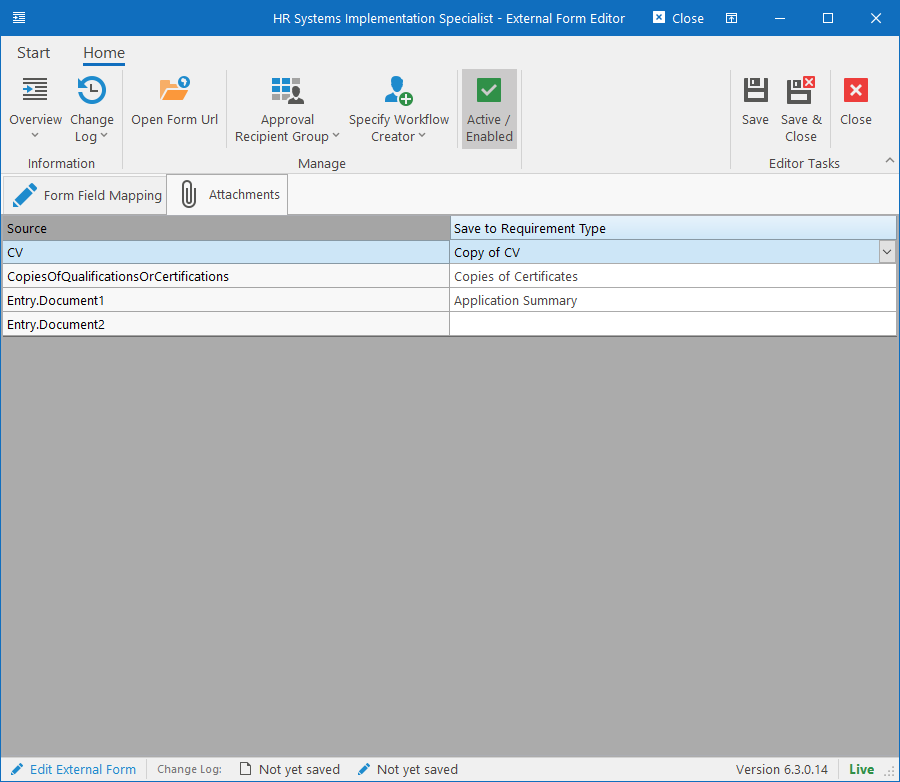
The “Attachments” tab will list all the questions on the external form that are used for uploading attachments (or generating a pdf). These items can be linked to Requirement Types in HR Manage which will automatically be loaded onto the workflow when created.