
-
HR Manage Application
-
-
- Articles coming soon
-
- Articles coming soon
-
- Articles coming soon
-
-
HR Manage Online
-
Config & Admin
-
IT Documentation
-
Version History
Published Document Library
Introduction
HR Manage allows the storing of documents that must be accessible from the HR Manage Online portal and these documents are stored in the Published Document Library.
The documents can be placed into folders and sub-folders and while they can be published to be viewed online, they can also be used by other features within HR Manage like workflows, emails and document signing.
Getting Started
To open the Document Library, from the main HR Manage screen, click on the Published Documents menu item. This will open the library as per below.
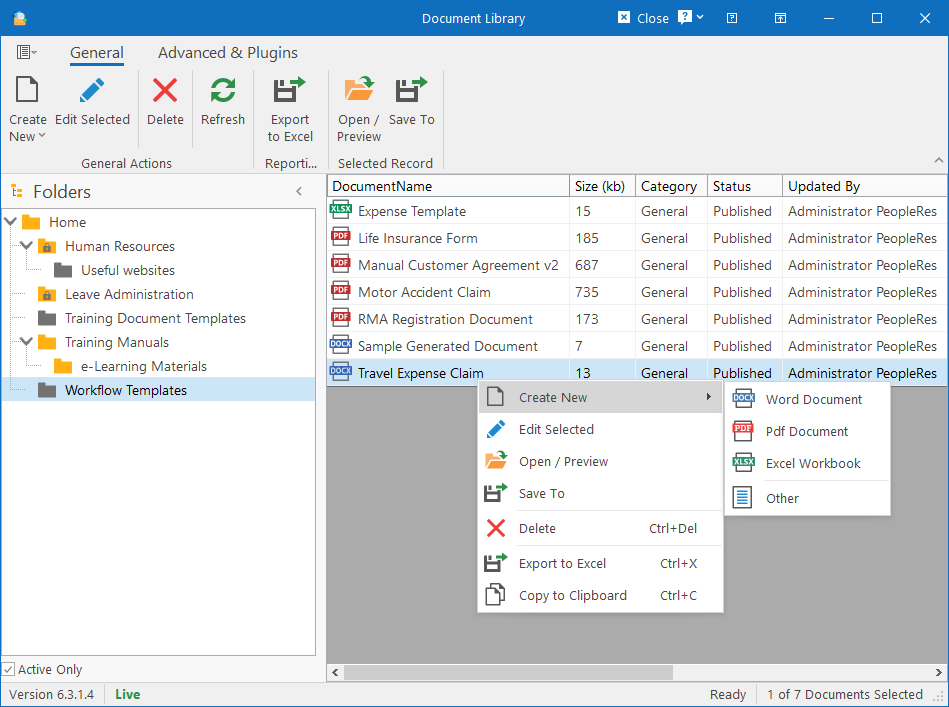
The library consists of folders on the left and documents stored in the selected folder on the right.
Folders can be either public (with yellow icon – accessible online) or private (with gray icon – only accessible from within the HR Manage application) and can even be assigned to security groups to determine who which users can access the documents in that folder. Clicking on a folder will automatically list the documents under that folder in the list on the right.
Documents of almost any type can be loaded in the library, but the system makes special provision for Word Documents, Pdf Files and Excel Workbooks and when opening these documents, they editors will visually display the contents of these documents and even allow editing from within the editor.
Managing Folders
There will always be a single root folder called “Home” and all other folders will either be linked to it or one of its sub-folders. To start managing folders, simply right-click on any folder in the tree to display the context menu.
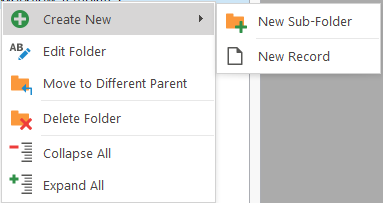
For more information on managing folders, click here.
Managing Documents
To load a new document, simply click on the Create New dropdown button on the ribbon bar and choose the type of document you would like to upload. You can choose between the following types:
- Word Document: Supports MS Word (.docx & .doc), Rich Text Format, Html and OpenOffice (.odt)
- Pdf Document: Supports Adobe Reader pdf documents.
- Excel Workbook: Supports Excel workbooks, both the newer .xlsx and legacy .xls formats.
- Other: For any other type of files or images. While images would be previewed in the editor, all other types won’t be editable within HR Manage and would instead need to be saved to a file for editing and reloaded back into HR Manage.
For more information, see: