
-
HR Manage Application
-
-
- Articles coming soon
-
- Articles coming soon
-
- Articles coming soon
-
-
HR Manage Online
-
Config & Admin
-
IT Documentation
-
Version History
Terminating Employees
From the Employee Manager, select one or more employees and click on the Delete ribbon bar button. This will display the “Delete / Terminate Employees” confirmation window where additional parameters must be specified.
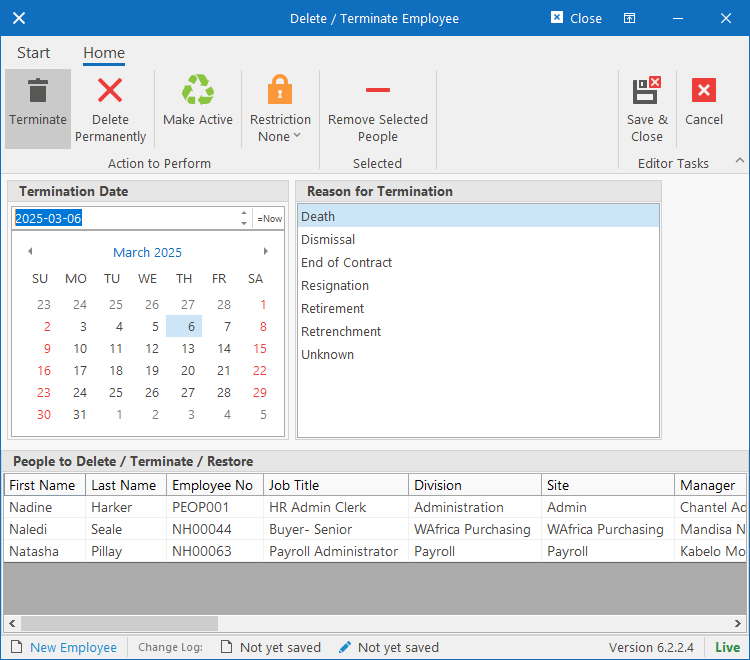
On this confirmation dialog, the following options must be set.
Confirmation Options
Action to perform
Specify what must be done to the selected employees (choose action in the ribbon bar):
- Terminate: The employees will be terminated using the date and reason provided.
- Delete Permanently: The employees will be removed from the system.
- Make Active: If the employees were already terminated, this action will remove their termination date and reason and make them active on the system again.
- Restriction: It is possible to restrict an employee from being employed again. This only applies when selecting the “Terminate” option. The “Restriction” button has the following two options in its dropdown menu:
- No
- Yes – Cannot be employed again
- If “Yes” is selected, a textbox asking for a reason will appear that must be completed.
Termination Date & Reason for Termination
If the selected action is “Terminate”, then the date for termination must be specified in the calendar and a reason must be selected from the list of reasons.
People to Delete / Terminate / Restore
Ensure that all the people in the list must be deleted / terminated / restored. If someone is in the list that shouldn’t be there, select the person and click the Remove Selected People button on the ribbon bar.
Ready to proceed
Once all the above is correct, simply click Save & Close to perform the action. If successful, then the confirmation dialog will close. If any errors occurred, the dialog will remain open with the error being displayed next to the people that failed to delete.