
-
HR Manage Application
-
-
- Articles coming soon
-
- Articles coming soon
-
- Articles coming soon
-
-
HR Manage Online
-
Config & Admin
-
IT Documentation
-
Version History
Leave Home Page
Getting Started
To access your own leave area, log into HR Manage Online, click on the site menu button, expand the Leave / Time-off item and click on the My Leave item.
This will open the Leave Home Page where you can view your balances, upcoming and recent leave applications and the leave planner that shows who else in your area will be on leave in the future.
Home Page Layout
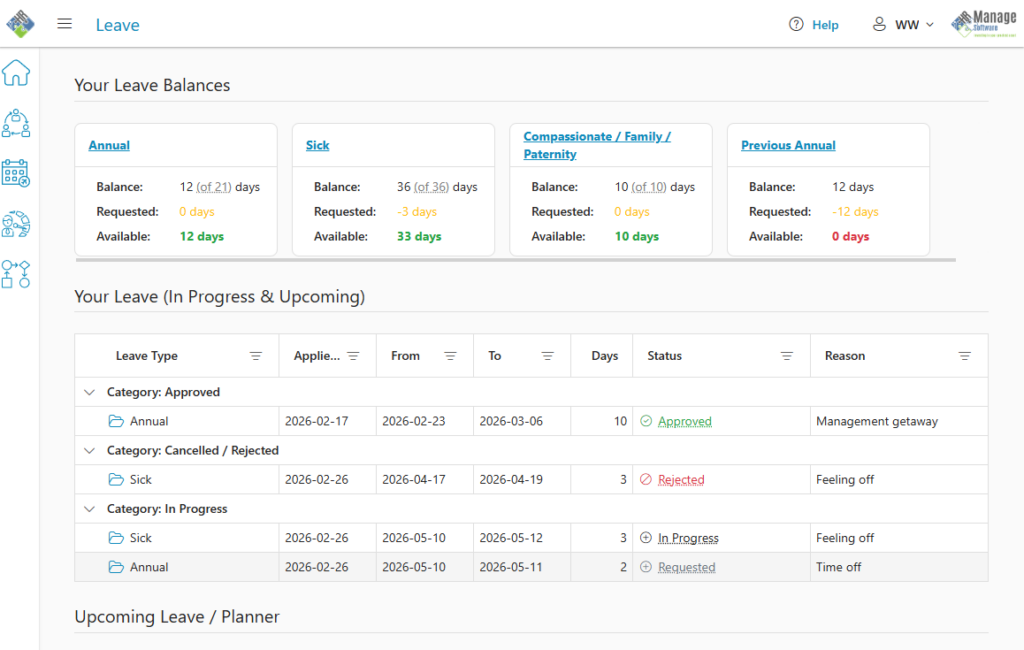
The Leave Home Page consists of the following sections:
Your Leave Balances
This will display cards for all the visible leave types. Each card will display the name of the leave type, your current balance (your entitlement in brackets), open applications where leave was requested and the number of days currently available.
Your Leave
This list will contain all your leave applications that are currently open (not yet completed) or applications that must still take place (even if marked as completed).
The list can be filtered using the column filters and any leave application can be opened by clicking on the Open button on the application row (next to the Leave Type).
If a status is underlined, it means that you can hover the mouse cursor over it for more details in a tooltip. The statuses contains the following information in the tooltip:
- Requested: The approval step that must be completed next.
- In Progress: The approval step that must be completed next.
- Approved: The date when the application was finally approved.
- Rejected: The name of the person who rejected the application, the date and reason for rejection.
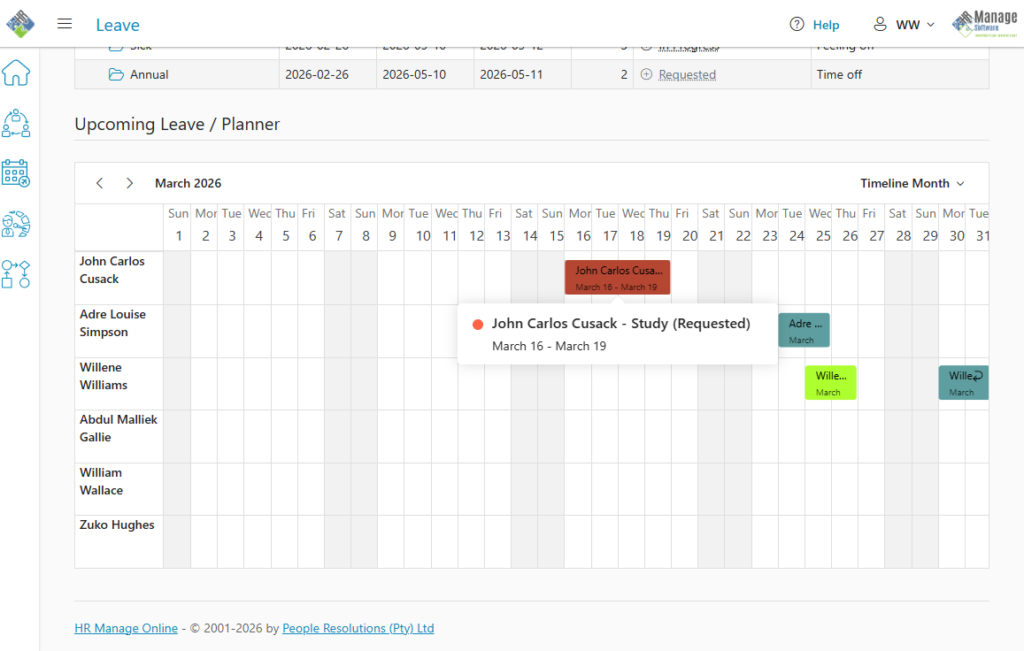
Upcoming Leave / Planner
The calendar will list all your upcoming leave as well as the leave of your sub-ordinates and/or co-workers. Clicking on an application will display a tooltip with the Type of leave requested and the status of the application.