
Editing Training Records
Introduction
A Training Record contains all the information about a learner and an instance of training that they are scheduled for (or have completed). When adding a learner to a Training Event, it creates a Training Record.
Getting Started
In the Training Record Manager, select one or more training records and click the Edit Selected button on the ribbon bar or simply double click on the record self or press the Enter key. You’ll then be presented with the Training Record Editor if you selected a single record or the Batch Training Updater if you selected multiple records. To create new Training Records, you’ll need to use the New Training Wizard.
Training Record Editor
Training Details tab
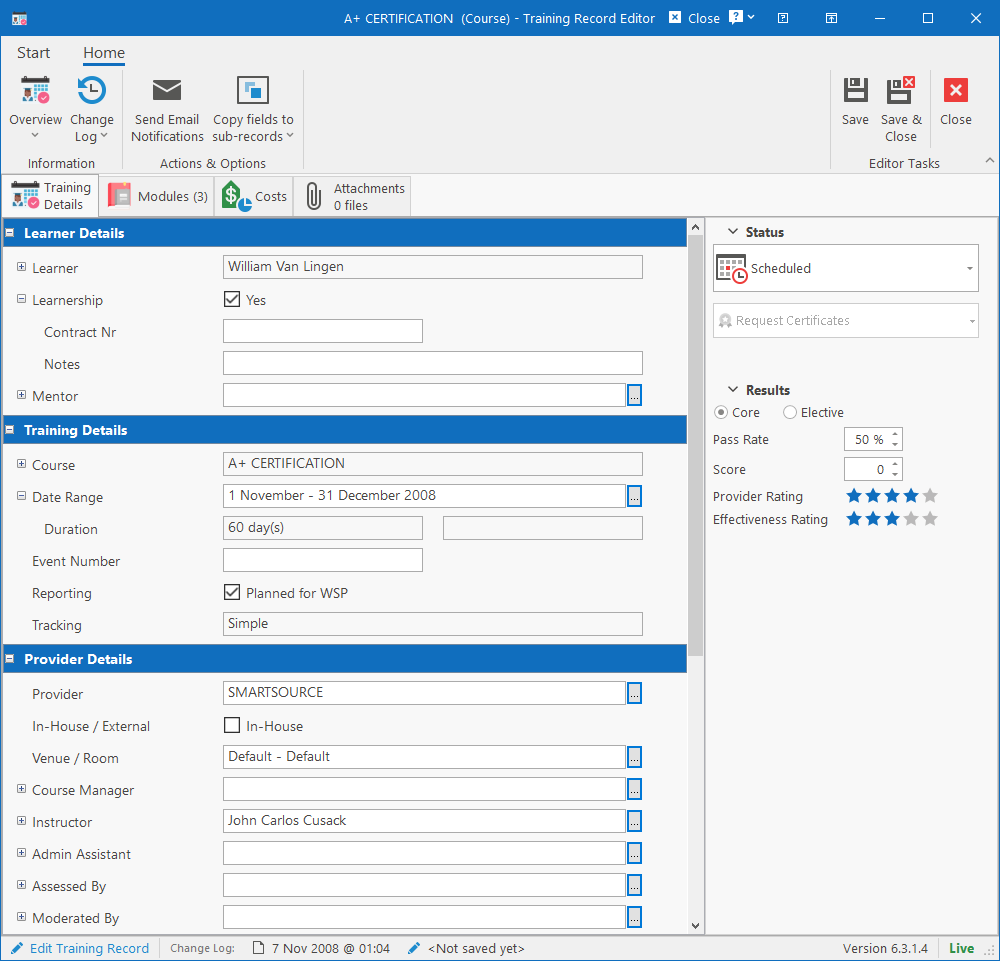
Ribbon bar actions
- Send Email Notification: Allows you to send notification of training to the various people involved in the record including the learner, instructor, assessor, etc.
- Copy fields to sub-records: Specify which fields should automatically be copied to the sub-training records when changes are made to the main training record. By default, all fields are selected, but some can be turned off as needed (i.e. for tracking completion of sub-records). The fields that can be copied are Date Range, Duration, Event Number, Training Provider, Venue, Practitioners, Assessment Details and Moderation Details.
Learner Details
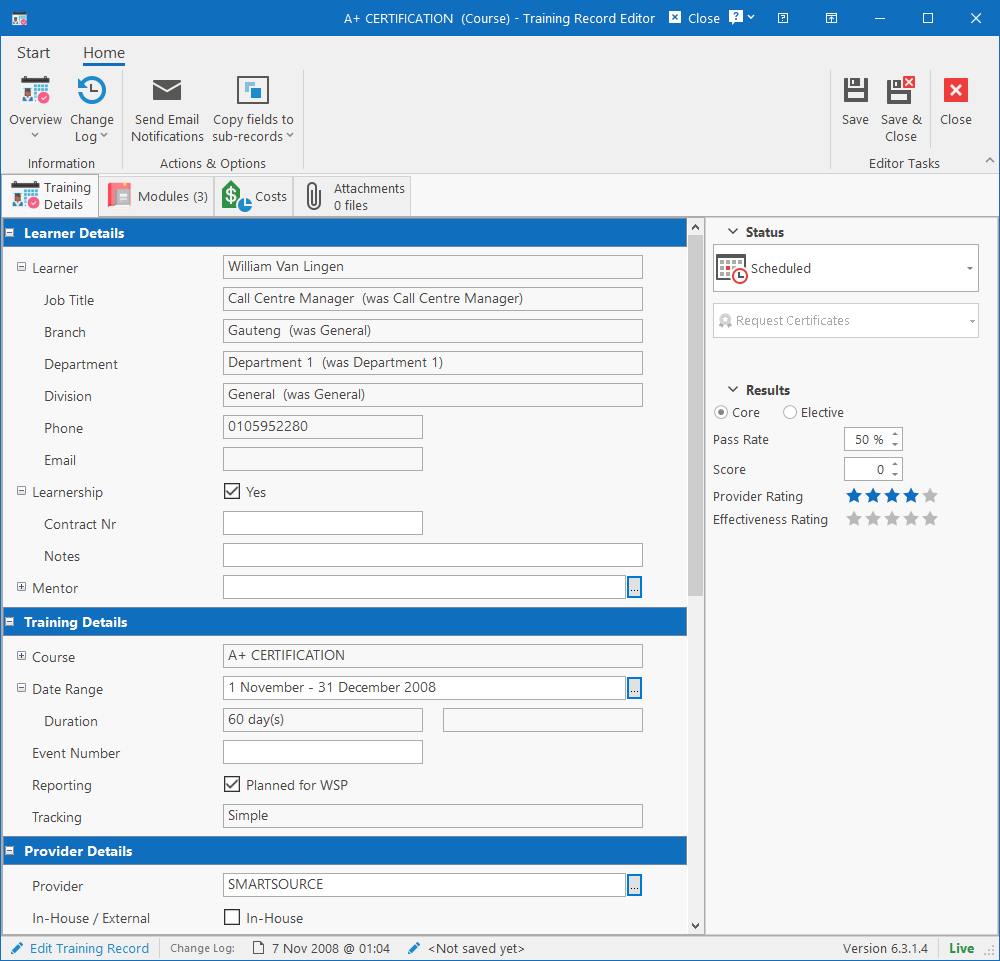
- Learner: Name of the learner who is scheduled for the training. Selected upon creation and cannot be changed afterwards. The field can be expanded to show additional information about the learner like their job title, location in the company and contact details. If the employee changed occupations since the training was created, it would also show in which job and location the learner used to work.
- Learnership: If on a learnership, you can specify the contract number and notes.
- Mentor: Select a person from the database to who serves as the learner’s mentor (if applicable).
Training Details
- Intervention: Shows the type and name of the intervention that has been scheduled. This is set during the creation of the event and cannot be changed once created due to the rules that can be defined for the training type and intervention. This field can be expanded to reveal more information about the intervention from the library.
- Date Range: Specify the date range and duration for the training. Selecting a new start date will automatically calculate the new end date based on the default duration specified in the Intervention Library. You can however specify your own end date.
- Duration: This is calculated automatically when selecting the date range. To specify your own, deselect the “Automatically Calculate Duration” checkbox on the Date Range selector. The duration will display in days or for single day events, in hours.
- Event Number: Specify an event number that the training record is part of. Mostly used for sub-training records since only the main training records are linked to a training event. This field shows which event the sub-record is part of since it isn’t directly linked.
- Reporting: Specify whether the training was planned for the Workplace Skills Plan (SETA Reporting).
- Tracking: Specify whether tracking per sub-record was enabled for this training record. Can only be set during creation.
Provider Details
- Provider: Browse for a provider from the Training Provider library. Changing the provider will automatically reset any values that might have been specified for Course Manager, Instructor, Assessor and Moderator, since these are all practitioners linked to training providers.
- In-House / External: Specify if training is considered in-house.
- Venue & Room: Specify at which venue the training will be done.
- Practitioners: This includes the Course Manager, Instructor and Admin Assistant. This can be chosen from a dropdown list that will be populated with practitioners linked to the provider. Otherwise, one can be selected from the database. Expanding the field will reveal the practitioner’s phone number and email address.
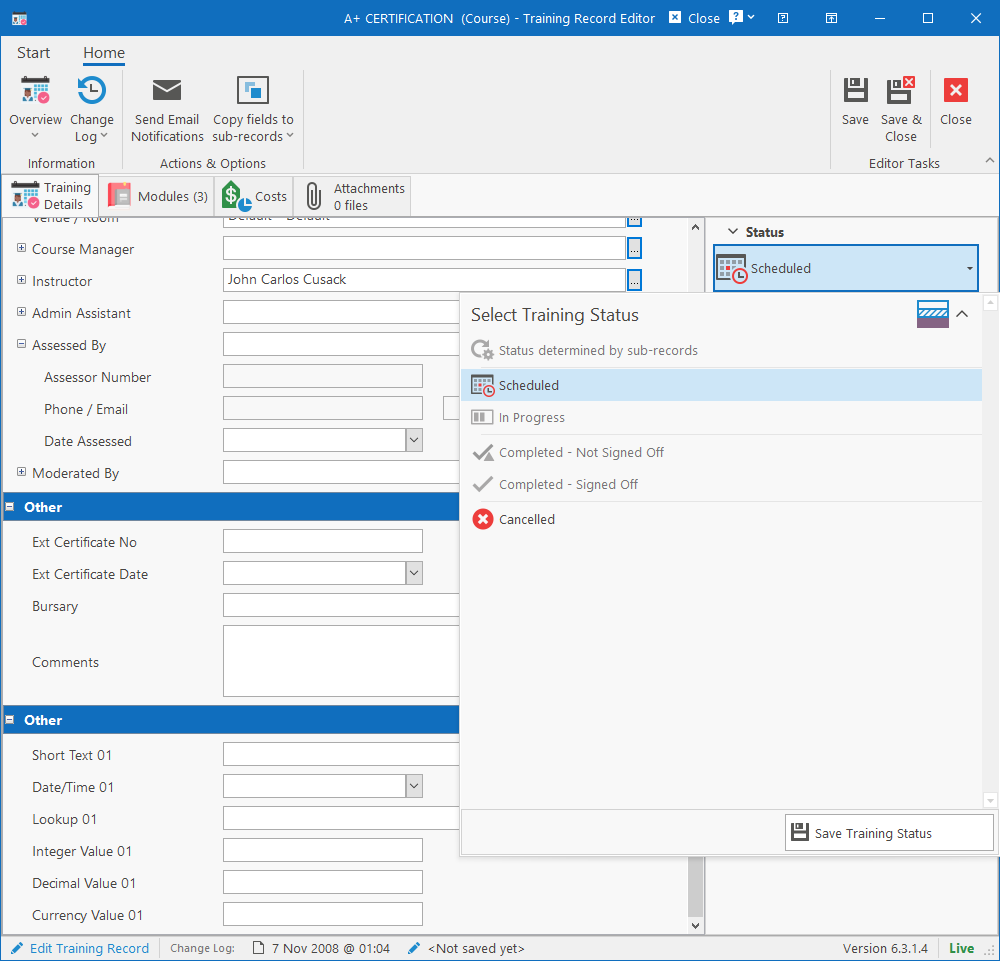
- Assessed By: If training was assessed, specify the qualified assessor. A qualified Assessor is a person linked to a Training Provider with an Assessor Registration Number captured. Expanding this field will show the registration number, contact information and a date field to specify when the training was assessed.
- Moderated By: If training was moderated, specify the qualified moderator. A qualified Moderator is a person linked to a Training Provider with a Moderator Registration Number captured. Expanding this field will show the registration number, contact information and a date field to specify when the training was moderated.
Other
- Ext Certificate No: If learner received a certificate from the external provider, enter the certificate number here.
- Ext Certificate Date: Date on which the external certificate was issued.
- Bursary: If the training is done as part of a bursary or study loan, the details will show here. Clicking the ellipsis button will open the bursary. This must be linked from the Bursary Editor and cannot be changed here.
- Comments: General comments about the training.
- Custom fields: Custom fields can be enabled / created in the Training Module Configuration.
Results
Training Records can contain a score and pass rate as well as a rating for the provider. Core / Elective applies to sub-training records to specify their level within the main training record.
Status
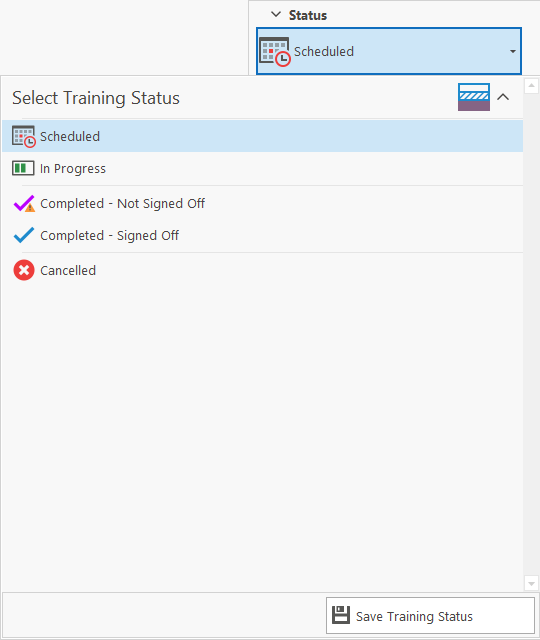
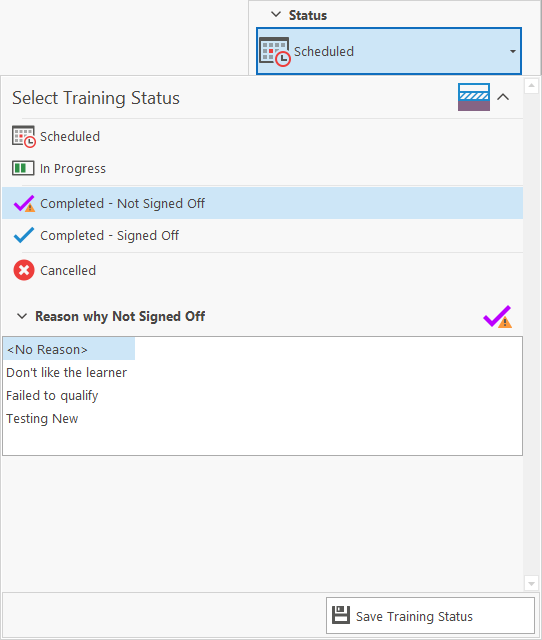
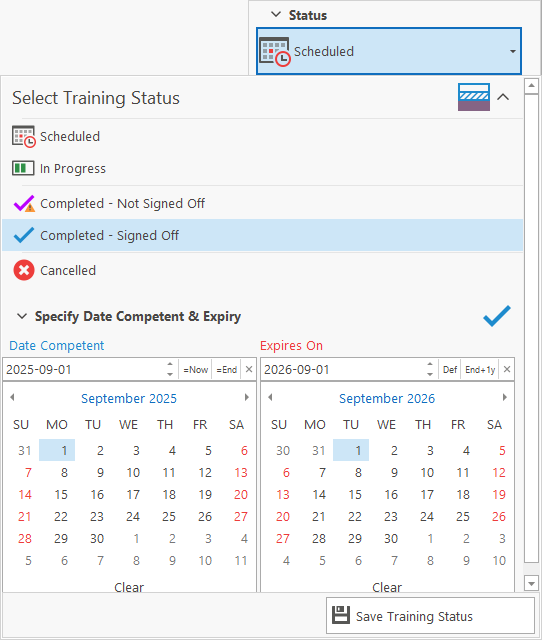
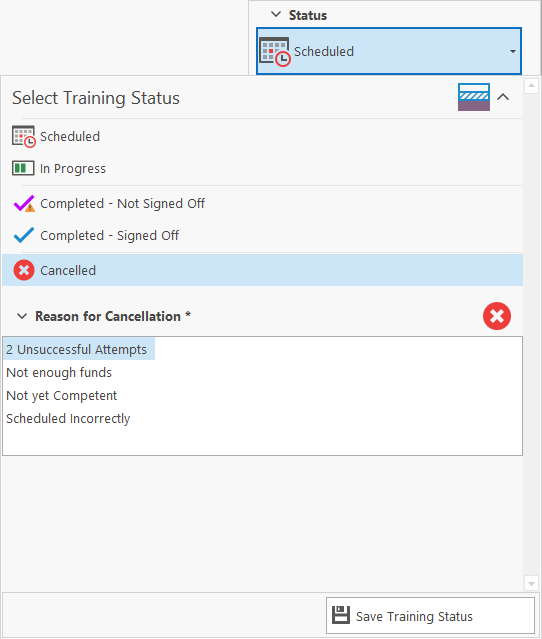
To change the status, click on the Status dropdown button on the right. You can then select the new status and click the Save Training Status button which will save the status immediately to the database (without needing to click one of the form’s Save buttons). Note that if training is being tracked per sub-record, then all the statuses will be disabled and the completion statuses will only become available once all the sub-records have been completed.
The available statuses are as follows:
- Scheduled: Training is scheduled / planned, but hasn’t started yet. No further options need to be set.
- In Progress: Training has started, but has not yet been completed. No further options need to be set.
- Completed – Not Signed Off: Training has been completed but learner has not yet been signed off for competence. An optional reason why learner has not been signed off yet, can be selected from a list of reasons.
- Completed – Signed Off: Training has been completed and the learner has been signed off as competent. A sign off / competence date can be specified. Once the sign off date has been specified, if the training is configured for expiry, the expiry date will become visible and will calculate from the sign off date.
- Cancelled: Training has been cancelled. A mandatory reason for cancellation must be selected from a list of reasons.
Request Certificates
Only becomes enabled once the training has been Completed & Signed Off. User can choose from a list which types of certificates must be issued (i.e. Attendance, Competence, etc.). Depending on the certification module’s configuration, the certificate might have its own approval process before it will get issued.
Modules / Sub-Records
The modules tab will list all the modules or sub-training records that the learner has been scheduled for as part of the learning intervention.
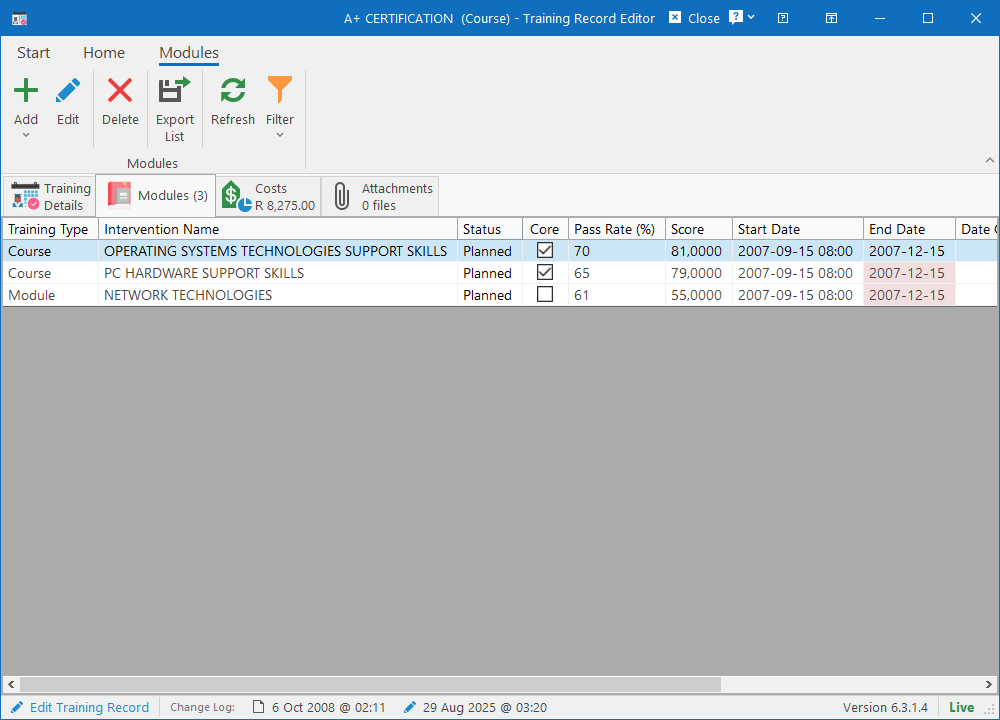
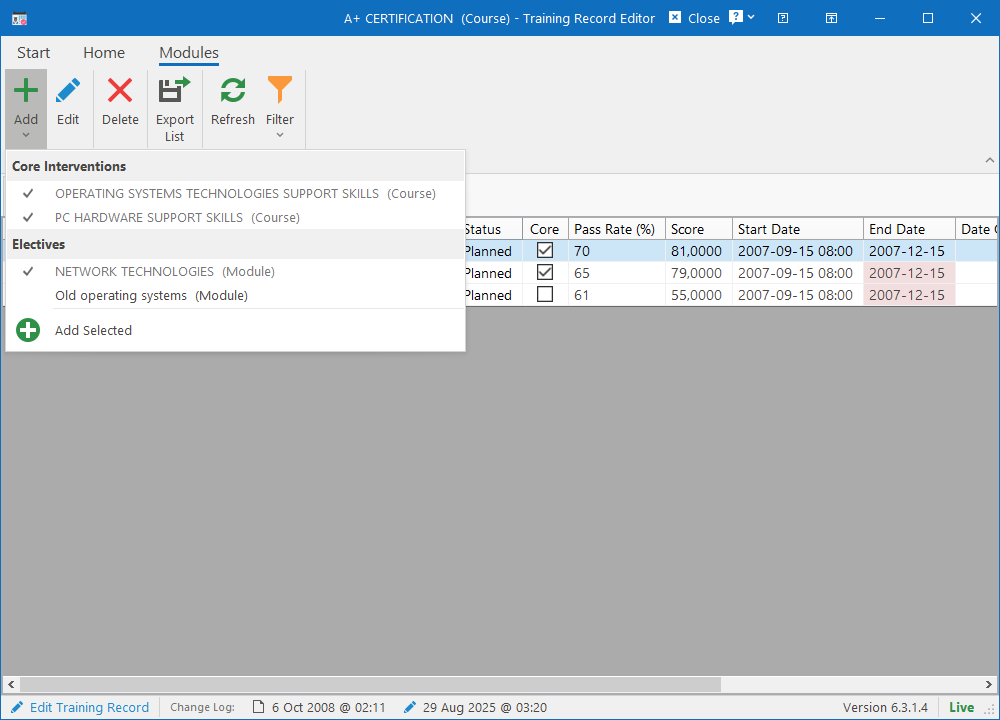
The column layout can be customised in the Training module configuration. From this tab, you can edit any of the training records by selecting one and clicking the Edit button on the ribbon bar or double clicking on a record. Sub-records can also be updated in a batch by selecting more than one record.
To add another module, simply click on the Add dropdown button on the ribbon bar, select the sub-interventions on the dropdown and click the Add Selected menu item. This will automatically add the selected records using the field values from the main record (dates, providers, etc.).
Costs
The costs tab allows capturing of the costs associated with the module / sub-record per cost category. Values can be captured in the “Amount” column while the “Total from Records” column will show the sum of all costs from the sub-records for informational purposes.
The “Charged” row is a special field (not a category) that are used by training provider clients where they can specify how much they charged the learner / company for the training.
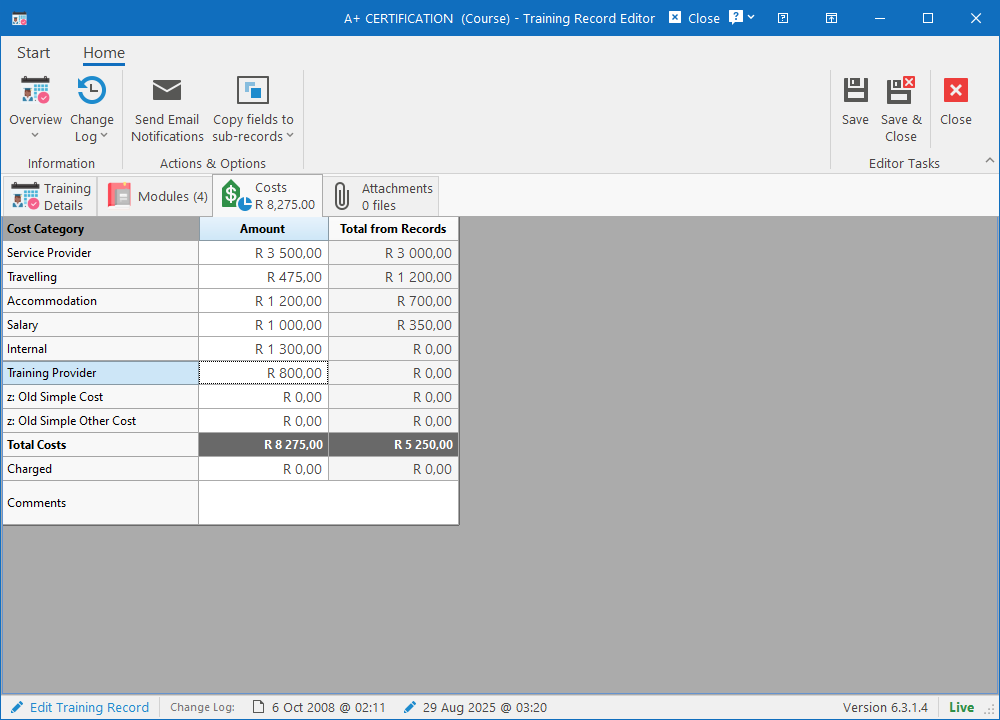
Note that if the cost settings on the Training Event is set to propagate to the training records, then the costs tab on the training record will be read-only.
Attachments
The Training Record Editor allows multiple supporting documents to be attached. Files can be attached by dragging them from Windows Explorer / Outlook, pasting them from clipboard or clicking the Attach New File(s) button on the ribbon bar and manually browsing for them.
Attachments already loaded can be opened by clicking the Open / Preview button on the ribbon bar. This will attempt to view the file using our built-in viewers for Pdf, Word, Excel and Images. If it is for a different kind of file, the file will be saved as a temp file and opened with the default application.
Alternatively, the attachment can be saved to a file by clicking the Save File To button on the ribbon bar and browsing for a location to save the file to.