
Configuring Leave Groups
Introduction
Leave Groups links the employee to the following:
- Entitlement per leave type
- Work Days
- Public Holidays
A person can be linked to up to 3 different leave groups at a time and a leave group can focus on defining one aspect only (i.e. Public Holidays) or it can be a hybrid, defining two or three different aspects.
To get started, open the Leave Module Configuration and click on the Leave Groups item in the menu on the left. Then open any of the existing leave groups or click Create New on the ribbon bar to open this Leave Group editor.
Leave Group Editor
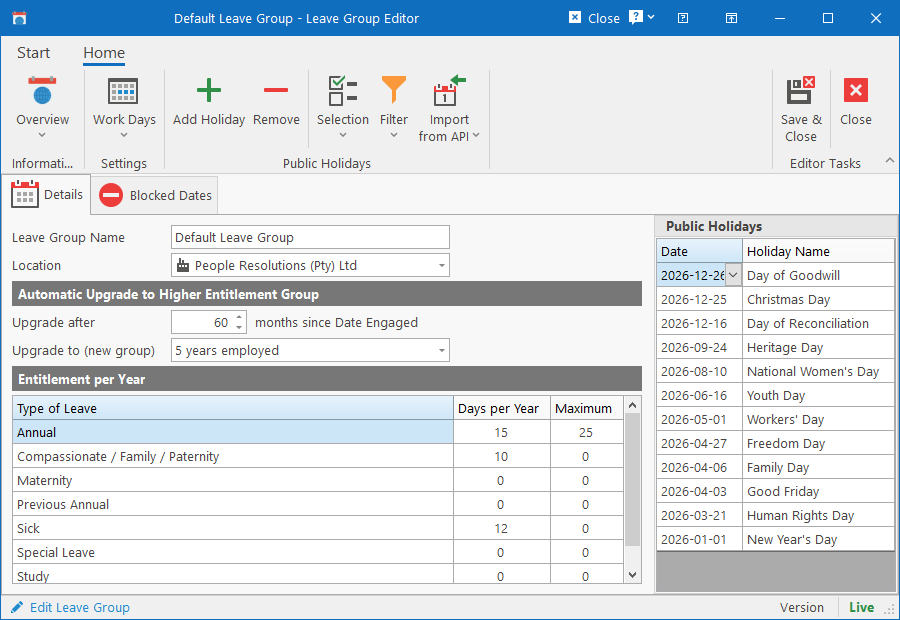
Settings
On the ribbon bar, the Settings group contains the following settings:
- Country Code: Specify the 2-digit country code that the leave group is for. Usually only applies to leave groups containing public holidays.
- Work Days: Specify which days are work days for the people that belongs to the leave group. By default Mon-Fri will be selected and Saturday and Sunday will be unselected.
Automatic Upgrade
Employees can automatically move to leave groups with better entitlement after a certain period in service. Simply specify how many months after date engaged the person should be upgraded and to which leave group.
Entitlement
Specify how many leave days per year each person that belongs to the leave group receives. A “Maximum” can also be specified which will prevent leave from previous years to accumulate too much. People with a balance equal to the maximum will not accrue any further leave until leave has been taken.
Public Holidays
On the right, a list of all the public holidays will be displayed. By default, only the public holidays for the current and future years are displayed. To see previous public holidays, click on the Filter dropdown button in the toolbar and click on either Show Last Year or Show All.
To add a new public holiday, click the Add Holiday button on the ribbon bar which will add a new row to the list and immediately start the editing process. To remove an incorrect holiday, select one or more holidays and click the Remove button. To edit any existing holiday, simply make your changes directly in the editable list.
Bulk functionality
The system provides a couple of built-in functions to add or update public holidays in bulk.
The latest functionality allows for importing public holidays from a public API (date.nager.at). Make sure the Country Code is correct (on the ribbon bar) and then click on the Import from API dropdown button, specify the year to retrieve public holidays for and click on the Retrieve Public Holidays item. This will retrieve all the public holidays for the selected country and year and add all the unique dates to the list of public holidays. If a date is already defined in the list, it will be ignored.
Finally, the older functionality available allows you to copy or move existing public holidays, select them from the list and click on the Selection dropdown button on the ribbon bar and then click on the Copy to new year or Move to new year item. This will create new public holidays on the same days, but with a new year specified.
Blocked Dates
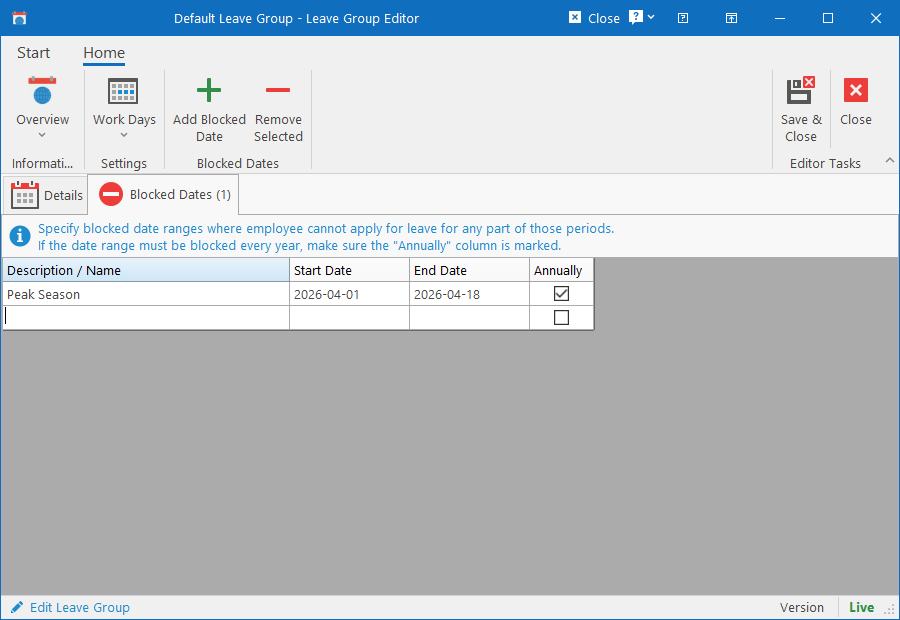
Certain date ranges or days can be blocked out which would prevent all employees linked to the leave group from applying for leave that falls either within, over or partially cover the specified periods. Blocked Dates can be specified (and will be enforced) for any of the leave groups that people are linked to (Entitlement, Work Days or Public Holidays).
Each Blocked Period consists of the following fields:
- Description / Name: Optional, but can contain something like the reason why the period is blocked.
- Start Date: Date when the blocked period starts. Must be unique.
- End Date: Date when the blocked period ends.
- Annually: Mark this column if the period should automatically renew every year. If unchecked, the blocked period will only apply to the year for which the dates are specified.
Note that Leave Types must also be configured to not ignore Blocked Periods. i.e. Sick leave can most likely be taken during blocked periods while Annual leave can not.