
Logging In
Starting up
When opening HR Manage, you’ll be presented with a login screen embedded in the splash screen. You’ll have to enter your HR Manage Username and Password that we or your HR Manage Administrator will provide you with and then click the Login button. If you want to log in automatically when starting HR Manage next time, be sure to select the Remember Me checkbox.
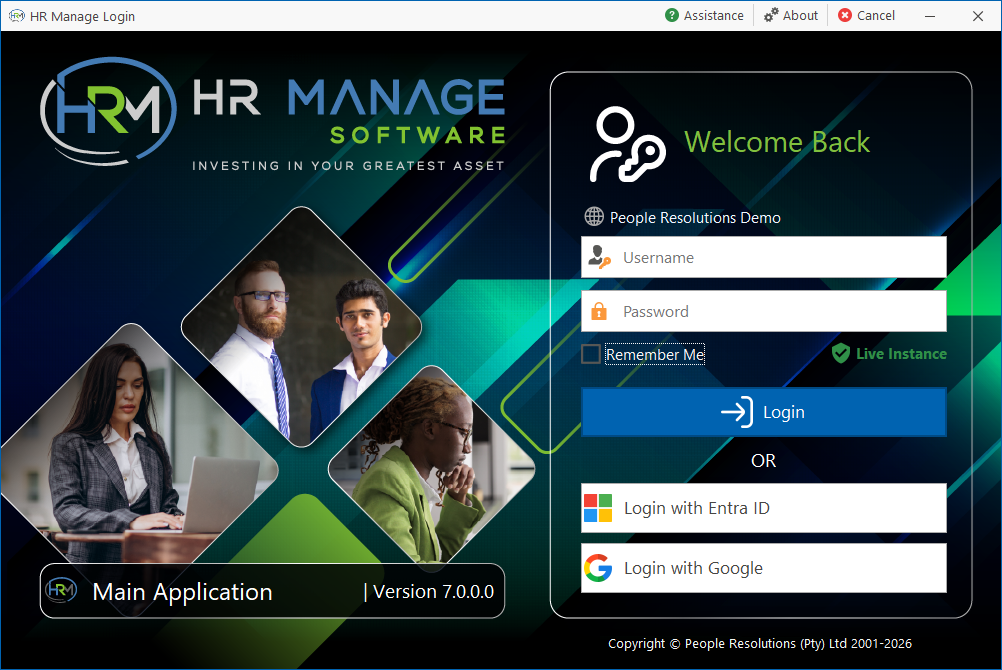
For companies that have integrated with Active Directory, users can enter their AD username and password here (if their HR Manage accounts have been linked to their AD accounts) and click Login.
For companies that have integrated with Microsoft Entra ID or Google OpenAuth2, the additional respective login buttons will become available. Clicking the Login with Entra ID button will log into the Microsoft account via a popup window which will then log into HR Manage if the Entra ID has been linked to an HR Manage account. Clicking on the Login with Google button will open a web browser and prompt the user to login to their google account which will in turn log into HR Manage if the Google ID has been linked to an HR Manage account.
Take note of some important fields:
- Company Name: Right above the username textbox, the company name is displayed.
- Instance Type: Below the password textbox on the right side, the type of instance will be displayed. Always make sure you are connecting to the intended instance. Types of instances are: Live, Q&A (for testing purposes) and Training. This is important because data captured on a non-live instance, cannot be copied to a live instance and things broken on a live instance, cannot be fixed without restoring the previous backup (which might result in some data loss).
- Version & Module: Located on the bar in the lower-left of the screen, this will display the current module that is being logged into (if not the Main Program) and the current HR Manage version. To see the About box or Release notes, click on the About button in the window’s titlebar (next to the minimize button).
Linking HR Manage to Active Directory
Active Directory must be configured as an Authentication Service in HR Manage in order to proceed.
To link your HR Manage user account to your Active Directory account, simply click the Link to 3rd party login checkbox. Clicking this will open the “Windows Authentication” dialog where you can enter your AD username and password and click the Authenticate button. HR Manage will then authenticate the login details provided against Active Directory and if successful, store a token that will then be linked to your HR Manage account (AD password will not be stored).
After the Windows Authentication dialog closes, you’ll be back at the Login screen with the “Link to 3rd party login” checkbox now being selected. Now just enter your HR Manage username and password one last time and log in. This will ensure that only you can link your AD account to your HR Manage account and then next time you get to an HR Manage login screen, you can simply enter your AD username and password.
Linking HR Manage to Microsoft Entra ID
Microsoft Entra ID must be configured as an Authentication Service in HR Manage and HR Manage must be registered as an application on the Azure Portal in order for the “Login with Entra ID” button to be available.
To link your HR Manage user account to your Entra ID account, simply click the Login with Entra ID button. Microsoft’s “Sign in to your account” dialog will open and ask you to sign in (if your machine is already connected to entry, you might not even need to enter a password). Simply click on the account you want to link to HR Manage or enter the login credentials for the Entra account.
Once completed, if the account is already linked to an account in HR Manage, you’ll be signed in automatically. If not, the “Link to 3rd party login” checkbox will be selected and you’ll need to login with your HR Manage username and password one last time to complete the link.
Password Recovery
In order to recover your password, click on the Assistance button in the top right corner of the screen (in the titlebar) for options.
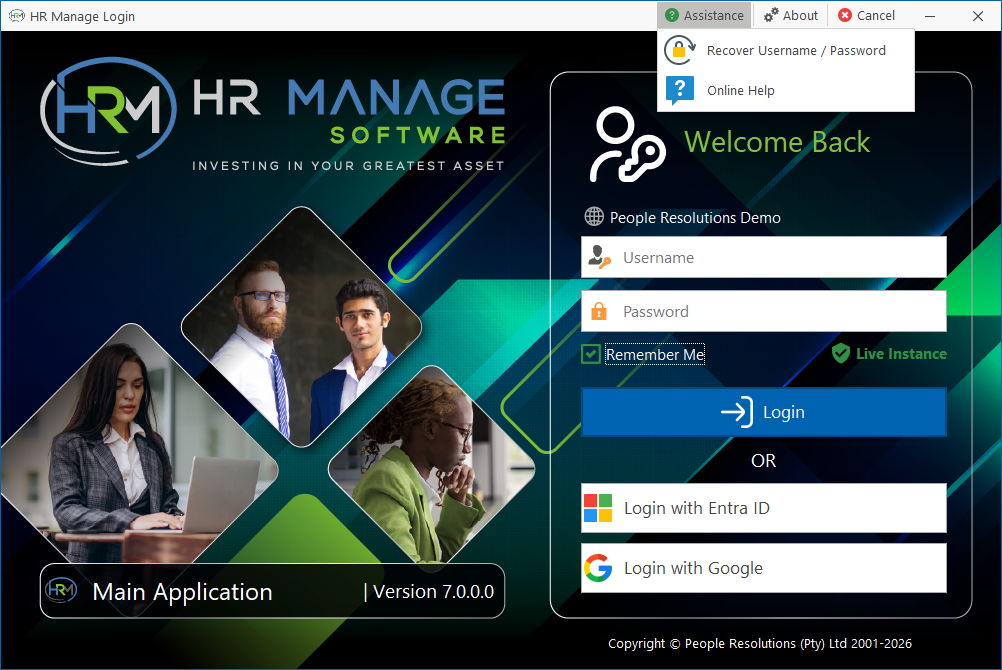
Password Hint
Clicking this option will display your captured password hint in a toast notification.
Recover / Reset Login
Clicking this option will display a popup window with 3 buttons, providing you with options to recover your password.
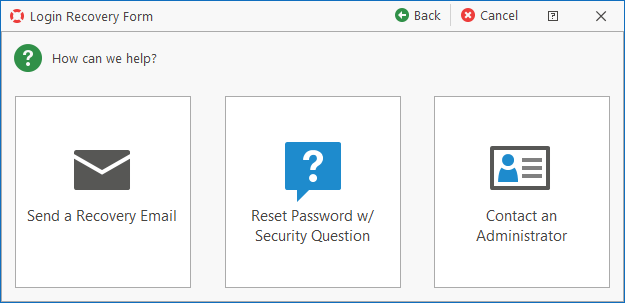
Send a Recovery Email
This will send an email to your registered email address containing an authentication code. You simply need to enter the value of an identification field and then enter the authentication code once received to proceed to the Password Reset screen.
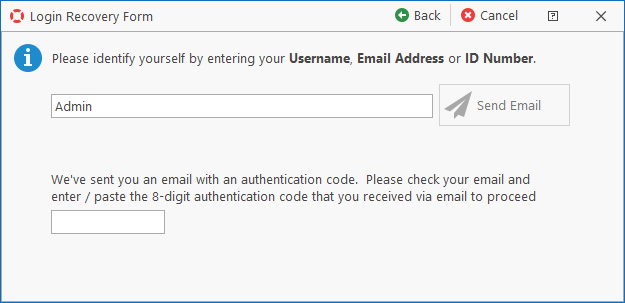
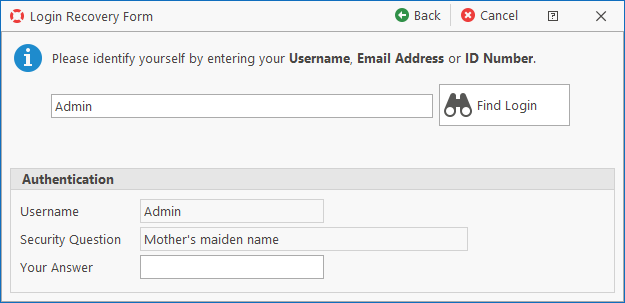
Reset Password with Security Question
This will allow you to reset your own password by identifying yourself and then answering your security question. Simply identify yourself and then answer your question.
Contact an Administrator
This will display a list of contacts that are marked as Administrators that you can contact for assistance. Only use this option if you’re unable to succeed using the first two.
The list will contain phone numbers and email addresses, but you can double-click on an item to directly open a New Email window with their address filled in.