
Register Online
Getting Started
HR Manage automatically syncs with most payroll systems so if you are on your company’s payroll, your employee file should already be on HR Manage. It is simply a matter of finding your employee file, authenticating yourself and then registering your own username and password for accessing the system.
Note that if your organisation allows for signing in with Microsoft or Google, you can register yourself with a single click by simply clicking on one of those buttons on the login screen (as long as your email address is loaded correctly in the system).
For manual registration, open the site menu (button with 3 lines in top-left corner of page) and click on the Register Now item.
Simple Registration
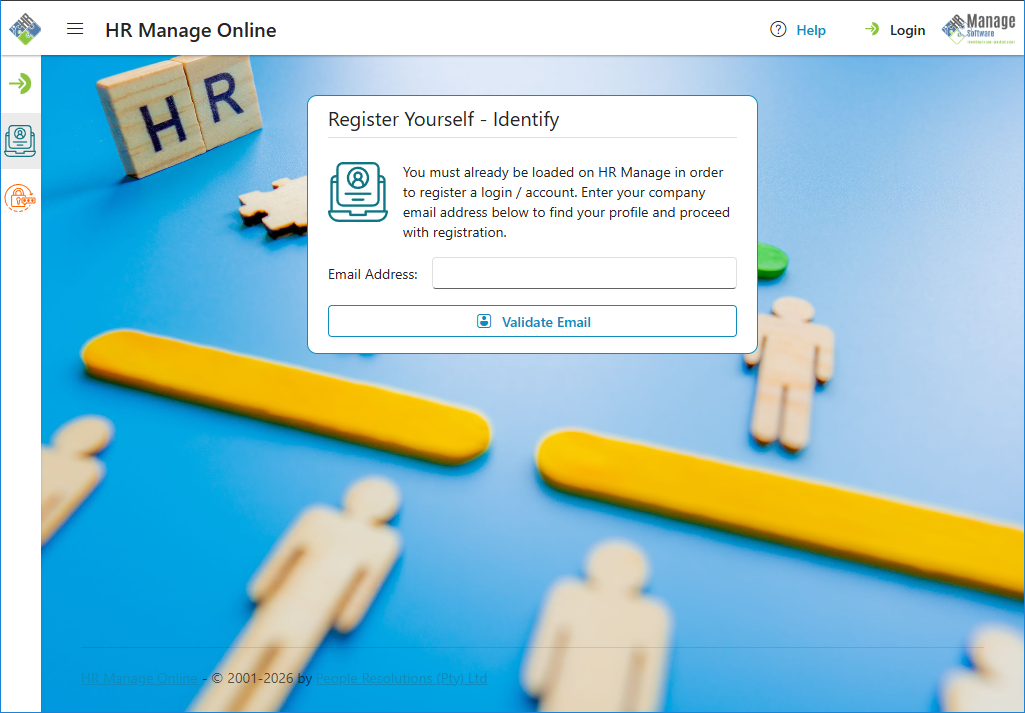
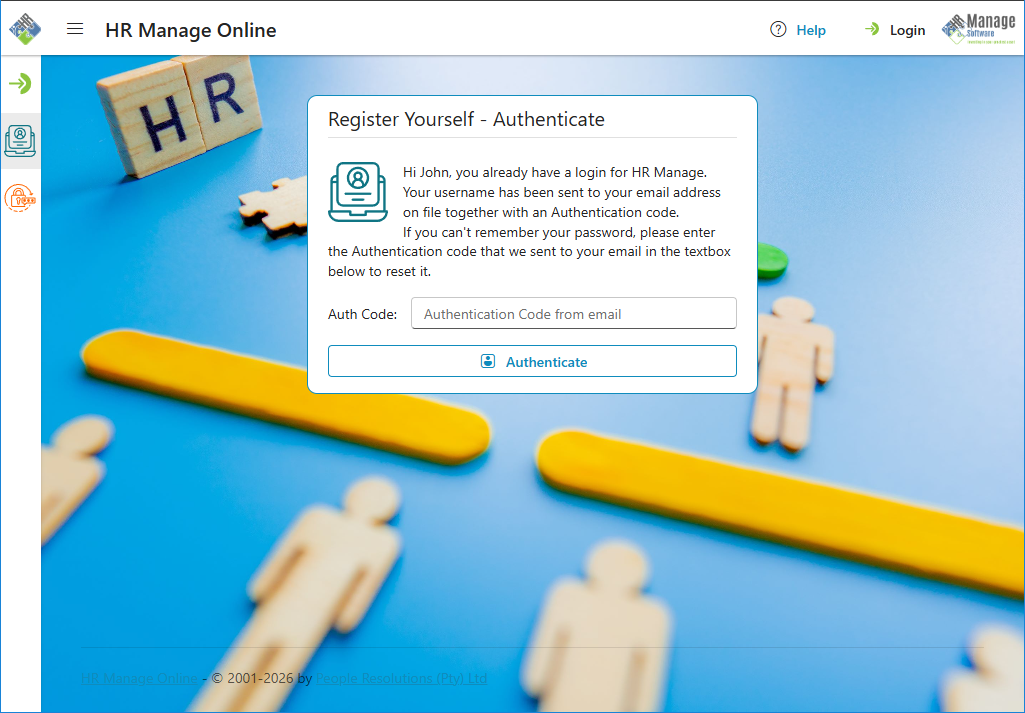
To start, enter your company email address and click the Validate Email button. Then check your mailbox for an email from “HR Manage Online” with the subject “Confirm HR Manage Registration”. Find the authentication code in the email and enter it on the next page in the “Auth Code” textbox and click the Authenticate button.
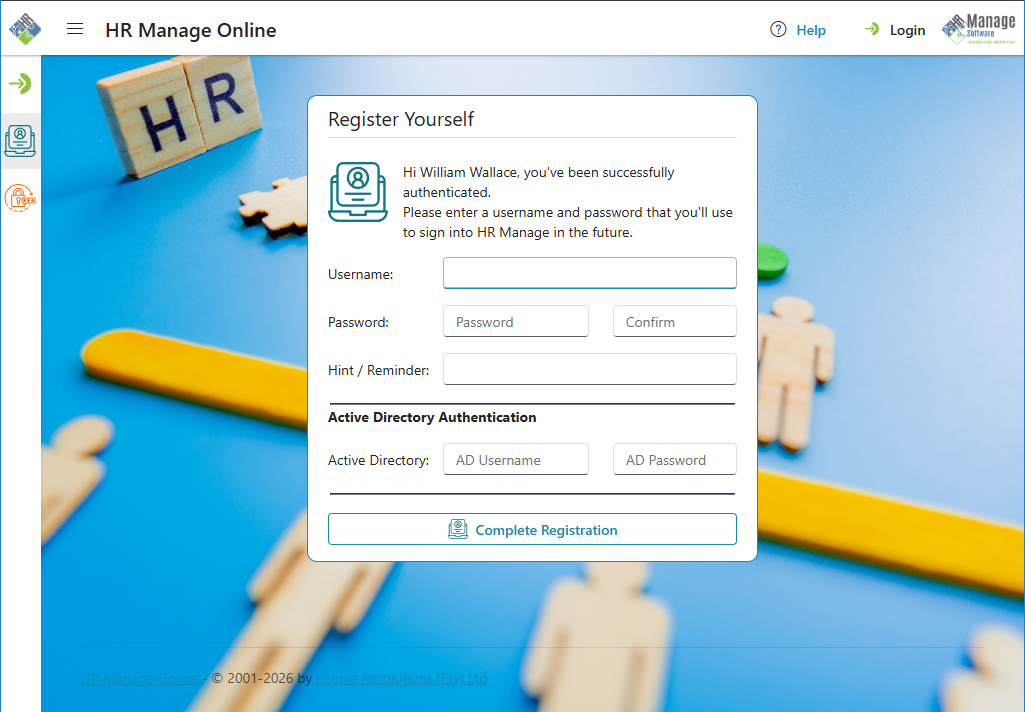
If successful, you’ll be prompted for a username, password and password hint. If your account already exists, your username will be filled in already.
If your company has integrated with one or more Active Directories, you can enter your AD username and password under the applicable Active Directory. Note that we won’t store your AD password, but the system will simply authenticate your AD credentials and if successful, will link your AD username to your HR Manage account so that you can log in with your AD credentials in the future.
Finally click the Complete Registration button. If your password is not strong enough or if there are any errors, you’ll be returned to this page to fix them. Otherwise, you’ll be redirected to the login page.
Alternative Registration
In the event that your email address is not on the system or if there are multiple people on the system with your email address, you can use the legacy registration. The system will automatically present the following screen based on the email address entered.
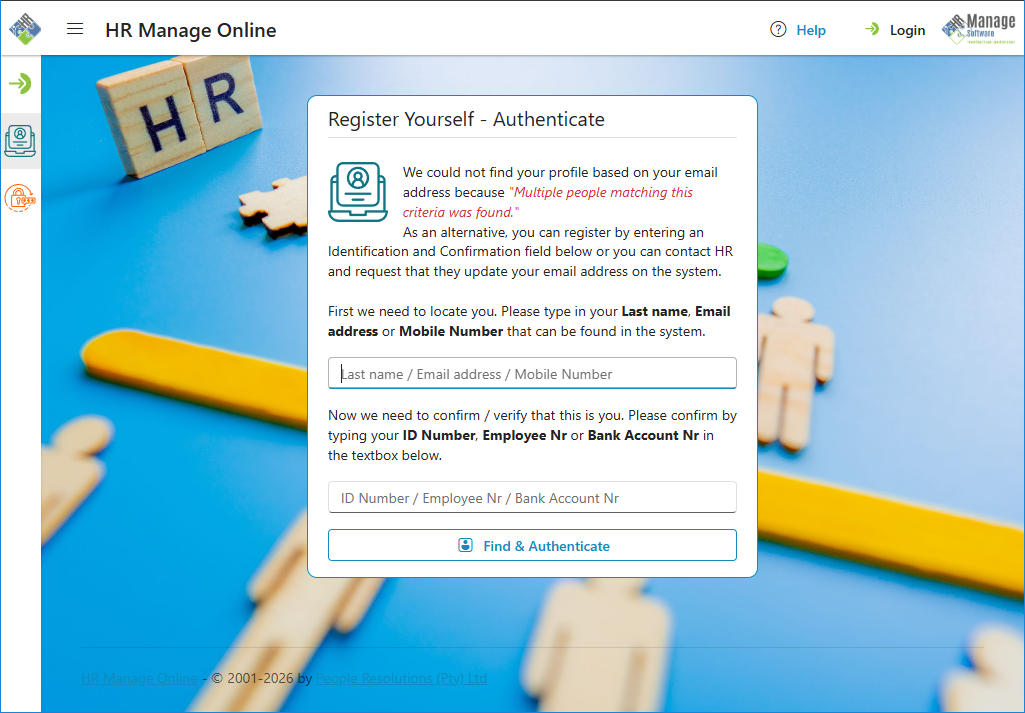
To authenticate yourself using the backup method, enter a field (as stored in HR Manage) to identify yourself like your last name, email address or cellphone number in the first textbox and then enter a personal field like your ID Number, Employee number or Bank account number in the second textbox. Note that the exact fields that can be used for identification and confirmation is customised by your company, so be sure to read the page to know exactly what you can enter in each textbox.
Then simply click the Find & Authenticate button and if successful, you’ll be directed to the registration screen above where you can specify your username and password.
If unsuccessful, please contact your HR department and ask that they update your email address on the system or investigate why you can’t register.
Possible Errors
There are a number of reasons why you might be blocked from completing registration. These reasons include:
- If you already have a user account and the account has been disabled.
- If your employee record on HR Manage is inactive / terminated.