
-
HR Manage Application
-
-
- Articles coming soon
-
- Articles coming soon
-
- Articles coming soon
-
-
HR Manage Online
-
Config & Admin
-
IT Documentation
-
Version History
Email Groups
Introduction
An Email Group represents a group of both internal and external email recipients that should receive certain kinds of emails. An example would be an application for medical aid or life insurance that was completed on HR Manage that must get sent to all the relevant parties.
Email Group Editor
The Email Groups can be designed from within a Workflow Activity or by clicking on the Email Groups menu item on the left from within the Workflow Module Configuration.
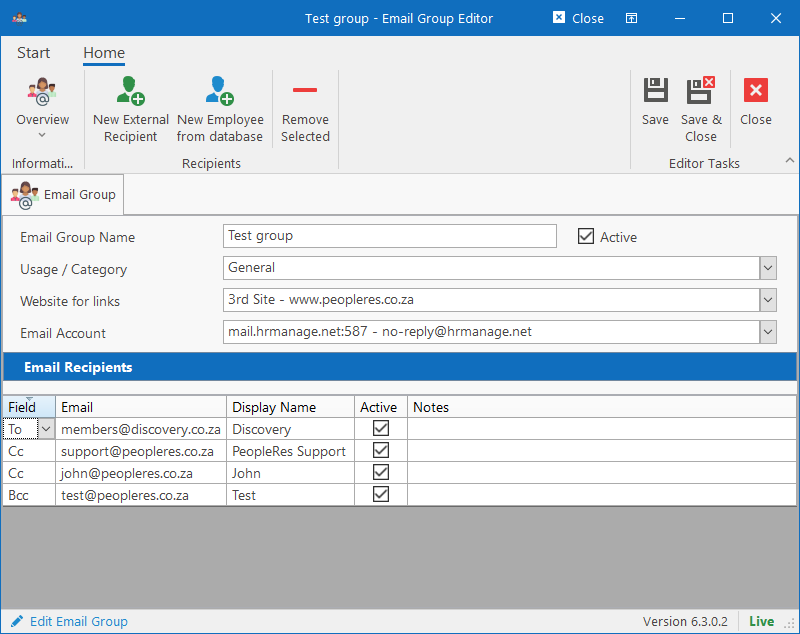
Clicking on the Add External Recipient button on the ribbon bar will add a new row to the Email Recipients list and allow the user to directly edit the email address and display name on the grid.
Clicking on the Add Employee from database button on the ribbon bar will open a form that will allow the filtering and selecting of multiple employees that can be added to a shortlist. When clicking Ok, the shortlisted employees will be added as recipients in the group.
Clicking on the Remove Selected button on the ribbon bar will remove the currently selected recipient.
Workflow Integration
Email Groups are usually designed from within the “Send Email to Group” Workflow Activity Editor as that is currently the only area in the system that uses the functionality.