
Creating Custom Data Sources
Introduction
Custom Data Sources can be used to define a custom set of data that must be returned for either a Custom API or a BI Dashboard section. This is advanced functionality and should be done either by someone from People Resolutions or someone with SQL experience.
Getting Started
In HR Manage, go to the reporting module and click on the Data Source Library.
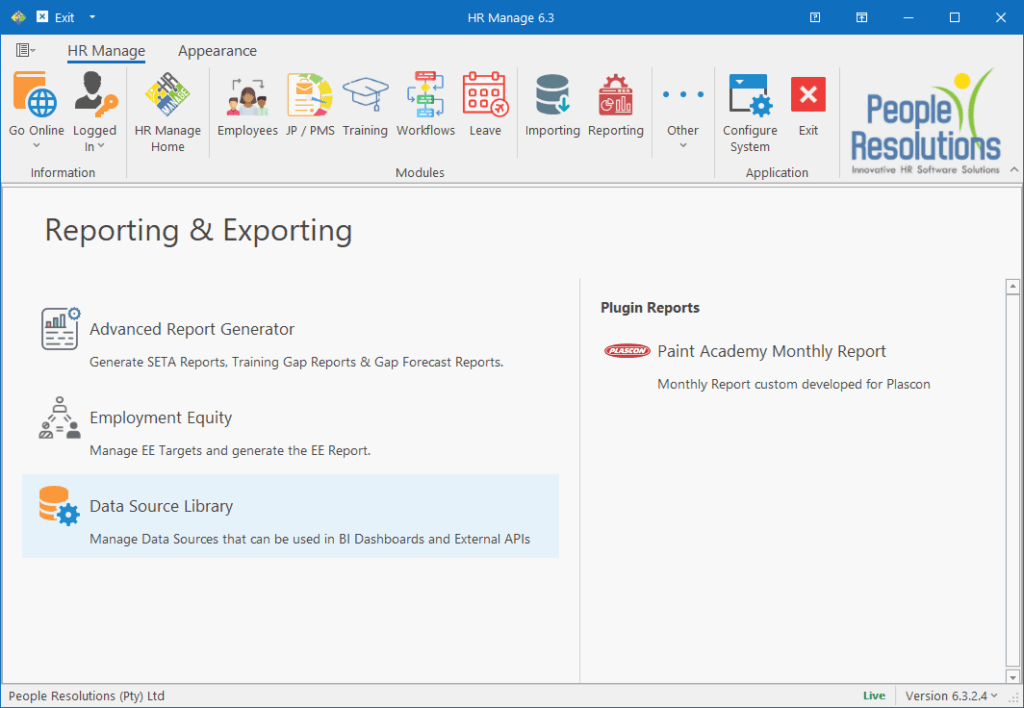
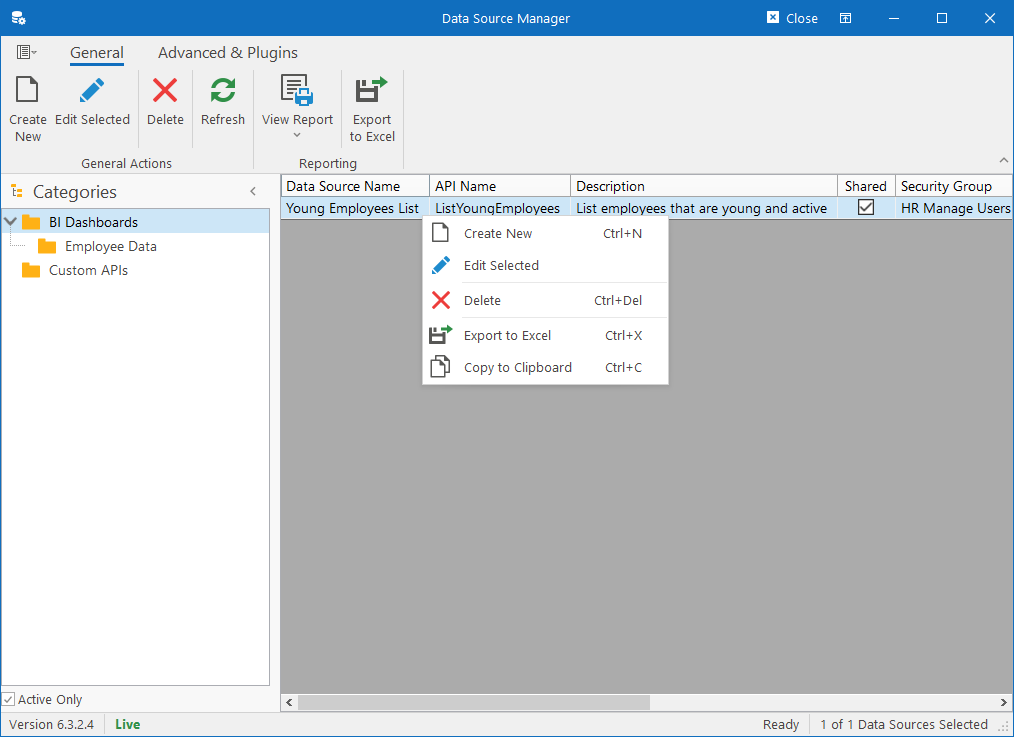
From the Data Source Library, open an existing Data Source or select a category to create the data source in and click Create New on the ribbon bar. This will open the Data Source Editor.
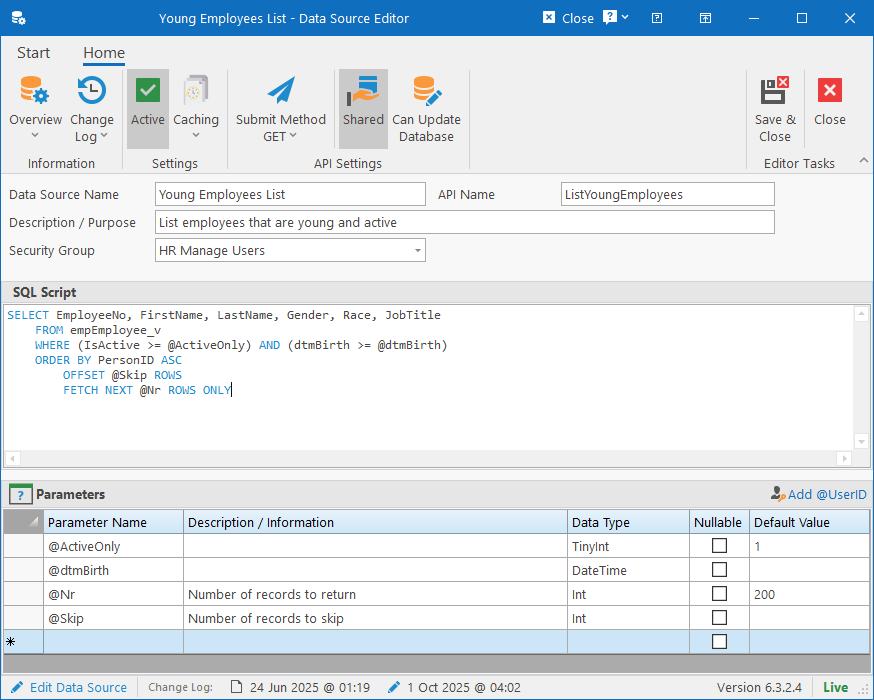
The Data Source editor consists of the following fields:
On the Ribbon bar
- Settings
- Active: Specify whether the Data Source is active / enabled.
- Caching: Specify whether the data source should be cached. Enabling caching can improve performance for data that doesn’t need to refresh constantly.
- API Settings: Specify settings for when the data source is used by an API.
- Submit Method / Verb: Specify the type of request for the API. The options are:
- GET: Parameters must be provided in the query string.
- POST: Parameters must be provided in the body as json.
- PUT: Parameters must be provided in the body as json.
- DELETE: Parameters must be provided in the query string.
- Shared: Specify whether the custom API can be used by multiple API Keys or only specific API Keys that are explicitly linked to the Custom API. If selected, then all API Keys that have access to the Security Group specified will be able to call it.
- Can update database: Specify whether the API can make changes to the data in HR Manage. This is not recommended unless the custom API is designed by a member of People Resolutions.
- Submit Method / Verb: Specify the type of request for the API. The options are:
Form Fields
- Data Source Name: Specify a name for the data source for easy identification in the library.
- API Name: This is the name of the API that will be called. Only alpha-numeric characters, dash (-), underscore (_) or dot (.) allowed. (No spaces or special characters). If left empty, then data source cannot be used as an api.
- Description / Purpose: More information about the API for management purposes.
- Security Group: Used for Shared Custom APIs. Specify which Security Group API Keys need to have access to in order to call this API.
- SQL Script: SQL that must be executed on the HR Manage database to retrieve the data. Should only return a single result set and restricted keywords like “commit” and “transaction” are not allowed.
Parameters
Specify the definition for parameters used in the SQL script. Each parameter must start with “@” and has specific settings that should be set.
- Parameter Name: Specify the name of the parameter. Must start with @ and only consist of alpha-numeric characters.
- Description / Information: Meta information about the parameter.
- Data Type: Specify the SQL data type for the parameter.
- Nullable: Specify if the parameter value can be null. If not null and the parameter value provided is null, then an error 400 will be returned.
- Default Value: If a parameter is not supplied as part of the API request, you can specify a default value to use.
A parameter called “@UserID” can be added which will automatically be set to the ID of the logged in user. Not applicable to APIs.
Calling the API
If an API name for the data source has been specified, then the API can be called as follows:
GET/POST/PUT/DELETE:  https://ServerUrl:Port/api/Custom/CustomApiName

Headers
Authorization:  Bearer ApiKey|ApiSecret
or
Authorization:  Bearer ApiKey|Encrypted

QueryString (for GET and DELETE verbs)
?Param1=Value1&Param2=Value2

Body (for POST and PUT verbs)
{
    "Param1": "Value1" (for strings / dates),
    "Param2": Value2 (for numbers, no quotes)
}