
Organisational Units
Introduction
Organisational Units (or Org Units) are entities in HR Manage that link together all the location levels (i.e. Branch & Department & Division). Employees are linked automatically to organisational units based on which locations they are linked to, so they are never manually assigned. The idea is to be able to specify links and settings for a specific location like the “IT department at the Pretoria branch”.
Org units are then used in two ways:
- The “Related Person” for an organisational unit can be referenced from a workflow.
- If a Manager is referenced for an employee and the employee doesn’t have one linked, then the system will fallback to whichever manager is linked to their org unit.
Organisational Unit Editor
To manage organisational units, open the main HR Manage Configuration and click on the Organisational Units menu item under the “Company Structure” section on the menu on the left. From here, click on the Create New button on the ribbon bar to create a new org unit or open an existing one to open the Organisaitonal Unit Editor.
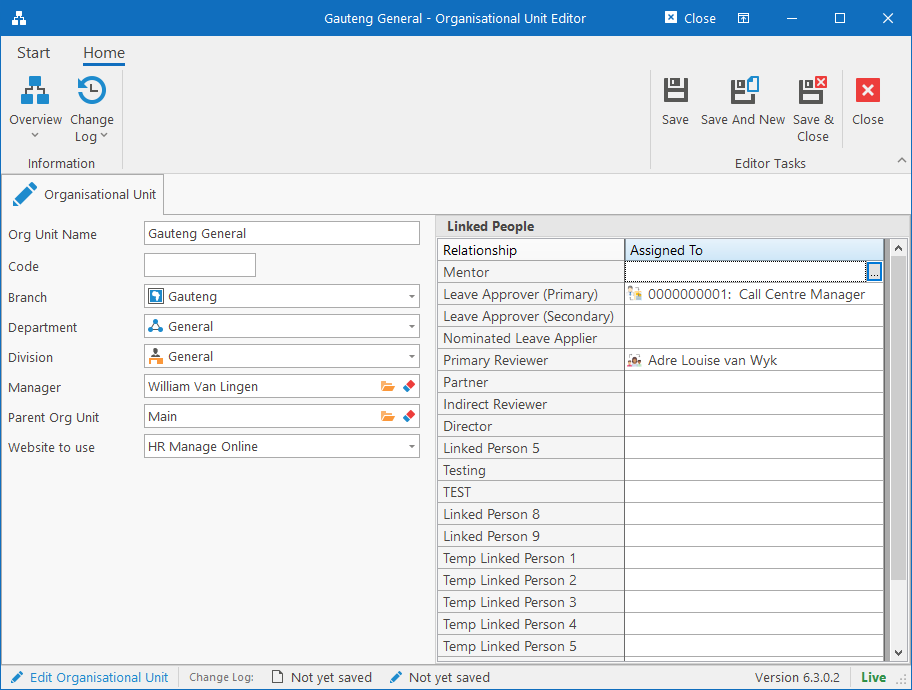
The edit contains the following fields:
- Org Unit Name: Used to identify the organisational unit.
- Code: Optional, but can be specified if needed.
- Location 1: This is the first location (level 1) that the org unit is linked to. This typically represents something like a “branch” in an organisation.
- Location 2: This is the second location (level 2) that the org unit is linked to. This typically represents something like a “department” in an organisation.
- Location 3: This is the third and final location (level 3) that the org unit is linked to. This typically represents something like a “division” or “team” in an organisation. Note that this level is optional.
- Manager: This represents that manager of this organisational unit and it can refer to either a Position or a specific Person. When the system attempts to determine the manager for an employee and no explicit manager is specified for that employee, then this will serve as a default manager.
- Parent Org Unit: The organisational unit that this org unit reports to. The links are purely for the purpose of automatically generating an organisational chart with org units.
- Website to use: It is possible in some scenarios that companies have more than one HR Manage Online instance installed (each just with different branding and themes) and that some employees access the one portal instead of the other. Choosing a specific portal here (other than “<Use Default>”), will ensure that all links used when generating email notifications for people who belong to this org unit, will point to a specific site.
- Linked People: Similar to the “Manager” field, these linked people serve as backups in the event that none are specified for an employee.
Location 3 is Optional
As mentioned earlier, Location 3 is optional which allows it to be used like a wildcard. Since Org Units are mostly used for retrieving backup related people in the event that a person doesn’t have one linked directly, this allows to create org unit combinations for just 2 levels.
Consider the following company structure:
| Location 1 (Branch) | Location 2 (Department) | Location 3 (Division) |
|---|---|---|
| Pretoria | IT | Support |
| Cape Town | Human Resources | Development |
| Durban | Sales | Servers |
| Nelspruit | Marketing | Hosting |
From this, the following org units could be created:
- Pretoria IT All: Pretoria – IT – None
- Pretoria IT Support: Pretoria – IT – Support
For an employee that doesn’t have a Manager specified,
- If linked to “Pretoria”, “IT” and “Hosting”, then the manager from the “Pretoria IT All” org unit will be used.
- If linked to “Pretoria”, “IT” and “Support”, then the manager from the “Pretoria IT Support” org unit will be used. However, if that org unit doesn’t have a manager specified, the system will fallback even further and check if the “Pretoria IT All” org unit has a manager that can be used.