
How Can We Help?
-
HR Manage Application
-
-
- Articles coming soon
-
- Articles coming soon
-
- Articles coming soon
-
-
HR Manage Online
-
Config & Admin
-
IT Documentation
-
Version History
< All Topics
Print
Employee Related Data
Posted
Updated
Introduction
There are various types of data from other modules within HR Manage that are linked to employee records. The Employee Manager provides a central access point to view and manage all the data related to an employee.
Getting Started
Related data can be accessed in one of two ways.
- In the Employee Manager, select an employee and then click on the Jump To dropdown button in the ribbon bar and then click on the related data you wish to access. This will open a new window containing the related data.
- In the Employee Manager, select an employee, click on the Open ribbon tab and click the section you want to open from the “Jump To” ribbon group. This will open a new window containing the related data.
- In the Employee Editor, open the “Related Data” tab, click on the Open Related Data dropdown button and then click on the related data you wish to access. This will embed the related data within the Related Data tab.
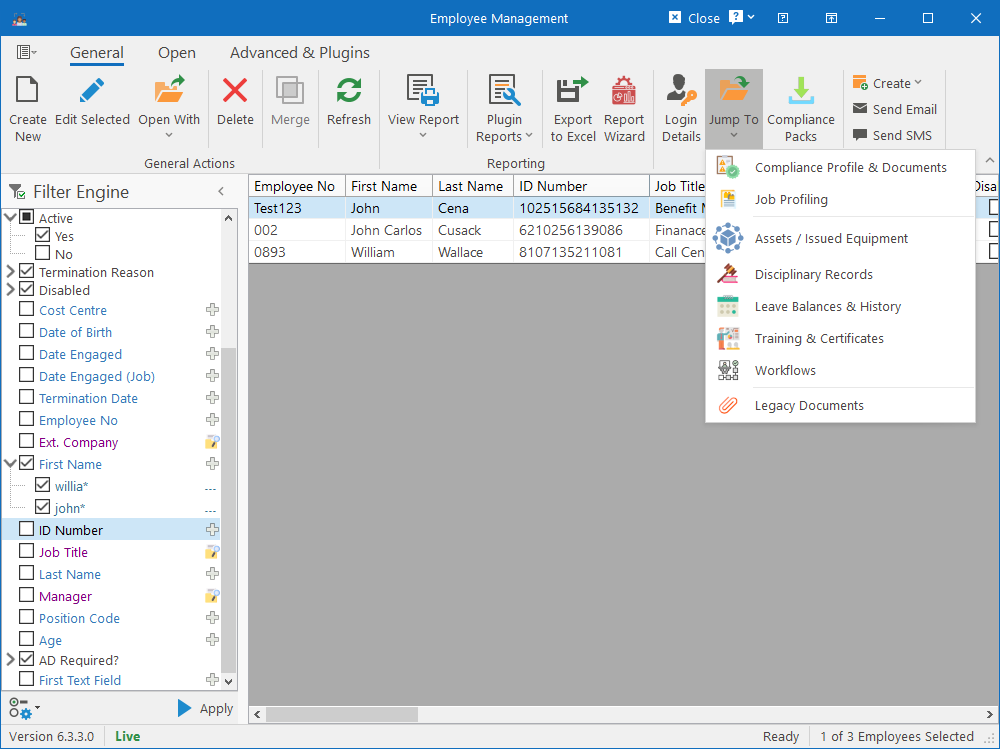
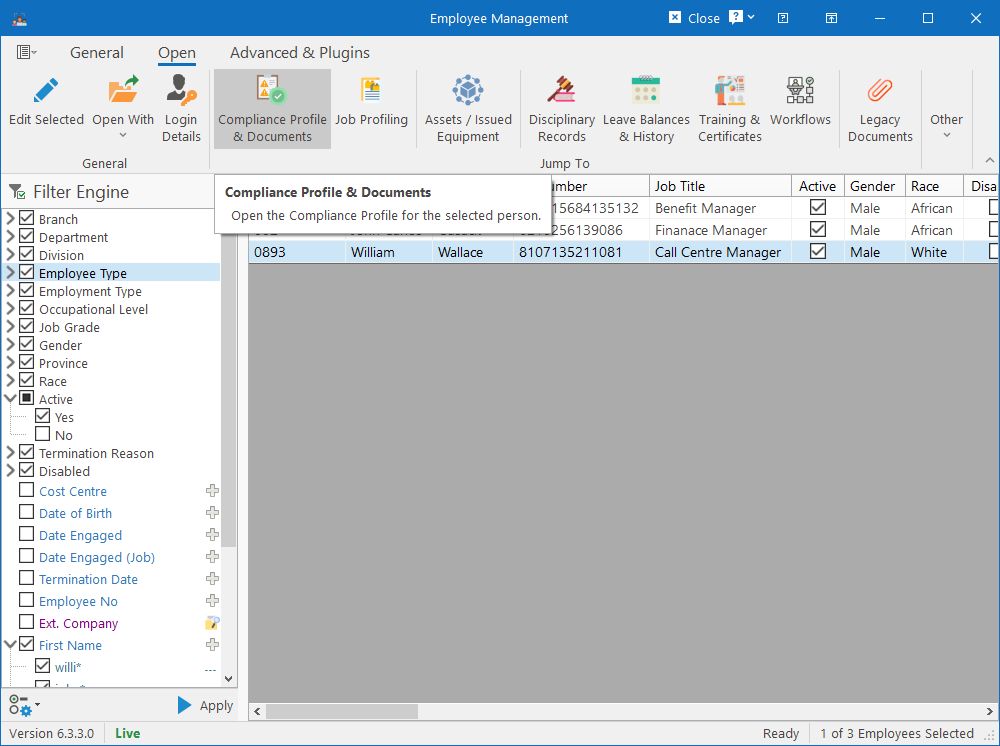
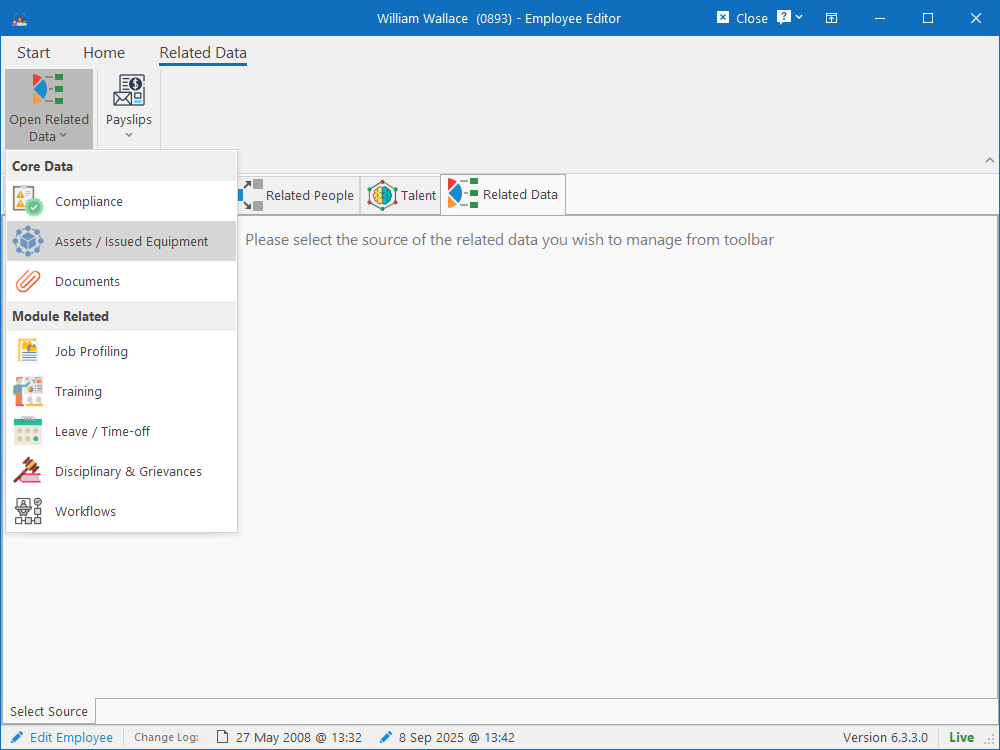
The first two options allow for directly opening the specific data without first needing to open the employee editor, improving speed and reducing the number of clicks needed to get there.
Related Data
This will allow you to jump directly to one of these related data screens:
- Compliance Profile & Documents
- Job Profiling
- Assigned Assets & Issued Equipment
- Disciplinary Records
- Leave Balances & History
- Training & Certificates
- Workflows
- Legacy Documents
Table of Contents