-
HR Manage Application
-
-
- Articles coming soon
-
- Articles coming soon
-
- Articles coming soon
-
-
HR Manage Online
-
Config & Admin
-
IT Documentation
-
Version History
Automatic Updates
Introduction
HR Manage will automatically let the end users know when the server has been updated and prompt them to update their computers. The process is simple and doesn’t require administrator rights or even IT to be involved.
The automatic updater can contain any of the following:
- Full upgrade: Will replace all HR Manage program files
- Minor update: Will only replace files that have changed since the last upgrade.
- Both of the above: Will replace all the program files and apply patches that were released after the last full upgrade.
- Plugin files: Will automatically update any client-specific plugin files that need to distribute.
How to update
If the system has been upgraded, the end users will be presented with the following screen the next time they start HR Manage. This prompt will highlight the current version, new version and release date. If the user moves the mouse cursor over the release date, they’ll be able to see when their version was upgraded to the new version (tooltip).
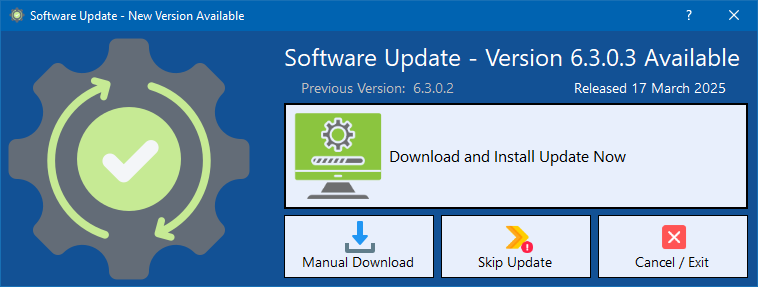
The available options are as follows:
- Download and Install Update Now: This is the recommended option that does everything with a single click. Once the user clicks the button, HR Manage will close and the Software Updater will open which will in turn download all the required files and install them. Once everything has been installed, the updater will close and start HR Manage again.
- Manual Download: This option, if available, will open the web browser to download the update package. The user will then need to manually install the file.
- Skip Update: This will continue to use the existing version of HR Manage without doing any updates. This is not recommended as the software may become unstable. HR Manage was not designed for the server and client versions to mismatch.
- Cancel / Edit: Don’t perform any actions and simply exit HR Manage.
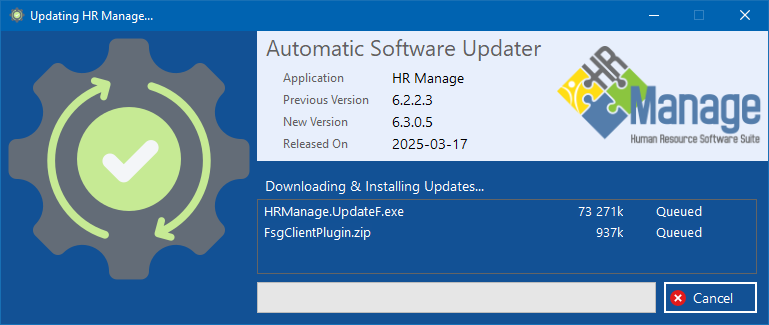
Installation Progress
If the user clicks the Download and Install Update Now button, HR Manage will close and the user will see the overall progress of the upgrade in the following installer. The whole process is unattended.