
-
HR Manage Application
-
-
- Articles coming soon
-
- Articles coming soon
-
- Articles coming soon
-
-
HR Manage Online
-
Config & Admin
-
IT Documentation
-
Version History
Updating in a Batch
Common and Custom fields for Job Titles can easily be updated in a batch. On the Job Profiling Management screen, simply select more than one Job Title and click the Edit Selected button from the ribbon bar. This will open the Job Title Updater form.
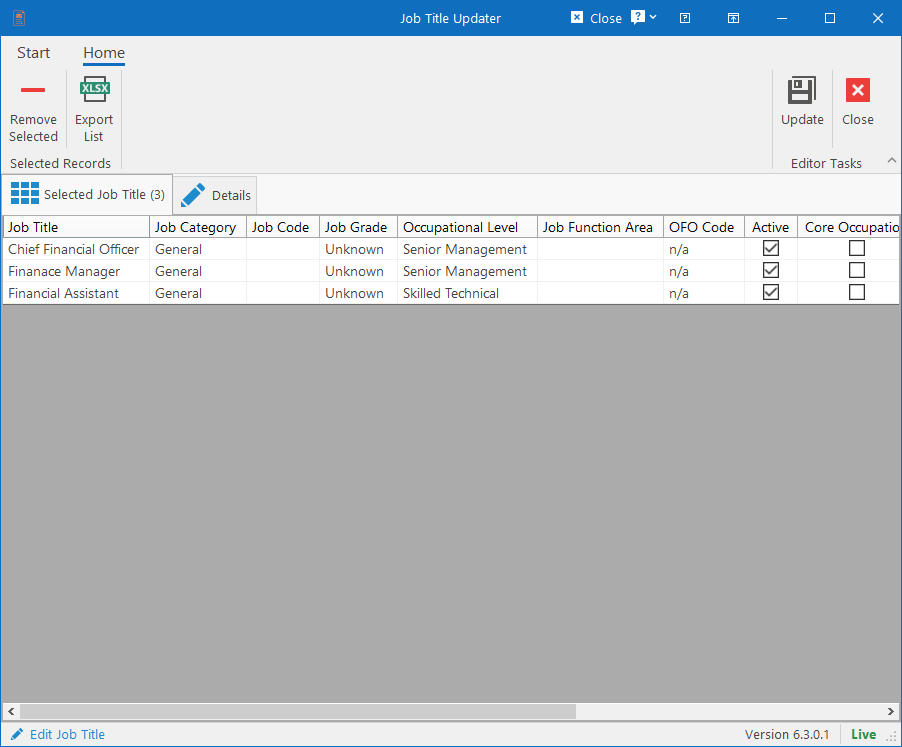
Selected Job Titles tab
On the first tab, you can see which job titles will be updated with this process. You can remove any job titles here that shouldn’t be part of the update. If you however remove all the job titles from this list, you wouldn’t be able to perform any further actions since there will be nothing to update.
The number of job titles that will be updated will appear in the tab in brackets. i.e. “Selected Job Titles (3)”.
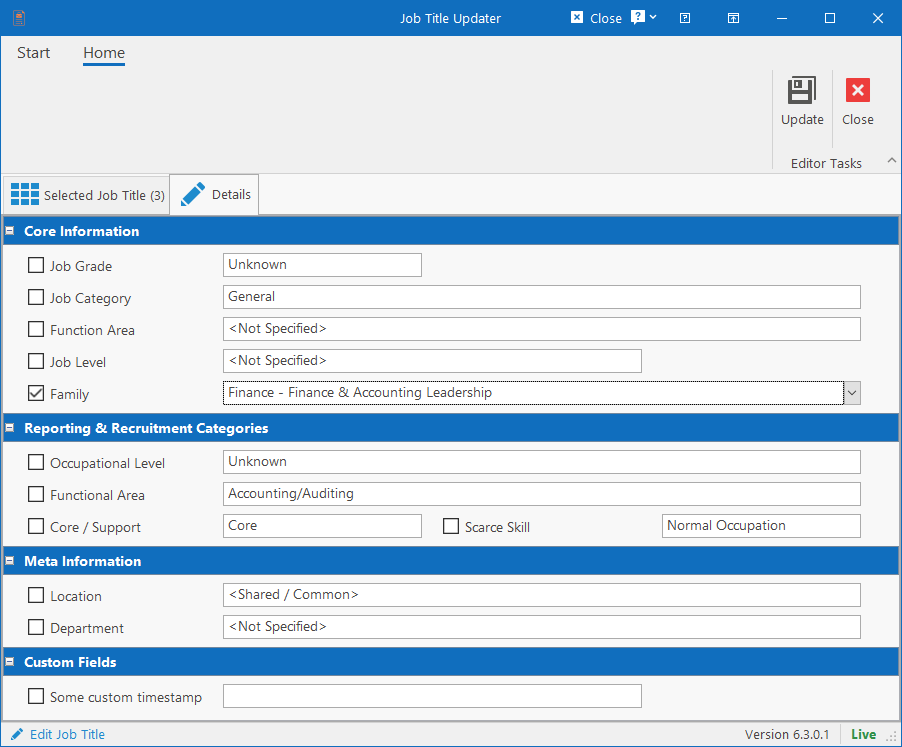
Details tab
This will be the tab that opens by default when opening the form.
All the fields that aren’t specific to a single job title that can be updated in a batch, will be available here. Any custom fields that have been defined and marked as “Updatable in batch” will also be listed here.
To update a field, simply select the checkbox next to the field name and the dropdown list for the field will become available to select a new value.
At least one field must be selected in order to proceed, otherwise there will be nothing to update.
Once all the fields have been set, click the Update button in the top-right corner of the ribbon bar to perform the update. This will update all the job titles and close this form.