Creating / Editing Job Titles
Creating or Editing a Job Title from the library will open the Job Title Editor. This is the main editor where all aspects of a job title is managed including meta information, links to formal reporting categories, job description used in recruitment, employee requirements and designing the profiles used in performance reviews.
Job Title Details
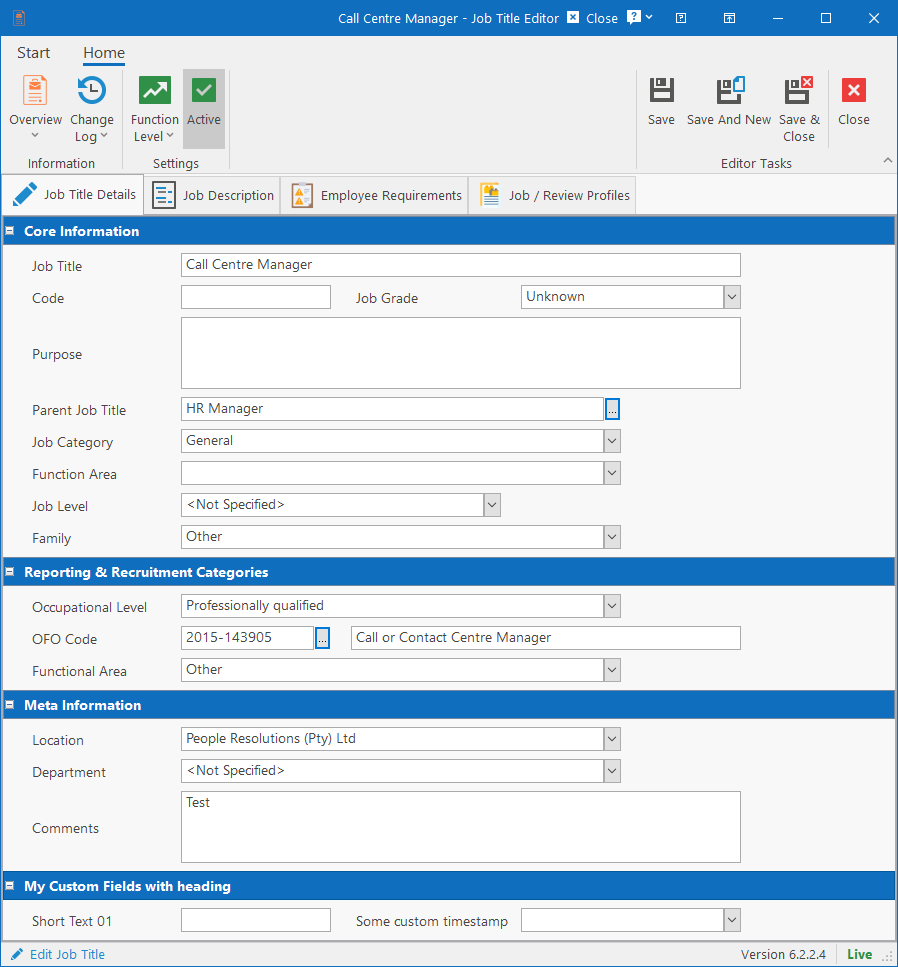
The first tab contains all the basic information about a job title. This screen consists of various fields that will be discussed here.
Core Information
- Job Title: Name of the job title up to a maximum of 150 characters.
- Code: Short code for identifying the job title up to 20 characters. Not required by HR Manage and only used if your company has codes for job titles.
- Job Grade: Specify the official job grade that has been assigned to the job title. This can be overridden by a Position.
- Purpose: A short paragraph (multiple lines allowed) describing the purpose of the job.
- Parent Job Title: If applicable, specify the job title that people in this job usually reports to. Allows for building a job title organisational chart.
- Job Category: Custom category to link job title to. It is a generic lookup that you can populate with values of your choosing.
- Function Area: Custom function area to link job title to. It is a generic lookup that you can populate with values of your choosing. Field is optional.
- Job Level: Custom job level to assign job title to. It is generally used as a more detailed breakdown of the “Occupational Level”, but it is a generic lookup that you can populate with values of your choosing. Field is optional.
- Job Family: Specify which Job Family (and/or sub-family) the job belongs to. It points to a hierarchical lookup table.
Reporting & Recruitment Categories
- Occupational Level: Fixed list of occupational levels used by the SETAs and Department of Labour. This allows employees to automatically reflect correctly in EE, SETA and BBBEE reports based on their job title.
- OFO Code: Simply click the ellipsis button to open a searchable popup to select the OFO code that best describes the job.
- Functional Area: This is a fixed list that is aligned to SimplifyHR’s functional areas. It is used in recruitment when creating vacancies for this job title.
Meta Information
Allows the job title to be linked to a specific Location and Location 2 (Department). Also allows general comments to be captured.
Custom Fields & Headings
Custom fields and headings can be defined for job titles. To learn more about creating Custom Fields, click here.
Ribbon bar settings
There are a couple of settings on the ribbon bar to take note of.
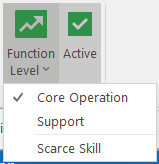
Click on the Function Level dropdown button to specify if the job is Core or Support and whether or not it is considered a Scarce skill. The Active button (if selected / checked), indicates that the job title can be assigned to employees and positions and if unchecked, indicates that it is inactive / deleted.
Job Description
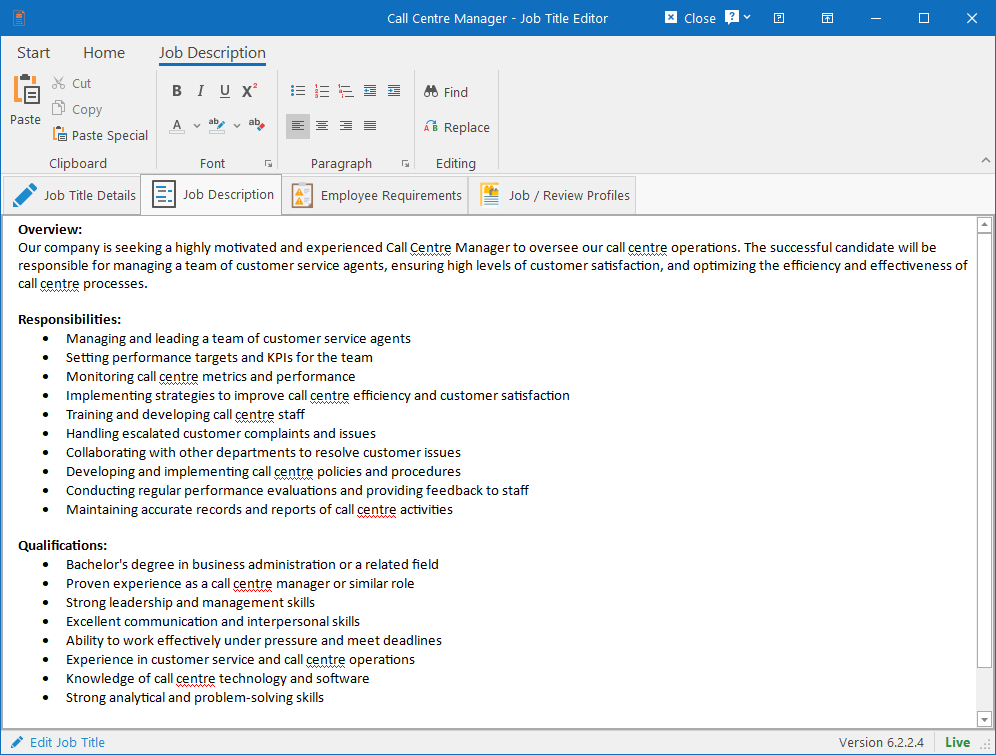
This tab allows you to capture a job description that can or will be used when posting ads on job sites. Simply capture or paste the job description in the editor provided.
Some basic formatting and spell checking is enabled but take note that some aspects like colours will be ignored when sending the vacancy to SimplifyHR.
Employee Requirements
This tab allows you to define compliance and training requirements that employees linked to the job title must meet.
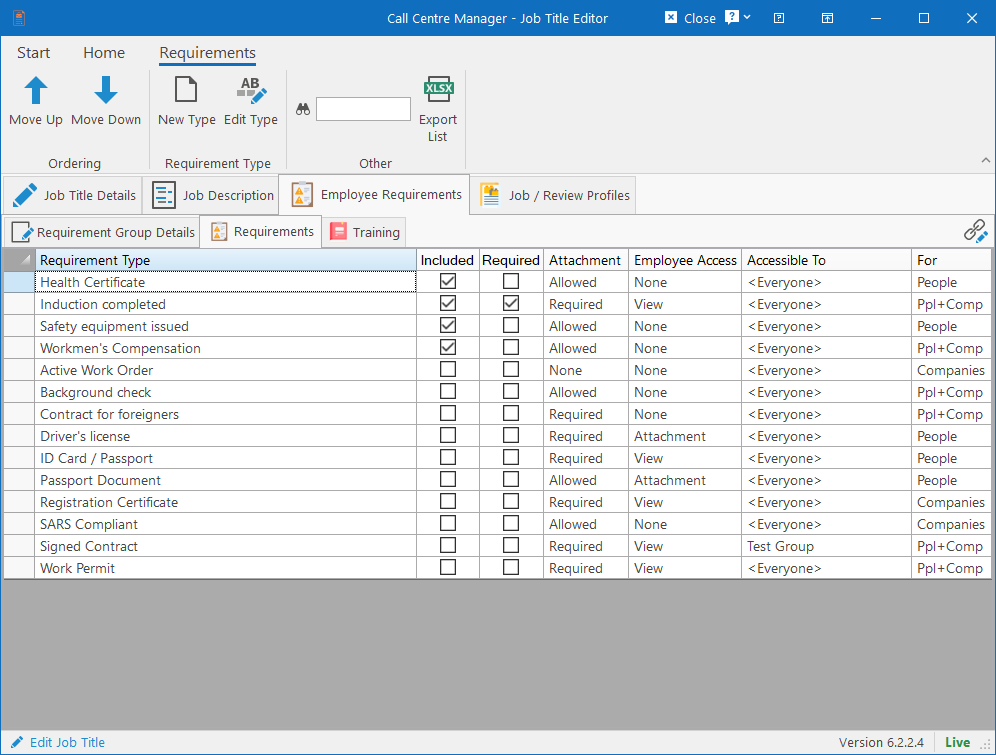
For more information on how to build the requirement group, see the Compliance / Requirement Groups article.
Job / Review Profiles
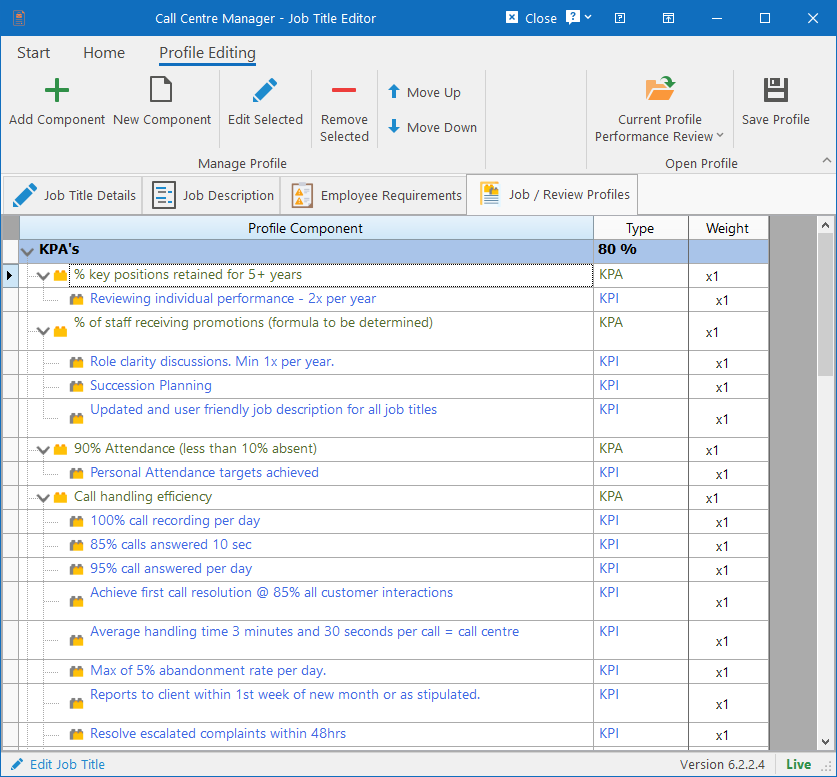
Here you can design job and review profiles. To get started, click on the Current Profile dropdown button on the ribbon bar (top-right area) and choose the type of profile you wish to design.