
-
HR Manage Application
-
-
- Articles coming soon
-
- Articles coming soon
-
- Articles coming soon
-
-
HR Manage Online
-
Config & Admin
-
IT Documentation
-
Version History
Loading Documents
Introduction
Creating or Opening a document on the library will open the editor appropriate for the type of document being edited. All document editors contains the main “Details” tab that contains basic category, name and status information. These are mostly meta information for identifying the document and describing the purpose of the document, not really visible on the web portal.
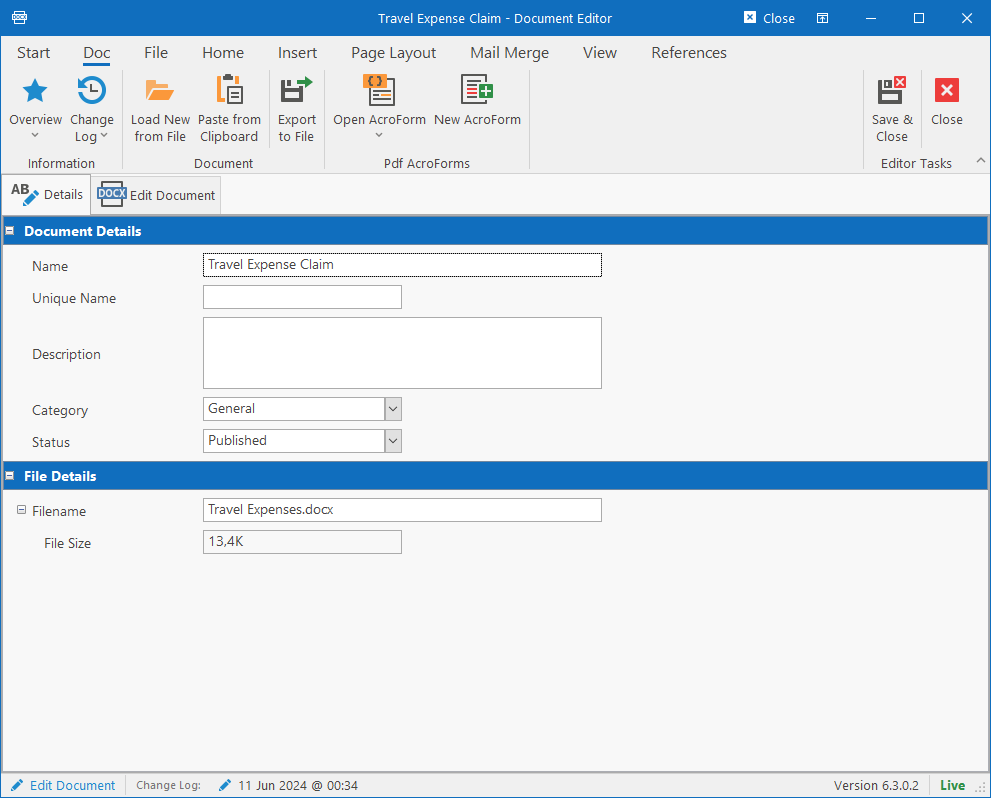
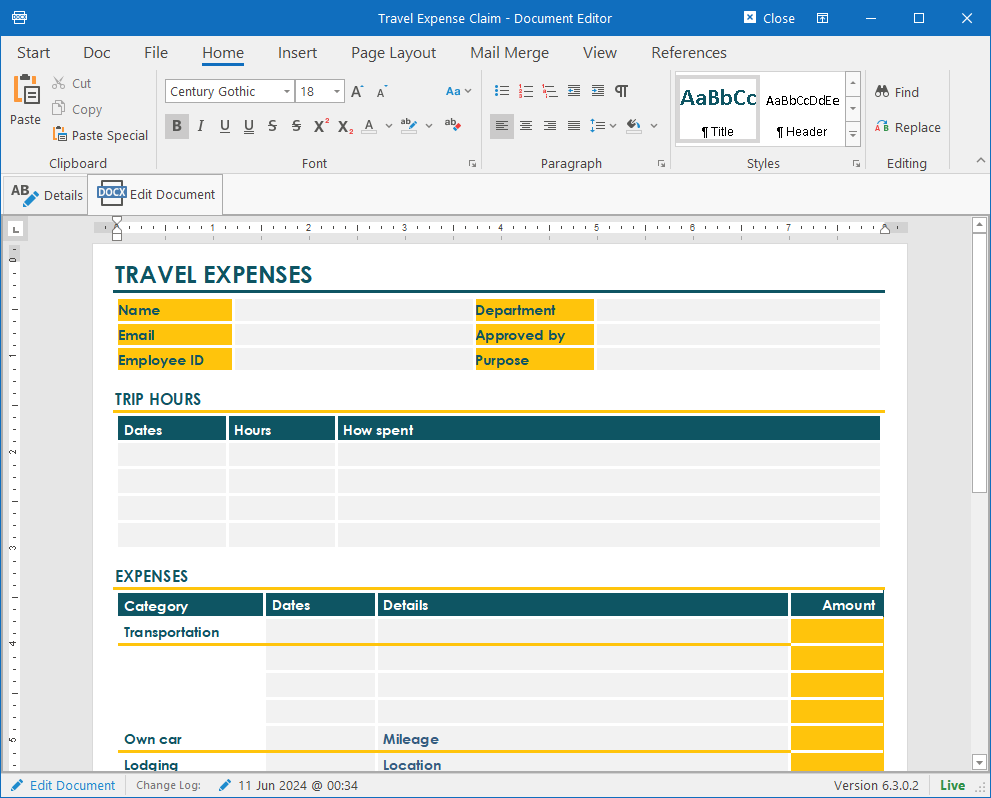
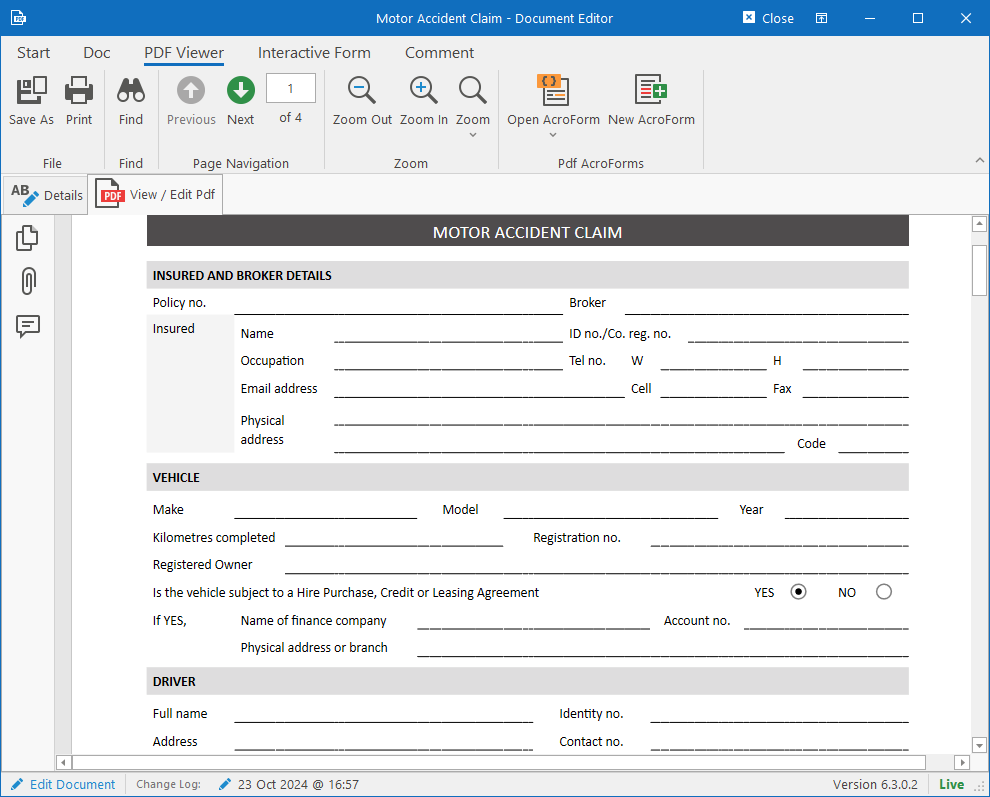
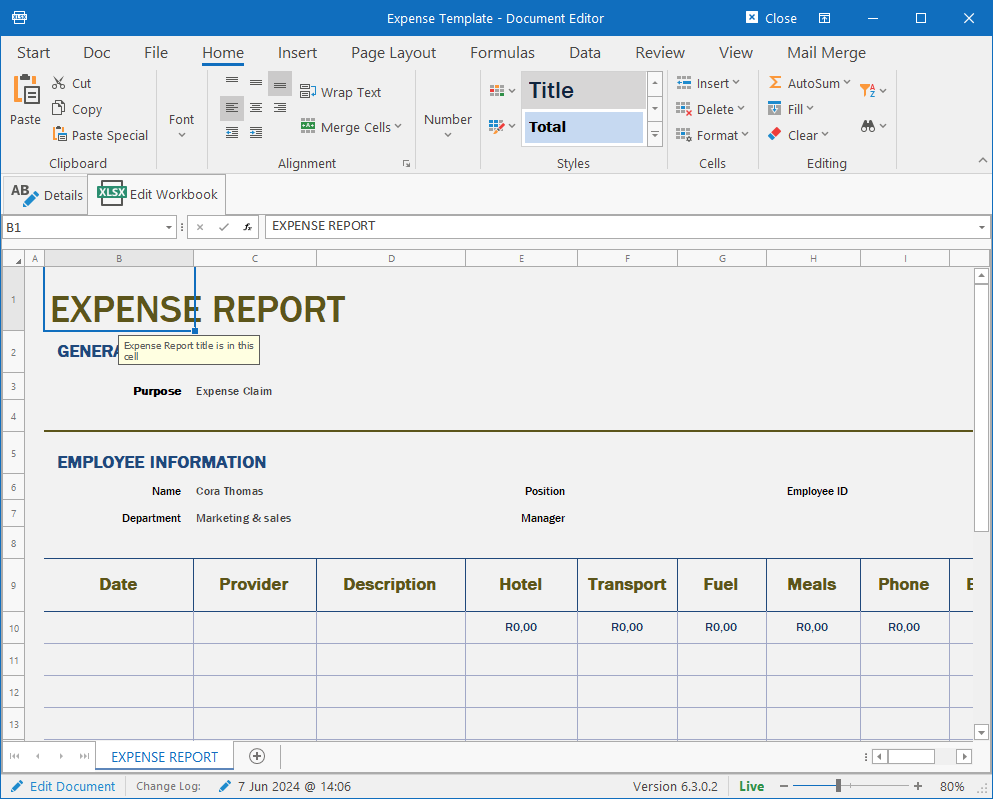
The 2nd tab contains the editor or viewer for the appropriate file type.
Loading a new document
On the Document Library, click on the Create New dropdown button on the ribbon bar and choose the type of file to load. This will open the document editor. You now have 3 options of loading the file:
- Click on the Load New from File button on the ribbon bar to browse for a file on your computer / network.
- Click on the Paste from Clipboard button on the ribbon bar to paste the file from the clipboard. The file could either have been copied from your computer or Outlook.
- Drag a file from Outlook or Windows Explorer onto the form and drop it.
Pdf AcroForms
When editing a Pdf or Word document, the “Pdf AcroForms” ribbon bar group will be available. This will allow you to either open an existing Pdf Form Template or create a new one for this document.