
Configuring an Import Source
Introduction
Import sources define where the data must be retrieved from for an import template. An import template must have at least one source, but it can have multiple sources and they are executed in the order in which they are listed (can be rearranged). All the import sources and transformed into the staging table structure and then update the same set of data in a staging table, allowing clients to generate a complete dataset from multiple partial complete sources.
Import Source Editor
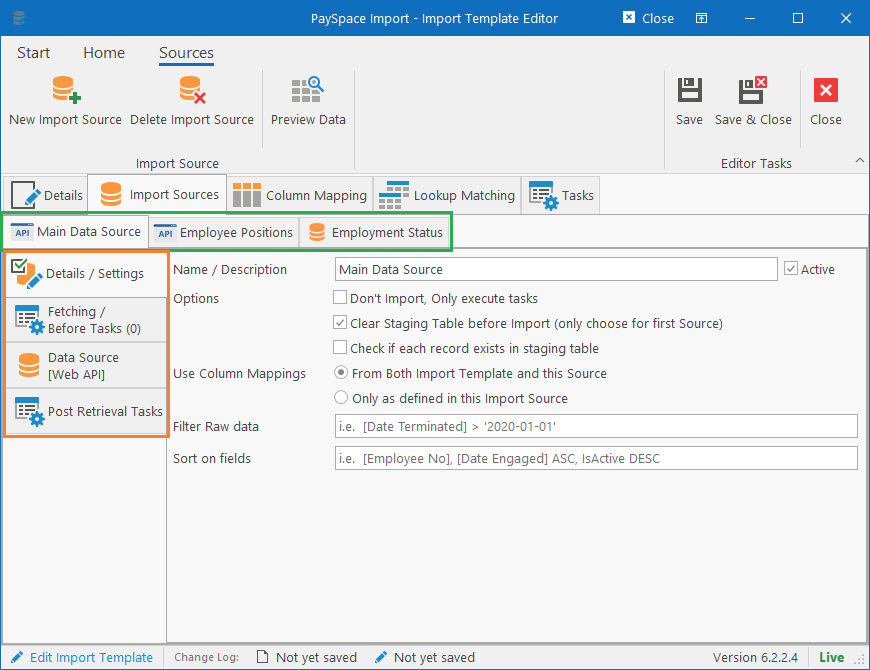
In the screen print above, the import sources for the import template is highlighted in green while the different configuration sections for each import source is highlighted in orange.
Ribbon bar
In the ribbon bar (toolbar), you can perform the following actions:
- New Import Source: This will add a new tab in the green block, allowing you to specify the details for a new source.
- Delete Import Source: This will make the Import Source that is currently open, either inactive or delete it completely. Note that you cannot delete the last import source as the template requires at least one.
- Preview Data: This will execute the Import Source to retrieve the raw data as retrieved from the source. Be warned however that if there are thousands of records being retrieved, it can take a while to retrieve and display, especially when calling certain APIs.
Details / Settings (tab)
This tab contains the name and overall settings for the import source which determines how it will execute and behave.
Name / Description
Name for the import source so that it can be identified in the import template (will be the name of the tab).
Don’t Import, Only execute tasks
This will cause the import task to only execute the “Before Tasks” and “Post Retrieval Tasks” and completely skip connecting and retrieving data from the “Data Source”.
Clear Staging Table before Import
If selected, it will completely clear all records from the staging table related to the import template and ensure that a fresh import is starting. This should always be checked for the first Import Source in a template and left unchecked for any other Import Sources in the same template.
Check if each record exists in staging table
If selected, the import process will require more processing time. When processing a record from the Import Source, before writing to the Staging Table, the Importer checks to see if a record matching one of the identification fields exists.
This can be useful in two scenarios:
- When importing from a large table that contains duplicate records, the records can be sorted from old to new and rather than importing duplicate records, the Importer overwrite each staging table entry with the newer record. This ensures that the final record imported into HR Manage, is the latest record.
- When importing from multiple partial data sources, the first / main import source will create the base records and subsequent import sources will only update the missing fields for those records. This means that you don’t have to first process the data on the outside before importing since HR Manage does it for you.
Don’t create new staging records, only update existing
This option only becomes visible if the Check if each record exists in staging table is selected. This is only used in subsequent import sources and not the main import source. When processing the subsequent partial import sources, you want to update records that are already present in the staging table and ignore records that are not present in the primary data source. Without this setting, you might otherwise end up with employees with no names or basic biographic information, but only salary details.
Specify field to match staging records on what the field is called in this source
This option only becomes visible if the Check if each record exists in staging table is selected. In this section, you must specify two values and those are used to determine whether a record already exists in the staging table. You only need to specify values here if the Identification field and fieldname in import source differs from the main import source.
If it differs, then in the left dropdown, you must select the field in the staging table to match to (Identification1-4) and in the right textbox, you must type the name of the field in this import source that must be evaluated.
Use Column Mappings
For advanced customisation, but not currently implemented.
Filter Raw data
You can specify a hardcoded filter string here which will be applied to the data retrieved from the import source before transforming it for the staging table. Can be useful to remove potential junk data from the raw data. If the source field names contain spaces, be sure to enclose those field names in square brackets.
Sort on fields
You can specify field names (in square brackets) and the direction in which the data from the import source must be sorted on before transforming it for the staging table. This is useful in the case where the source contain duplicates to ensure that the oldest record is processed first and overwritten with the newest record before importing.
Fetching / Before Tasks & Post Retrieval Tasks
These are custom / advanced tasks that can execute as part of the import source. For instance, you can configure an import source as follows:
- Fetching / Before Tasks
- Download zip file from FTP site
- Extract the password protected zip file to a temporary csv file
- Data Source = Extracted csv file
- Post Retrieval Tasks
- Delete temporary csv file
- Delete downloaded zip file
For more information about creating tasks, click here.
Data Source
The data source is where the Importer must retrieve the actual source data from for transferring to the staging table. The source can either be one of a number of data source types or it can use the output from a Workflow as the data source (for use in an “Import from Workflow” activity).
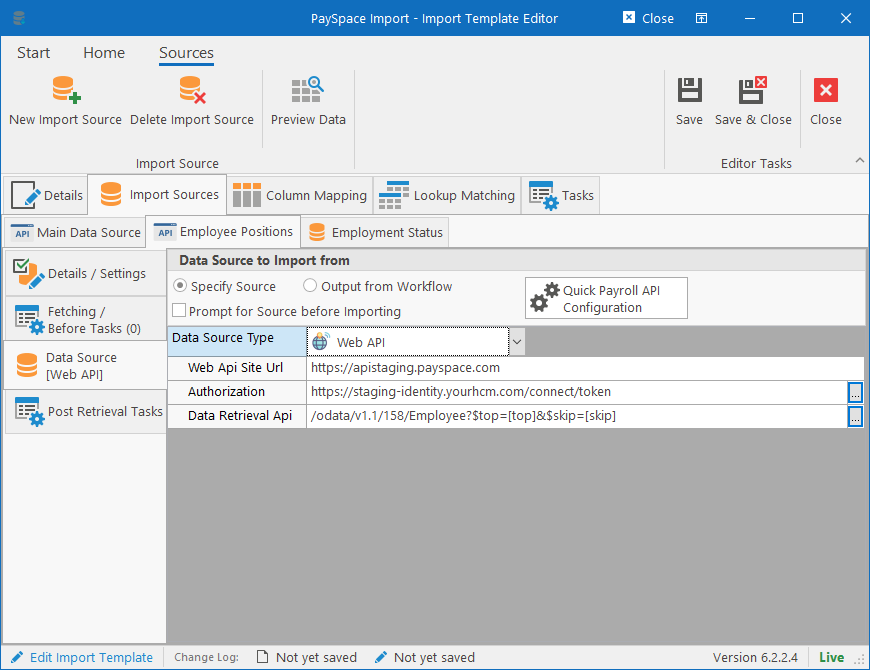
When selecting the Prompt for Source before importing, the importer will ask the user to browser for a file to use as data source before importing instead of just automatically starting the import using the stored location information.
Below are the types of data sources HR Manage can retrieve data from:
SQL Server
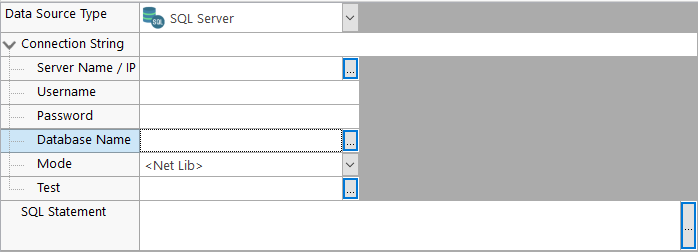
The Importer can connect directly to a Microsoft SQL Server database and retrieve the data as needed. Simply fill in the fields (or connection string) and type a SQL statement that will retrieve the data.
CSV / Delimited Text
To import from a delimited text file, simply specify the location of the file and which delimiters to use: Tabs, Pipes, Semicolons or Commas. We prefer not to use commas since some of the fields might contain commas which could affect data integrity. Be sure to set the date format on the Import Template’s Detail tab.
Excel Workbook
To import from an Excel Workbook, simply specify the location of the workbook and which worksheet to import from.
XML Document
To import from a XML Dataset, specify the location of the Xml file and specify which table to import from.
SQL Script (Insert statements)
We have a utility that can generate SQL Insert statements from a data source. We sometimes use it for transferring data from a private on-premise hosted payroll to HR Manage when hosted in the cloud. This source type allows importing directly from those SQL Insert statements without needing to first execute them.
Web API
Used by more modern payrolls. We can connect directly to the payroll’s API to retrieve data. For our partner payrolls, we have a wizard to automatically configure everything by filling out a few fields. For supported payrolls, see our Payroll Partner Setup.
For non-partner payrolls that support APIs, the system is flexible enough that it should support retrieving data from almost any payroll via API. It will just take some more configuration. We could even add the payroll to the wizard on request.
Due to the complexity involved in configuring APIs, we would usually do it but we’ll explain how it is done in the section below.
For more information, see the Configuring Web Api article.