
Downloading Compliance Packs
Introduction
This feature allows you to download document packs for one or more people. The document pack is a zip file for each employee and can consist of generated reports, attachments from their requirements and documents from the Published Documents library.
Getting Started
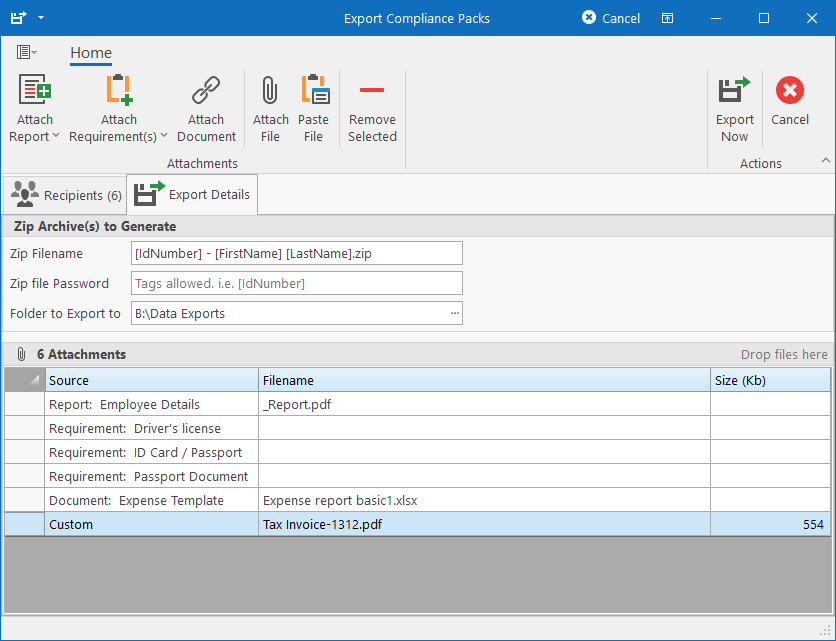
To download documents linked to people in the system, open Employee Manager, select one or more people and click on the Compliance Packs button on the ribbon bar. This will open the following screen that will allow you to customise what to download.
Recipients tab
This tab will list the people that were selected on the Employee Manager that documents will be downloaded for. From here you can add and remove more as needed.
Export Details
Zip Archive(s) to Generate
This specifies the parameters for the zip files that must be generated and downloaded. Each employee will generate one zip file.
- Zip Filename: Specify what the zip files should be called. It is required to use tags here so that each employee’s zip filename is unique (otherwise it will just overwrite the same file over and over again). Tags are employee field names that are placed in square brackets which will be replaced with the field value for each employee when processing.
- Zip file Password: You can specify a fixed password or use tags to generate a unique password for each individual zip file.
- Folder to Export to: Browse for a folder on the computer / network to save the downloaded files to.
Attachments
This contains the list of attachments that will be included in the generated zip files. Attachments can be managed by clicking on buttons on the ribbon bar or right-clicking on the list for a context menu.
The following attachments can be added by clicking the applicable button on the ribbon bar:
Attach Report
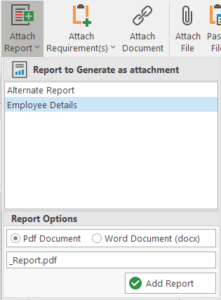
Click on the Attach Report dropdown button and select a report to generate. The reports in this list come from the employee module and new reports can be designed using our report designer.
Specify the name for the file to export the report to (the filename within the zip file) and specify whether the report should be generated as a Pdf or Word document.
Attach Requirement(s)
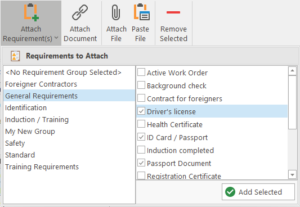
Click on the Attach Requirement(s) dropdown button and select which requirements should be added from the checked list on the right. If there is a requirement group defined that already includes all the requirements to attach, select it in the left list to automatically select those requirements on the right.
Attach Document
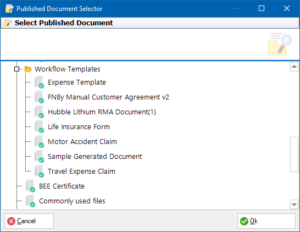
Click on the Attach Document button to open the Published Document library to select a document to be included in the pack.
Attach File
To include a file from your computer in the document pack, you can do one of the following:
- Click on the Attach File on the ribbon bar and then proceed to browse for a file on your computer.
- Click the Paste button on the ribbon bar to paste a file (or files) that you’ve copied in Windows Explorer.
- You can drag files from Windows Explorer or Outlook and drop them in the list.
Export Now
Finally when all the parameters have been set, simply click Export Now to start the process. Note that it can take quite a bit of time depending on how many people and attachments were selected.