
Creating / Editing Positions
Creating or Editing a Position from the Position Library will open the Position Editor. From here, you can change fields related to the position which will then automatically propagate to the employee linked to the position. You can also change the person filling the position and capture some basic financial information.
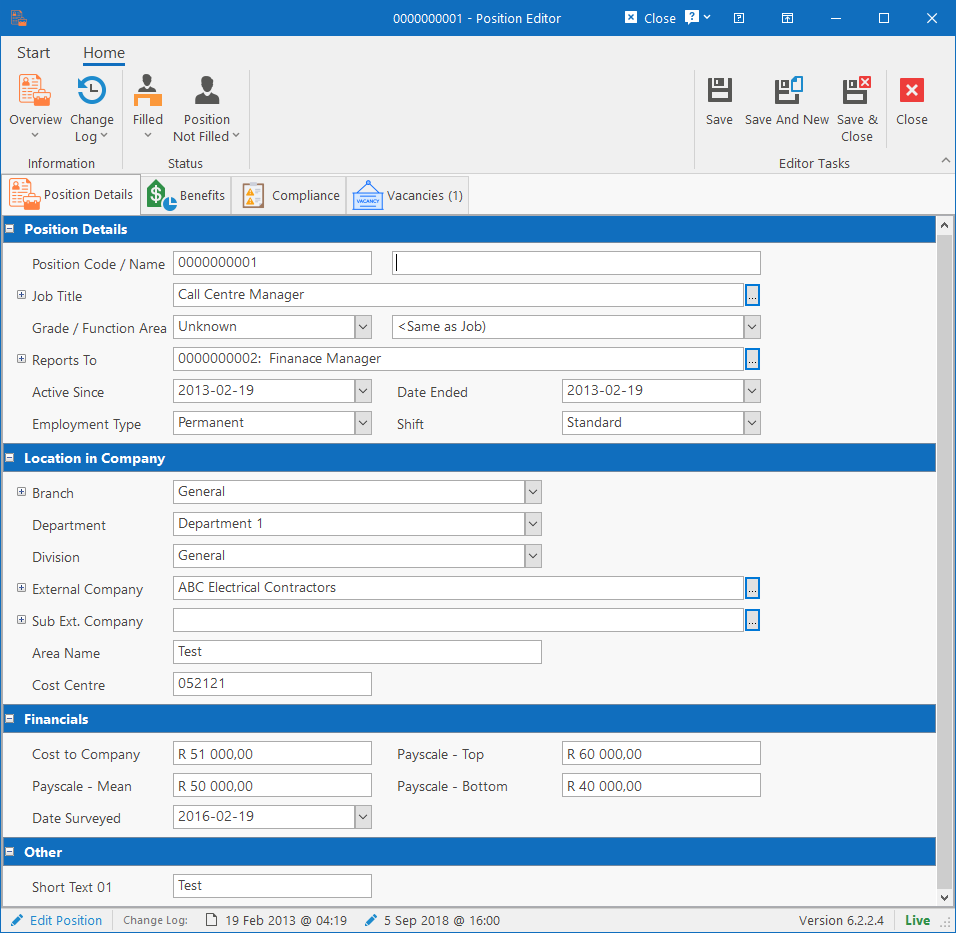
Position Details tab
The fields under this tab contain all the information that makes up a position. Below is a brief description of the important fields. Note that making changes to any of these fields will automatically make changes to the same fields for the person who is filling the position.
Position Details
- Position Code: Unique code for the position.
- Position Name: Name to describe the position. This is optional. If not specified, the position name will be displayed as “[PositionCode]: [JobTitle]”
- Job Title: Specify the job title that is linked to the position. This field can be expanded to show more information about the job title, but it also automatically provides the position with a default Job Grade and Function Area.
- Job Grade: The Job Grade that is assigned to the position. This field is optional and should only be specified if the grade is different than the job grade that is assigned to the job title that the position is linked to.
- Function Area: Only specify if different than the Job Title’s function area.
- Reports To: Specify another position that this position reports to. Changing this field will automatically update the Manager field for the employee who is filling the position.
- Active Since / Date Ended: Date fields that can be set for the position. Only used for informational purposes.
- Employment Type: Specify the type of employment that the position is for.
- Shift: If shift worker, specify which shift.
Location in Company
These fields specify where in the company the position (and employee filling the position) is placed. All these fields automatically propagate to the filled employee.
Financials
Some basic financial fields related to the position.
Other
The “Other” heading will only display if there are custom fields defined for the position and if no custom heading is defined in the custom fields.
Ribbon bar
Position Status
This first button displays the status of the position and can be changed by selecting a new status from the dropdown. The available statuses are:
- Vacant
- Active / Pending
- Filled
- Deleted
In most cases, these statuses are set automatically as employees are assigned (Filled) or unassigned / terminated (Vacant).
Filled By
This button will show the name of the person currently filling the position. The dropdown menu allows clearing the person or selecting a new person to fill the position.
Benefits
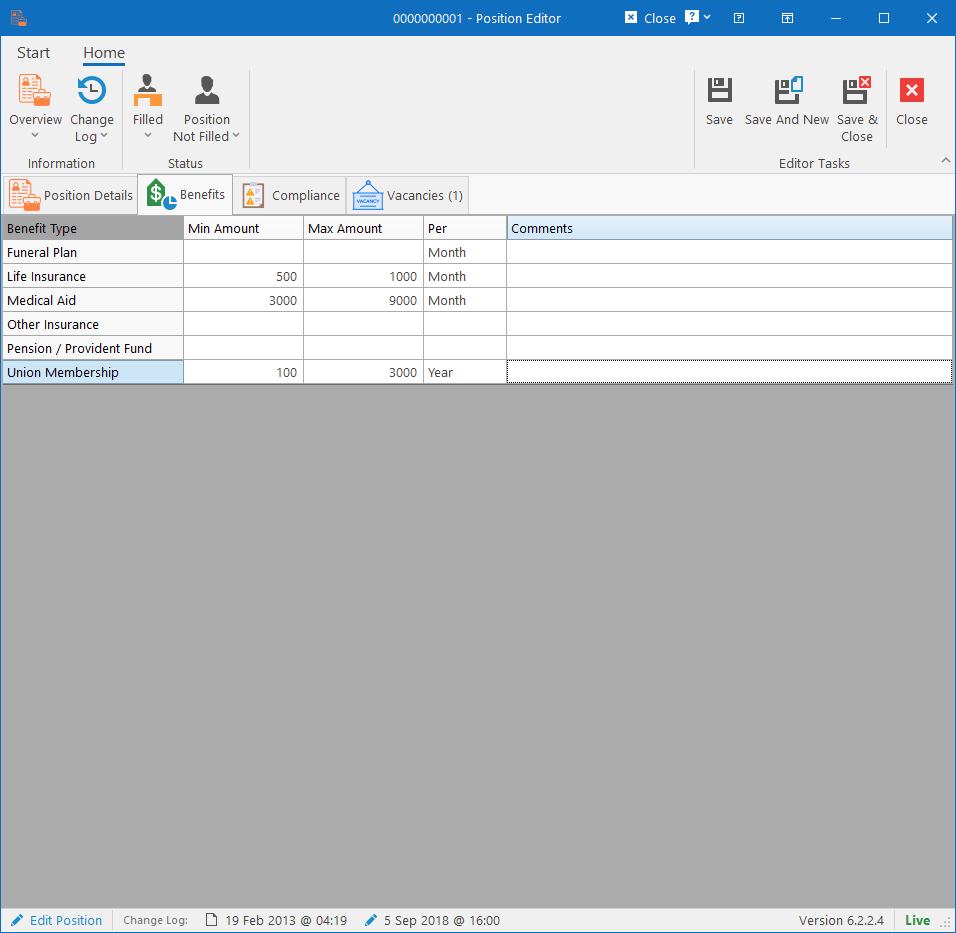
This grid allows capturing of the basic benefits that are associated with a position. The benefit categories can be defined under the module configuration and the following fields are allowed to be captured on the grid:
- Minimum Amount (Floor)
- Maximum Amount (Ceiling)
- Interval (Month / Year)
- Comments
Compliance
This tab allows selecting or building a Requirement Group that applies to this position. The requirement group will then automatically be linked to the person filling the position so that requirements and training automatically show as gaps in reports when not met.
For more information on how to build the requirement group, see the Compliance / Requirement Groups article.