
Intervention Editor
Introduction
The Intervention Editor allows the creating and editing of courses, qualifications, unit standards, modules and whatever other types of training defined in the system. It contains all the required fields to automatically link training in the system to the applicable reporting categories for easy SETA reporting.
Creating a New Intervention
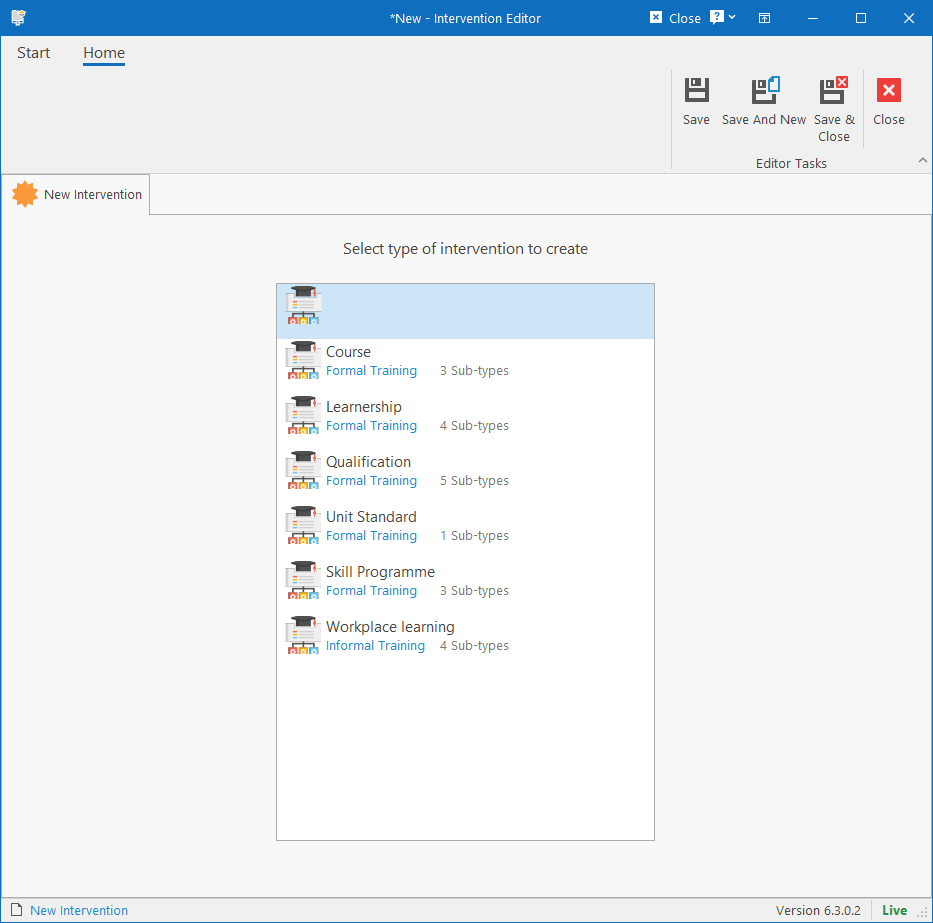
When creating a new Intervention, the system will first prompt to select the type of intervention that must be created. The type selected will affect what features and functions are available so it cannot be changed once selected.
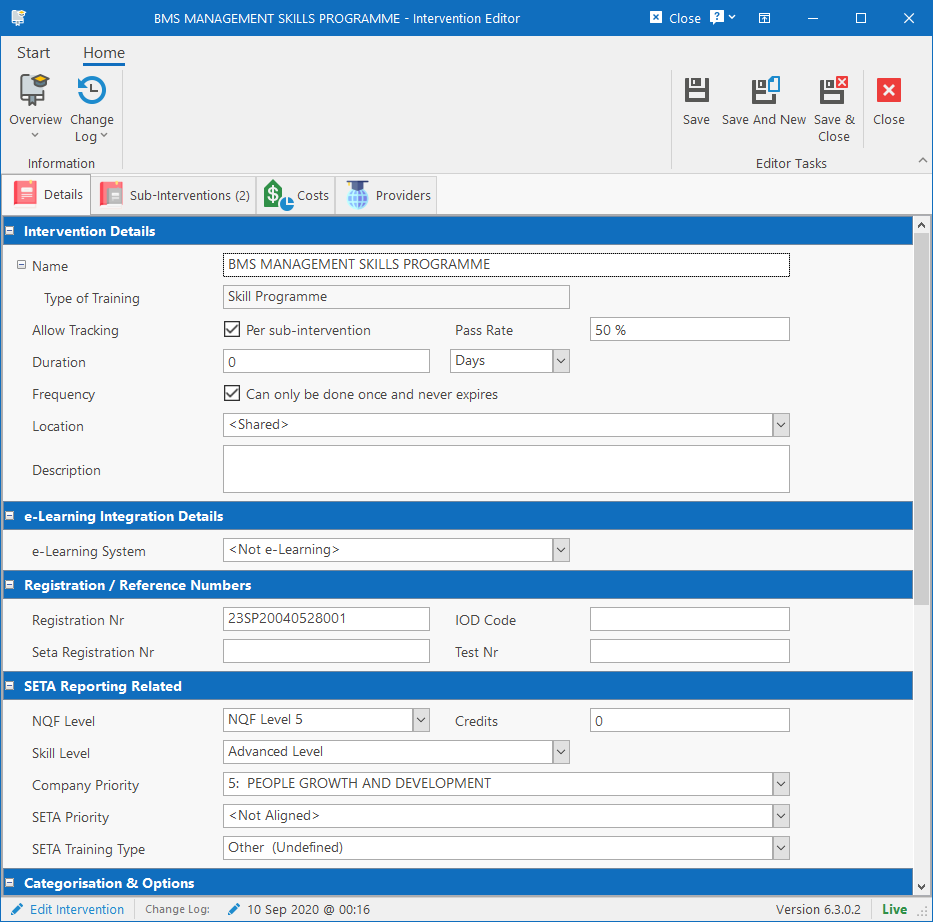
Intervention Editor fields
There are various fields on the Details tab and the more of these fields that are completed, the more accurately the SETA reports will be. The fields will also determine the behaviour and rules when scheduling for training.
- Intervention Details
- Name: Name for the course / qualification / unit standard / etc.
- Allow Tracking: If selected, then it is possible to track training per sub-intervention. That means that all the sub-interventions must first be completed before the main training record can be completed.
- Pass Rate: Out of 100. Used to determine whether the learner passed or failed the training when capturing the score.
- Duration: Duration can be specified in either hours, days, months or years.
- Frequency: This determines when the training expires after completion.
- If Can only be done once and never expires is selected, then the training will never expire, but cannot be done again. Attempting to schedule it again, will automatically set the status to “Already Completed”.
- If Expires After is set to 0, then the training never expires, but can be done again.
- If Expires After is set to any other number, the expiry date will be calculated for training when the status is set to “Completed – Signed Off”.
- Location: Can be specified if training only applies to a specific Location / Branch and won’t be used anywhere else.
- Description: Can contain some basic information about the intervention.
- e-Learning Integration Details
- See below
- Registration / Reference Numbers
- We only have a Registration Number that is standard, but other types of reference numbers can be created in the module configuration.
- SETA Reporting Related
- NQF Level: Aligns an intervention to the NQF.
- Credits: Credits that the intervention contributes towards a qualification or skills programme.
- Skill Level: Aligns an intervention to a SETA skill level.
- Company Priority: Align intervention to a Company training priority.
- SETA Priority: Align intervention to a SETA training priority.
- SETA Training Type: Classify intervention under a SETA training type.
- Categorisation & Options
- Training Category
- Code of Good Practice
- Nature of Learning
- Assessment Method
- Content Urls
- Web Address, Assessment Guide and Learning Material can contain urls where these information can be viewed or downloaded by the learner or instructors.
- Other
- These are custom fields that can be defined in the module configuration.
Integration with e-Learning
To integrate with an e-Learning system, you need to have one registered in HR Manage that contains the API keys and links. You can contact our support to help with setting up the integration with your existing e-Learning system / provider. Configuration is done in the External Systems section.
To link an intervention to a course on the e-Learning system, specify a value for the “e-Learning System” field. Once selected, additional fields will become available.

At minimum, the “Course Id” should be specified. Clicking the ellipsis button will contact the e-Learning system and retrieve a list of all available courses on the system from where the course can be selected. When scheduling training for this intervention, the system will automatically create then training on the e-Learning system.
Sub-Interventions
If the type of intervention (defined under Training Types in the Module Configuration), supports having sub-interventions, they can be created or linked here.
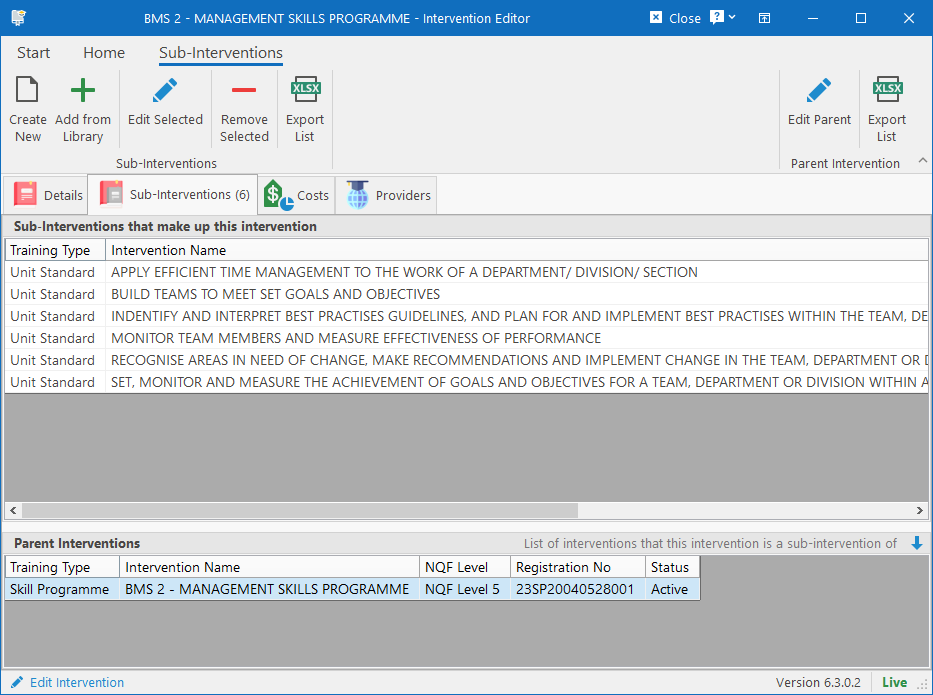
To create a new sub-intervention, click the Create New button from the ribbon bar. The new intervention editor will open and again prompt for the type of intervention that must be created, however, only the types of training that can be added to this type of training will be listed (as defined in the Training Types).
To add existing interventions from the library to link as sub-interventions, click the Add from Library button on the ribbon bar. This will open the Intervention Browser that will allow you to filter and select multiple interventions and add them to the list of sub-interventions.
Editing the Sub-Interventions
To edit an existing sub-intervention, simply select one and click the Edit button or press Enter or double-click on it.
In the Sub-Intervention Editor, everything will be the same as the normal Intervention Editor, but with the following additions.
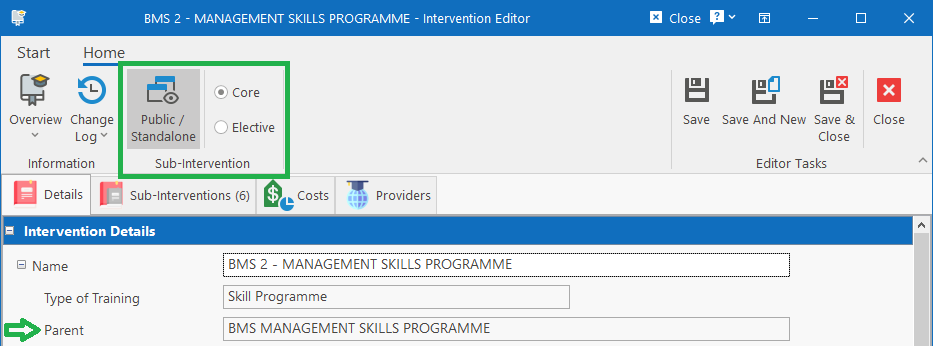
On the editor, the Parent intervention’s name will be displayed.
On the ribbon bar, you can specify if the intervention is:
- Public / Standalone: Selected by default. Specify whether the intervention can be scheduled directly or only as part of the parent intervention. If private, it will also not be visible in the library.
- Core / Elective: Specify if the sub-intervention must be included when the parent intervention is scheduled or if it can optionally be included.
Viewing / Editing the Parent Intervention
If the Intervention is linked as a sub-intervention of other interventions, all the possible parent interventions will be listed in the list at the bottom. The Parent Intervention can be opened by selecting the Parent Intervention in the list and clicking the Edit Parent button on the ribbon bar (on the right).
Costs tab
This tab allows the capturing of all the different costs related to training for the intervention. Costs are captured per category and the cost categories can be defined in the module configuration.
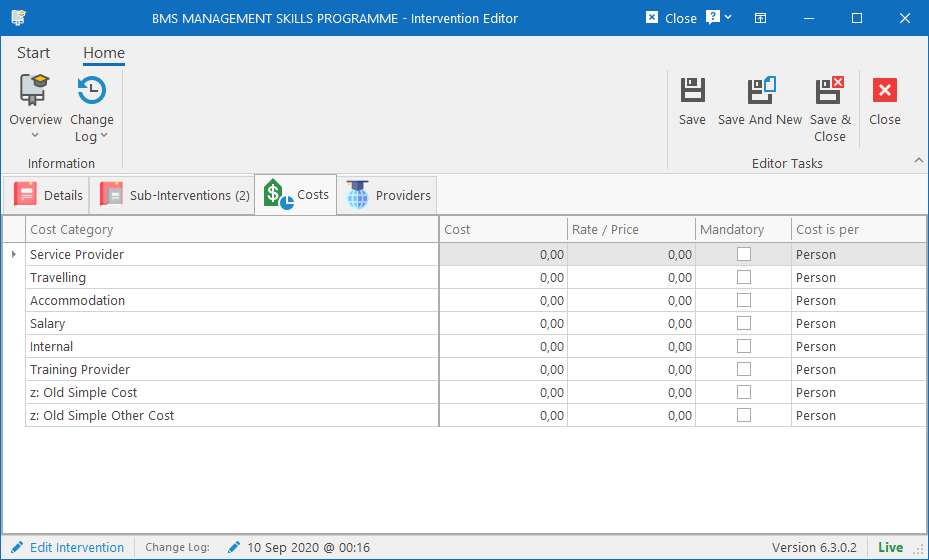
The costs are used as defaults for Published Events that can then be used for creating training requests online. The following fields / columns can be captured per category:
- Cost: The cost associated with the category.
- Rate / Price: For use by training institutions and colleges, specify how much the category is charged for to the learner.
- Mandatory: Specify if the cost must always be included or if it is optional and can be manually selected or excluded (i.e. Accommodation).
- Cost is per: Person or Group. Indicate if the cost is charged or applicable per training request or per person in the training request.
Providers tab
The Providers tab is used to specify which Training Providers and Practitioners can be involved in presenting, conducting, assessing and moderating this training.
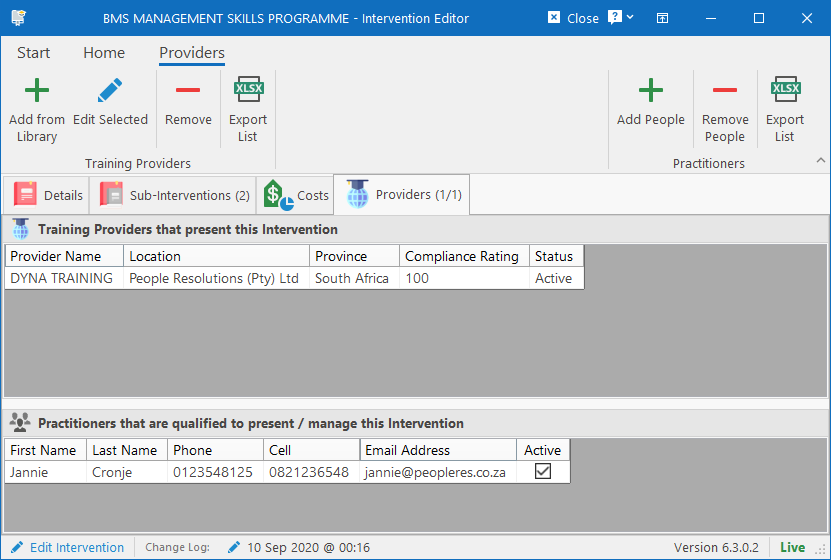
Training Providers can simply be added from the library by clicking the Add from Library button on the ribbon bar.
Practitioners can be added from the People / Employee database by clicking the Add People button on the ribbon bar. Any people added here can act as an “Instructor” or “Course Manager”. People who has an “Assessor Registration Number” captured will automatically be available as an assessor on the intervention and people who has a “Moderator Registration Number” captured will automatically be available as a moderator.