
Accrual Management & Configuration
Introduction
As of version 7, HR Manage has switched to an automatic daily leave run. The daily leave run checks the employees daily and add accrual based on their entitlement and other rules as configured in the system. Leave runs can still be rolled back and executed manually, but for the most part, everything happens in the background.
This area allows you to configure the daily leave run, view the accrual history, perform rollbacks and manual runs where needed. For more information on how the leave run engine works, see the Leave Accrual Run Engine article.
Getting Started
Open the Leave module in HR Manage and then click on the Leave Accrual Run on the menu on the left. This will open the Leave Accrual Run window where you will be presented with the history of accruals for the past 32 days (or the last 32 runs).
Accrual History
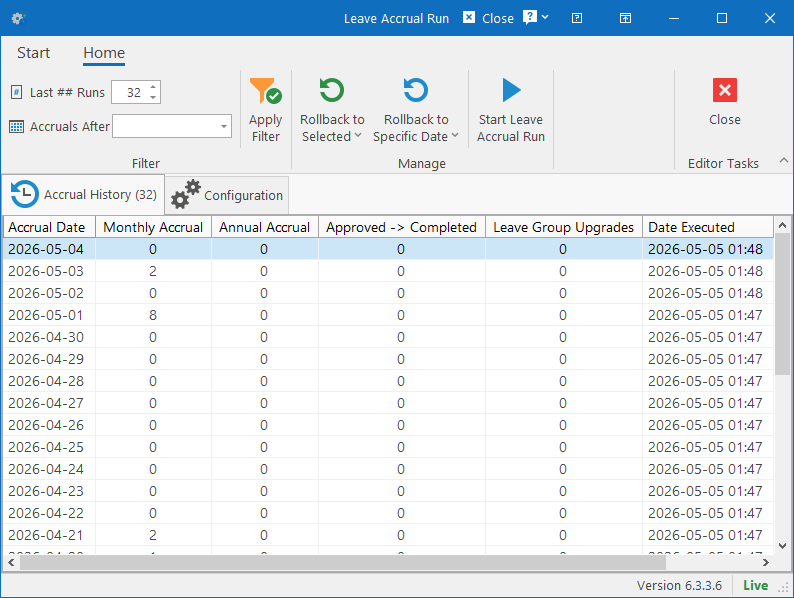
Listing and Filtering History
This tab will allow you to see the past leave runs. By default, the last 32 leave runs will be listed, but you can adjust the filter as follows in the Filter ribbon group:
- Last ## Runs: Change the number of leave runs you wish to see listed. Each leave run represents a calendar day.
- Accruals After: Alternatively, specify a From Date to list all leave runs on or after the specified date. If a date is specified, the [Last ## Runs] field will be ignored.
- Click on the Apply Filter button to refresh the list.
The list will display a leave run for every day, sorted from newest to oldest and the following columns are shown:
- Accrual Date: Date on which accruals were added. Every calendar day will always have 1 leave run.
- Monthly Accrual: Number of monthly accrual leave records created during the leave run.
- Annual Accrual: Number of annual, multi-year and custom (macro) accrual records created during the leave run.
- Approved -> Completed: Number of applications whose status were updated from Approved to Completed during the run.
- Leave Group Upgrades: Number of employees whose leave groups were upgraded during the leave run.
- Date Executed: The date / time when the leave run was executed.
- Executed By: User who executed the leave run manually, otherwise it will just say “System”.
The standard column filtering and sorting is also available.
Rolling Back Leave Runs
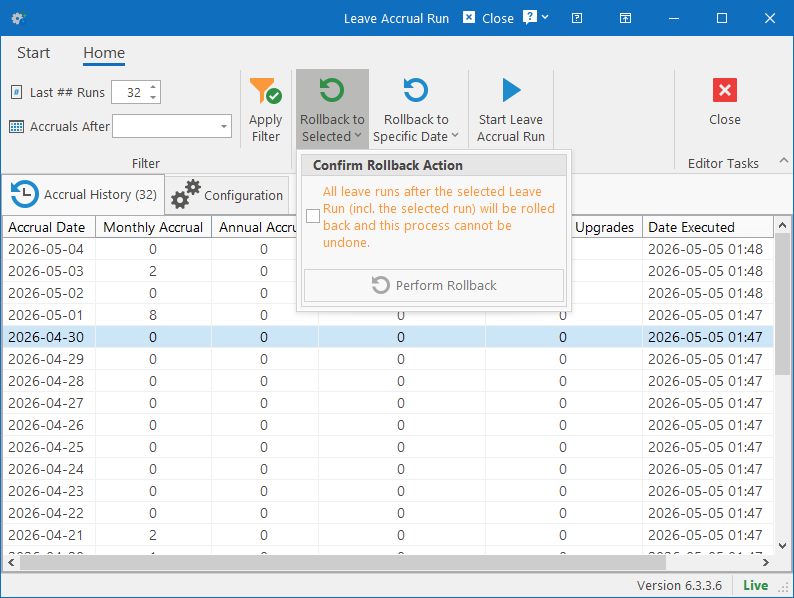
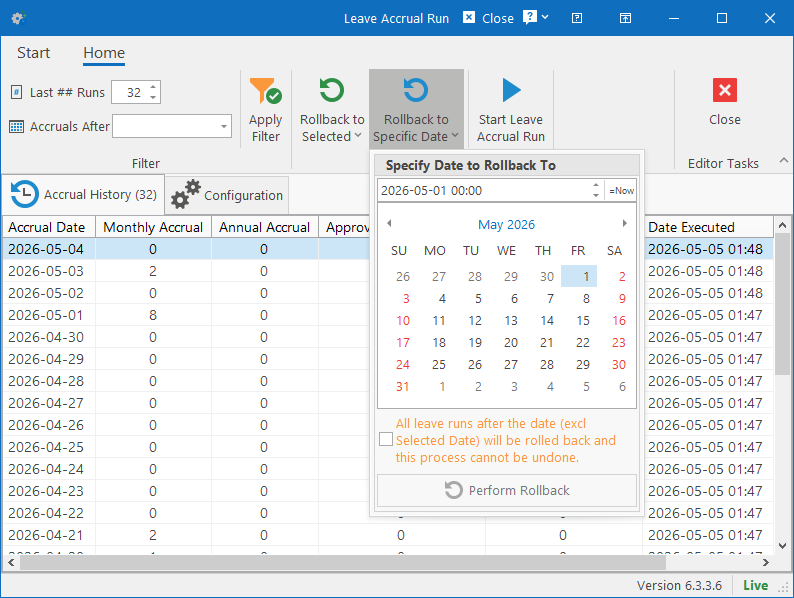
It is possible to rollback a Leave Run in one of two ways:
- Select a leave run entry in the leave run history and then click on the Rollback to Selected button. This will rollback all the leave runs that were executed after the selected leave run, including the selected leave run.
- Click on the Rollback to Specific Date button, specify the date to rollback to and click the Perform Rollback button. This will rollback all leave runs to restore the system to the point as it was on the selected date. Thus the selected date’s leave run will not be included in the rollback.
- For instance, if you want to rollback the leave run from this morning, specify the date as yesterday to rollback to.
The rollback cannot be undone and it will perform the following actions:
- Delete all accrual records that were created during the run
- Uncomplete all leave applications that were converted from Approved to Completed during the leave run.
- Downgrade any leave group upgrades that were done as part of the leave run.
Performing a Manual Leave Run
If you’ve rolled back one or more leave runs, it is possible to start the leave run manually by clicking on the Start Leave Accrual Run button on the ribbon bar instead of waiting until the next morning for the automatic leave run to execute.
Please take note of the following points:
- The leave run will execute up until the end of the previous day.
- If a leave run has already been executed for the previous day, an error will occur. You should first rollback the leave run that you wish to rerun.
- The leave run will execute for every day since the last recorded leave run. Thus if you’ve rolled back 5 days (or if automatic leave runs have been disabled), then starting the leave run will execute for each missing day.
Configuration
In the Configuration tab, you can enable / disable the automatic daily run and specify options on how the leave runs should behave.
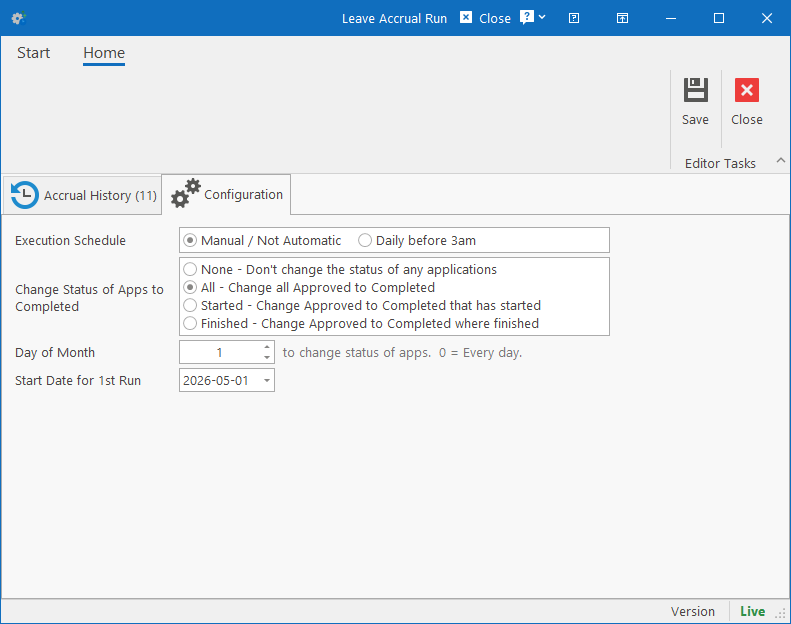
Here are the available options that can be set:
- Execution Schedule: Specify if the leave run should execute automatically every morning before 3am or not at all.
- Change Status of Apps to Completed: This option allows the leave run to automatically change the status of all Approved leave applications to Completed. Leave balances in HR Manage are constantly calculated and the Formal Leave Balance consists of calculating the sum of all Completed leave records. So enabling this setting, automatically commits approved applications to affect the formal balance. The available options are:
- None – Don’t change the status of any application
- All – Change all Approved applications to Completed
- Started – Change all Approved applications where the From Date has already passed, to Completed.
- Finished – Change all the Approved applications where the To Date has already passed, to Completed.
- Day of Month: Specify on which day of the month the Approved Applications should be converted to Completed. Set it to 0 to perform this task daily or to a specific day number. If set to 31, then it will always occur on the last day of every month.
- Start Date for 1st Run: Only really applicable to new clients. This specifies the date from when the system went live so that the engine doesn’t attempt to do leave runs for all dates prior to the system being implemented.