
Define Case Types
Introduction
Examples of types of cases are Disciplinary Action, Grievance, Investigation, etc. This section define what types of cases are available, what processes and hearings are involved and how they should be managed.
Getting Started
Open the Employee Module and click on the Configure Module button on the left menu to open the module configuration screen. On the left menu, under the “Industrial Relations (Disciplinary)” section, click on the Case Type item to open the list of case types. From here, click on Create New or open the case type you wish to edit which will open the “IR Case Type Editor”.
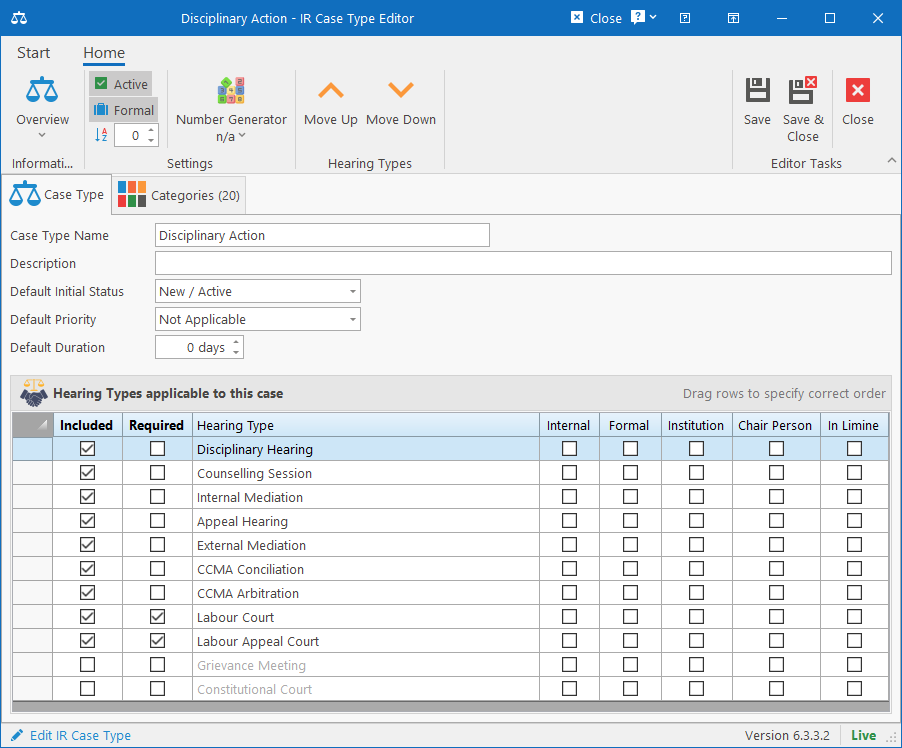
The Case Type Editor allows the following fields to be configured:
Core fields
- Case Type Name: Name to identify the case type by. Examples are “Disciplinary Action”, “Grievance”, etc.
- Description: Can contain a longer description to explain the purpose of the case type (up to 200 characters).
- Default Initial Status: When selecting the case type when creating a new case, the initial status for the case will be set to this value.
- Default Priority: When selecting the case type when creating a new case, the initial priority for the case will be set to this value.
- Default Duration: Specify how many days cases of this type typically takes to complete. Set to 0 to ignore.
Ribbon bar
- Active: Specify whether the case type is active / usable or deleted.
- Formal: Specify whether the case type is formal or informal.
- Sort Order: Specify the index number of the case type. When listing in dropdowns and filter engines, this index will be used for sorting the case types.
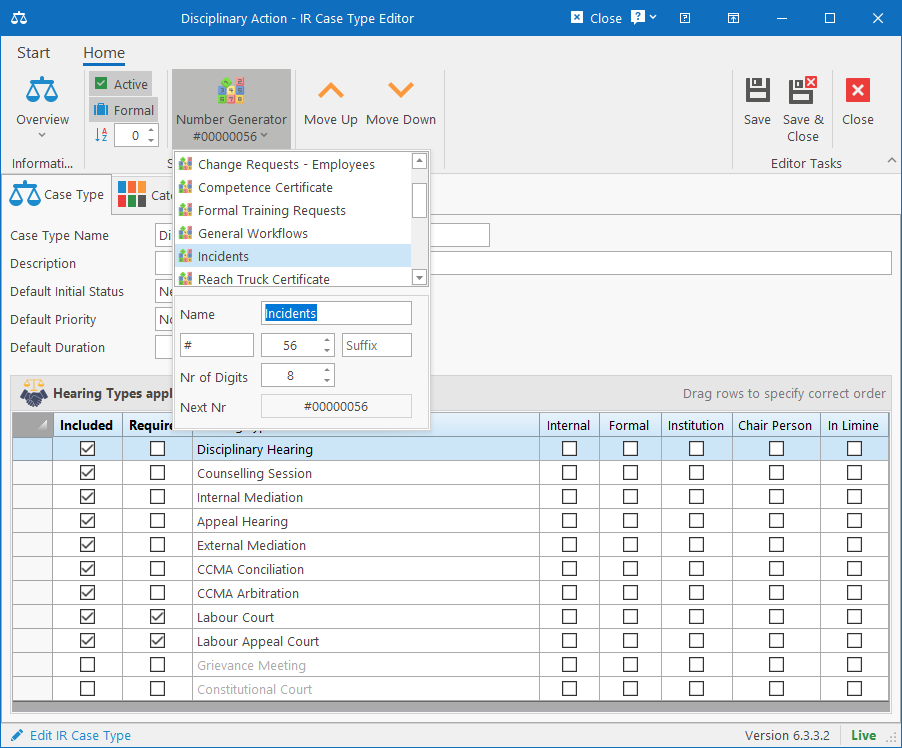
- Number Generator: Select or Create a number generator that will be used for generating reference numbers for cases of this type.
- Hearing Types – Move Up / Move Down: This will move the selected row in the Hearing Types list up or down. The rows can also be dragged into the correct position by dragging the row from the first blank column up or down.
Hearing Types applicable to this case
This list contains all the available Hearing Types defined in the system. Select the checkbox in the “Included” column for each hearing type that applies to the type of case.
The order of these hearings are also important since the system will allow starting a hearing in the order that it is listed here. The hearing types can be reordered by dragging the rows to their appropriate position or by selecting a row and clicking either the Move Up or Move Down buttons on the ribbon bar.
Finally, there is a “Required” column that can be set. If the checkbox is selected, then the system will require the hearing type to be captured and completed before the next hearing type will become available for capturing. For instance, “Labour Court” must first be completed before the case can proceed to the “Labour Appeal Court”.
Categories
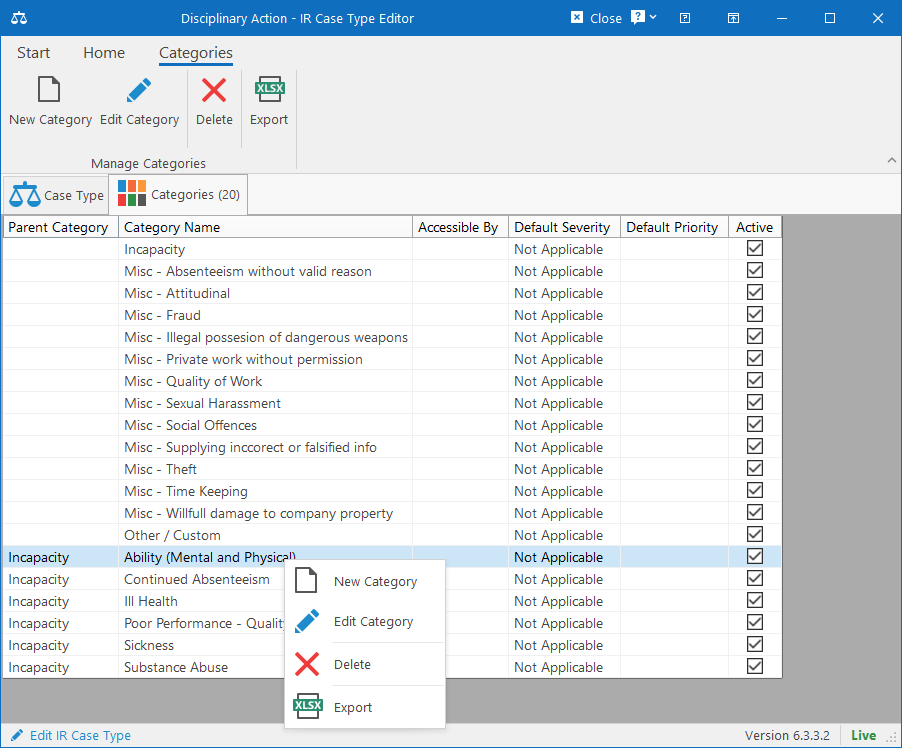
The Categories tab allows the management of categories that fall under the Case Type. Categories can consist of a main category (i.e. “Incapacity”) and a sub-type (i.e. “Ill Health”). Categories can also be linked to a security group to ensure that only certain people have access to sensitive categories of cases.
The Category can, like the Case Type, also have a Default Priority and Default Duration specified, but it is optional. If provided, it will override the default Priority and Duration as set by the Case Type.
For more information, see the Case Category Editor.