
Managing Employees
Introduction
By default, this is referred to as the “Employee Manager”, but note that the term “Employee” can be renamed to a more generic term based on what your business require (i.e. “Learner”, “Student”, “People”, etc.). For the purposes of this document, we’ll refer to Employees from hereon forward.
Managing Employees
To access the Employee Manager, open HR Manage, click on Employees and click on the Manage Employees menu item on the left. This will open the following Employee Manager.
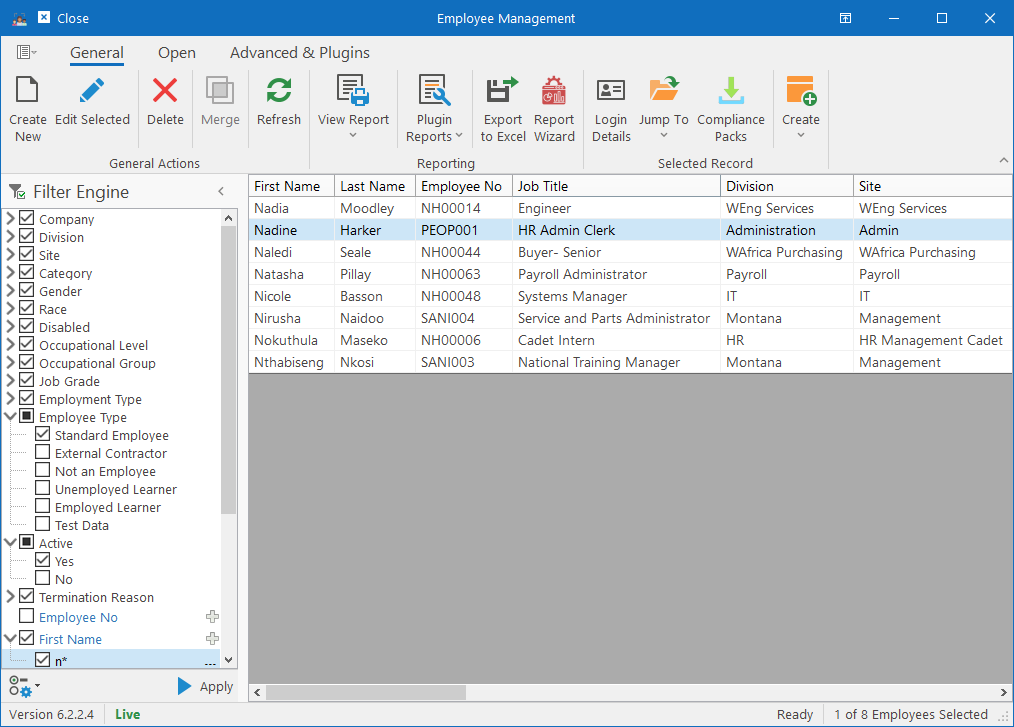
Note that this is an extension of a standard Manager Form in HR Manage. For more information about how to use it, see System Basics / Manager Forms.
Creating & Editing Employees
To create a new employee, click the Create New button on the ribbon bar or simply open an existing employee to open the Employee Editor form.
Batch Updating
To update multiple employees in a batch, select more than one employee and simply click the Edit Selected button on the ribbon bar or press the Enter key. This will open the Batch Updater.
Terminating Employees
To delete or terminate employees, select one or more employees from the list and click on the Delete button on the ribbon bar. This will prompt you with additional options that must be set before confirming the deletion / termination (read more).
Creating Logins for Employees
Each person loaded on HR Manage can gain access to the system by creating login credentials for them. It is possible for employees to register themselves, but it is also possible to open the login for any employee to reset their password or assign them to security groups which will increase or decrease their level of access.
To open the Login editor for an employee, select a single employee and click the Login Details button on the ribbon bar.
Open Related Data
While most of the related data is accessible from within the Employee Editor, it is also possible to just open it directly from here without first opening the Employee Editor. This can be done by selecting an employee and either clicking on the Open ribbon bar tab or by clicking on the Jump To dropdown ribbon bar button.

This will allow you to jump directly to one of these related data screens:
- Compliance Profile & Documents
- Job Profiling
- Issued Equipment
- Disciplinary Records
- Leave Balances & History
- Training & Certificates
- Workflows
- Legacy Documents
Quick Create
To quickly create new records for the selected employees, click on the Create dropdown button on the ribbon bar and choose what kind of records to create for the selected employees:
- Schedule Training
- Create Workflows
- Schedule Reviews
Downloading Compliance Packs
Compliance Packs consist of a combination of generated reports, documents, attachments and requirements. These packs can either be downloaded in a batch to a location on your computer or it can be emailed
Select one or more employees and then either click the Compliance Packs button on the ribbon bar or the Send Email button.