
How Can We Help?
-
HR Manage Application
-
-
- Articles coming soon
-
- Articles coming soon
-
- Articles coming soon
-
-
HR Manage Online
-
Config & Admin
-
IT Documentation
-
Version History
< All Topics
Print
Google Cloud Console Setup
Posted
Updated
HR Manage can integrate with Google Cloud to enable certain features like single sign-on through OAuth2. In order to do this, HR Manage needs to be registered on the Google Cloud Console and be configured with the required permissions.
This article will outline how to do that.
Register HR Manage on Google Cloud
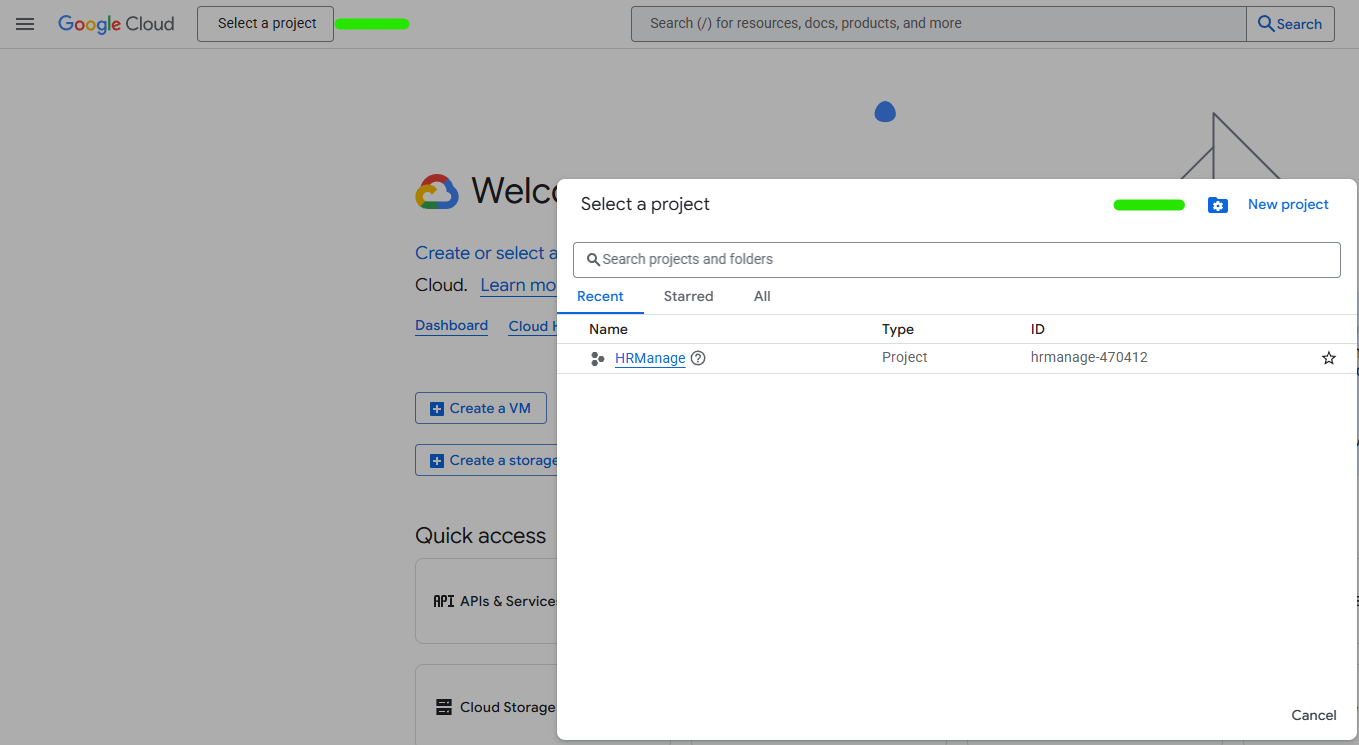
- Open your browser and log into https://console.cloud.google.com/
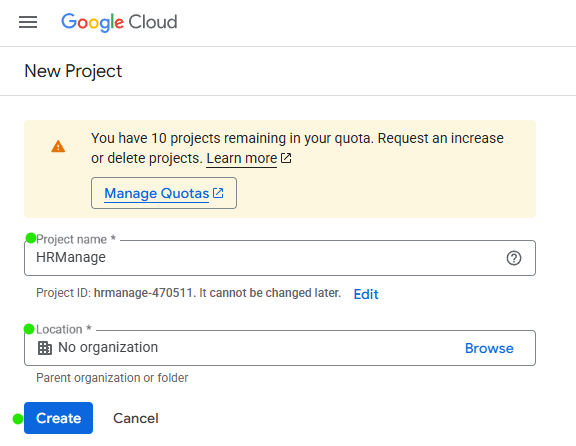
- At the top, click the Project Selector dropdown → New Project
- Project Name: HR Manage
- Location: Specify the Appropriate Location
- Click Create.
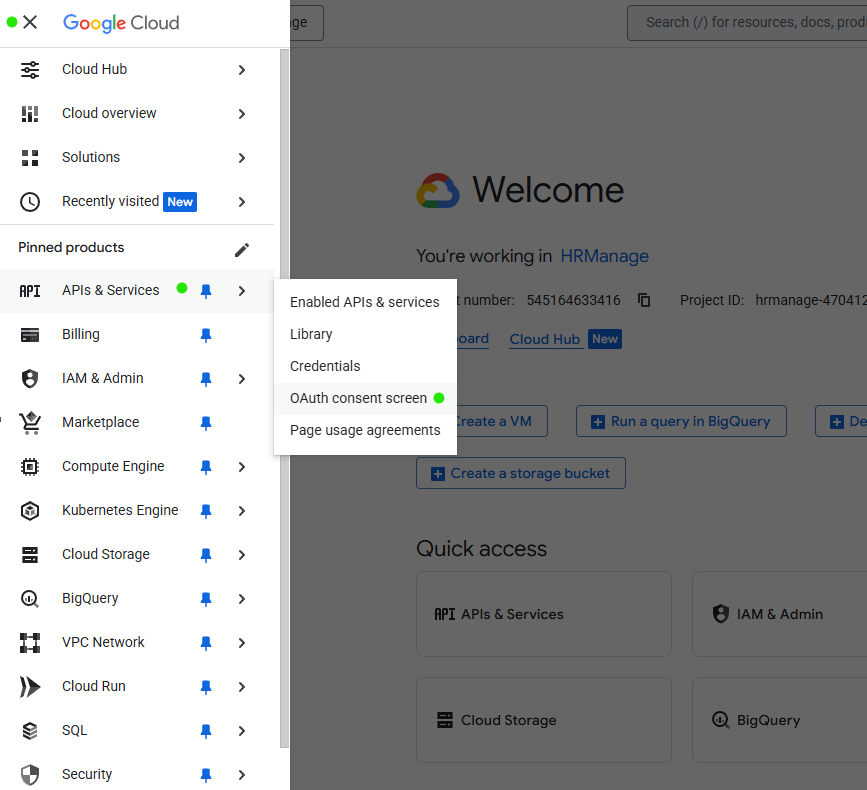
- Configure the OAuth Consent Screen
- On the left navigation panel, go to APIs & Services → OAuth consent screen.
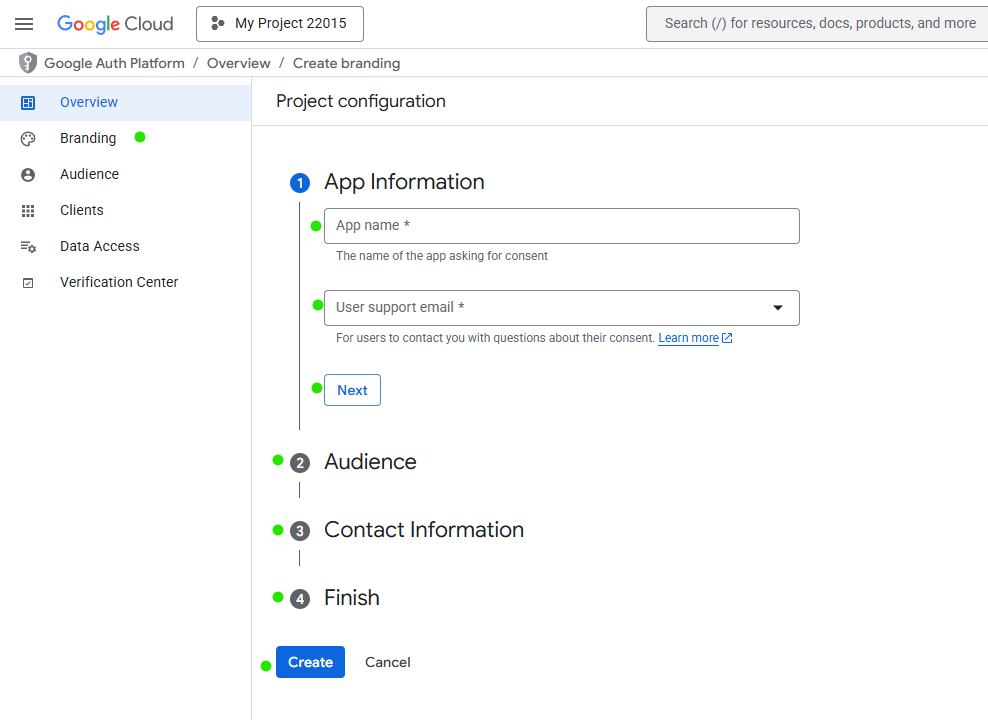
- Branding:
- App Name :HRManage
- User Support Email
- Audience: Select External (if your users are outside your org) or Internal (if only within your Google Workspace)
- Developer Contact Info
- Select the consent check box, and click on Continue
- Then Click Create
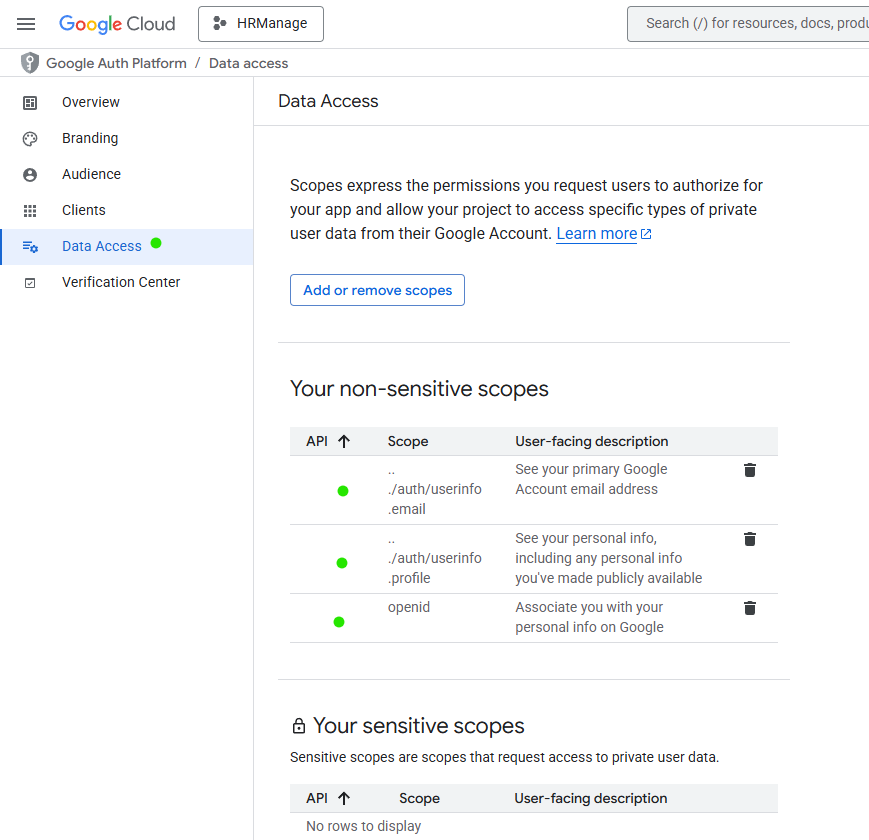
- Data Access: On the left navigation panel, click on Data Access, select the following scopes:
- openid
- …/auth/userinfo.profile
- .../auth/userinfo.email
Create OAuth 2.0 Credentials
- On the left navigation panel, click on Clients and then click on Create Client.
- Web / HRManage Online Authentication
- Select Web Application in the Application Type Section
- Assign the Appropriate name: HRManage Online
- Add a Authorized redirect URL: https://HRManage-Online-Url/Security/LoginExtCallback?Type=Google_OAuth2
- Copy and save the Client ID
- Windows Application Authentication
- Select Desktop Application in the Application Type Section
- Assign the Appropriate name: HRManage Windows Application
- Copy and save the Client ID and Client Secret
- Web / HRManage Online Authentication

Related Articles
Table of Contents