
Approving / Rejecting Certificates
Introduction
Once a certificate has been requested in HR Manage, it goes through an approval process. Once completed, the certificate gets issued and can then be printed. The Certificate Editor and Certificate Batch Updater is used to approve and reject certificate requests.
Opening a Single Certificate
In the Certificate Manager, select a certificate en click the Edit Selected button on the ribbon bar or double click on the certificate or select it and press the Enter key. This will open the Certificate Editor.
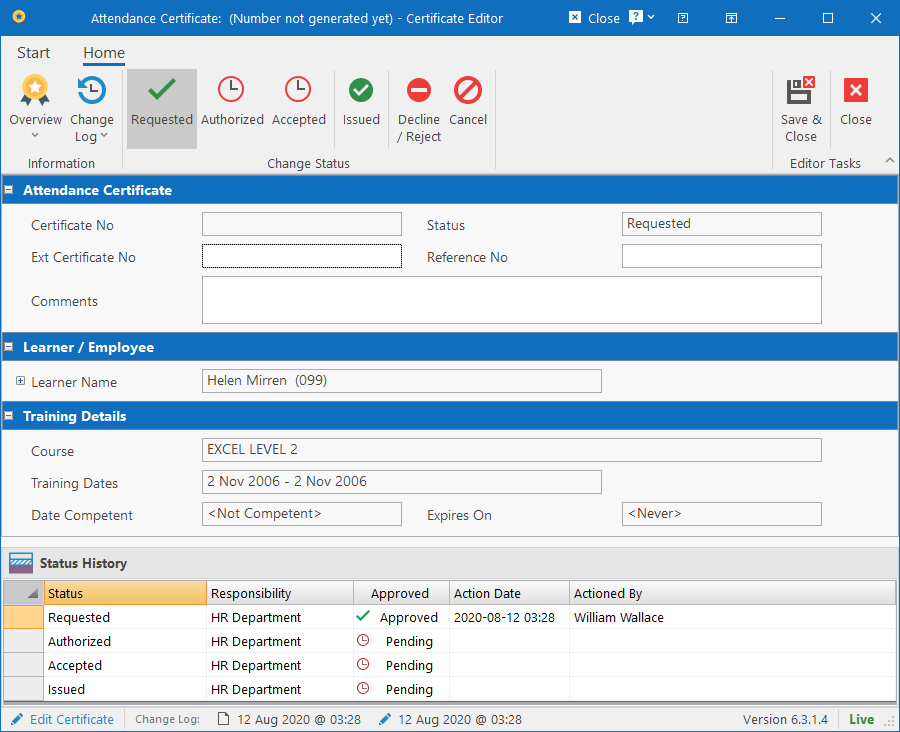
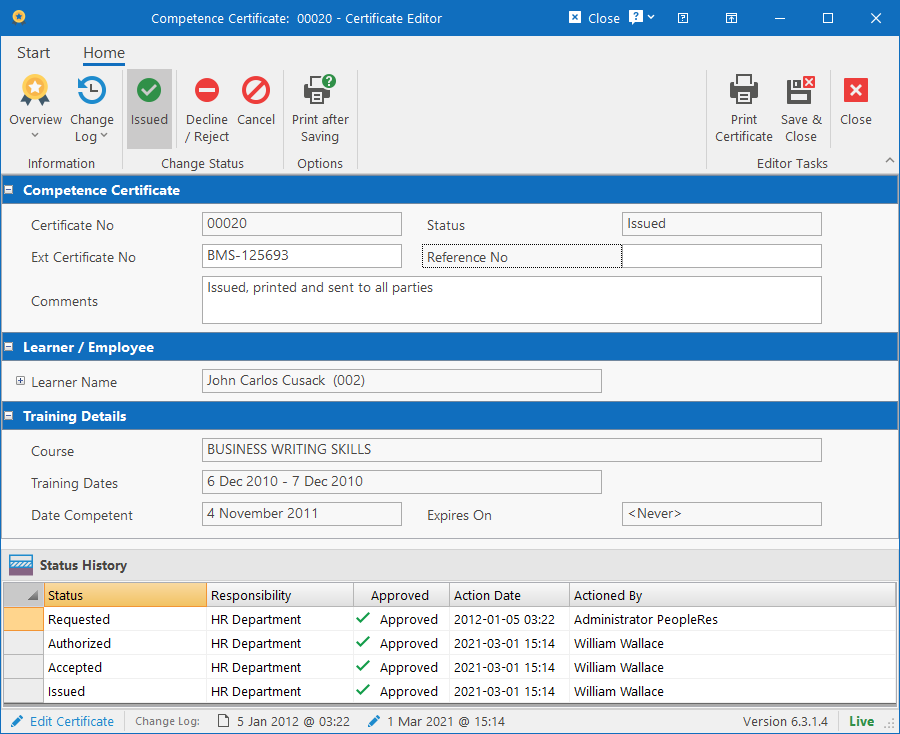
The Certificate Editor consists of the following sections:
Ribbon bar
The ribbon bar contains the “Change Status” group where you can specify the new status for the certificate. All the certificate statuses that you have access to (as configured in the Certificate Format editor), will be listed here. The statuses will be listed as follows:
- The current status (will be selected by default).
- Next available status(es) that you have access to as configured in the Certificate Format.
- Issued status. Will only be enabled if you have access to it and/or all the previous statuses have been completed. If you’re allowed to approve all the preceding statuses and set the status to Issued, then the Issued status will also be enabled.
- Decline / Reject. Used to Decline / Reject a step in the certificate approval process. Can be done by any person who is allowed to approve / reject the next status.
- Cancel. Used to cancel and delete the certificate request and can be done by the requestor or a user with access to cancel certificates.
Certificate Details
The details editor contains a summary of the details that will be used on the certificate. The following fields are available:
- Heading 1: Type of Certificate / Certificate Format that is being worked on.
- Certificate No: This field is read-only and the certificate number will be generated automatically when the status is set to “Issued”. Number will be generated according to the configuration in the Certificate Format.
- Ext Certificate No: If there is another certificate number that applies, it can be captured here. It can be included on the actual certificate if designed accordingly in the Certificate Format.
- Reference No: Optional field that can contain any reference number related to the certificate.
- Comments: Free text comments related to the certificate.
- Learner / Employee: Contains details about the learner who the certificate is for. The field can be expanded to reveal the learner’s location, job title and contact details.
- Training Details: Displays the name of the intervention and the related dates.
Status History
Contains the list of steps / statuses that must be approved until the certificate is issued. The exact statuses that must be included is configured in the Certificate Format editor. The grid will list each step / status, whose responsibility it is to approve it, the current status of the approval step and who approved / declined it and when.
The statuses in the Approved column can contain the following values:
- Approved: Means that the step was approved. The “Requested” step will always be in “approved” state.
- Pending: Means that the step must still be approved.
- Skipped: Means that someone with access to approve multiple consecutive steps, skipped over some of the step and approved a later step.
- Declined: Means the someone declined / rejected a step.
Approving Multiple Certificates
Content coming soon. Awaiting upgrade on batch updater.