
Sage 300 People Integration
Introduction
Getting the integration up and running between HR Manage and Sage 300 People is as simple as entering a couple of values into the Payroll Configuration Wizard. In order for the integration to be enabled, you must first create an API key in Sage 300 People and then enter the values into the configuration wizard.
Configuring Sage 300 People
We advise that the Sage 300 People API Configuration is done by your Sage Partner. People Resolutions has the technical knowledge on this configuration to assist where required. However, the components required are as follows:
- People Web API Service
- The People Web API Service needs to be installed and configured. This can be done and verified by using the Scheduler Service Settings->People Web API Settings.
- Once the People Web API is installed and configured, the API Service can be tested by entering the following URL into any Web browser: https://Your_HostName_Here:9000/api/security/testapiresponse
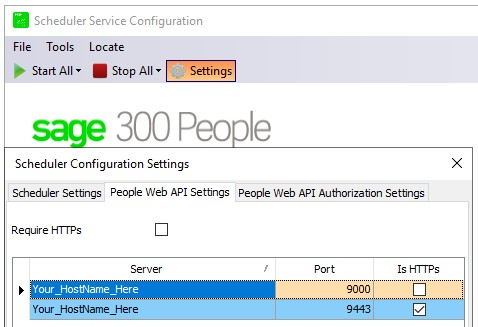

- API Configuration on Sage 300 People Windows Application
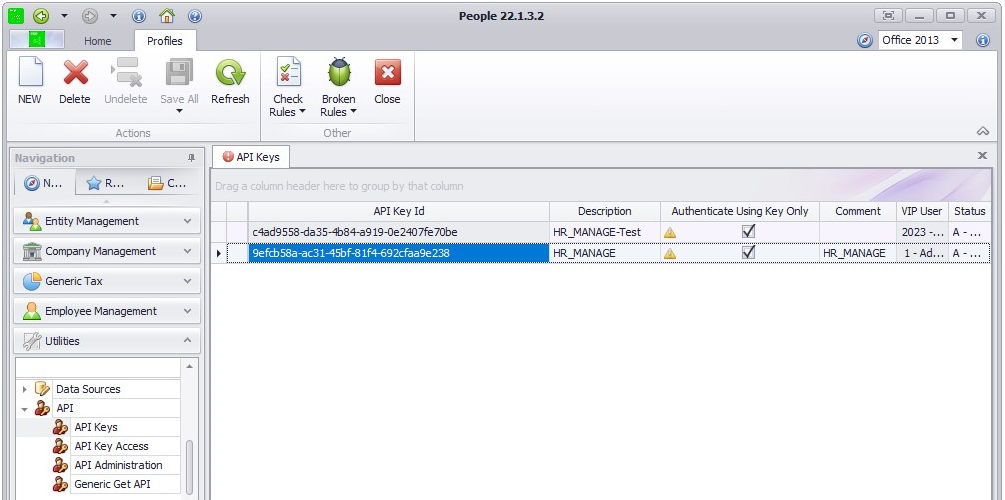
- API Keys: Utilities ->API ->API Keys
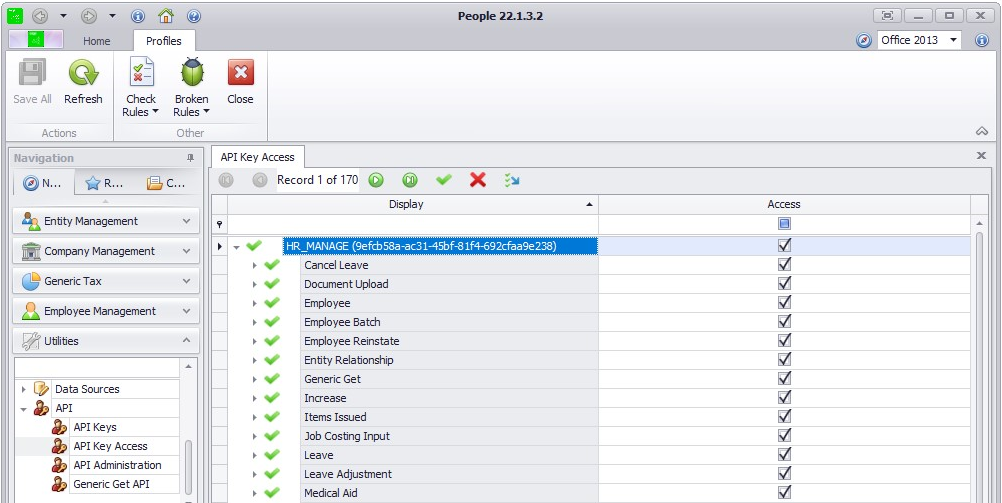
Create a new API Key dedicated to the HRManage Integration, Link it to an appropriate/dedicated user. - API Key Access: Utilities ->API ->API Key Access
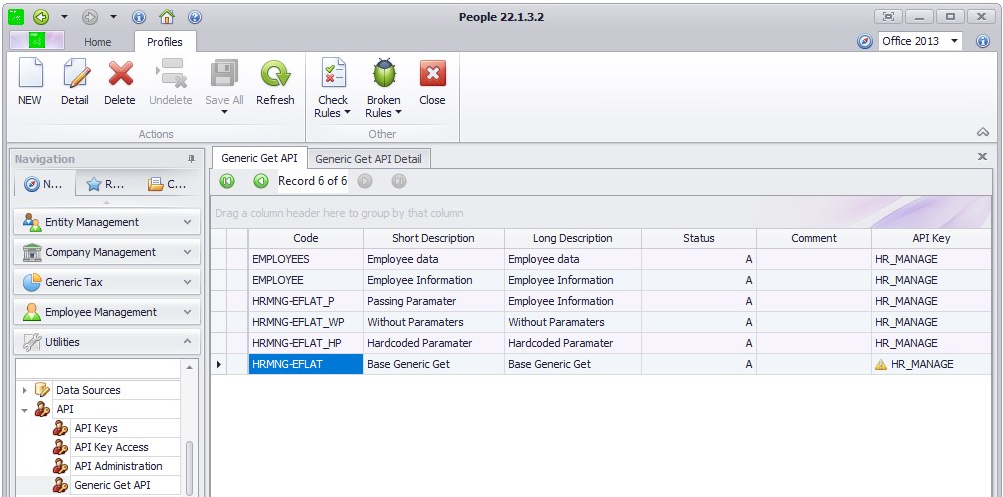
Assign the necessary access to the API Key created for the HRManage Interface - Generic Get API: Utilities ->API ->Generic Get API
Create a new Generic Get API with Code ‘HRMNG-EFLAT’ and link it to the API Key created for the HRManage Interface. Open the newly created Generic Get API and input the Query received from People Resolutions and save.
- API Keys: Utilities ->API ->API Keys
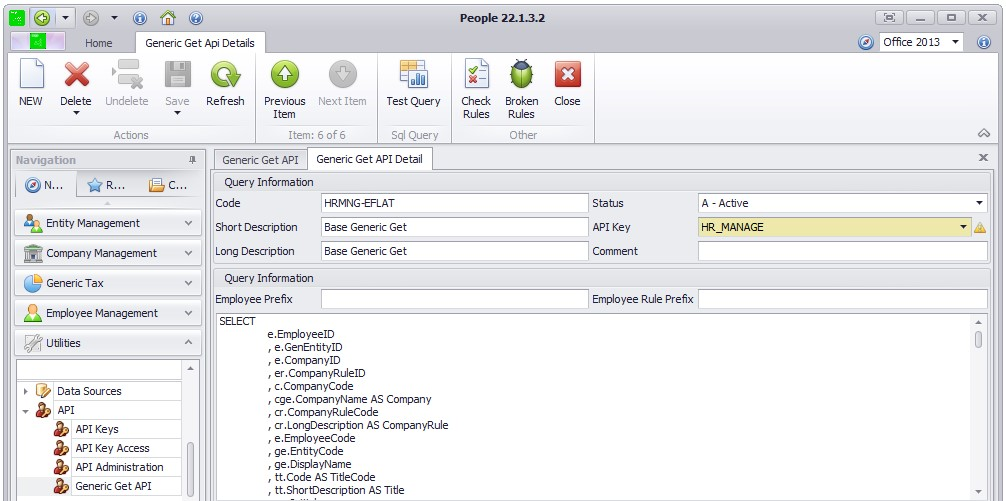
Configuring HR Manage
Using the keys information obtained from Sage 300 People, go to the HR Manage Importer and Create a New Import Template by clicking on the New Template toolbar item. Then on the Import Template Editor, top open the wizard, click on the Quick Payroll API Configuration button in the Ribbon toolbar.
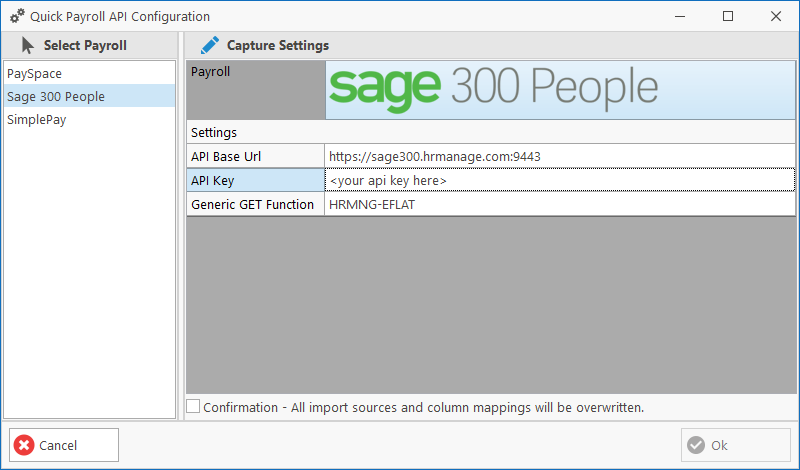
On the wizard, the “Generic Get Function” field will already be filled in for you. You only need to change it if for some reason the Function on Sage was created under a different name.
In the rest of the fields, simply enter your base API url for Sage 300 People and the API Key obtained from Sage 300. Note that using this wizard is ideal for setting up a new Import Template and using this wizard on an existing Import Template will overwrite the import sources and column mappings already configured. Simply acknowledge this by checking the Confirmation checkbox and then clicking Ok.
This will configure the following sections in the Import Template:
- Details
- “Import Source” (name of the payroll) and the “Key Field for Manager” will be configured.
- Import Sources
- A single “Sage API” Import Source will be created from where the data will be retrieved.
- Column Mapping
- All the applicable fields that can be retrieved from Sage 300 People will be preconfigured. However, due to the flexibility of Sage 300 People with regards to building the company structure, you might need to manually assign the Location fields (i.e. Branch, Department, etc.). Otherwise, you can now simply tweak the behaviour and specify any fields that should be excluded or map any custom fields that should be included.
In the cases where data from libraries like Job Titles are properly maintained on Sage 300 People so that a direct sync is possible, we can create a custom Task in the Import Template that would create any new library and/or lookup items as part of the data retrieval process. It is also possible to maintain this yourself by using the Import Result Explorer to see if there were any import warnings or exceptions, make adjustments and reimport those selected employees.