View Application
Introduction
You can open and view leave applications for you and your sub-ordinates by clicking on the Open icon / button next to the leave application. The View Application page will allow you to see detailed information about the application, balances, potential conflicts and any supporting documents that was attached.
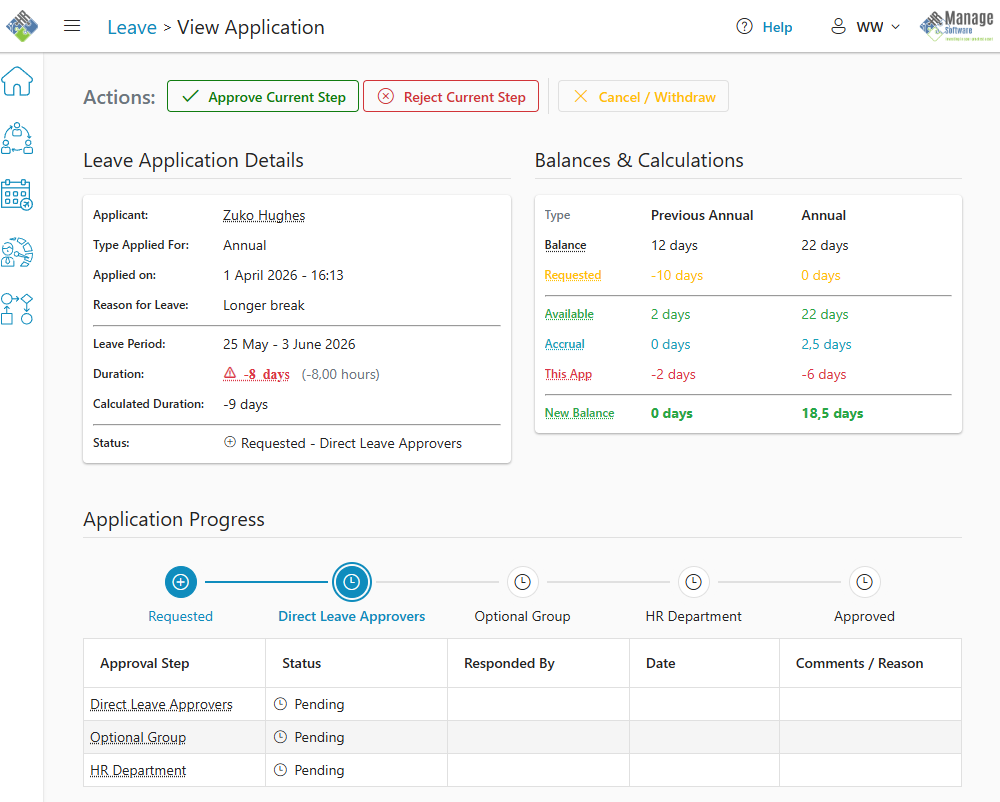
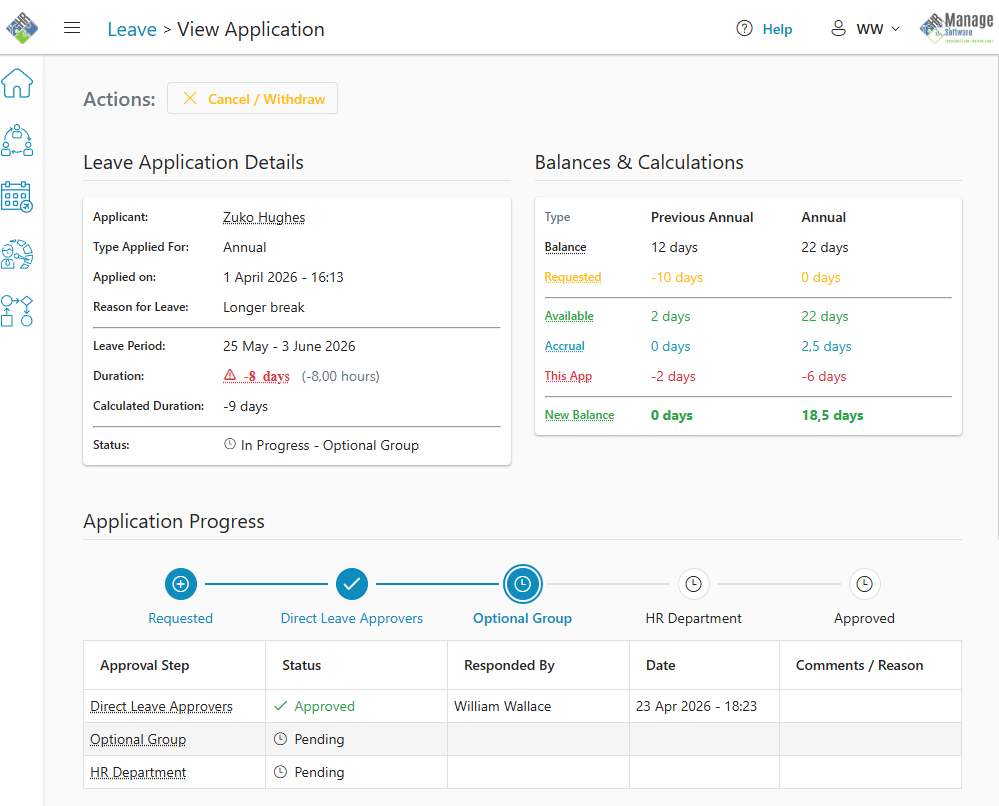
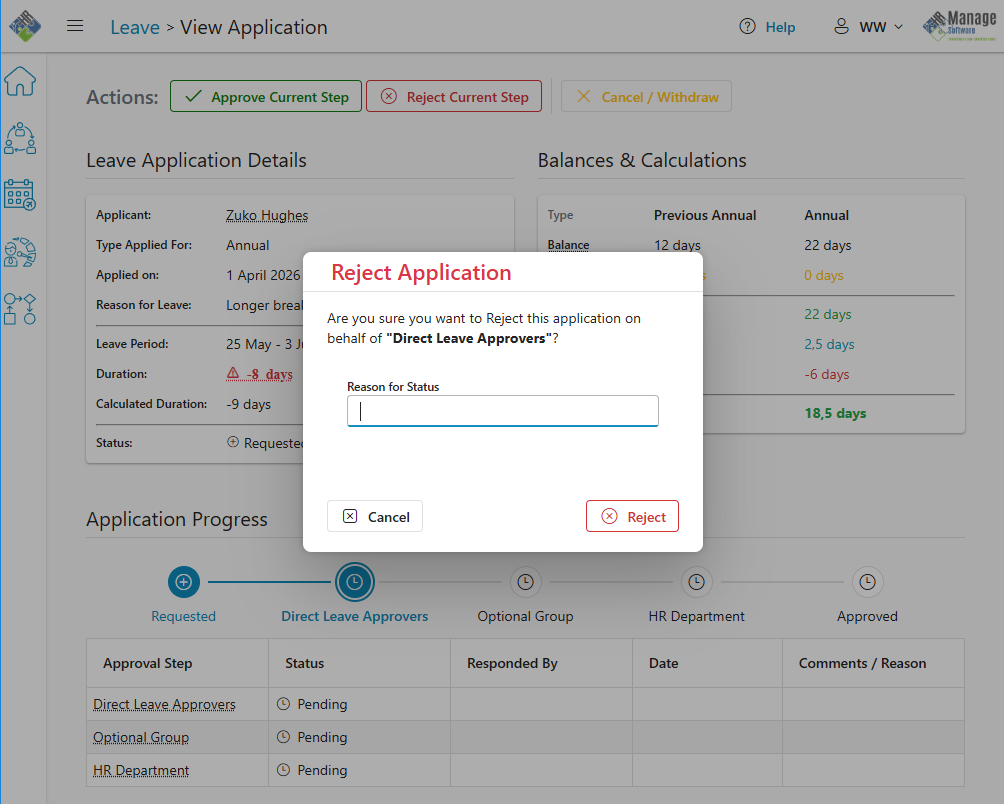
The page consists of the following sections:
- Actions toolbar
- Leave Application Details card
- Balances & Calculations card
- Application Progress grid
- Leave Planner / Calendar
Actions
The actions toolbar will contain the various actions that the logged in user has access to. If the user is authorised to Approve or Reject the application, those buttons will be available and clicking it will display a popup dialog, asking for a reason. The reason is required when rejecting an application and optional for approving or cancelling an application.
The Cancel / Withdraw button will only be available if the rules allow (configured in the leave type). For instance, Completed leave application can typically not be cancelled.
Leave Application Details
The card consists of the following fields:
- Applicant: The person that the leave application is for. If the name of the person is underlined with a dotted line, it means that someone applied for the leave on the employee’s behalf. Move the mouse cursor over the field to see who submitted the application.
- Type Applied For: Type of leave that was requested. Based on rules, this can sometimes differ from the actual leave that credits were deducted from.
- Applied On: Date and Time when the application was submitted.
- Reason for Leave: Free text as captured by the applicant.
- Leave Period: Specify the date range where the employee will be on leave.
- Duration: The number of work days that the employee will be on leave. This is the number of days that will be deducted from the employee’s leave credits. For single-day applications, the number of hours will be displayed in brackets next to the duration.
- Calculated Duration: This field will only be displayed if the leave duration was manually adjusted by the applicant. In that case, the Duration will be highlighted in red so that the approver can take note that the application is not standard.
- Attachments: If any supporting documents were uploaded, the attachments will display as links. Only applicable to leave types that are configured to accept attachments.
- Status: The current status of the application and the party that is responsible for approving next.
Balances & Calculations
This block will show the balances and calculations for the affected leave types for the application. It gives a proper overview so that the approver can make an informed decision. The affected leave types will display as columns and while there would typically only be one leave type, it is in theory possible to have up to 3 different balances affected with an application.
Each balance will have the following information displayed:
- Balance: The current formal calculated balance for the employee for the specific leave type. A formal balance is calculated by calculating the sum all the Completed leave transactions in the system.
- Requested: Displays the sum of all leave applications (excluding the current open one) that have not yet been completed (thus Requested, In Progress or Approved).
- Available: Displays the actual usable balance available with the Requested leave taken into account.
- Accrual: If the leave type accrues monthly and the application is for a future date, the system will calculate how much leave would have accrued between now and the application’s end date.
- This App: Display the number of days deducted from the leave credits for the current open application.
- New Balance: Display the new available leave balance for the type after future accrual and the current application have been taken into account.
Application Progress
This section contains a timeline and grid showing the detailed application progress, who has approved and which approvals are still pending. The grid will display the following columns:
- Approval Step: Specify which party must approve the application. If you hover the mouse cursor over the name, you can see which employees can approve the step.
- Status: Displays the status of each step. Possible values are: Pending, Approved, Rejected and Cancelled.
- Responded By: The person who approved or rejected the application.
- Date: Date/Time when the step was responded to.
- Comments / Reason: Reason why application was rejected or comments on why it was Approved or Cancelled.
Leave Calendar / Planner
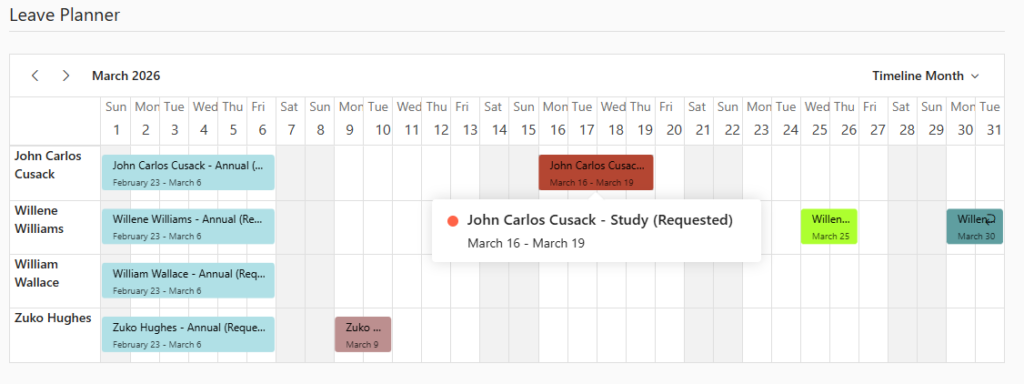
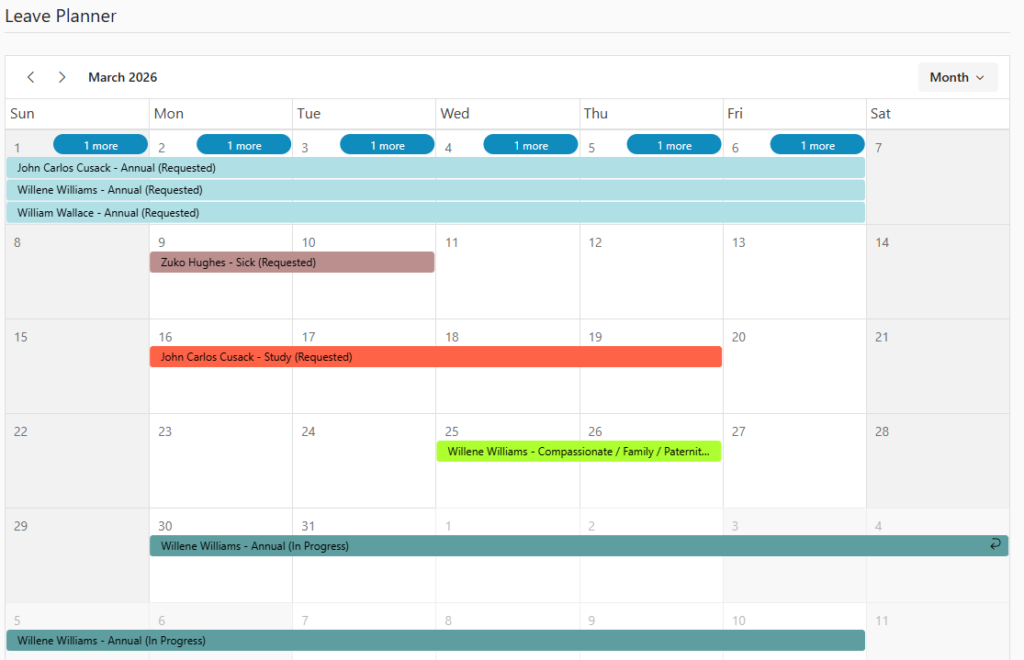
The Leave Planner allows you to see which co-workers also have leave planned for the period during and surrounding the application. This helps to pick up potential conflicts. The planner will automatically be open for the application’s leave period to prevent needing to first navigate. You can see the applicant, type of leave, date range and status of the applications.
You also have the option to switch to Month view by clicking on the dropdown in the Planner’s header and choosing Month.