Managing Reporting Periods
Introduction
HR Manage allows for creating EE Reporting Periods for entities. Each period consists of a date range, name, locations that is included in the entity and then targets for the period. It also allows the capturing of sectoral targets as provided by the South African Department of Labour.
These Reporting Periods can then be linked to each other and HR Manage will use these links when generating the Employment Equity EEA2 report, to determine the current targets, next year’s targets and the 5-year targets.
Getting Started
To open the Employment Equity Management screen, open HR Manage and click on the Reporting button on the ribbon bar or on the Reporting & Exporting tile on the main menu. Then simply click on the Employment Equity tile in the Reporting menu. This will open the Employment Equity Management window which will list all the EE Reporting Periods and even open the current period by default.
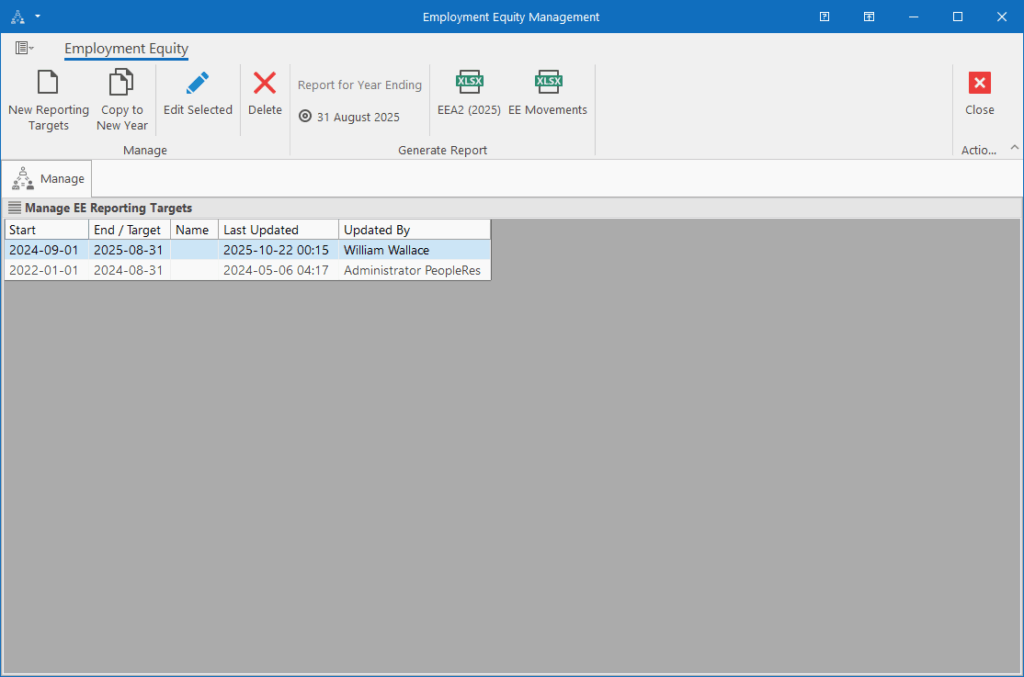
Managing EE Reporting Periods
To create a new EE Reporting Period, simply click the New Reporting Targets button on the ribbon bar. This will open a blank editor for capturing the details and targets for the period.
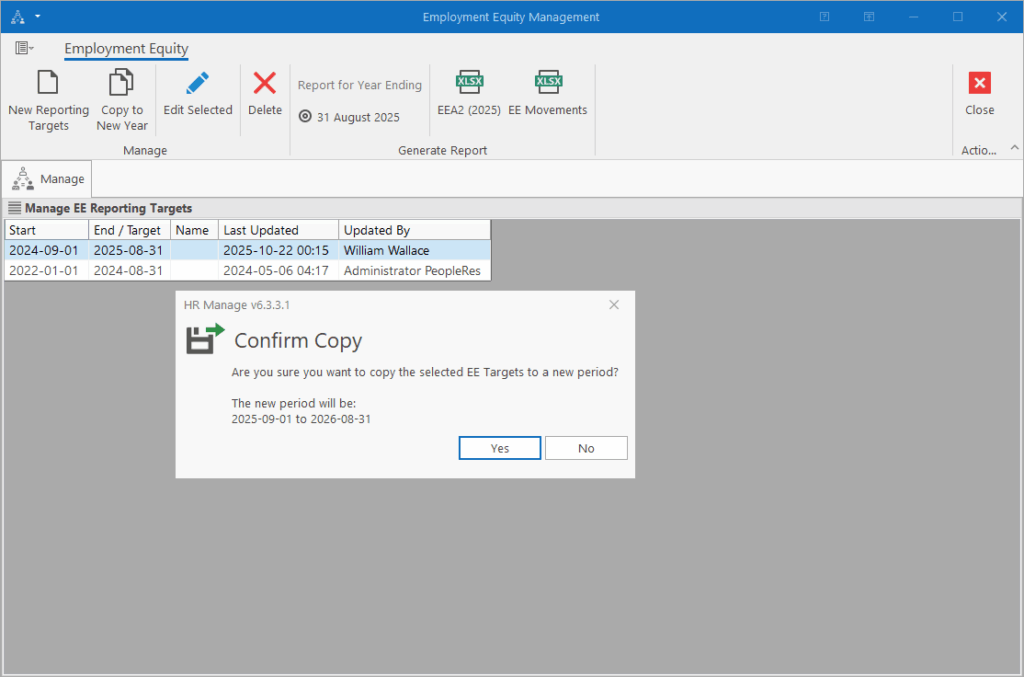
To copy the targets of the selected reporting period to a new year, select one of the existing periods and click on the Copy to New Year button on the ribbon bar. This will prompt for confirmation and when clicking Yes, HR Manage will do the following:
- Create a new EE Reporting Period with the date range that succeeds the selected period’s date range
- Link the selected Reporting Period as the “Previous Period” on the newly created Period.
- Copy the Locations, Settings, Targets and Sector Targets to the new period.
To edit an existing period, simply select the EE Reporting Period and click the Edit Selected button on the ribbon bar.
All three of the above, will transform the window into the EE Period Editor.
Generating Reports
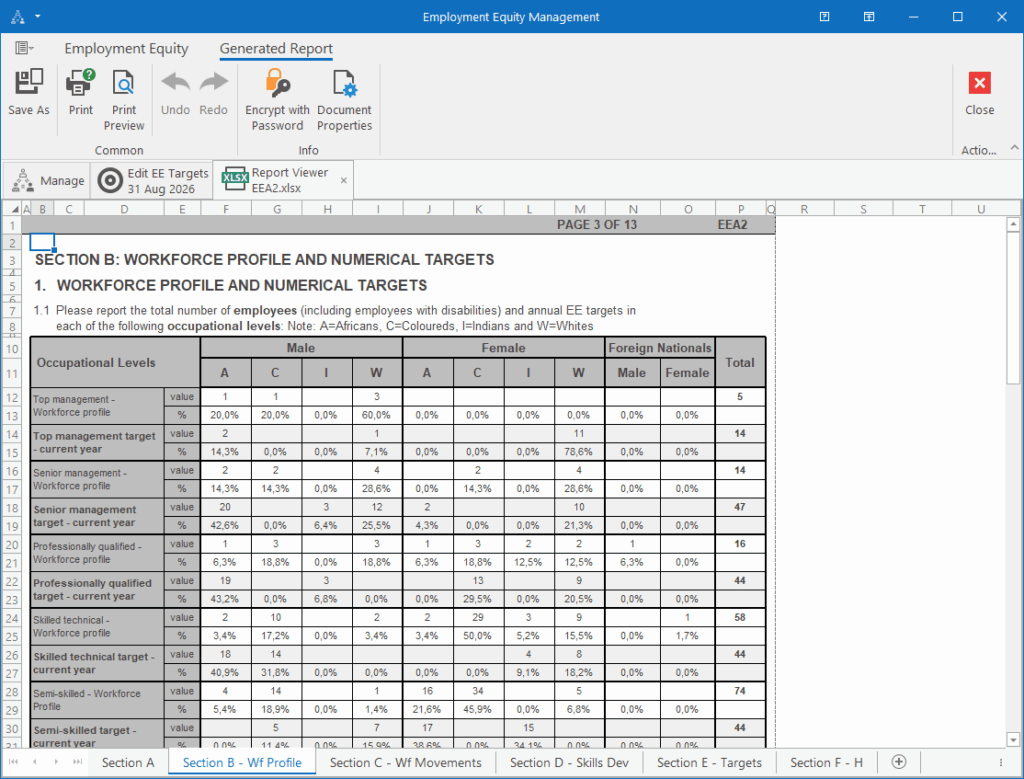
To generate the EEA2 (2025 version) or the EE Movement report, select a reporting period from the list: the reporting period that represents the date range you want the report for. Then simply click on the EEA2 (2025) or EE Movements button on the ribbon bar.
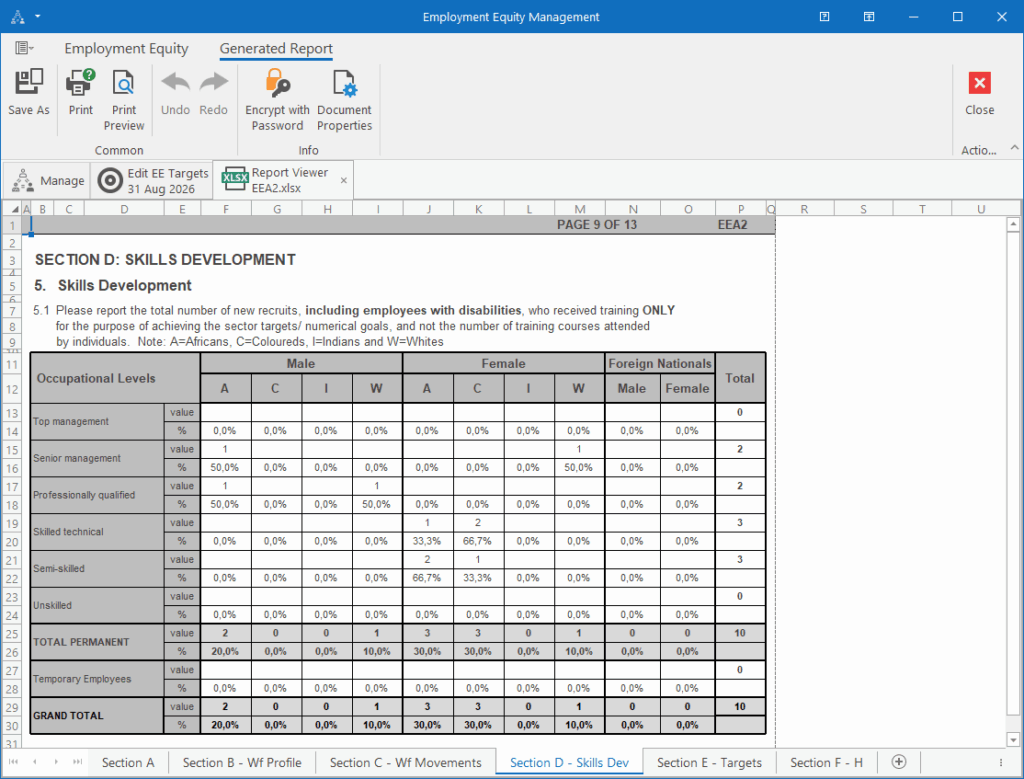
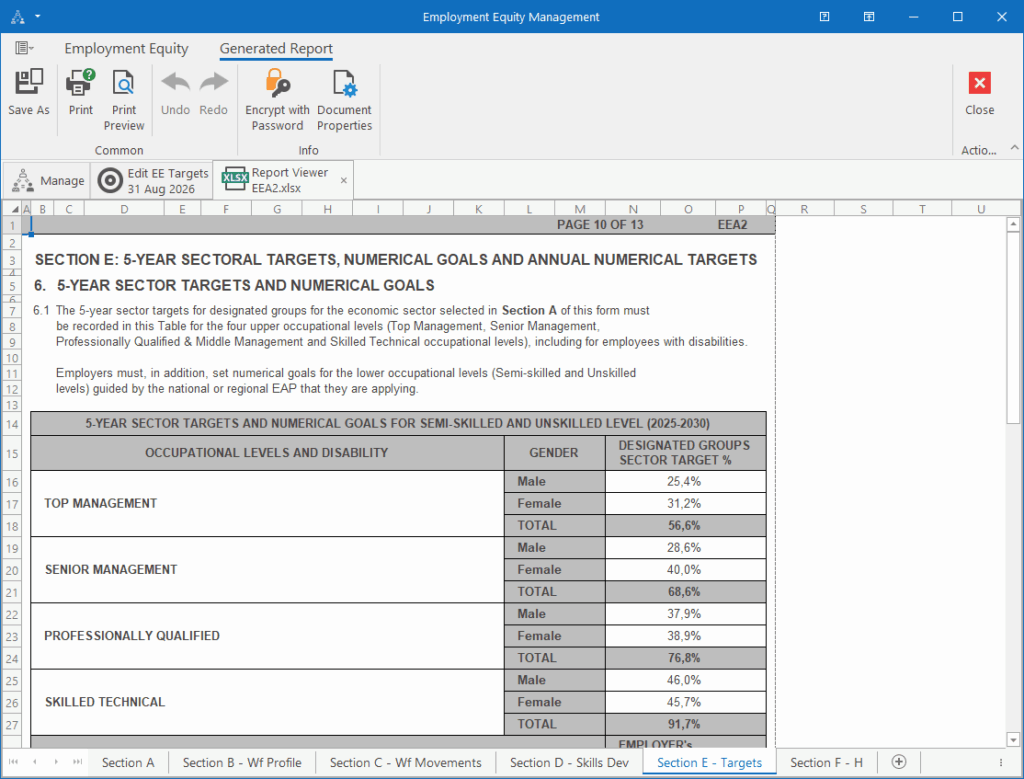
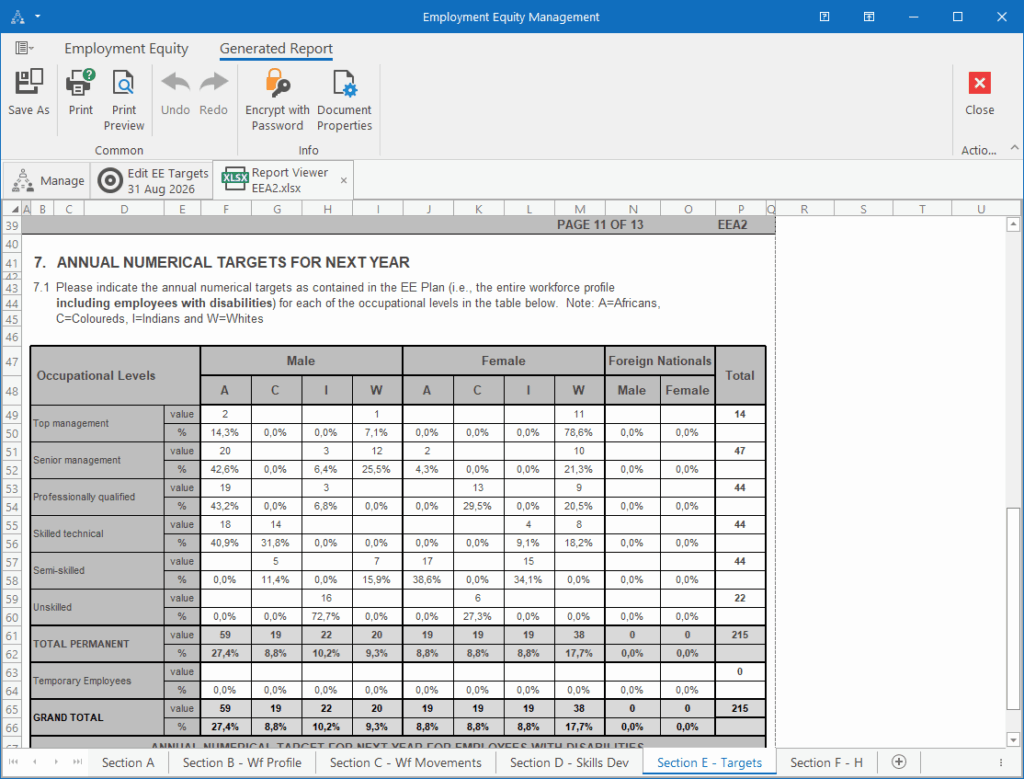
This will create a 3rd tab in which the report will display as an Excel workbook. Each section is on a separate worksheet and page breaks are on the correct places so that the report when printed, would be identical to the original template.
From here it can be exported to Excel.