
Authentication Services
Introduction
HR Manage allows integration with Active Directory and Microsoft Entra ID. We might support more authentication methods in future. All these services need to be registered in HR Manage as authentication services (auth services for short). When logging into HR Manage, it will authenticate against HR Manage and/or any Active Directory services registered.
Creating an Authentication Service
Open the HR Manage System Configuration and in the left menu, click on Authentication Services. From here, you can open an existing one or click on the Create New ribbon bar button to open the Auth Service Editor.
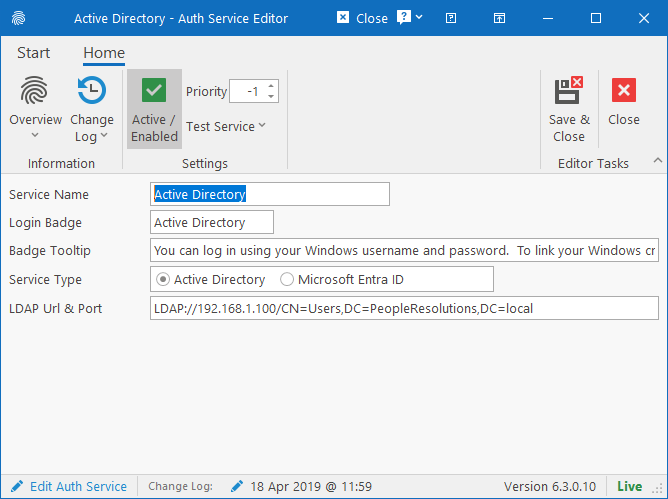
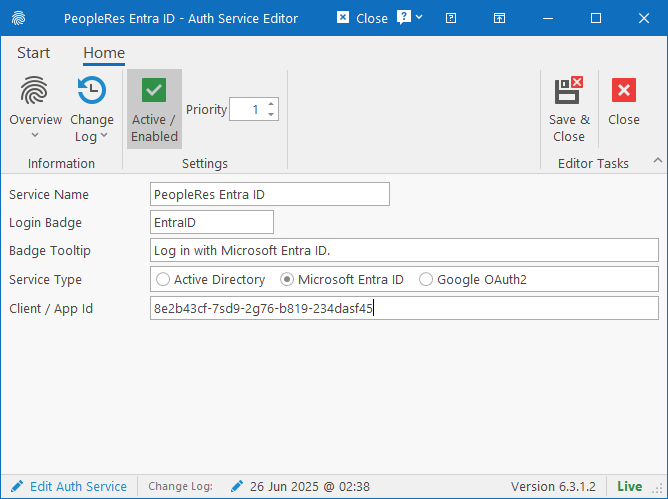

The following fields are available for configuration:
- Service Name: Internal name to identify the service to administrators.
- Priority (on ribbon bar): Specify the order in which login should be attempted. HR Manage authentication is at priority 0. So an AD service with a priority of -1 or less would attempt to first login to the AD service and if unsuccessful, attempt to login with HR Manage credentials. A priority with 1 or more will first attempt to login using HR Manage credentials and if unsuccessful, attempt to login to the AD service.
- Login Badge: On the Login page in HR Manage Online, a small badge will display to show that this type of authentication is supported. The short text entered here (max 20 chars), will be displayed in the badge.
- Badge Tooltip: When the user hovers over the Login Badge, this tooltip will display.
- Service Type: Specify the type of authentication service.
- For Active Directory
- It is possible to have multiple Active Directory services registered. HR Manage will attempt to log into them in order of their priority specified until successful.
- LDAP Url & Port: Specify the full LDAP Url with the port needed to connect to Active Directory. The LDAP server must be accessible from the server on which HR Manage is hosted.
- For Microsoft Entra ID
- Only one Entra ID registration is allowed at the moment. Registering this service will cause an additional button to be visible on the Login screen (Login with Entra ID).
- Client / Application Id: Specify the Application Id for the HR Manage registration on the Azure Portal.
- Important! When registering HR Manage on the Azure Portal, you must register the following callback url for the web application:
- https://HRManage-Online-Url/Security/LoginExtCallback?Type=Entra_ID
- For Google OAuth2
- Only one OAuth2 registration is allowed. Registering this service will cause an additional button to be visible on the Login screen (Login with Google).
- Client / Application Id: Specify the Client ID that was generated on the Google Cloud Console during registration.
- Client Secret: Only required for enabling OAuth2 for the Windows application.
- Important! When registering HR Manage on the Google Cloud Console (for the web application), you must register the following callback url for the web application:
- https://HRManage-Online-Url/Security/LoginExtCallback?Type=Google_OAuth2
Register HR Manage in Microsoft Graph
To enable login using Microsoft Entra ID, you must register HR Manage in Microsoft Graph. See the following article on how (for IT Administrators only).
Register HR Manage on Google Cloud
To enable login using Google’s OAuth, you must register HR Manage on Google Cloud. See the following article on how (for IT Administrators only).