
Recipient Groups
Introduction
Recipient Groups forms part of the core of how people are targeted in HR Manage. Instead of assigning activities to a single person, activities are assigned to a Recipient Group which consist of one or more members. The idea is that anyone from the recipient group can respond to an activity which is useful in the event where someone is on leave or unavailable. When someone leaves the company, you just replace that member in the recipient group and the new person automatically has access to continue on the previous person’s work.
Note though that some activities require that a recipient group only contains a single member as more than one member could cause issues. This is specifically referring to the Performance Review activity where the Main Reviewer can only be a single person.
Embedded in other editors
The Recipient Group designer is either embedded in other editors or accessible from other editors for easy integration. For instance, on any Workflow Activity Editor or even the Workflow Template Editor, when choosing the Responsible Group, the list of recipient groups are listed as well as Create New and Edit Selected buttons which will in turn open this editor.
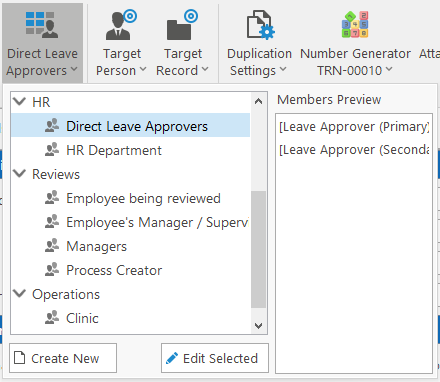
Recipient Group Editor
Open or Create a Recipient Group from almost any editor that uses Recipient Groups. Otherwise, go to a module configuration (Employees, Job Profiling or Workflows) and click on the Recipient Groups menu item in the left menu to open the list of recipient groups in the library. Then click on the Create New ribbon bar button or edit an existing one to open this editor.
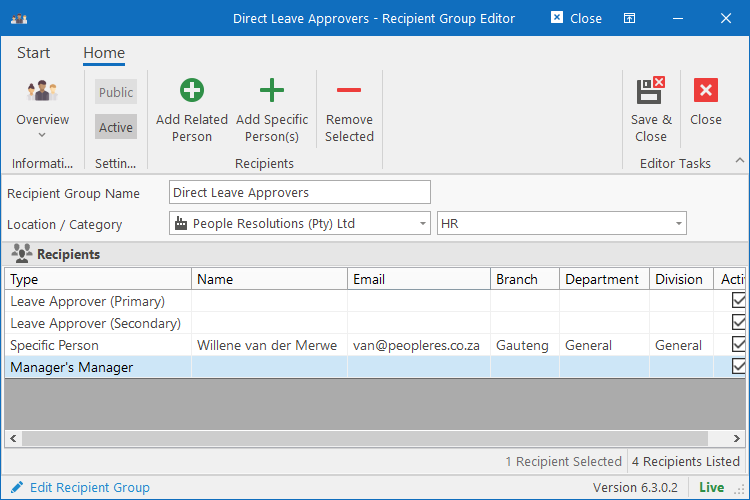
The editor consists of a ribbon bar with settings and commands, a section with fields used for identification and categorisation and finally the list of recipients. Recipients can be either specific people from the database or related people who are determined based on their relationship with the record’s Creator or Target Person.
Ribbon bar
- Settings
- Public: This setting is only editable when editing the recipient group from within another editor. It specifies whether the recipient group can be reused by other entities or if it is private for just the record it is linked to.
- Active: Select if recipient group can be used or deselect if recipient group is inactive / deleted.
- Recipients
- Add Related Person: Will open a form where multiple relationship types can be selected and added to the list of recipients (see below).
- Add Specific Person(s): Will open an Employee Browser form where the user can filter out people in the system and add them to a short list. Once all the required people are on the short list, the user can click Ok to add them all to the list of recipients.
- Remove Selected: This will remove the recipients that are currently selected / highlighted in the list, from the recipient group.
Adding Related Persons
When clicking the Add Related Person button on the ribbon bar, the system will prompt the user with the following form where all the applicable relationship types can be selected and added as related people.
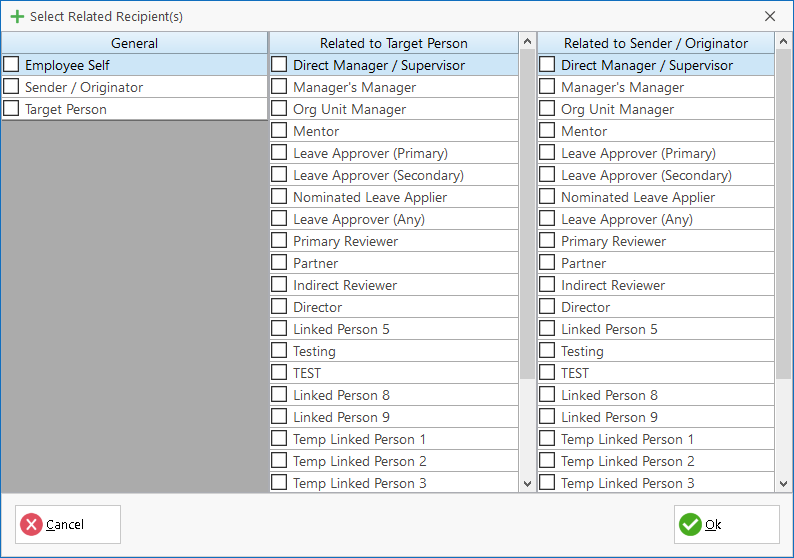
There are three categories to add related people from:
- General: This just refers to the most basic relationships which is the Target Person for a record and the person who created the record. In most cases, “Employee Self” and “Target Person” refer to the same person.
- Related to Target Person: This refers to people that is related to the person that is being targeted by a record. An example of a target person is the person being reviewed during a review or the person receiving training, etc.
- Related to Sender / Originator: This refers to the person that created the record or who performed the action that triggered the request. In most cases, this would be the record creator, but in cases like a performance review, this would generally refer to the Main Reviewer.
Relationship Types
Here are the relationship types as defined above. Note that some of these relationships can be renamed in the Employee Module Configuration.
- Direct Manager / Supervisor: Refers to the person’s manager, either linked directly or through their position.
- Manager’s Manager: Determined dynamically. Returns the Direct Manager’s Manager.
- Org Unit Manager: Determined dynamically. The system determines if the person is linked to an organisational unit based on their links to the various locations, and if that translates to a defined org unit, the org unit’s manager is returned.
- Mentor: Linked manually in Employee Editor.
- Leave Approver (Primary): Linked manually in Employee Editor.
- Leave Approver (Secondary): Linked manually in Employee Editor.
- Nominated Leave Applier: Linked manually in Employee Editor. This person can apply for leave on behalf of another person.
- Linked Person 1 – 9: Linked manually in Employee Editor. Can be renamed to suit client requirements.
- Temp Linked Person 1 – 9: Linked temporarily during the course of a workflow by a “Decision (Assign People)” activity. Can be renamed to suit client requirements.