
Workflow Template Library
The Workflow Library contains all the Workflow Categories and Templates in the system. The Categories have security enforced to limit access to certain users while the Workflow Templates contain all the information needed to create and work through a workflow.
The main library shows the categories with the sub-categories and templates linked to each category.
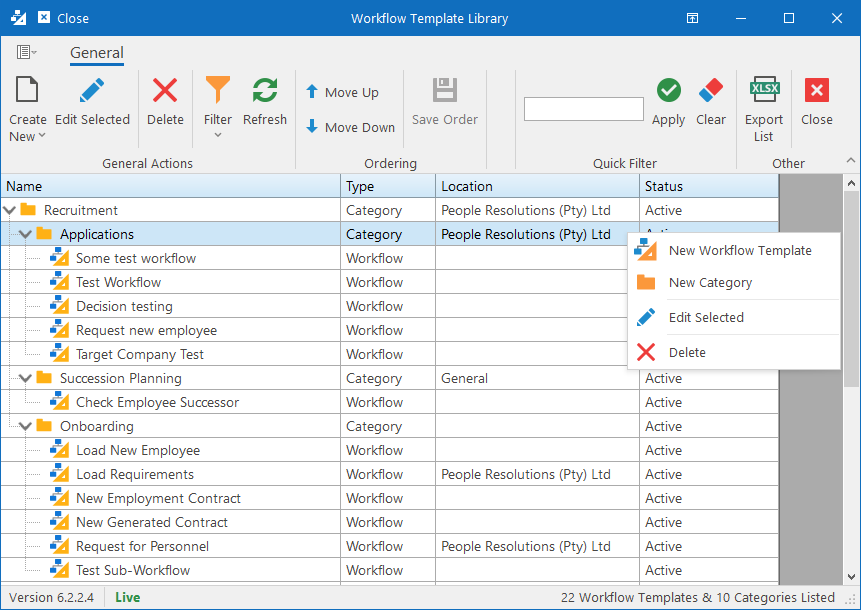
To Create a new Workflow Category
Simply select a category in the library that will be the parent category for the new category and then:
- Right-click on the parent Category and click New Category, or
- Click on the Create New toolbar dropdown button and click New Category.
- Continue on the Category Editor.
To Create a new Workflow Template
Simply select a category in the library that will be the parent category for the new template and then:
- Right-click on the parent Category and click New Template, or
- Click on the Create New toolbar dropdown button and click New Template.
- Continue on the Workflow Designer.
To Edit an existing Workflow Category or Template
Simply select the workflow category or template you wish to edit and then:
- Press the Enter key or double click the item, or
- Click the Edit Selected toolbar button, or
- Right-click the item and click the Edit Selected item from the menu.
To Delete a Workflow Category or Template
Select the workflow category or template you wish to delete and then:
- Click the Delete toolbar button, or
- Right-click on the item and click the Delete item from the menu.
To List deleted Workflow Categories and Templates
Click on the Filter dropdown menu on the toolbar. Then select which inactive records to include: Categories and/or Templates. Then simply click the Refresh toolbar button.
To Search for a specific Category or Template
In the Quick Filter group in the toolbar, type part of the name in the textbox to search for and then click the Apply button. This will hide all the categories and templates that do not match the search criteria.
For instance, you can simply search for “Load” and it will list all the workflow templates containing the word “load” and all the categories that are linked to the template.
To clear the filter again, simply click on the Clear toolbar button.
To reorder the Categories and Templates
The order in which the categories and workflow template are listed online can be changed here by using the Move Up and Move Down buttons and then clicking the Save Order button.