
Company Profile (Branches, Locations, etc.)
Initial Configuration
HR Manage supports 3 levels of company locations. Each level can be named according to your preferences (i.e. Branch, Department, Division, Team, etc.) and be customised to a certain degree. You can specify whether security is enforced on each level and whether additional address fields apply to it. The different levels are not linked to each other and thus, you only need to create a department once and not one for every branch.
To configure the location levels, open HR Manage and go to the System Configuration screen. Since this area of the software has not yet been upgraded to the new platform, click on the Legacy Module Setup button on the ribbon bar (top-right corner) and then click on the Configure Module button on the ribbon bar of the legacy configuration screen.
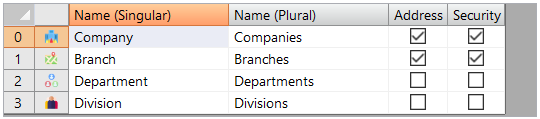
This will allow you to rename and configure each level as per your preferences and then you can simply click the Save Settings button on the ribbon bar.
While there is a Location 0, there can only be one location linked to it and it is used for capturing the company details.
Managing Locations
To manage locations, go to the HR Manage System Configuration screen and on the menu on the left, under “Company Structure”, click on the location level you wish to manage. The levels will be named as per your configuration. From here, you can add, edit or delete locations and you can use the Filter menu to show inactive locations. To open the Location Editor, simply open an existing location or click Create New to begin.
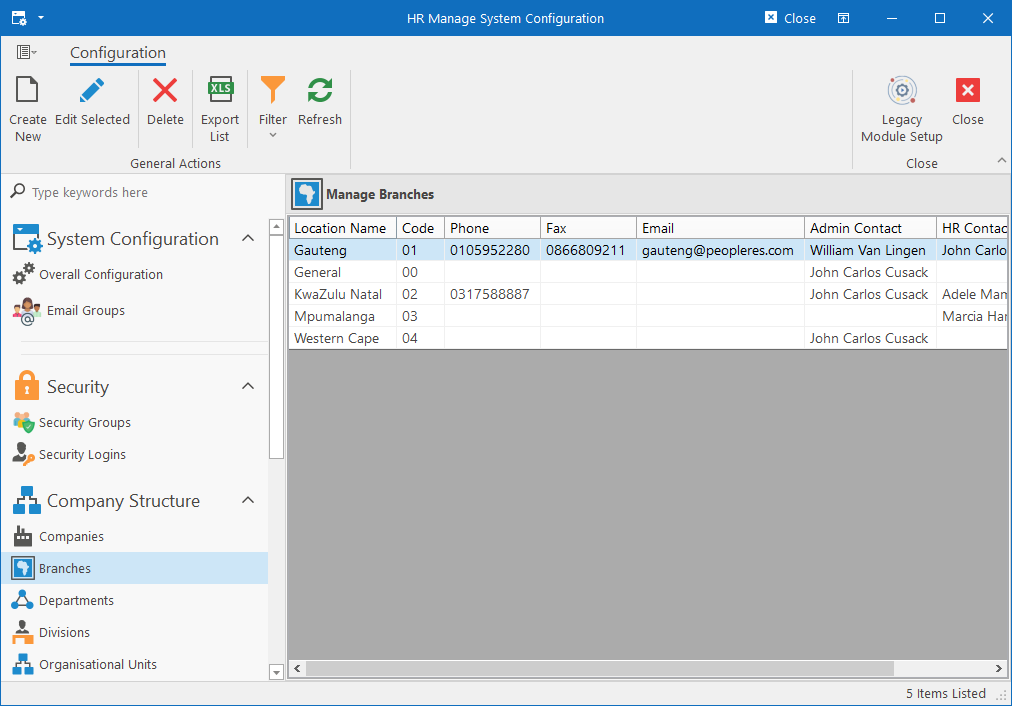
Location Editor
The exact fields available in the location editor will depend on the location level and its configuration. For instance, a Location 1 (i.e. Branch) would typically be defined as having an address whereas a Location 2 (i.e. Department), typically would not.

Location Details
The details tab contains all the information used to identify the location as well as the top management and contact people.
- Location Name: Name of the location that will be used throughout the system.
- Code: Optional code for identifying the location.
- Colour for Org Chart: Specify what colour people from this location should be drawn with in the organisational chart.
- Top-Level Org Unit: Specify the top-level organisational unit represented for this location. Can be used to determine the top manager for generating an organisational chart from in case the Manager / Director field is not specified.
- Manager / Director: Specify the top manager for this location. Used for determining the starting point to generate an organisational chart from.
- Administrative Contact: Person to contact for administrative queries at the location. If a user is unable to log in, they can see this person’s information to request assistance.
- HR Contact Person: Person to contact for HR related queries at the location.
- Holidays Leave Group: Specify the default leave group for public holidays for people linked to this location.
- Primary Industry: Specify the primary industry that the location / company operate in. If already specified for the overall company (Location 0), this can be left empty. Used for integrating with recruitment systems.
- Company Logo: Logo to display on the main HR Manage screen when logging in. Should generally only be loaded for the Company (location 0), but in the event that different locations use different logos, then those logos can be loaded.
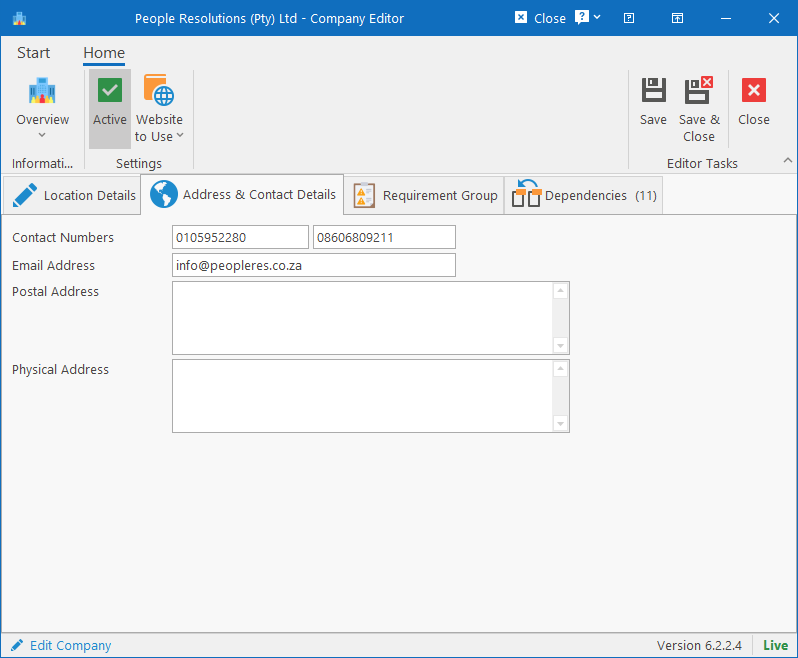
Address & Contact Details
If configured for the location level, the contact numbers, email address and addresses can be captured for the location.
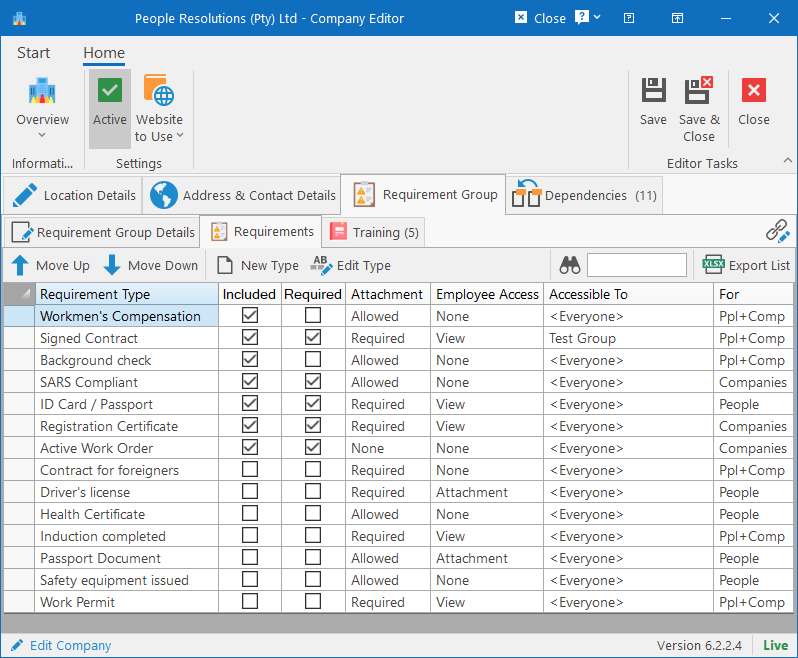
Requirement Group
Define a requirement group that all people linked to the location, must comply with. This forms part of the compliance module and for more information on how to configure a requirement group, see the Requirement Group Editor article.
Dependencies
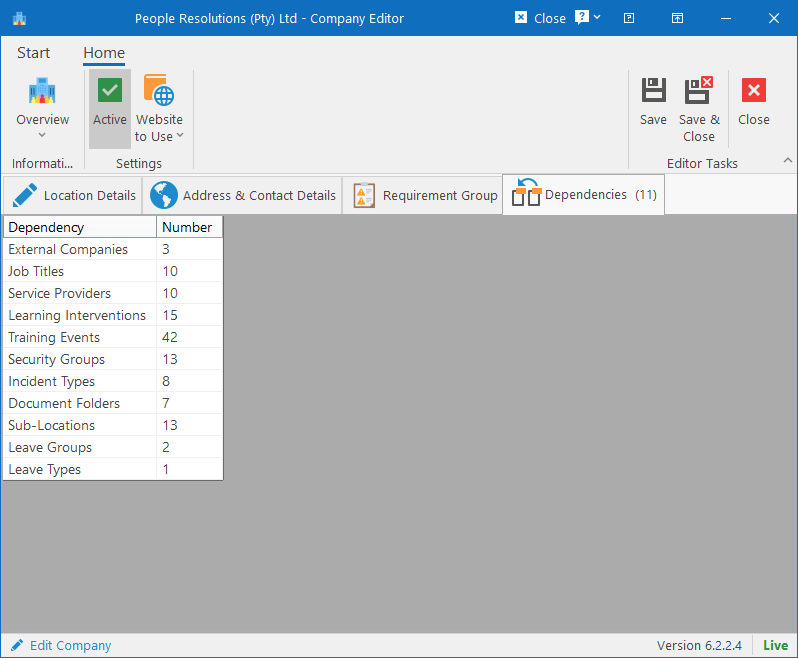
This tab will display a list of all entities that are currently linked to the location. Useful for clean-up before making a location inactive.