
Signing In Online
Getting Started
Each client has their own instance of HR Manage Online / ESS, customised to their needs. Open a web browser and enter the address to your company’s HR Manage portal. (i.e. https://hrmanage.abc-corp.com). This will present you with the login screen.
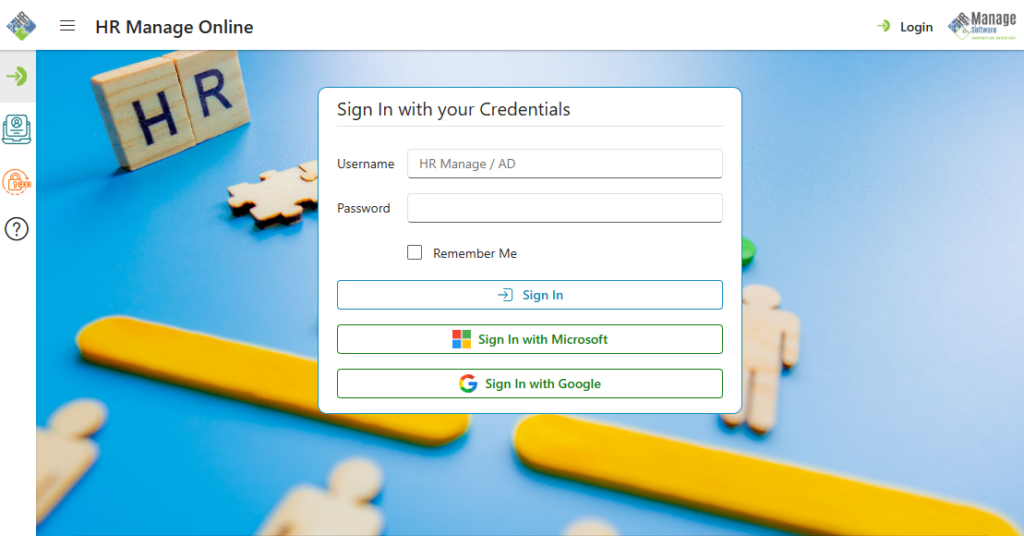
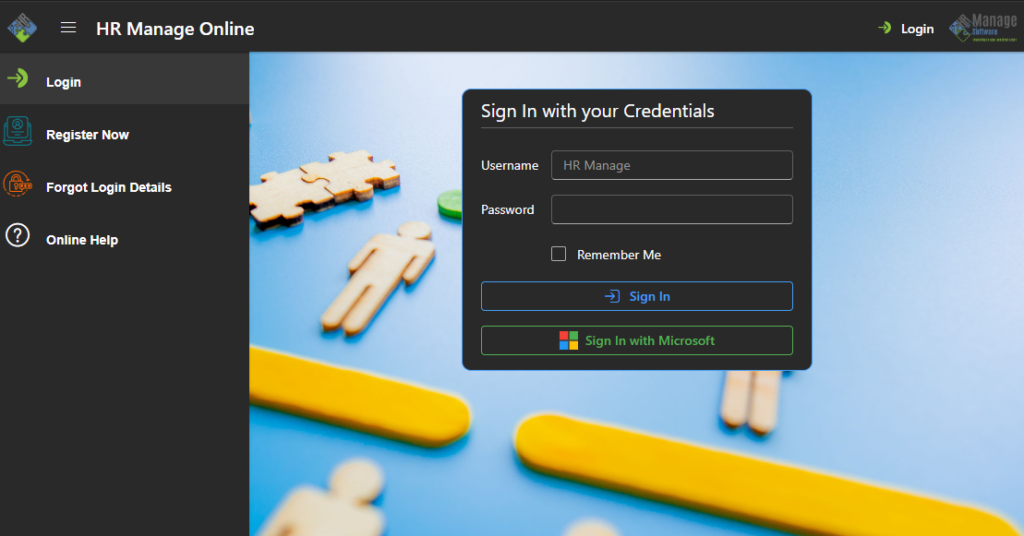
The theme / colours, background image and even which login methods available will depend on your company’s configuration.
Login Box
The login box contains input fields for your username and password. The username refers to your HR Manage username. If Active Directory integration has been enabled for your organisation (if self-hosted), the username textbox would state “HR Manage / AD” which means that you can sign in using your AD credentials if it has been linked.
To sign in with your HR Manage or AD credentials, simply enter the username and password and click on the Sign In button.
External Identity Providers
If your company has opted to integrate with external identity providers like Microsoft Entra ID or Google OAuth2, the additional buttons will appear beneath the Sign In button. To sign in (or register) using one of these services, simply click the applicable button. This will redirect you to the Microsoft Online or Google login page and once successfully authenticated, you’ll be returned to HR Manage. Note that your email address in HR Manage must match the email address that you authenticated with on Microsoft / Google.
First Time User? – Register
If this is your first time using the HR Manage Online portal, you have probably not been registered yet. In that case, you need to create a username and password to log in.
To get started, simply click on the burger menu (button with 3 lines in the top-left corner, next to the HR Manage logo) and click on the Register Now link. This will take you to the Registration page.
Recover Your Username or Password
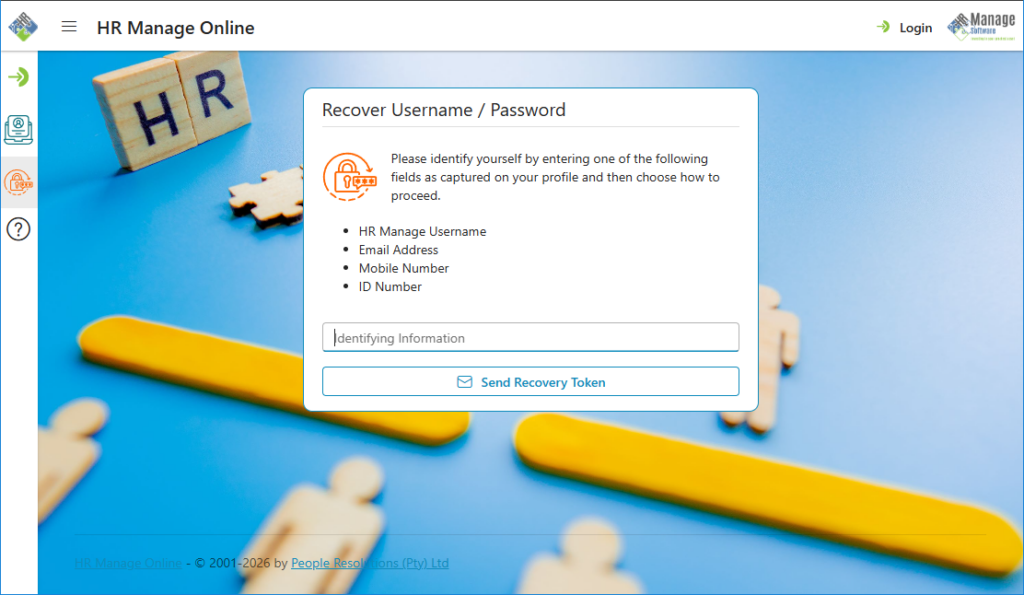
In the event that you’ve forgotten your username or password, HR Manage allows you to recover or reset your credentials. To get started, simply click on the burger menu (button with 3 lines in the top-left corner, next to the HR Manage logo) and click on the Forgot Login Details link. This will take you to the Login Recovery page.
To get started, you must first identify yourself by entering a known unique field that is already in HR Manage. You can enter either your HR Manage Username (if you remember it), Email address, Mobile number or National ID number. Then click the Send Recovery Token button.
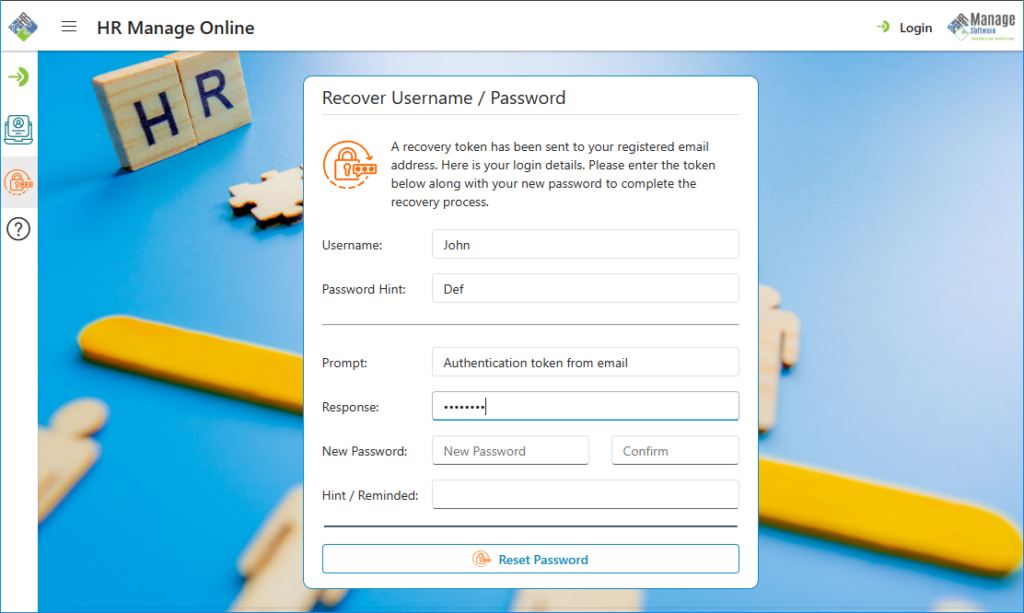
This will take you to the second screen in the wizard. Check your email inbox (including your Junk Mail folder) for the email with subject “HR Manage Online – Reset Password”, open it, copy the 8-digit code and paste it in the “Response” field on the wizard form. Then simply specify a new username and password as well as a hint and click the Reset Password button. This will save the change and redirect you back to the login page.