
API Keys for External Integration
Introduction
API Keys can be created for external systems to connect to HR Manage and retrieve data. While HR Manage doesn’t have any standard APIs at the moment, it supports the creation of custom APIs from within HR Manage (by administrators) and assigning them to either API Keys (private) or Security Groups (shared).
API Keys in HR Manage consists of an API Key and API Secret. Both the API Key and API Secret must be submitted in the request headers and must match in order to authenticate. The API Secret can be slightly dynamic by incorporating certain date/time elements.
Creating an API Key
To create a new API Key in HR Manage, open the HR Manage System Configuration and click on API Keys on the menu on the left. Then click on Create New or open an existing API Key to open the API Key Editor.
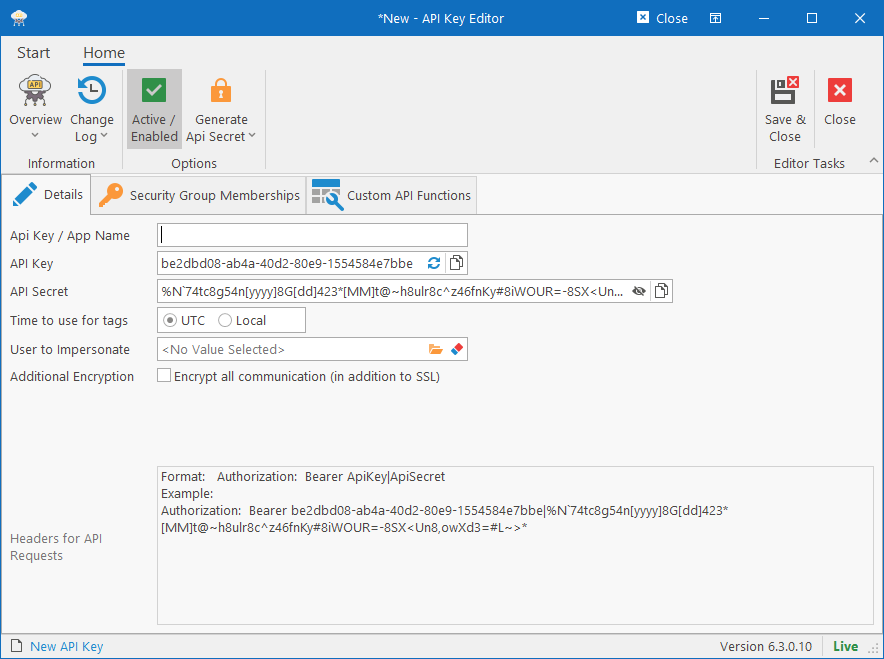
When creating a new API Key, the API Key and Secret are already generated by default (the API Secret will contain date tags by default), but you can request to regenerate it. The following fields are available:
- Api Key / App Name: This is a name for identifying the API Key in HR Manage.
- API Key: This is the actual API Key that must be submitted as part of the Authorization header in each request. It can be regenerated by clicking on the Regenerate button in the textbox, but if it is an existing key, any systems using it will stop working.
- API Secret: This is the second part of the key that must be submitted as part of the Authorization header in each request. This key can also be regenerated (see section below), but any applications using the API secret will then stop working.
- Time to use for tags: If the API Secret is dynamic and contains date/time tags, specify which date/time should be used. Local time on the hosting server or UTC.
- User to Impersonate: If the API was to make changes to data in HR Manage, specify against which user the changes should be logged.
Additional Encryption
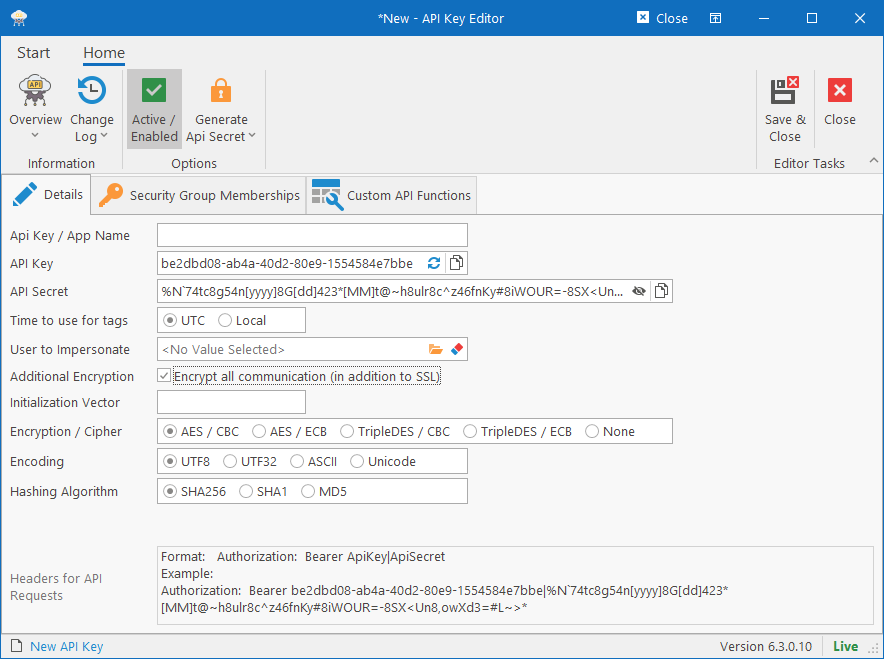
It is possible to encrypt all communication between the external application and HR Manage API. HR Manage should always run with an SSL certificate, but in the event that one isn’t present, then this can be used as an alternative (or for the security paranoid). Selecting this option will show additional fields that can be completed (as per 2nd screen above).
- The API Secret above will be used to encrypt all communications.
- Initialization Vector: Encryption IV to use for encrypting the data.
- Encryption / Cipher: Specify which encryption algorithm to use for encrypting and decrypting the data. We recommend AES/CBC as it is the strongest that we currently have available.
- Encoding: The encoding must match on both systems in order for the decryption to be successful, so choose whichever the external system is using.
- Hashing Algorithm: Specify which hashing algorithm to use. We recommend SHA256 as it is the most secure.
Generating a new API Secret
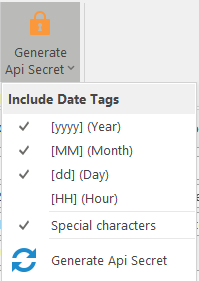
You can regenerate the API Secret by clicking on the Generate Api Secret dropdown button in the ribbon bar. This will allow you to specify options to include when generating the secret. You can choose to incorporate date tags and special characters into the API Secret.
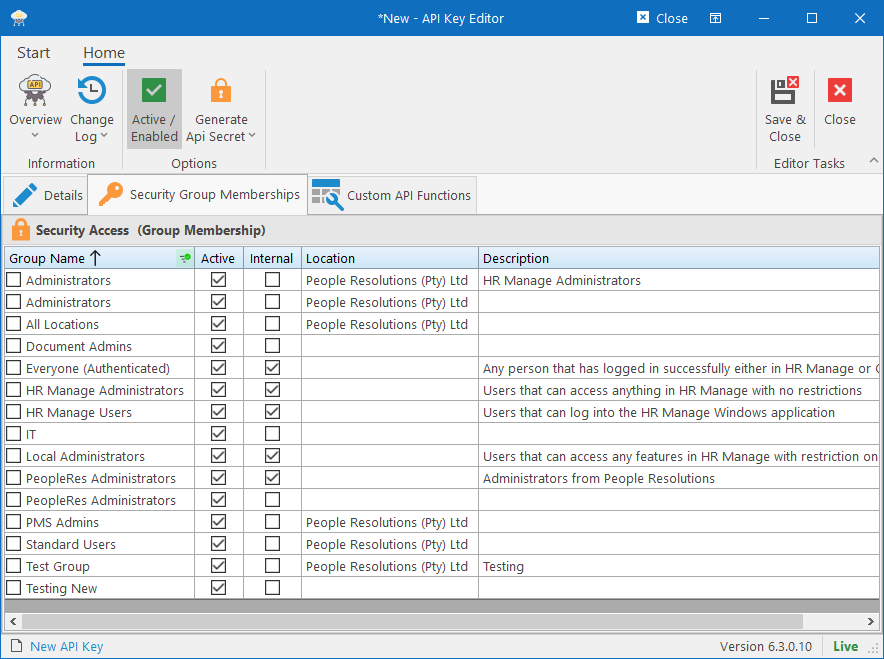
Security Group Memberships
In this tab, you can specify to which security groups the API Key belongs to. Membership here will determine which data can be accessed (through standard APIs) and also which shared Custom APIs can be called using the API Key.
Custom API Functions
On this tab, you can create new Custom APIs that apply only to this API Key.
Connecting to the HR Manage API
When connecting to an HR Manage API, the keys must be submitted in all requests to HR Manage in the Authorization header as follows. (Note that the entire header is case sensitive)
For standard API Keys
Include both the API Key and API Secret. The date/time tags in the API Secret should be replaced with the appropriate date/time values:
Authorization: Bearer ApiKey|ApiSecretYou can then expect the following response:
{
    "success": boolean,
    "items":   [],
    "count":   int,
    "error":   string
}
For API Keys with advanced encryption
The API Key should be included in the header, ending with a pipe and the text “Encrypted”.
Authorization: Bearer ApiKey|EncryptedYou can then expect the following response:
{
    "success": boolean,
    "items":   Base64_encrypted_string,
    "count":   int,
    "error":   string
}