
Browse Workflows
Introduction
The Browse Workflows page was built to be the central place for managing all the workflows that you have access to. It can be accessed by clicking on the Site Menu Button, then expanding the Workflows item and clicking on Browse Workflows.
The page consists of three main sections:
- Filter Engine
- Category & Template Filter
- Filtered Workflows list
Note that this page has a memory. If you’ve specified filters for this page earlier, they’ll be reloaded when you open the page again. In that case, a blue banner will display at the top of the page saying that your last selection was restored.
Using the Filter Engine
The Filter Engine allows you to specify in great detail, which workflows you want to see. It contains all the required fields with security already applied and it allows for adding filters on non-standard fields.
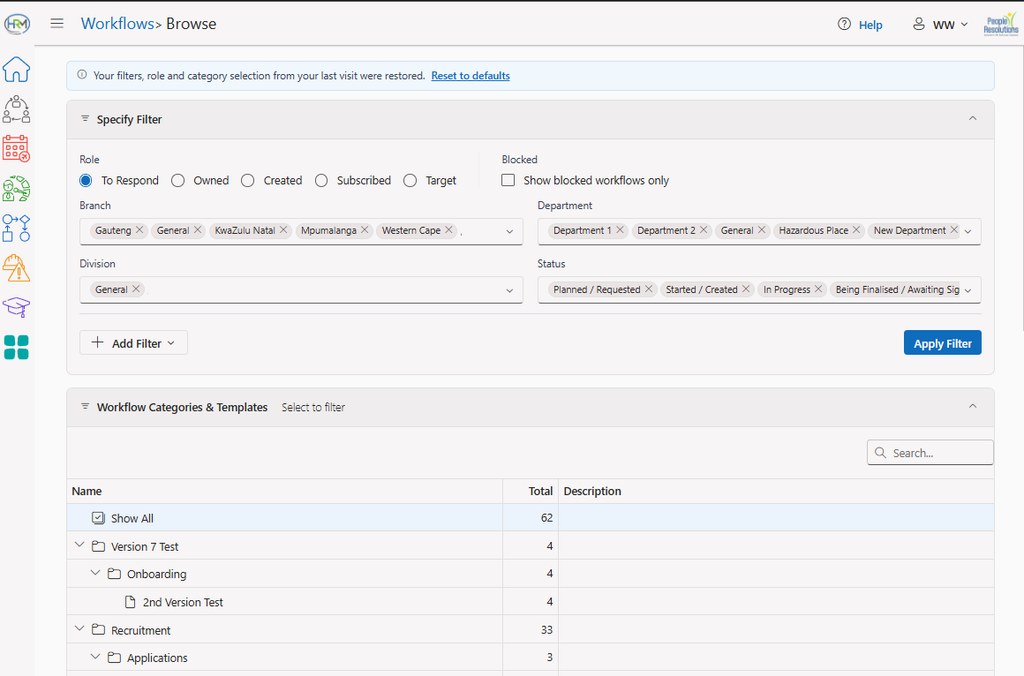
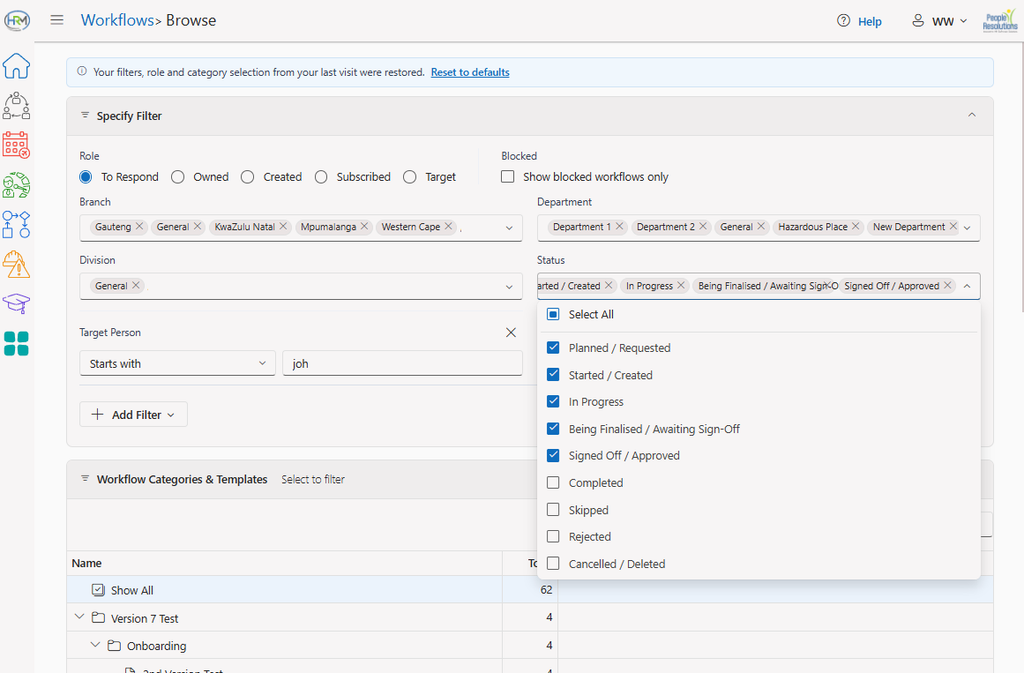
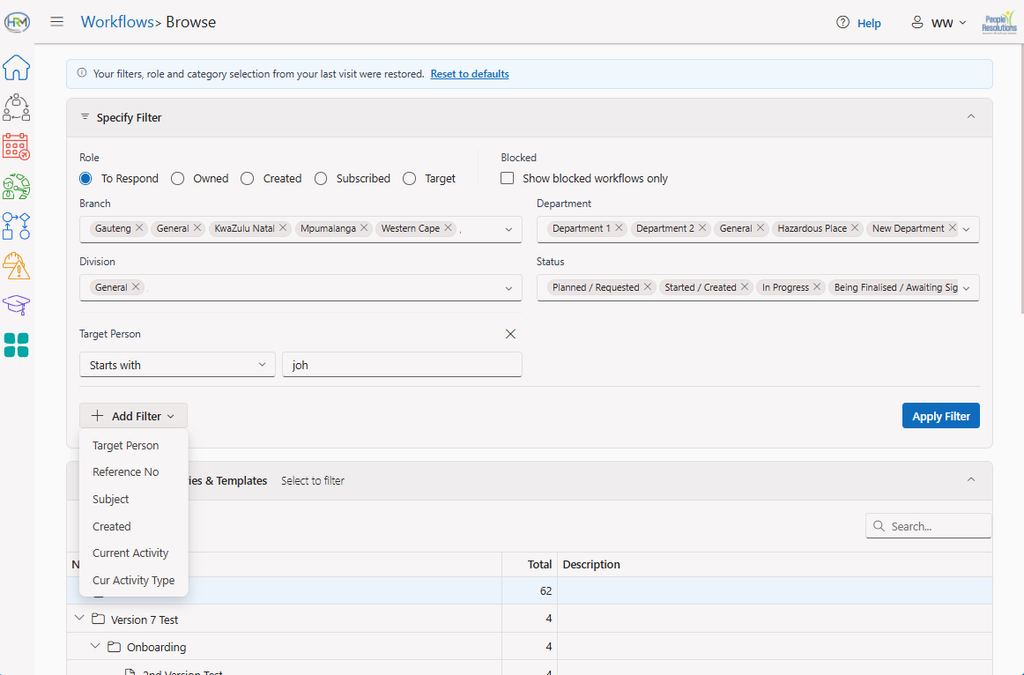
Fixed Filter Fields
The fields will by default be populated with all values selected, but the most important field to specify is the Role. It specifies your relationship to the workflow and determines which workflows will be returned. The available options are:
- To Respond: Workflows whose current activity is waiting for you to be started or where you are the owner of the current activity in progress.
- Owned: Workflows where you are responsible for the workflow / where you belong to the Owners participant group.
- Created: Workflows that were created by you.
- Subscribed: Workflows that you are subscribed to and receive notifications for.
- Target: Workflows where you are the target person.
You can also choose to only show Blocked workflows. A Blocked workflow is a workflow that is in broken state due to bad configuration on the workflow template. Once the template has been fixed, these blocked workflows can be repaired and continued.
Standard Filter Fields
The rest of the fields are standard fields and the specific fields that appear here can be customised by the system administrator. These will mostly be multi-select dropdowns where you can select which values should be included in the filter.
Custom Filter Fields
To filter on a field not already displayed (like text or date fields), click on the Add Filter dropdown button and click on the field you wish to filter on. Again, the fields available to filter on can be customised by the system administrator.
Applying the Filter
Once your filter is fully set, you can click on the Apply Filter button. This will filter the workflows and reload both the Workflow Categories & Templates tree as well as the Filtered Workflows list.
Workflow Categories & Templates
This tree provides an additional filter for a specific Workflow Category or Template. By default, the “Show All” option is selected, but if you’re primarily only working with one Category or Template, you can select it here so that only workflows in that category or of the selected type will be listed in the Filtered Workflows list.

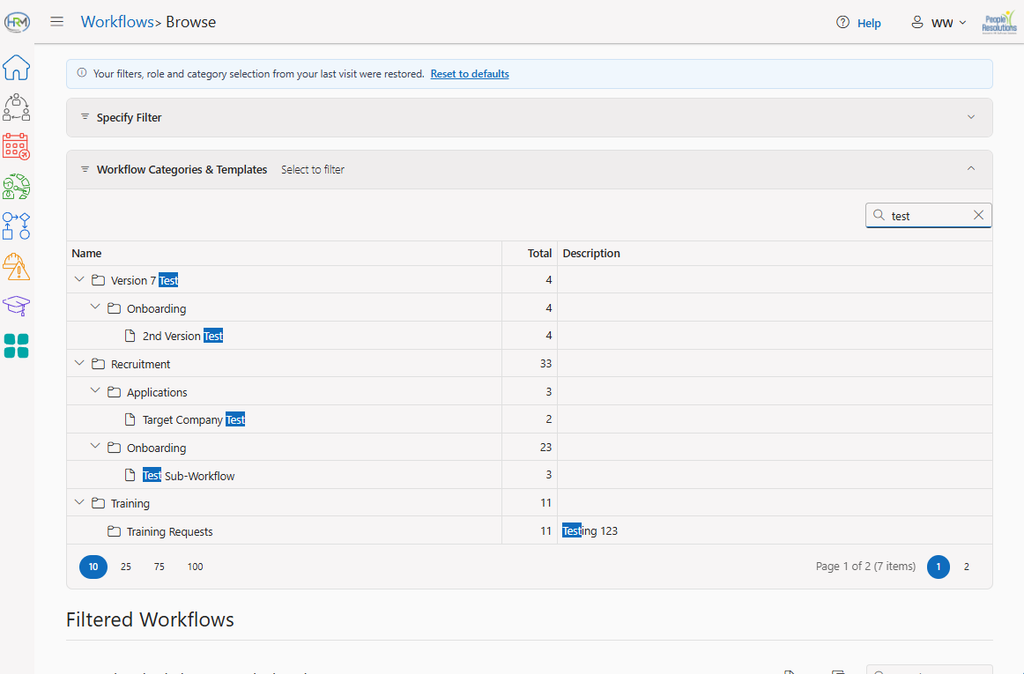
Each item will give you the total number of workflows for each category and/or template (in the Total column) and you can filter this list by simply typing a word into the Search box. Once the filter from the Filter Engine has been applied, only workflow categories and templates that contains actual workflows based on the filter, will be listed in this tree.
Filtered Workflows
The list at the bottom of the page contains the workflows that were filtered out. However, you can still filter this further by typing a word in the Search box or by clicking on a column filter. It is also possible to enable grouping by dragging a column to the group area.
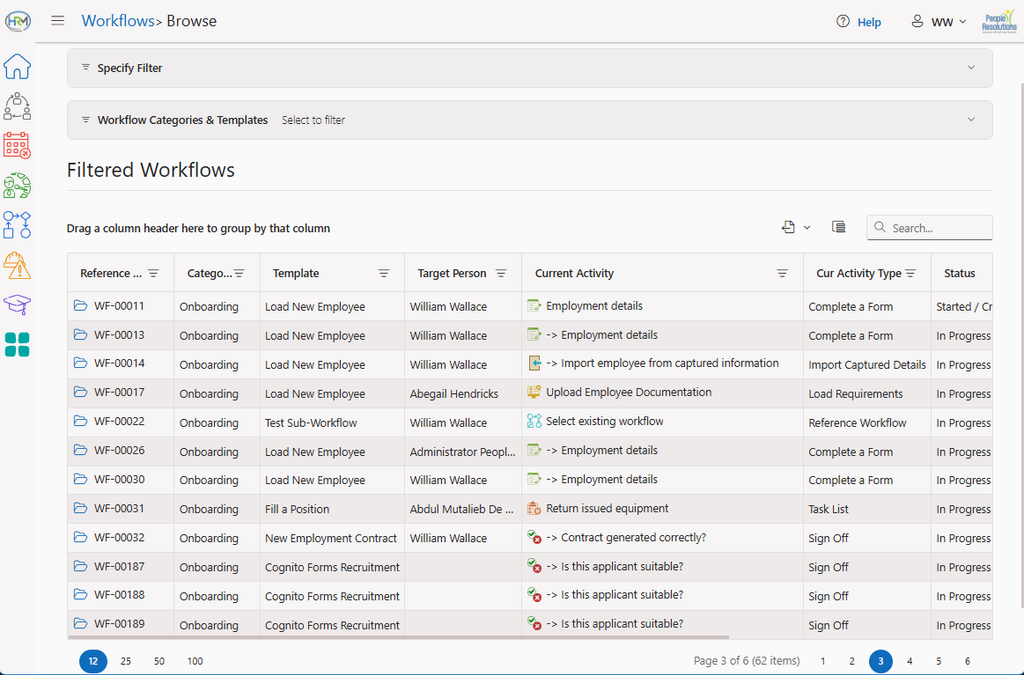
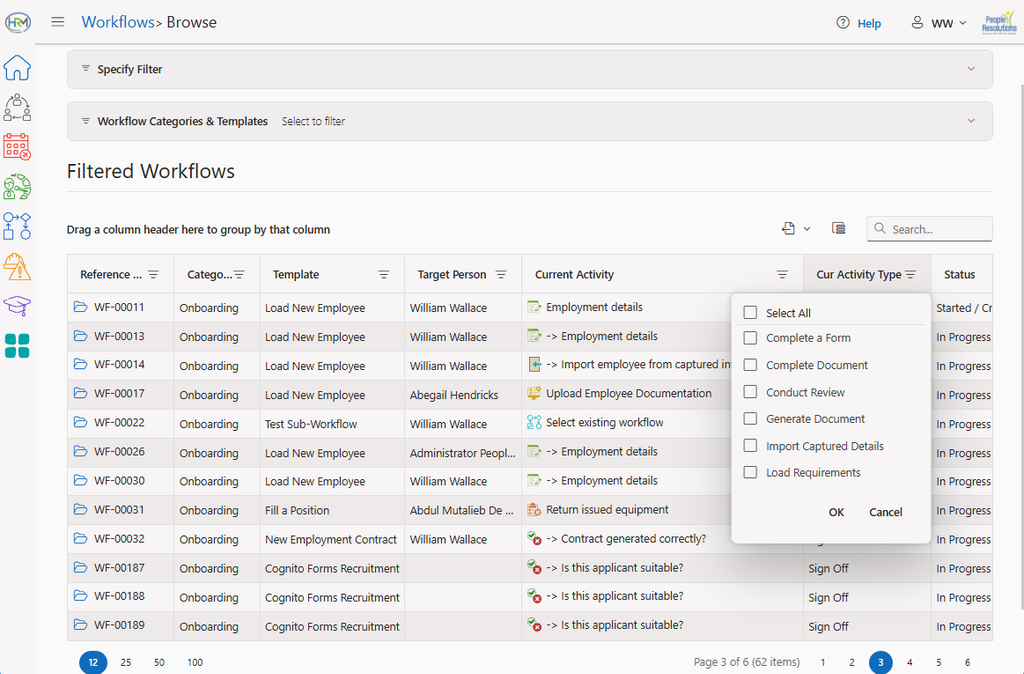
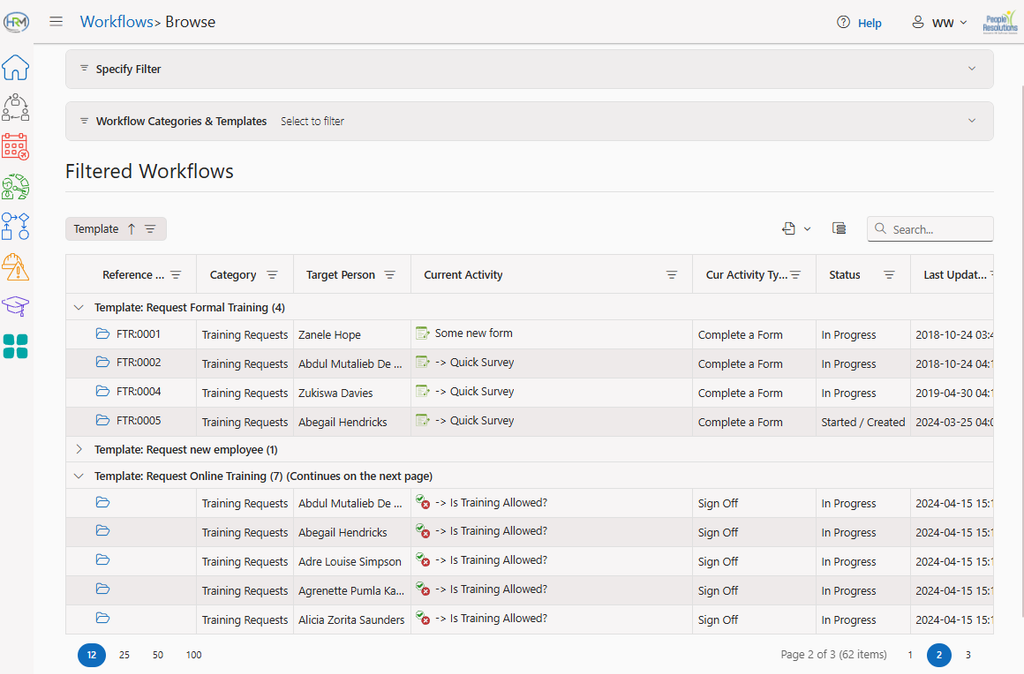
To open a workflow, simply click on the Open icon next to the workflow. A nice alternative is to rather right-click on the Open icon and click Open in new tab or to just click on it with the middle mouse button. That way you don’t lose your place if you’re working through multiple workflows in a list.
Browsing Performance
Note that we have changed the way workflows are listed from HR Manage v7. Before version 7, all the workflows were preloaded and listed which made paging and filtering very fast, but the initial load time was slow when you had access to a large number of workflows.
From version 7, each action (filtering, sorting, grouping, paging, etc.) now contacts the server for a partial filtered list. Thus switching between pages is slower than before, but it allows you to work with thousands of active workflows from the web.