
Assigning Assets
Assets can only be assigned from the Asset Editor. If an asset has not yet been assigned, click on the Assign Now button on the ribbon bar. If the asset is currently assigned, click on the Open Current Assignment button on the ribbon bar. Both these actions will open the Assignment Editor.
Assignment Details
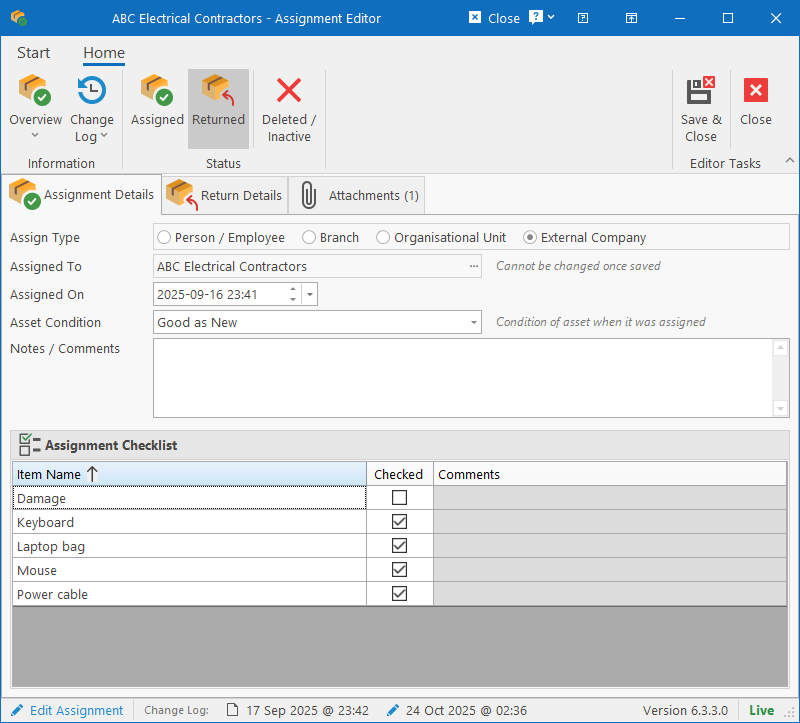
On this tab, you can specify who or what the asset is assigned to. Supported target entities for assignment are People, Locations (Company or Level 1 like Branches), Organisational Units (which consists of a combination of Branch, Department and Division) or an External Company / Contractor.
For security and logging reasons, once an asset has been assigned through an Assignment record, the target entity cannot be changed. If a mistake was made, the current assignment should be set to “Deleted” and a new assignment created.
The following fields are available:
- Assign Type: Type of entity to assign the asset to.
- Assigned To: Based on the type of assignment, clicking the ellipsis button will display the appropriate browser / selector to select the target entity.
- Assigned On: Date / Time on which the asset was assigned. Once the return has been logged, this date cannot be changed.
- Asset Condition: Condition of the asset at the time of assignment.
- Notes / Comments: Free text for notes and comments related to the assignment.
- Checklist: If a checklist template has been defined for the specific type of asset being assigned, it will be displayed here. Items can be checked / unchecked and comments can be captured based on the configuration of each item.
Creating a new Assignment will change the status of the Asset to “Assigned” and the status cannot be changed manually until the asset has been returned (unless the asset is being scrapped).
Return Details
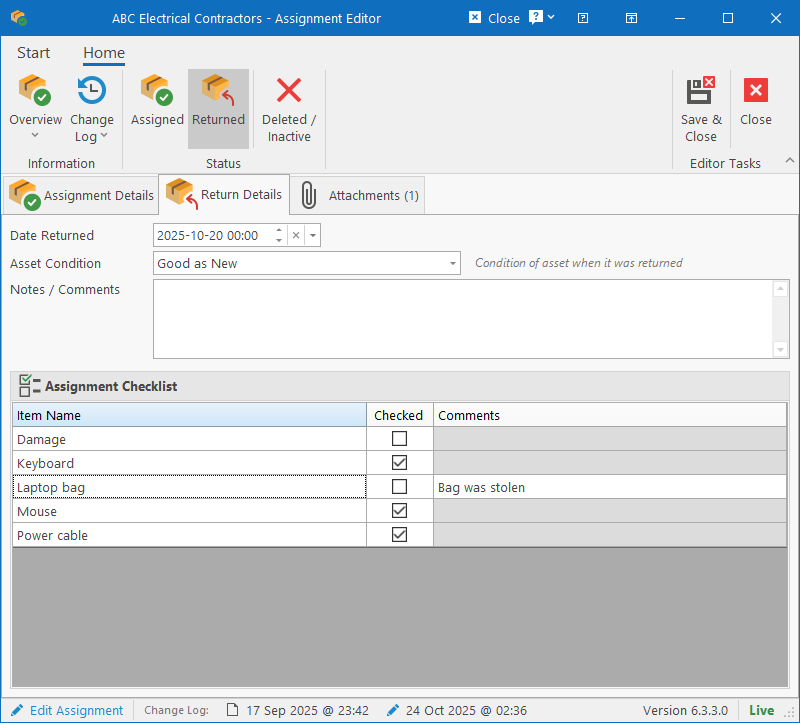
When the asset is returned, the Return Date and Condition of the asset should be specified.
If a checklist template has been defined for the specific type of asset being assigned, a checklist will be displayed on this tab as well. Items can be checked / unchecked and comments can be captured based on the configuration of each item.
Specifying the Return Details will change the status of the Asset to Active.
Attachments
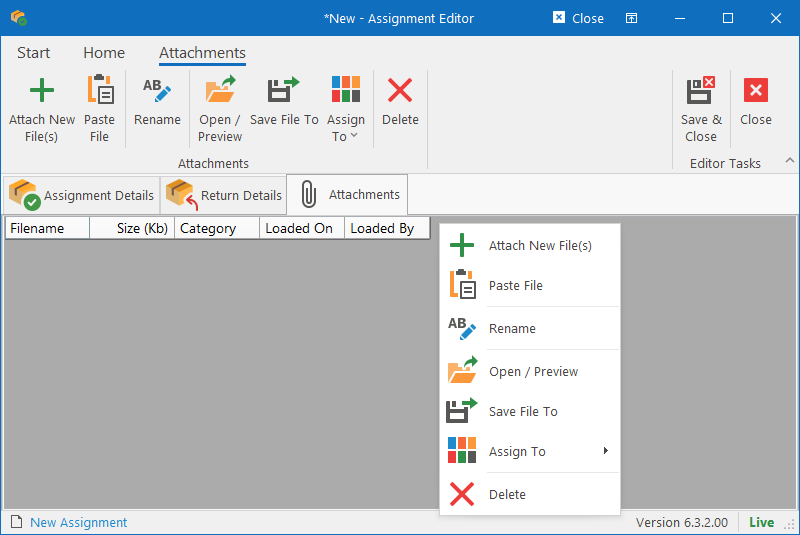
Manage attachments related directly to the Assignment / Return of the asset. Works exactly the same as the Attachments section on the Asset Editor.