
Configuring Web Api
Configuring Api Calls for calling Web APIs
Each of the Api calls will need to be built using our Api Call builder. Before you get started, you should have the documentation in hand for the Api you want to call and any keys or tokens that might be required.
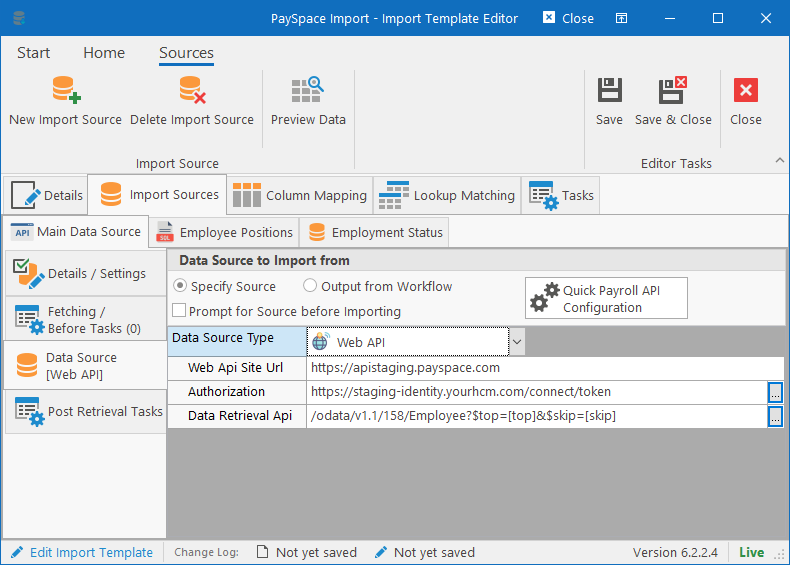
The Web Api configuration consists of three parts that must be completed:
- Url for calling the APIs – This is the base url. For Api Calls, you simply specify the uri excluding the base url. i.e. “/api/Employee/Get”
- Api Call for authorization – this can be optional depending on the payroll (i.e. SimplePay only uses an api key)
- Api Call for retrieving data
Api Call Builder
You’ll have to use the Api Call Builder to configure both the Authorization and Data Retrieval Apis. The two apis work together which means that data and cookies received from the Authorization api can be passed to the Data Retrieval Api. First we need to specify the basic information about the Api being called.
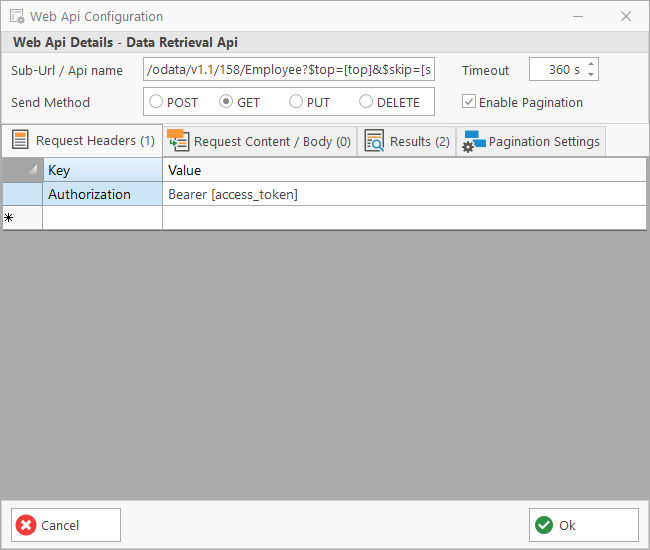
Web Api Details
- Sub-Url / Api name: Simply specify the path to call the api (excluding the base url specified on the Import Source).
- Timeout: How many seconds should the system wait for a response. For larger datasets, you might want to increase this, but in most cases the default should be fine.
- Send Method: What kind of api call is being made: POST, GET, PUT or DELETE. This will affect the behaviour in some cases (i.e. GET methods don’t have a body).
- Enable Pagination: If selected, the Pagination Settings tab will become available for advanced configuration settings.
Request Headers
This list contains key/value pairs that must be submitted to the api as part of the request. Dynamic values are allowed by specifying variable names in square brackets like in the example above. In that instance, the Authorization api returns a value and stores it in the [access_token] variable which is then used in this Data Retrieval api.
Request Content / Body
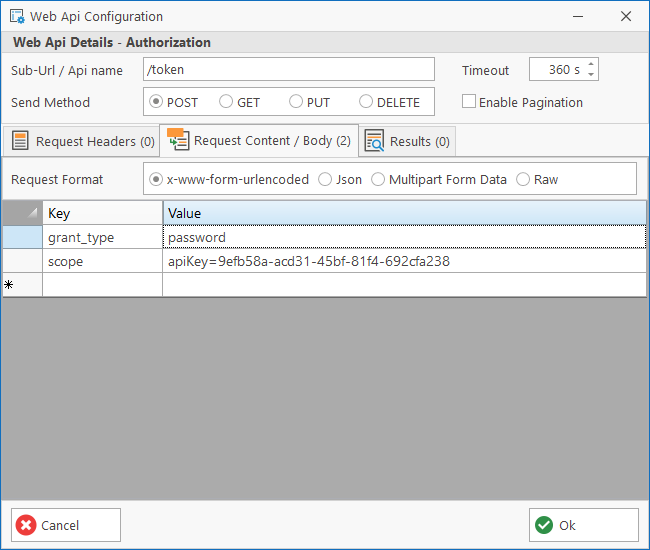
Similar to the headers, you can specify a list of Key/Value pairs that will be submitted in the request as the body. You can specify the format of the request as well or if you want to enter a custom json object, you can switch to the Raw format which will allow you to enter raw json. In both cases, you can make use of variable names in square brackets (just like in the headers).
Results – Authorization
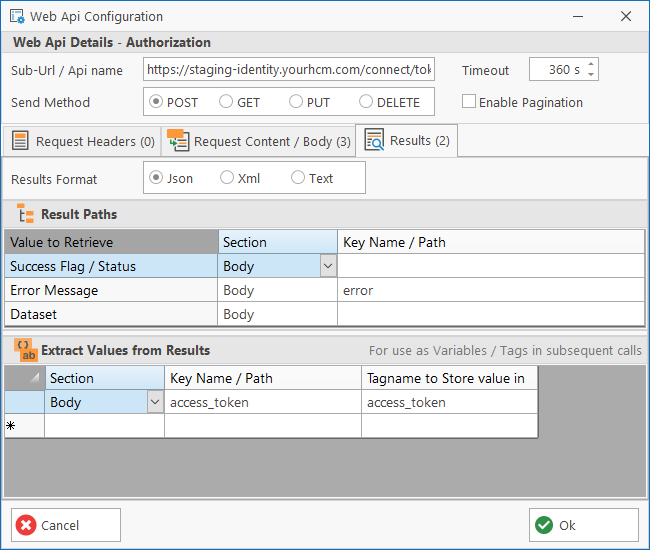
Finally, the Importer must know where to look in retrieved the data as to what must be returned. First specify the format in which the results will be received (Json, Xml or Text) and then specify which results must be returned and which results must be stored as variables for the next Api call.
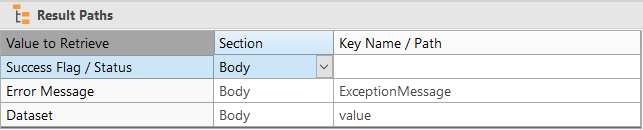
The “Result Paths” indicate where to locate specific information. For each value (where applicable), the Section (Body or Header) must be specified and the name of the field that the value will be returned in.
The “Extract Values from Results” is mostly used by the Authorization api to store returned values in local context variables that can then be referenced by the Data Retrieval api.
Consider the following two results received from the PaySpace Authorization api (one success and one failed result):
// Success
{
    "access_token": "eyJhbGciOiJSUzI1NiIsImtpZCI6IjAwQzUwQTI1QTgzOTJEMkE4RkZFRTM3OUM0QjI4NDA5RENDREQzNzZSUzI1NiIsInR5cCI6ImF0K2p3dCIsIng1dC....U3O91F9PSzZbxtwuaKO2EfLv4b9pPPA8FxTMIjSw",
    "expires_in": 3600,
    "token_type": "Bearer",
    "scope": "api.read_only",
    "group_companies": [
        {
            "group_id": 1252,
            "group_description": "People Resolutions",
            "companies": [
                {
                    "company_id": 1158,
                    "company_name": "People Resolutions",
                    "company_code": "PEO01"
                }
            ]
        }
    ]
}

// Failed
{
    "error": "invalid_scope"
}
Using the configuration above, if the “error” field is found and not empty, then the system will see the api call as failed and throw an exception. However, if the “access_token” field is returned, it will store that value in a local context variable called “access_token” which can then be used by the data retrieval api by including [access_token] in the header or body.
Results – Data
For Data Retrieval apis, you’ll mostly specify values for the “Dataset” and maybe the “Error Message” fields. Each payroll returns data in a completely different format and depending on how that data is returned, that will influence how the path for “Dataset” is specified.
See the different types of results received from payrolls and how to specify the path for the dataset in each instance:
PaySpace
{
    "@odata.context": "https://apistaging.payspace.com/odata/v1.1/158/$metadata#Employee",
    "value": [
        {
            "EmployeeId": 126,
            "EmployeeNumber": "SKY1",
            "Title": "Mr",
            "FirstName": "Jonathon",
            "LastName": "Sky",
            "CompanyId": 158,
		...
            "Address": [
                {
                    "AddressType": "Physical",
                    "AddressLine1": "Tree Street",
                    "AddressLine2": "ParkTown",
                    "AddressLine3": "Johannesburg",
                    "AddressCode": "2000",
			...
                },
                {
                    "AddressType": "Street",
                    "AddressLine1": "Tree Street ",
                    "AddressLine2": "ParkTown",
                    "AddressLine3": "Johannesburg",
                    "AddressCode": "2000",
			...
                }
            ]
        },
        {
            "EmployeeId": 133,
            "EmployeeNumber": "SKY0000004",
            "Title": "Mr",
            "FirstName": "Sam",
            "LastName": "Sithole"
		...
        },
        {
            "EmployeeId": 2900,
            "EmployeeNumber": "SKY0000081",
            "Title": "Mr",
            "FirstName": "Andre",
            "LastName": "Jones"
		...
        }
    ]
}
SimplePay

[
  {"employee":{
    "first_name": "Kenneth",
    "last_name": "Parker",
    "birthdate": "1985-02-06",
    "appointment_date": "2010-02-06",
    "wave_id": 2,
    "payment_method": "cash",
    "physical_address": {
      "unit_no": "22",
      "st_name": "North Bridge Rd",
      "postal_code": "149281"
    },
    ...
  }},
{"employee":{
    "first_name": "Jack",
    "last_name": "Jones",
    "birthdate": "1982-01-08",
    "appointment_date": "2010-02-01",
    "wave_id": 2,
    "payment_method": "cash",
    ...
  }}
]