
Batch Training Update
Introduction
HR Manage allows updating training records in a batch. To get started, simply go to the Training Record Manager, select more than one record and click the Edit Selected button on the ribbon bar or simply press the Enter key. The batch updater is also available from the Training Event Editor and Training Record Editor and can be accessed by simply selecting more than one sub-records and clicking Edit Selected or pressing Enter.
Batch Editor
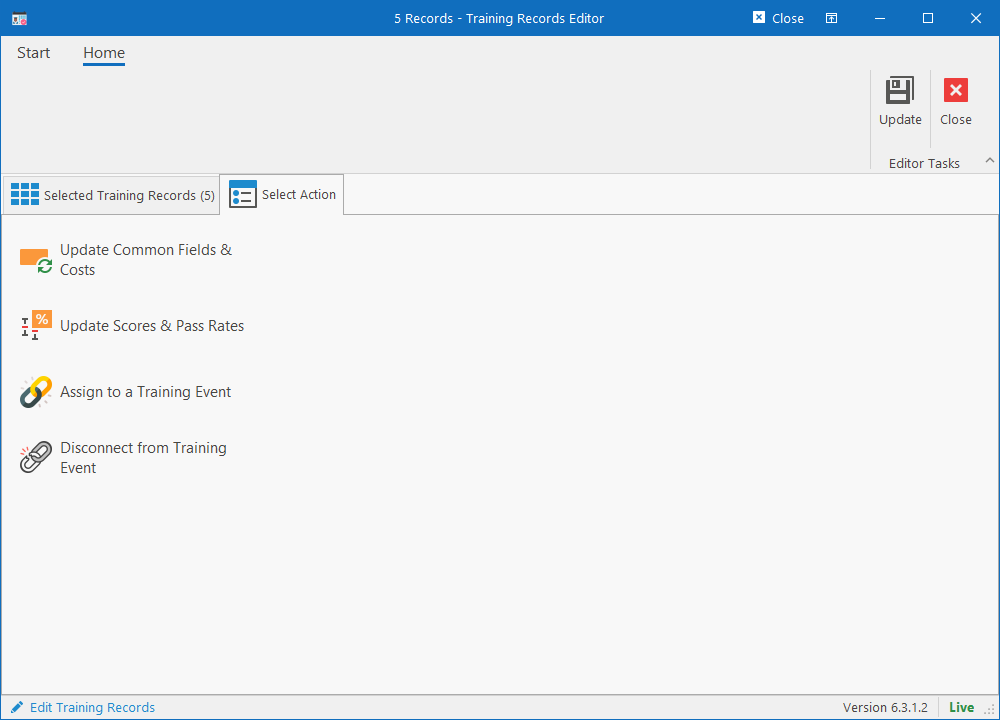
The Batch Updater will prompt you to specify what you would like to update. You can choose between the following options:
- Update Common Fields & Costs
- Update Scores & Pass Rates
- Assign to a Training Event
- Disconnect from Training Event
Simply click one of the items on the menu to customise the batch editor to allow capturing of the requested details.
Updating Common Fields & Costs
Choosing the first menu item will display two new tabs: “Update Fields” and “Update Costs”. The exact fields / behaviour here will be determined by the selection. To update a field, select the checkbox next to the field to enable it and then specify a value.
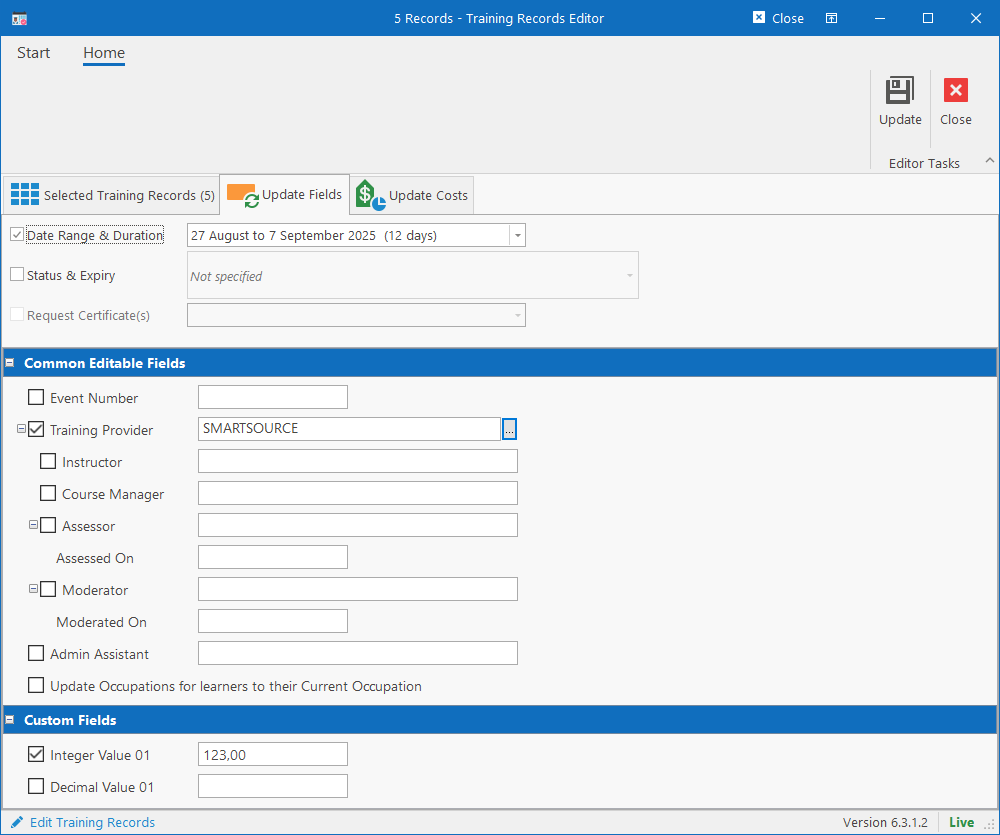
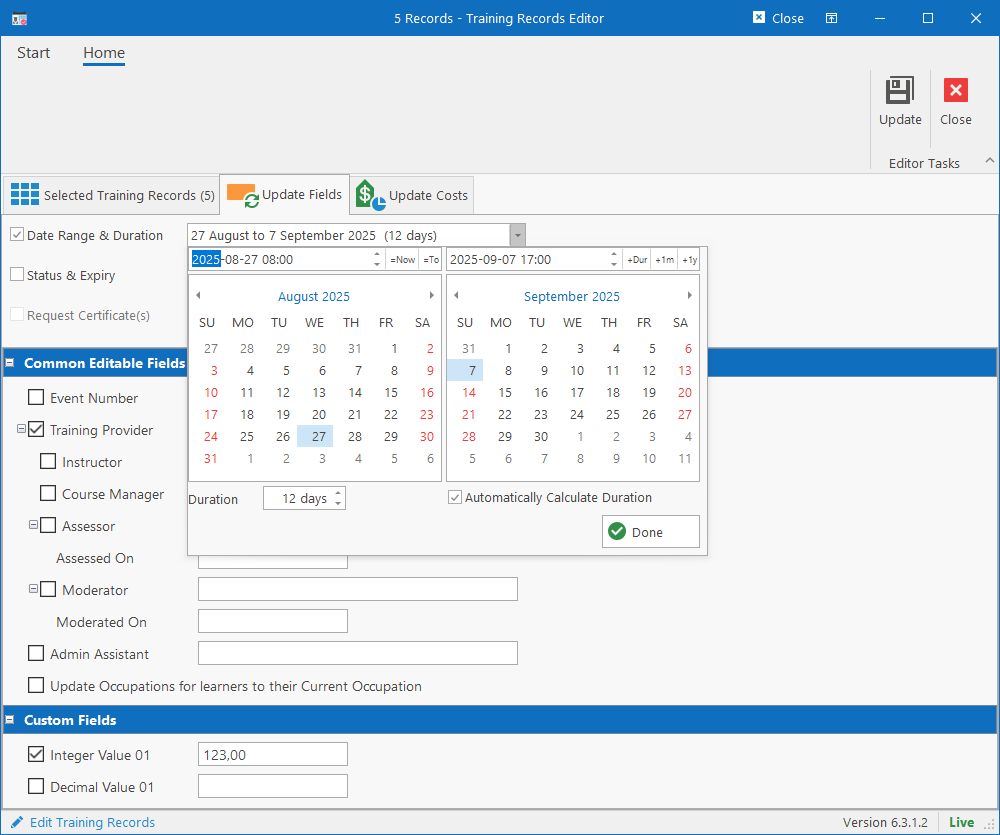
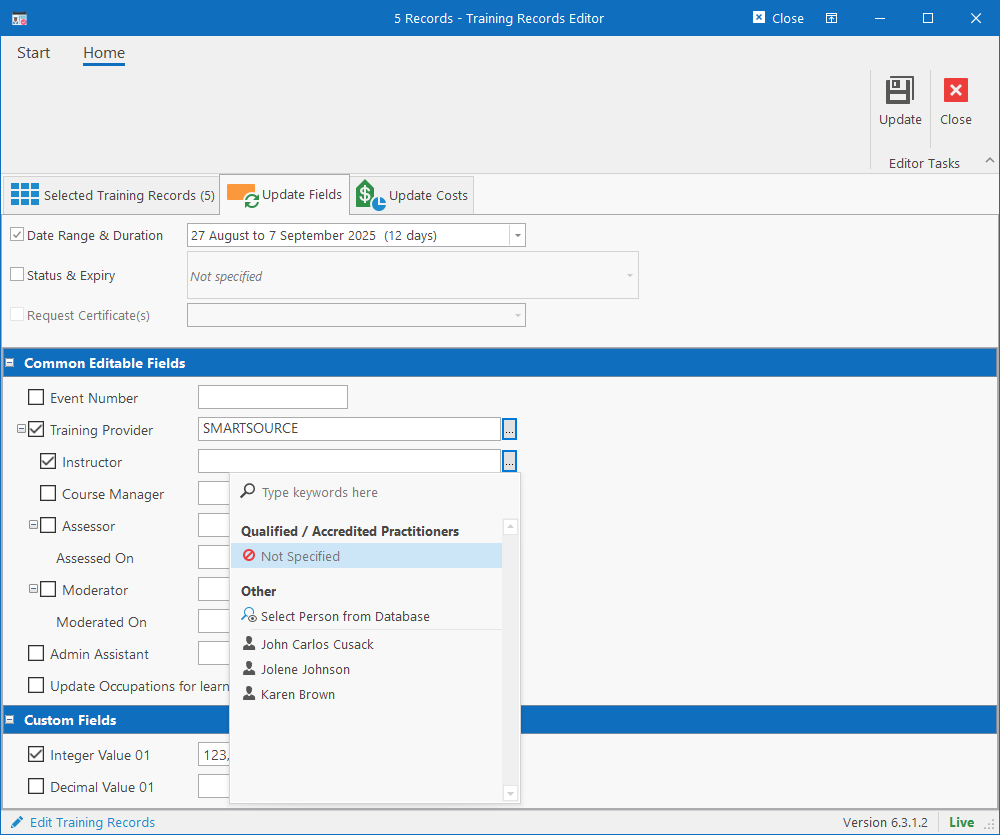
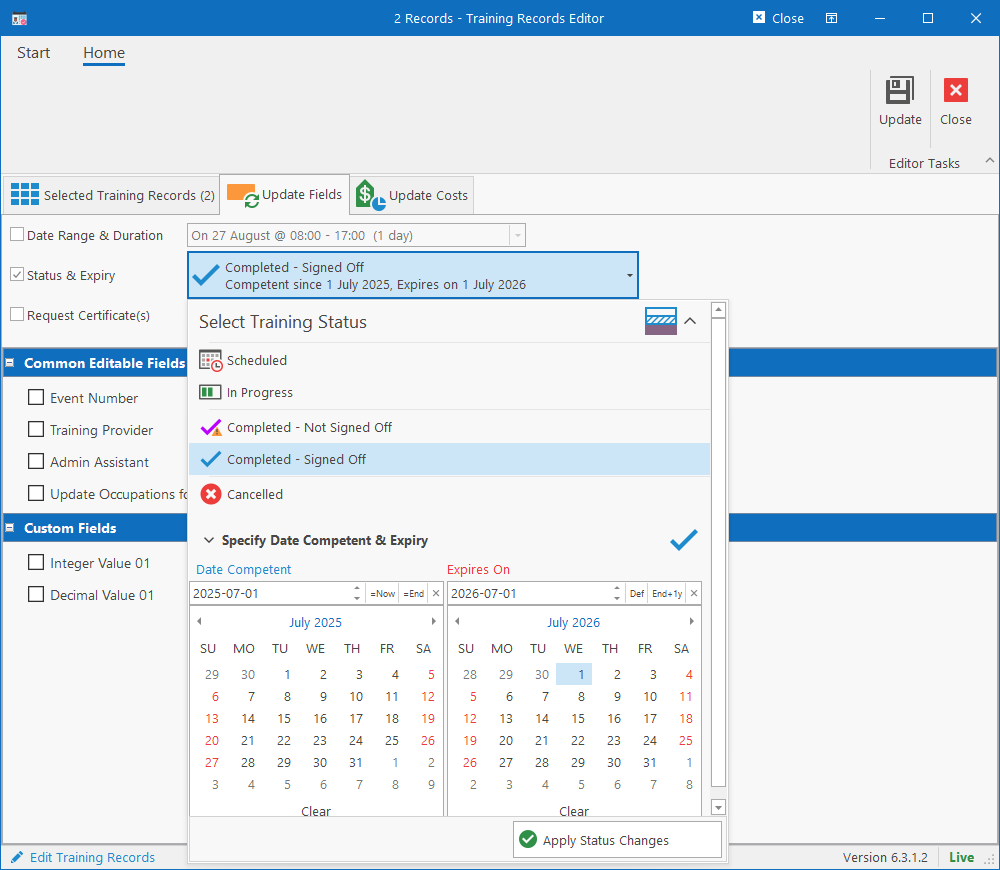
The following fields are available for updating in a batch.
- Date Range & Duration: This will allow you to update start date, end date and customise the duration in days and/or hours. If all the training records selected for updating are for the same intervention, the end date will automatically calculate when the start date is changed based on the duration specified in the library.
- Status & Expiry: This allows you to specify the new status for the training as well as additional details based on the status selected. If any of the selected training records have tracking enabled, then the only selectable status will be “Cancelled”. The available statuses are:
- Scheduled: Training has not yet started.
- In Progress: Training has started.
- Completed – Not Signed Off: Training has been completed but learner has not been declared competent. A reason for “not signed off” can be selected from a list of reasons.
- Completed – Signed Off: Training has been completed and signed off. A “Date Competent” and “Expiry Date” can be specified.
- Cancelled: Training was cancelled. A reason for cancellation can be selected from a list.
- Request Certificate(s): Will only become enabled if status is set to “Completed – Signed Off”. You can choose the types of certificates to request to be generated.
- Event Number: Useful for training not linked to training events.
- Training Provider: Change the provider for the selected training records. Selecting this field and specifying a training provider, will allow the following fields to become visible and editable. Since the next fields draw directly from the provider, they cannot be updated without specifying the provider.
- Instructor
- Course Manager
- Assessor + Date Assessed
- Moderator + Date Moderated
- Custom Fields
- Custom fields that are marked as “Updatable in batch” will be available for updating.
Updating Costs
Costs can be updated with the common fields by opening the “Update Costs” tab. Simply select the checkbox of the cost category to update and specify the new amount.
Be sure to specify if the costs captured are the total costs for the selected training records or the cost per training record (specified in the Ribbon bar).
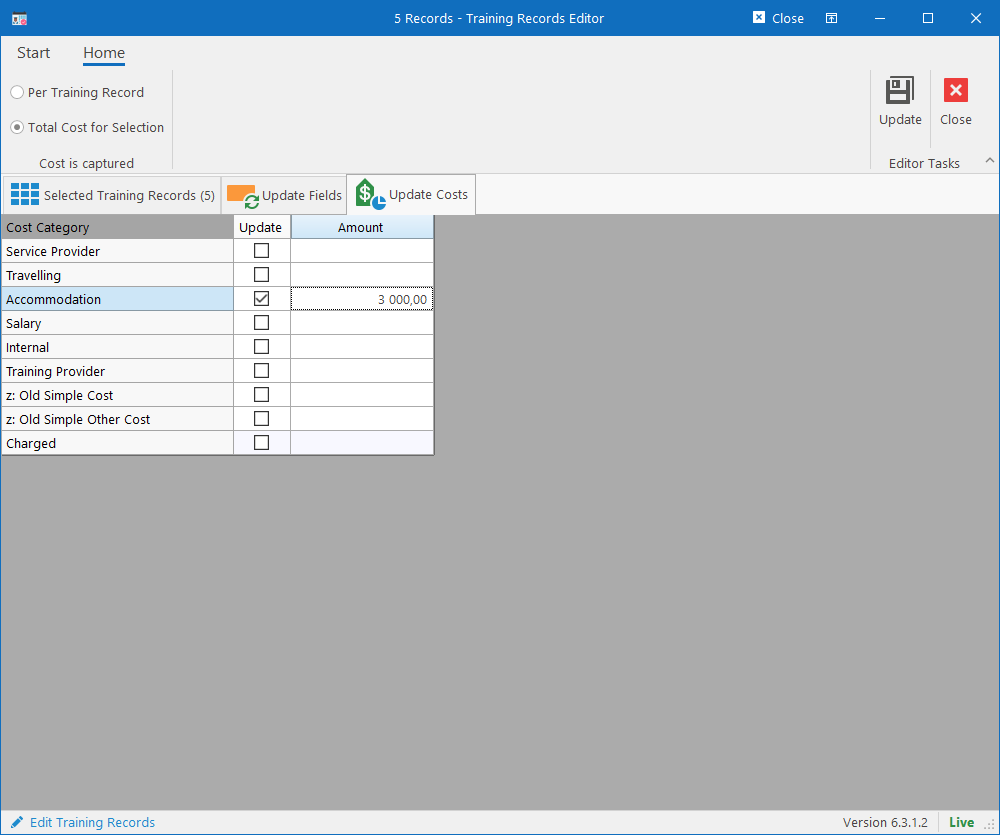
Note that if the costs for one of the training records in the selection is configured to be calculated automatically, then none of the costs will be editable until that training record is removed from the selection. A warning will also display notifying you that the costs cannot be updated.
Update Scores and Pass Rates
Choosing the second menu option will display the “Capture Scores” tab which will display a grid with all the selected training records. This would typically be used from within the Training Event Editor to update scores in a batch for all learners.
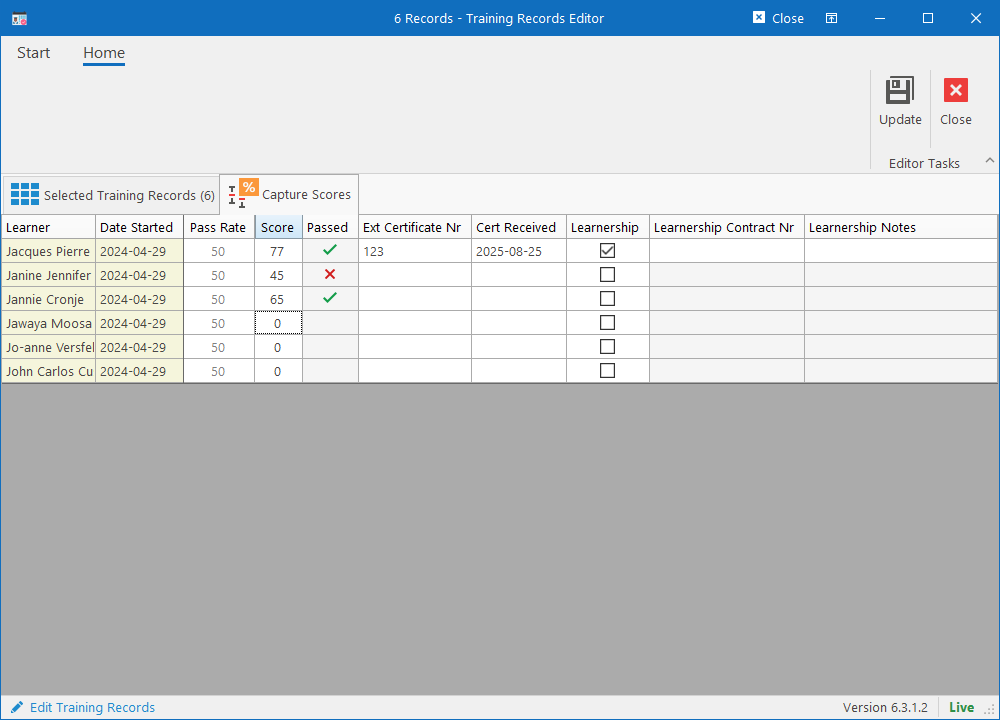
The grid consist of the following columns:
- Learner name
- Date Started
- Pass Rate: Minimum score to achieve to be considered a pass.
- Score: Score achieved for training / assessment.
- Passed: Automatically generated based on score captured. Visual representation of a passed or failed status.
- Ext Certificate Nr: If training was done externally, specify the reference number on the received certificate.
- Cert Received: For external training, specify the date on which certificate was received.
- Learnership: Specify if learner was on a learnership. If selected, the Learnership Contract Nr and Notes will become available for editing.