
Configuring Training Types
In HR Manage, companies can define their own types of training and specify the security and behaviour of the training types. To manage the types of training available in the system, go to the Training module configuration and click on the Training Types item on the left menu. This will open the available training types defined in the system.
From here, open one or click Create New to open the Training Type Editor dialog.
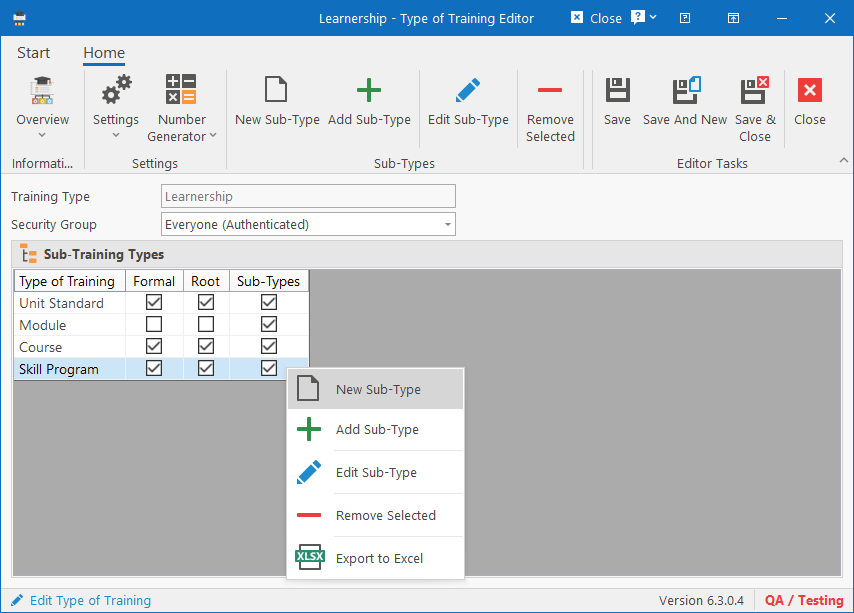
The editor consists of 3 areas that must be completed: Basic Fields, Settings and Sub-Types.
Basic Fields
- Training Type: Give a name for the type of training up to 70 characters.
- Note that in HR Manage, there are certain types that are hardcoded in the system and cannot be renamed. These hardcoded types are: Course, Learnership, Qualification, Skill Program, Unit Standard, Module.
- Security Group: Specify the group that a user must belong to in order to access / view training of this type.
Settings
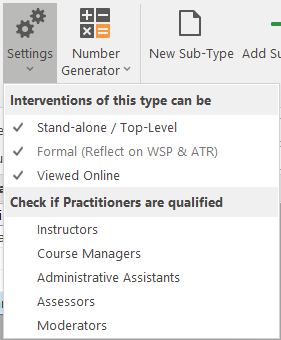
Settings Dropdown button
- Interventions of this type can be
- Stand-alone / Top-Level: Specify if training can be scheduled directly or if it is always part of a larger training. An example would be like a “course” that can be scheduled directly and a negative example would be like a “module” that is always part of a “course”.
- Formal: Specify if the training is formal or informal. Only formal training will reflect on the SETA and EE reports.
- Viewed Online: Specify if training of this type can be viewed online by the learners.
- Check if Practitioners are qualified: If one or more practitioner types are selected to be checked for this training type, then the system will strictly enforce that links in the system are used. For instance, if “Instructors” are selected here, when scheduling training for this type, only instructors that are linked to the intervention in the intervention library, can be selected.
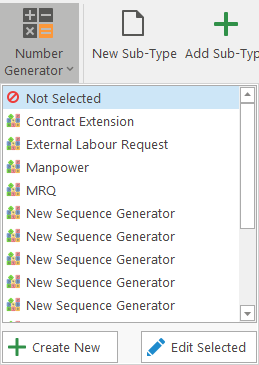
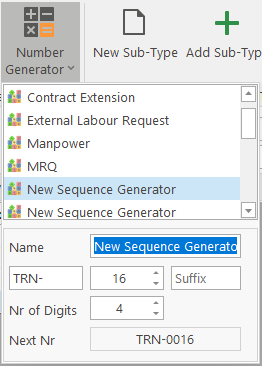
Number Generator Dropdown button
Specify the number generator to use to generate the Training Event number when scheduling new training. If none is selected, then the event number must be captured manually.
An existing number generator can be selected from this list or a new one can be created from here.
Sub-Types
The list will contain the sub-types that are linked to the training type. When creating interventions in the library, this will determine which types of sub-interventions can be added to it.
The links to any types added here will only be saved when clicking one of the Save buttons.
Important: When adding sub-types, be sure to never create any circular references. Don’t add one of the parent training types as a sub-type. See the following example of a circular reference:
Course -> Module -> Course