
Editor Forms
Editor forms are used for editing records and their related records and are typically opened by double clicking on a record in a list.
While each record’s editor will obviously be different, there are some common features and functionalities to take note of.
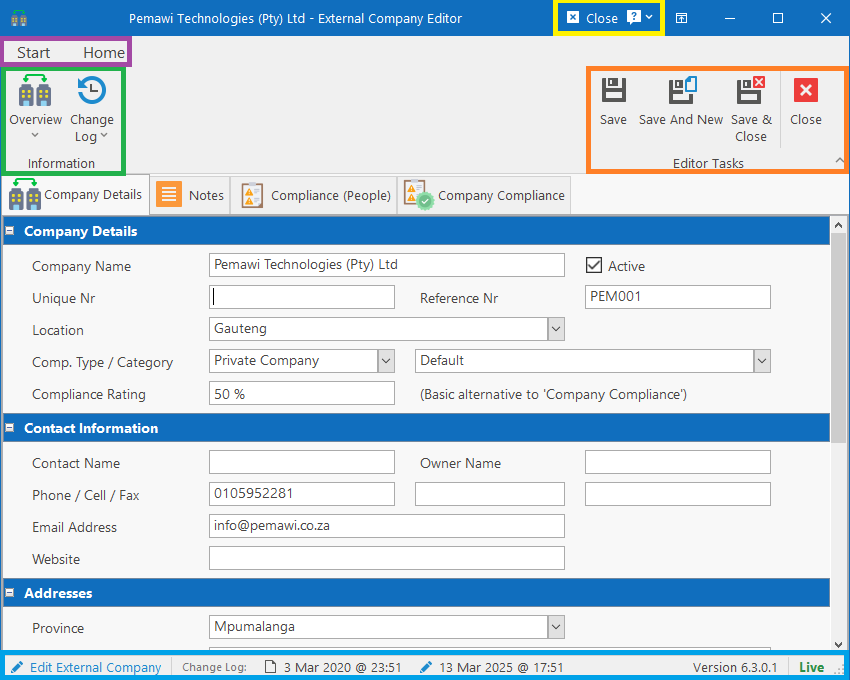
Ribbon Pages (purple)
While the Start button might have some more actions available depending on the editor, the rest of the tabs will usually be context dependent. Thus, if it is a complex editor with multiple tabs (like in the example screen print), switching tabs might also switch the ribbon tab. i.e. Switching to the “Notes” tab here will bring up the document formatting ribbon tab where fonts and styles can be set for the text in the document editor.
Titlebar Shortcuts (yellow)
The Close button will always be here which allows you to close the window regardless of which ribbon tab you’re on. There might also be other buttons in some cases.
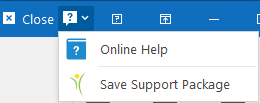
The Help & Support dropdown button will have two available actions:
- Online Help: Will take you to the knowledge base article for the current screen
- Save Support Package: Will generate a zip file that can be emailed to support@peopleres.co.za with details of whatever problem you are experiencing. It will assist us in identifying the exact record you’re having trouble with.
Information Ribbon Page (green)
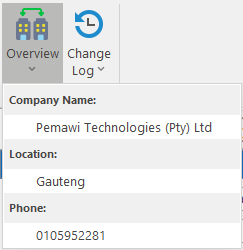
The two dropdown buttons here are only used for informational purposes. The first Overview dropdown button will display 3 lines of information about the record being edited. Thus regardless of which tab you are working on or what your scroll position is, you can quickly see the most basic information about the current record. The specifics of what is displayed in the dropdown would differ from record type to record type.
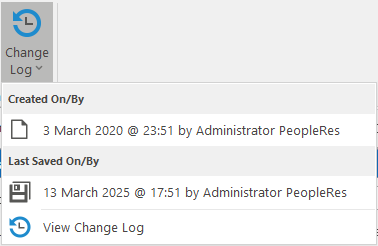
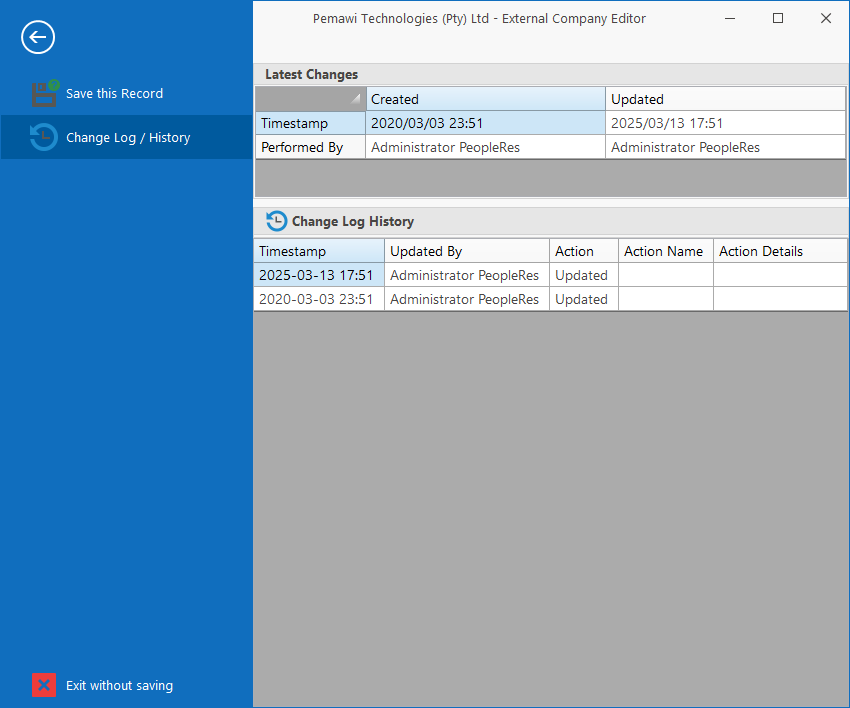
The Change Log dropdown button contains up to 3 statuses: Creation, Last Saved and Status Changed. The exact fields that display is determined by the type of record being edited. There might also be a View Change Log menu item that will display the entire change history for the record.
Editor Tasks Ribbon Page (orange)
This contains the basic actions to perform on the overall record being edited. The Save buttons will save record and usually the related records on the page as well, depending on the kind of related data. Not all buttons are always available for all kinds of editors and their availability depends on where it makes sense to have the different types of buttons. Here is a breakdown of the available buttons:
- Save: This will simply save the record. If it is a new record being saved, then the state of the editor form will change from “new” to “edit” mode. In some cases, the entire editor form might be reloaded from the latest version of the record.
- Save And New: This will save the record and then clear the information captured on the editor form so that a new record can be captured
- Save & Close: This will save the record and if successful, the editor form will be closed.
- Close: This will cancel any changes made since opening or the last save and close the editor form.
Note that with all the save tasks, the parent form that opened the editor will be refreshed with the updated records.
Status Bar (blue)
This just contains an alternate view of the basics already covered. The status bar consists of the following elements:
- Record Status & Editor name: This will be in the form of “New RecordName” or “Edit RecordName” depending on the state of the record.
- Change Log: The timestamps of when the record was created and last saved will appear next. Hovering the mouse cursor over the timestamp will show who created / saved the record.
- Version Number: The HR Manage version number will display with some more detailed information if you hover the mouse cursor over it. This information is more for us when you send us screen prints when requesting support.
- Instance: This will indicate if you are working on Live data or in a testing or training environment.