
-
HR Manage Application
-
-
- Articles coming soon
-
- Articles coming soon
-
- Articles coming soon
-
-
HR Manage Online
-
Config & Admin
-
IT Documentation
-
Version History
Main Program
After logging in, you’ll land on the main HR Manage program screen. If you started HR Manage directly from a module (i.e. Employees), then you’ll get the same screen, but the other modules will not be available and the ribbon bar actions will be reduced.
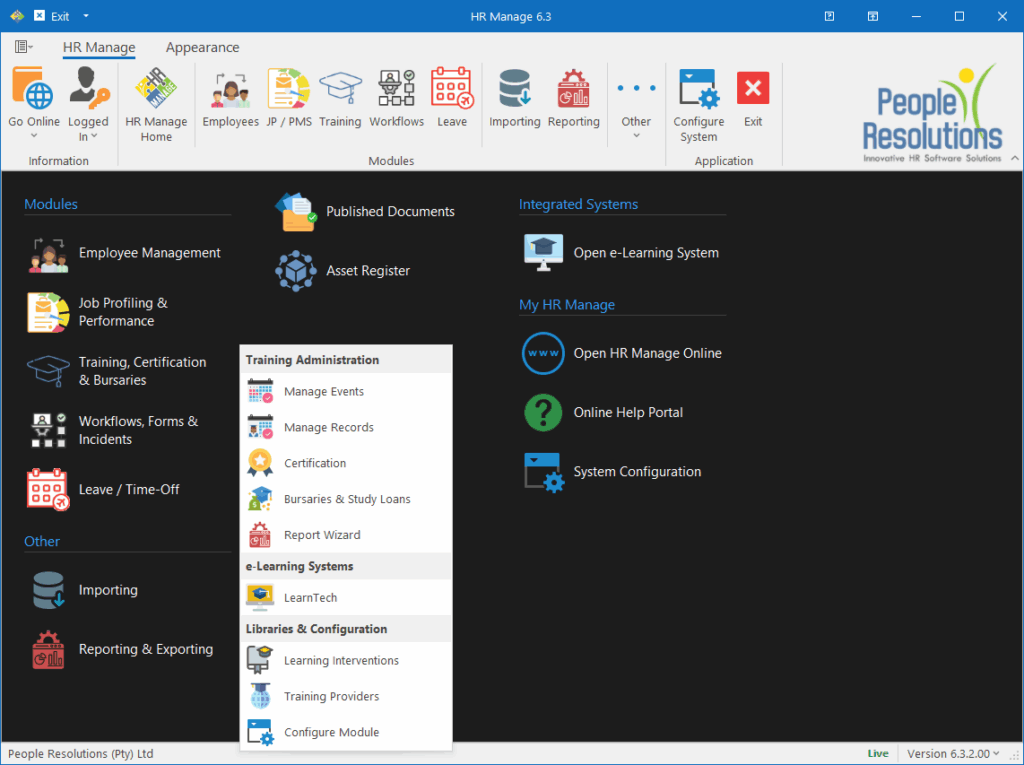
Simply click on any module to open the module’s page or as a shortcut, you can even right-click on a module to jump to a specific section.
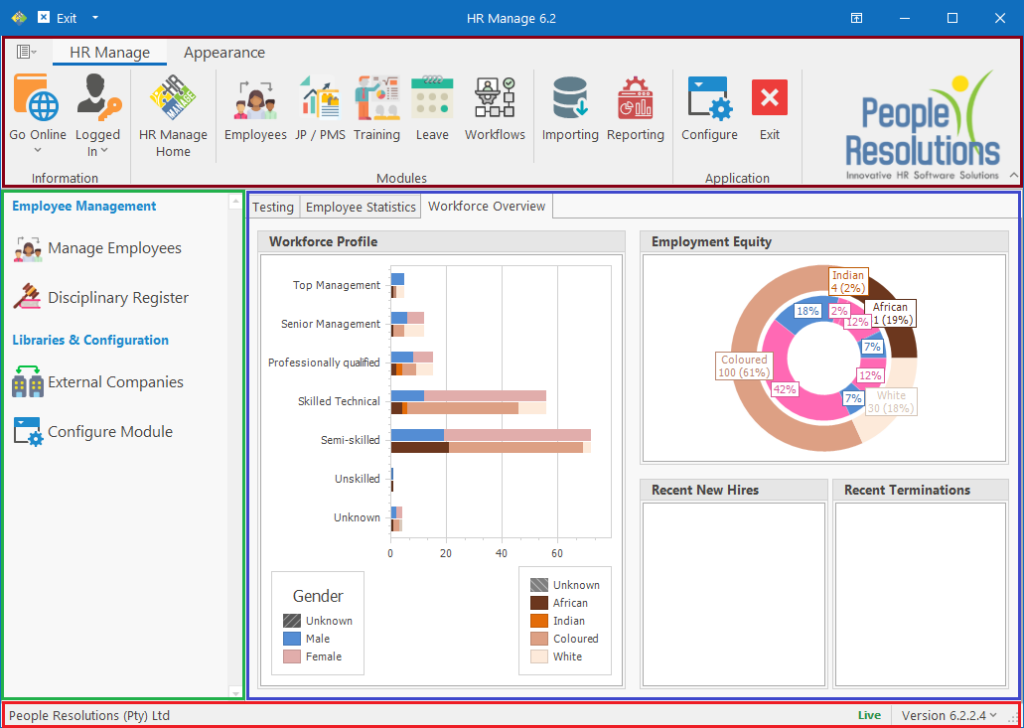
The main program and each module page consists of the following sections:
- Main Ribbon on top contains links to each of the available modules (marked in maroon).
- Module Navigation on the left contains links to access the various management areas of the module (marked in green).
- Module Dashboards on the right contains one or more dashboards as configured in the Module Configuration.
- Status bar at the bottom contains the company name, instance type and current version number.
Available actions
Go Online
Clicking the dropdown button will allow you to go to the HR Manage Online site by clicking the link or you can copy the url to the clipboard.
Logged In User
Clicking the Logged In dropdown button will show information about your user account including your username and when you last logged in. From here, you can set / unset the “Automatically Log In on Startup” checkbox which is this screen’s equivalent of the Login’s “Remember Me” checkbox.
Finally, you can open your user account to change your login credentials and view the security groups that you are linked to.
Appearance
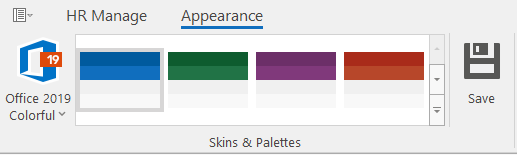
On the Appearance ribbon tab, you can switch the theme to one that you prefer. If you like your chosen theme and palette, you can Save it and HR Manage will automatically use it the next time you log in.
Note that dark themes are available, but not fully supported everywhere yet.