
Capturing Targets
Fields & Settings
It is important to first configure the reporting period correctly.
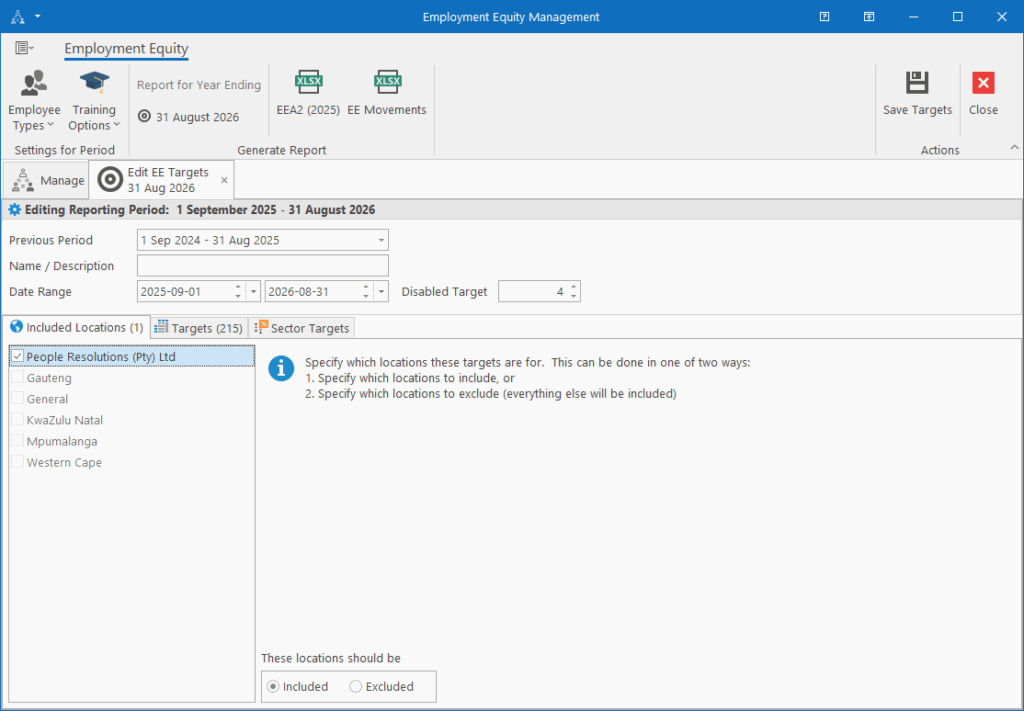
Fields
- Previous Period: Specify a link to the previous reporting period. This link is important because HR Manage uses it when generating the reports to automatically determine which is the next reporting period and which is the 5-year reporting period.
- Name / Description: Optional for smaller companies, but for enterprises that consists of multiple entities (that submit their own EE reports), this should be specified to identify the entity that the reporting period is for.
- Date Range: Specify the date range for the reporting period. This must be typically from 1 September to 31 August in the next year.
- Disabled Target: Specify what the target number of disabled people are for the reporting period.
Ribbonbar
- Employee Types: Specify which employee types should be included in the report. The following options are available (items marked with * is included by default)
- Standard Employee * (cannot be deselected)
- External Contractor
- Not an Employee
- Employed Learner *
- Unemployed Learner
- Training Options: Specify how training should be included and counted for the Skills Development section of the EEA2 report.
- Use training as per: Specify how training should be assigned to the Occupational Levels in the event where employees have moved. Should the training count against the occupational level the employee was in at the time of training or the employee’s current occupation.
- Date field for filtering: Which date field should the training be filtered on for inclusion in the reporting period. The start date or end date of the training.
- Completed Training Statuses: Specify which training statuses should be considered fully completed for the purposes of reporting training.
- Training to Count: Specify whether all training for the reporting period should be counted or only training linked to employees that have been “fast tracked” during the reporting period. According to the EEA2 report specifications, it should be the latter.
Included Locations
In this sub-tab, you need to specify which locations must be included in the reporting period. This is used for defining the “entity” that is being reported on.
For companies that only submit a single Employment Equity report, simply ensure that your Company Name is checked (first item) and you’re set.
For large enterprises with multiple entities, you can define the entity in one of two ways:
- By selecting which locations are part of the entity.
- Simply check the applicable locations in the list
- By specifying which locations are not part of the entity.
- Select the “These locations should be Excluded” option from the bottom and then select which locations should be excluded. Any location not selected here (and any new locations added later) will automatically form part of the entity.
Targets
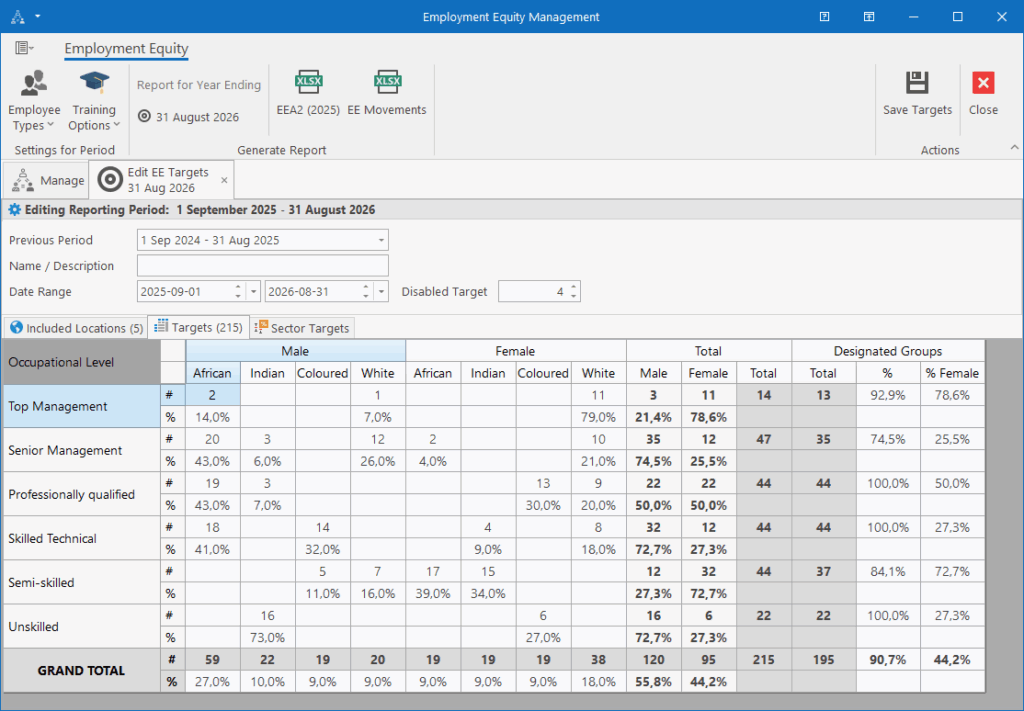
On the Target sub-tab, you can capture the EE targets for the period per occupational level, race and gender. The totals and percentages sections are read-only and are recalculated as you make changes to the grid. These read-only fields mimic the look of the EE report and is used to provide more information.
Sector Targets
The Sector Targets sub-tab allows you to capture the targets for your sector as set out by the Department of Labour.
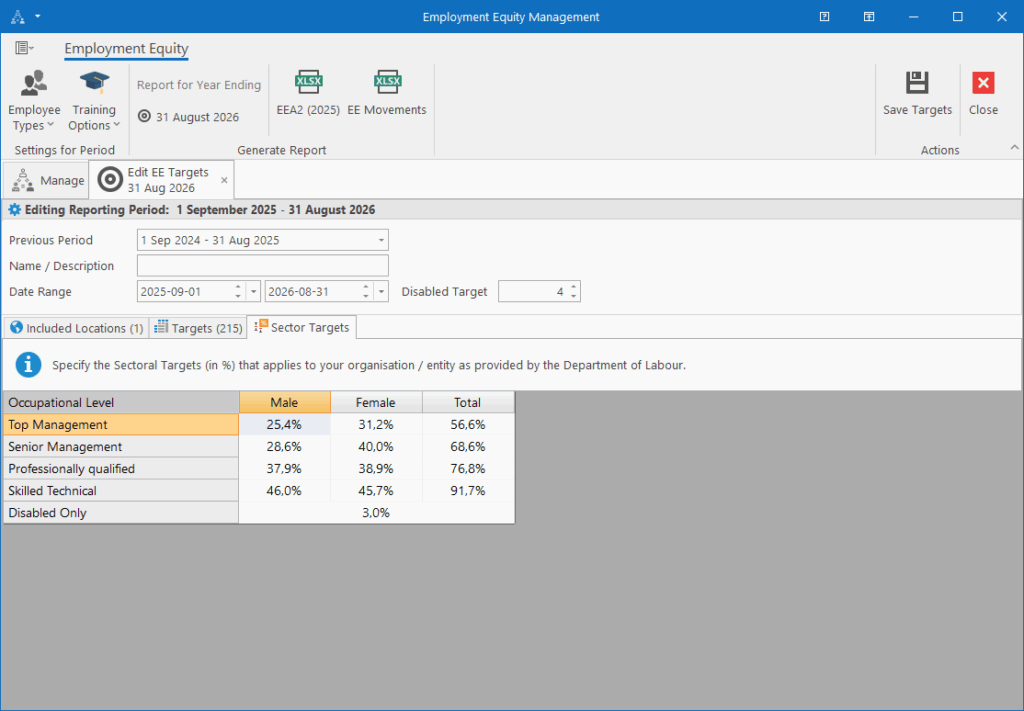
At the time of writing, the sectoral targets is/was available here:
Final Notes
At minimum, for generating the EEA2 report, there should be two reporting periods: One for the current reporting period and one for the next reporting period.
The sectoral targets should be captured for the period, 5 years into the future. However, if the 5-year target period is not created, it will attempt to retrieve it from any future reporting period instead. When creating a new copy of a reporting period, these targets will be copied with.
When generating the Employment Equity report, all the settings and locations linked to the reporting period will be used which is why the report can truly be generated with the click of a button.