
Employee Batch Editing
Getting Started
Certain fields can be updated for multiple employees by using the Employee Batch Updater. In the Employee Manager, select more than one employee and click the Edit Selected button on the ribbon bar. When only one employee is selected, the normal Employee Editor opens instead.
The Employee Batch Updater requires the Update Employees security role. Without it, you’ll get an “Access Denied” message when you try to open it.
Overview
The batch updater consist of four tabs:
- Selected Employees: the employees that will be updated (the number is shown in the tab’s caption). If you’ve selected someone by mistake, select them here and click on Remove Selected on the ribbon bar. Export List exports the list to Excel. After the update, the results per employee are shown on this tab.
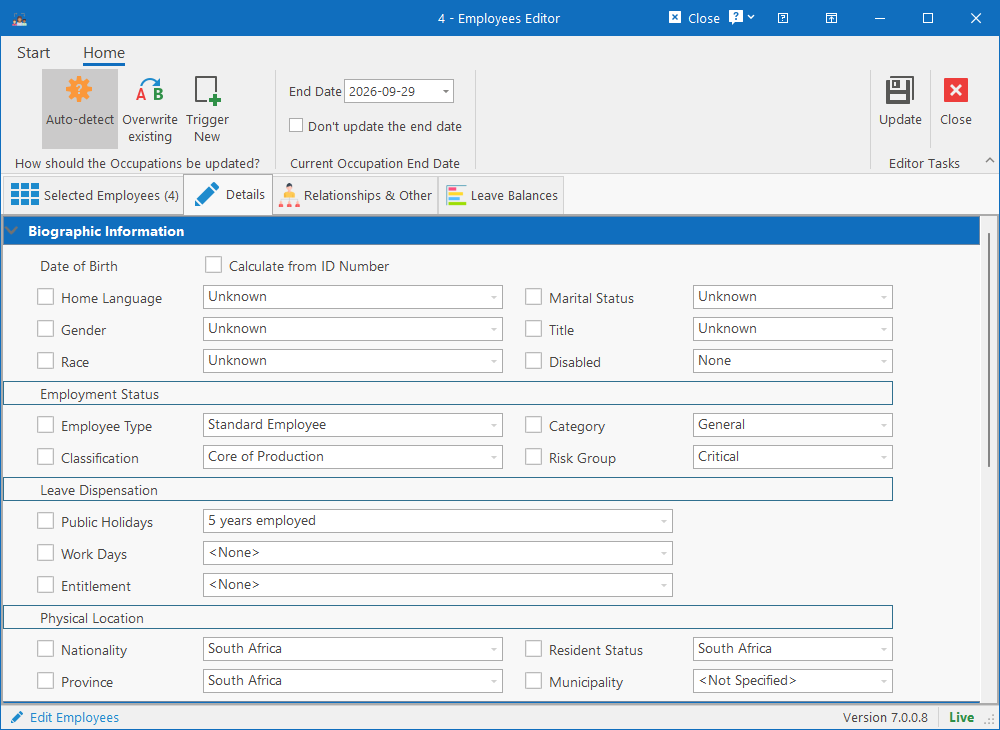
- Details: the employee and occupation fields that can be updated for everyone in the batch.
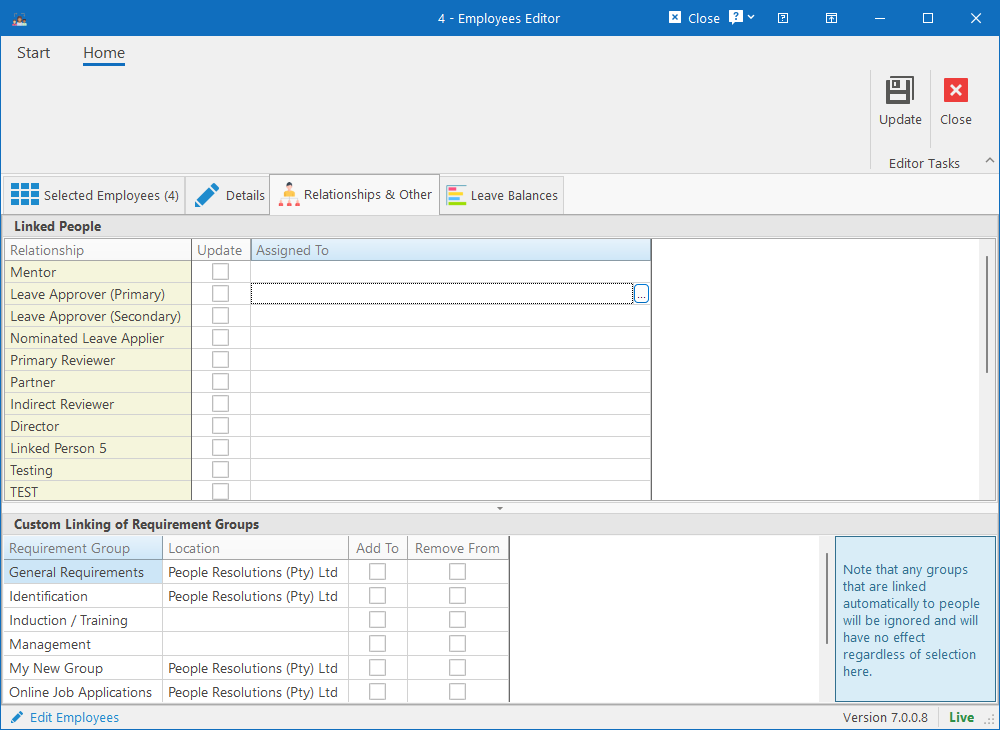
- Relationships & Other: linked people (such as leave approvers and mentors) and requirement groups.
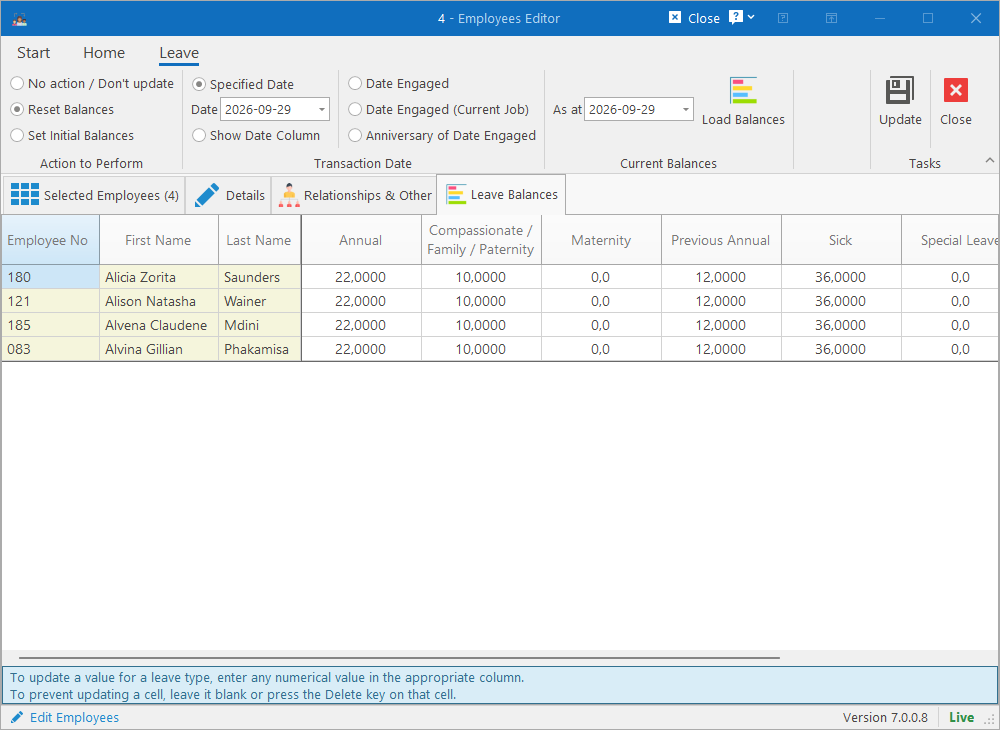
- Leave Balances: resetting or setting the initial leave balances of the selected employees.
You can make changes on any combination of tabs. Nothing is saved until you click on the Update button on the ribbon bar, which applies all the changes from all the tabs to all the selected employees in one go. The banner at the top of the window shows the number of employees and a summary of what will be updated.
Details Tab
Each field on the Details tab has a tick box in front of it. A field is only updated if its tick box is ticked; everything else is left as it is on each employee. Tick the box, then specify the value that all the selected employees must get. If you tick a field and leave it empty, the field is cleared on every employee (for fields that can be empty, see below).
The following fields are available:
| Section | Fields |
|---|---|
| Biographic Information | Home Language, Marital Status, Gender, Title, Race, Disabled. Date of Birth – Calculate from ID Number: ticking this option calculates each employee’s date of birth from the first six digits of their ID number. Employees without a valid ID number are left unchanged. |
| Employment Status | Employee Type, Category, Classification, Risk Group. |
| Leave Dispensation | Public Holidays, Work Days, Entitlement (the leave groups the employees belong to). |
| Physical Location | Nationality, Resident Status, Province, Municipality. |
| Employee Custom Fields | Any custom employee fields that have been marked as Updatable in Batch in their setup, and that you have access to. Lookup, text, date and numeric custom fields are supported. |
| Occupation Details | Job Title, Employment Type, Shift, Reports To, Manager. |
| Location in Company | The three location levels (named as configured for your company, e.g. Branch, Department and Division), External Company, Sub External Company, Area Name, Cost Centre and Change Reason. |
| Occupation Custom Fields | Any custom occupation fields marked as Updatable in Batch. |
A few things to note:
- Clearing a field. Certain fields can be cleared for all the selected employees: tick the field and choose <None> / <Not Specified>, or press the Delete key on the field. Most dropdown fields however, require a value, so an empty one is refused when you click on Update.
- Reports To and Manager. Click on the browse button to select either a position or a person. Selecting a position fills in both Reports To (the position) and Manager (the person currently in that position); selecting a person fills in the Manager only. When Reports To is updated, the Manager is always set to the current holder of that position.
- Change Reason is recorded against the occupation that is updated (or the new occupation, if one is created) and shows up in the occupational history.
How should the Occupations be updated?
Fields in the Occupation Details, Location in Company and Occupation Custom Fields sections belong to the employee’s occupation (position). When these are updated, HR Manage needs to know whether the current occupation must simply be corrected, or whether the change represents a move that must be recorded in the occupational history. Choose one of the following options on the ribbon bar:
- Auto-detect (default): for each employee, a new occupation is created only if one of the fields configured as a New Occupation Trigger Field (by default the Job Title, the three location levels and the external companies) actually changes for that person. Otherwise the current occupation is updated in place. This takes a little longer to process. The trigger fields are configured on the Occupations tab of the Employee module’s configuration.
- Overwrite existing: the fields of each employee’s current occupation are overwritten. The change does not show up in the occupational history.
- Trigger New: a new occupation is created for every selected employee and the current occupation moves to the occupational history, even if only employee fields were changed.
When a new occupation is created, the current occupation is given the End Date specified in the Current Occupation End Date group on the ribbon bar (it defaults to today). Tick Don’t update the end date to leave the end date of each employee’s current occupation as it is.
Relationships & Other Tab
Linked People
This grid lists the relationship types configured for your company, such as Mentor, Leave Approver and Primary Reviewer. To assign the same person to all the selected employees, click on the ellipsis button in the Assigned To column (or double-click the cell) and select the person or position. The Update tick box is ticked automatically. To remove a relationship from all the selected employees, select the row and press the Delete key: the Assigned To cell is cleared and Update is ticked.
Only the rows with Update ticked are applied. For each of those relationship types, the existing link is removed from every selected employee and replaced with the selected person (if any).
Custom Linking of Requirement Groups
This grid lists the requirement groups (groups of compliance documents) that can be linked manually to people. For each group, tick Add To to link all the selected employees to the group, or Remove From to unlink them. Employees that are already linked to a group are skipped when adding. Note that requirement groups that are linked to people automatically (for example by location or job title) are not affected by anything you select here.
Leave Balances Tab
When this tab is selected, a Leave page appears on the ribbon bar with the leave options. Start by choosing the Action to Perform:
- No action / Don’t update (default): leave balances are not touched.
- Reset Balances: creates a balance reset transaction for each employee, setting the balance of the leave type to the value you enter.
- Set Initial Balances: creates an initial balance transaction for each employee. Use this when loading opening balances, for example after a take-on.
Then choose the Transaction Date that the transactions will be dated on:
- Specified Date: every transaction is dated on the date you enter in the Date field.
- Show Date Column: adds an Action Date column to the grid so that you can capture a date per employee. Employees without a date use the Date field.
- Date Engaged, Date Engaged (Current Job) or Anniversary of Date Engaged: dates each employee’s transactions on their own engagement date, the start date of their current occupation, or the most recent anniversary of their engagement date.
The grid lists the selected employees with a column for each leave type. Click on Load Balances to fill the grid with each employee’s current balances as at the As at date, so that you can see what you’re changing. To update a balance, simply type the new value in the appropriate cell; only cells that you’ve changed (highlighted) are saved. To prevent a cell from being updated, leave it blank or press the Delete key on it. You can select multiple cells and type a value once to fill all of them, and copy and paste values from Excel.
Updating the Employees
Once all the changes have been specified, click on the Update button on the ribbon bar. There is no confirmation prompt, so double-check the Selected Employees tab before clicking. The changes are sent to the server in one batch and applied employee by employee. If you haven’t specified anything to update, you’ll get the message “No actions specified for updating the records”.
When the update is done:
- If all the employees were updated successfully, the window closes and a “Records were successfully saved” notification is shown on the Employee Manager. The list is refreshed with the new values.
- If anything went wrong for one or more employees, the window stays open on the Selected Employees tab with a Result column (and a Leave Result column, if leave balances were updated) showing the outcome per employee: green for success, yellow for a warning and red for an error, with the message. The other employees are still updated. Fix the problem and run a new batch for the employees that failed; the Update button is disabled so that the same batch can’t be submitted twice.
Every batch update is recorded in each employee’s change log with the action “Batch”, so that it’s always possible to see who updated what and when.